
Connecting Outlook to Claude lets you bring information from your Outlook account into your conversations with Claude. After you connect, Claude can help you with relevant emails and other supported Outlook data. This makes it easier to find information, summarize messages, and refer to key details without copying everything into the chat. Setting it up is usually simple. You just need to sign in to your Microsoft account and give Claude the needed permissions. In this post, we’ll show you how to connect Outlook to Claude.
How to connect Outlook to Claude
To connect Outlook to Claude, you can use one of the three methods mentioned below.
- Connect Microsoft 365 from Claude
- Install the Claude for Outlook add-in
- Have your organization deploy Claude for Outlook
Let us talk about them in detail.
1] Connect Microsoft 365 from Claude
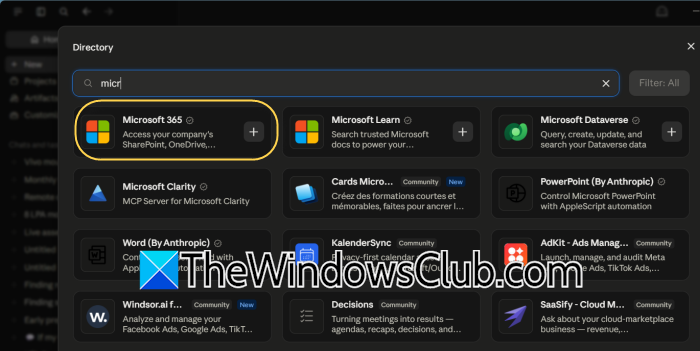
The easiest way to connect Claude with other tools is to use the Microsoft 365 connector. This tool links Claude to Outlook and other Microsoft 365 services like SharePoint, OneDrive, and Teams. After you connect it, you can ask Claude to search your emails, summarize conversations, find specific messages, or check your calendar. You can follow the steps mentioned below to do the same.
- Open Claude and sign in to your account.
- Click the Plus (+) icon and then go to Connectors > Add connector > Browse connectors.
- Find Microsoft 365 in the list and select Connect.
- Sign in with your Microsoft 365 account.
- Review the requested permissions and complete the authorization process.
- Return to Claude and ask questions about your Outlook emails or calendar.
For example, you can ask Claude to “Summarize my recent emails about the project launch” or “Find the latest email from the finance team.”
2] Install the Claude for Outlook add-in
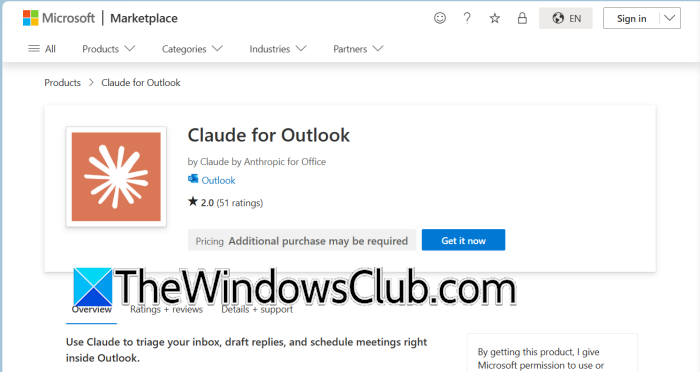
You can install Claude for Outlook to use it directly within the Outlook interface. This means you don’t have to switch between Outlook and Claude. You can open an email and access Claude from the Outlook sidebar or message ribbon. It can summarize email threads, help you draft replies, manage your inbox, and assist with scheduling. Follow the steps mentioned below to do the same.
- Open the Microsoft AppSource marketplace.
- Search for Claude for Outlook.
- Select Get it now and install the add-in.
- Open Outlook and select any email.
- Select the Claude button from the message ribbon.
- Sign in with your Claude account.
- Use the Claude panel to work with the email or calendar.
Claude for Outlook currently supports Outlook on the web, new and classic Outlook on Windows with Microsoft 365, and Outlook on Mac with Microsoft 365. It is currently available in beta for paid Claude plans.
3] Have your organization deploy Claude for Outlook
If you work for a company or organization, an admin can set up Claude for Outlook for all employees through the Microsoft 365 Admin Center. This helps if many employees need to use Claude in Outlook, since it avoids having everyone install the add-in themselves. Your admin will need to follow the steps below to do this.
- Sign in to the Microsoft 365 Admin Center.
- Go to Settings > Integrated apps.
- Search for Claude by Anthropic for Outlook in Microsoft AppSource.
- Select the add-in and choose the users or groups who should receive it.
- Deploy the add-in.
- Complete the required Microsoft Graph administrator consent.
- Have employees open Outlook and sign in to Claude.
Organizations can also deploy the add-in using a manifest file if the Microsoft Store is restricted by their IT policies. Microsoft Graph permissions are required so Claude can work with the user’s Outlook mail and calendar data.
Hopefully, with the help of one of the methods mentioned above, you will be able to connect Claude to Outlook.
Read: How to run Claude Code Locally for free on PC
Can Claude connect to Microsoft 365?
Yes, Claude can connect to Microsoft 365 through its Microsoft 365 connector. After connecting your Microsoft account, Claude can access supported Microsoft 365 information, including Outlook emails and calendar data, so you can search, summarize, and work with relevant information directly in your conversations. The connector is intended for Microsoft 365 work or school accounts, and availability and supported features may depend on your Claude plan and your organization’s Microsoft 365 settings.
Read: Claude AI Messages not sending
How do I use Claude in Microsoft Office?
You can use Claude in Microsoft Office by installing the Claude for Outlook add-in, which brings Claude directly into Outlook. After installing and signing in, you can select an email and use Claude to summarize conversations, draft responses, organize messages, and assist with calendar-related tasks. For organizations, an administrator can deploy the add-in through the Microsoft 365 Admin Center. Availability may vary depending on your Claude subscription and your organization’s policies.
Also Read: Claude Code not working in WSL on Windows computer.
