
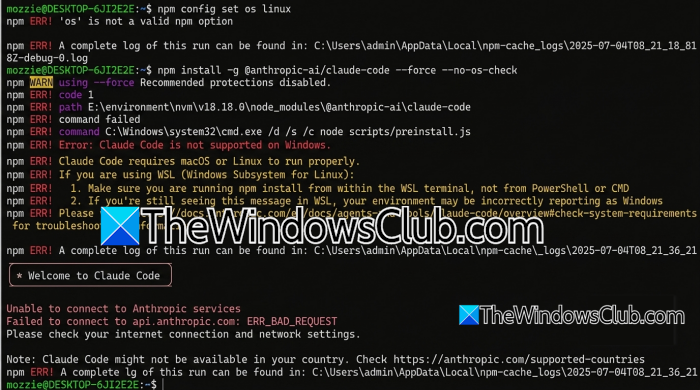
Claude Code is a useful way to work with a codebase directly from the terminal, but it can get messy when running inside WSL on Windows. If Claude refuses to start, crashes, shows “command not found,” or gets stuck during login or installation, the problem is usually related to the WSL version, PATH, Node.js, or how Claude Code was installed. In this post, we will see what you can do if Claude Code is not working in WSL on Windows.
Claude Code not working in WSL
Claude Code runs as a Linux application when you launch it from WSL, so it needs to see the Linux environment correctly. Problems often appear when WSL picks up Windows versions of Node.js or npm, when Claude Code was installed using a conflicting npm setup, or when the distribution is still running WSL 1. Authentication can also fail because the Windows browser and the Claude process inside WSL do not always communicate correctly through the localhost callback.
Since Claude Code isn’t working in WSL for you, we recommend following the steps below.
- Make sure your WSL distribution is running on WSL 2
- Check whether WSL is using Windows Node.js
- Reinstall Claude Code using the native Linux installer
- Add Claude Code to the WSL PATH
Let us discuss them in detail.
1] Make sure your WSL distribution is running on WSL 2
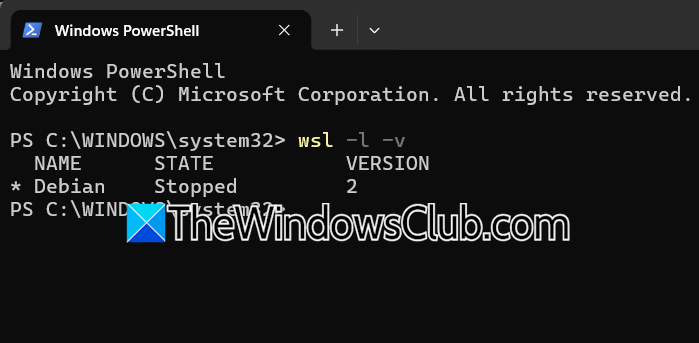
If Claude Code gives you an Exec format error, or it simply refuses to execute even though the installation appears correct, check which version of WSL your Linux distribution is using. Claude Code currently supports WSL 1 and WSL 2, but Anthropic documents a native-binary problem affecting WSL 1. Moving the distribution to WSL 2 is the cleaner fix.
First, open PowerShell and run the following command.
wsl -l -v
Look at the VERSION column. If your Ubuntu or other distribution shows 1, convert it to WSL 2 using the command given below.
wsl --set-version Ubuntu 2
Replace Ubuntu with the exact distribution name shown by wsl -l -v.
It is also worth updating WSL before trying Claude Code again.
wsl --update
Close your WSL terminal after the conversion finishes, open it again, and run claude –version.
Now, check if the issue persists.
2] Check whether WSL is using Windows Node.js
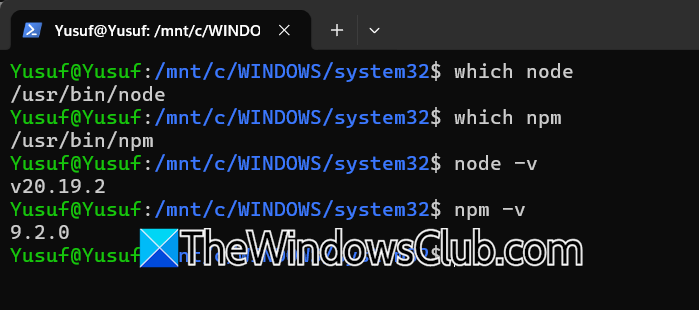
This is one of the more important things to check if you installed Claude Code with npm. WSL can inherit Windows paths, so commands such as node and npm may actually point to executables installed under C:\Program Files\… rather than Linux binaries.
Run these commands inside WSL.
which node
which npm
node -v
npm -v
If which node or which npm returns a path beginning with /mnt/c/, you are probably using the Windows installation.
Claude Code’s documentation specifically calls out this WSL problem. The Linux versions should normally resolve to paths under /usr/ or your Linux user’s home directory.
If you use NVM, load it in WSL using the following script.
export NVM_DIR=”$HOME/.nvm” [ -s “$NVM_DIR/nvm.sh” ] && \. “$NVM_DIR/nvm.sh”
Then install a current LTS version of Node.
nvm install --lts
nvm use --lts
Check again using the command given below.
which node
which npm
node -v
If you specifically want to keep using the npm installation of Claude Code, you can then run these commands.
npm config set os linux
npm install -g @anthropic-ai/claude-code --force
Keep in mind not to use sudo npm install -g here. Anthropic recommends avoiding sudo because it can create ownership and permission problems later.
3] Reinstall Claude Code using the native Linux installer
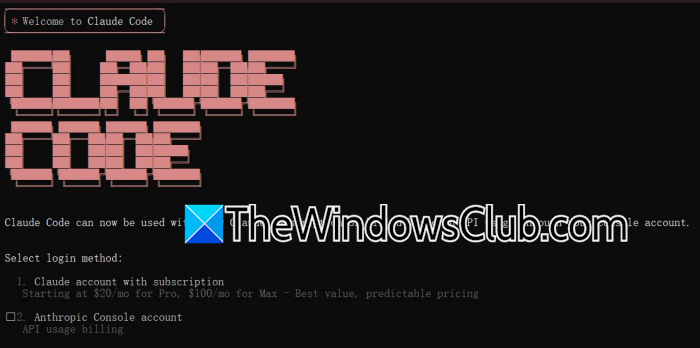
If you have tried several npm installations and Claude still does not work, it is often better to stop fighting the npm setup and install Claude Code using its native installer inside WSL.
First, remove the npm installation by running npm uninstall -g @anthropic-ai/claude-code
Then install Claude Code directly from inside your WSL terminal:
curl -fsSL https://claude.ai/install.sh | bash
Restart the shell using the command given below.
source ~/.bashrc
Now perform the basic checks.
claude --version
The native installer is the recommended installation method for macOS, Linux, and WSL. It also avoids several of the Node/npm problems that can occur when WSL accidentally uses the Windows Node installation.
If the installer completes but Claude is still not found, try the next solution instead of reinstalling.
4] Add Claude Code to the WSL PATH
Sometimes Claude Code installs correctly, but Bash still doesn’t know where the executable is. This is especially common right after installation because the current terminal session doesn’t automatically reload changes to .bashrc.
Check whether the executable exists using the command given below.
ls -la ~/.local/bin/claude
Then check your PATH: echo $PATH
If ~/.local/bin is missing, add it using the command given below.
echo 'export PATH="$HOME/.local/bin:$PATH"' >> ~/.bashrc
Now, reload Bash: source ~/.bashrc
Finally, check the Claude version.
claude --version
If it prints the installed Claude Code version, the installation itself was fine; the problem was simply that Bash could not find the executable. Anthropic’s current troubleshooting documentation recommends adding ~/.local/bin to .bashrc and reloading the shell for this exact situation.
You can also see exactly which Claude executable is being picked up.
which claude
This is useful if you have previously installed Claude Code through npm and later switched to the native installer. Multiple installations can leave you with an old or broken executable taking priority.
Hopefully, these solutions resolve your issue.
Read: How to install Claude AI code in VS Code
Can Claude Code run in WSL?
Yes, Claude Code can run in WSL, including WSL 2, and it works as a Linux command-line application inside your WSL distribution. You can install it directly from the WSL terminal and use it with projects stored in the Linux filesystem. WSL 2 is generally the better choice because it provides a more complete Linux environment and avoids some compatibility issues.
Read: How to run Claude Code Locally for free on PC
Does Claude Code still require WSL?
No, Claude Code does not require WSL. You only need WSL if you want to run Claude Code in a Linux environment on Windows. Claude Code can also run directly on Windows, as well as macOS and Linux. So, if you are on Windows and don’t need Linux-specific tools or workflows, you can install and use Claude Code natively without setting up WSL.
Also Read: Using Claude Code and OpenAI Codex remotely in Windows 11.
