
If you get a Connection refused error while trying to access a service running in Windows Subsystem for Linux (WSL) through localhost, the service is either not listening correctly or Windows cannot forward the connection to WSL. The issue can also occur due to incorrect network settings, firewall restrictions, or WSL networking issues. In this post, we will see what to do if the WSL localhost connection is refused.
ssh: connect to host localhost port 22: Connection refused
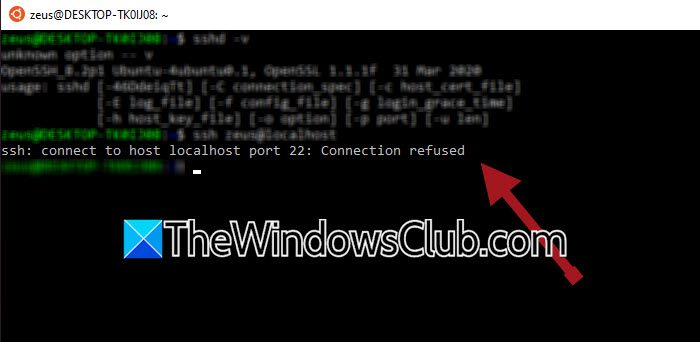
WSL Localhost connection refused on Windows computer
The localhost connection is refused when the application inside WSL is not running, is listening only on a specific interface instead of all interfaces, or WSL’s localhost forwarding feature is not working correctly. Outdated WSL components, firewall rules, VPN software, or a corrupted WSL network configuration can also prevent Windows from reaching services hosted inside the Linux environment. Restarting the service or resetting the networking stack usually resolves the issue.
If the WSL localhost connection is refused, follow the solutions mentioned below.
- Make sure the service is running and listening on the correct interface
- Restart WSL networking
- Update WSL
- Check Windows Firewall and VPN Software
Let us discuss in detail.
1] Make sure the service is running and listening on the correct interface
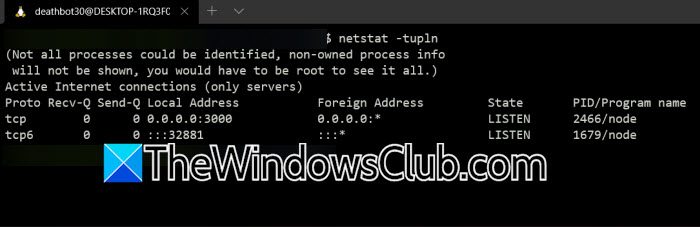
The connection will always be refused if the application is not running or is bound only to 127.0.0.1 inside Linux when your setup requires 0.0.0.0. Verifying the listening address confirms that the service is available before troubleshooting Windows networking.
Open your WSL distribution and check whether the application is running by executing the following command.
ss -tulpn
or
netstat -tulpn
Verify that your application is listening on the expected port.
If necessary, configure the application to listen on 0.0.0.0 instead of only 127.0.0.1
Restart the application and test the connection again.
2] Restart WSL networking
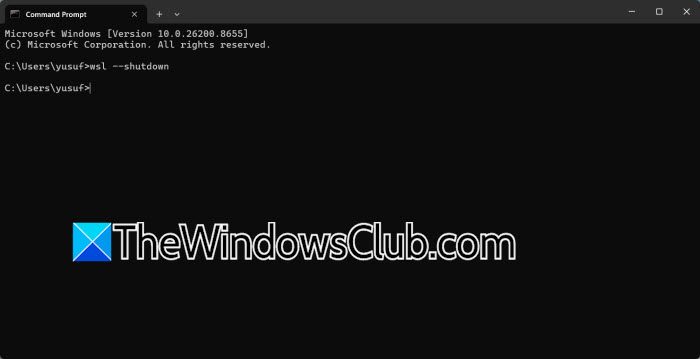
WSL networking occasionally becomes unresponsive after Windows resumes from sleep, network changes, or VPN usage. Restarting WSL recreates the virtual network adapter and restores localhost forwarding.
First, close all WSL terminals, and open Windows Terminal or Command Prompt as an admin.
Then, run the following command to shut down WSL.
wsl --shutdown
Wait a few seconds. Start your WSL distribution again. Restart your Linux application and check whether localhost works.
3] Update WSL
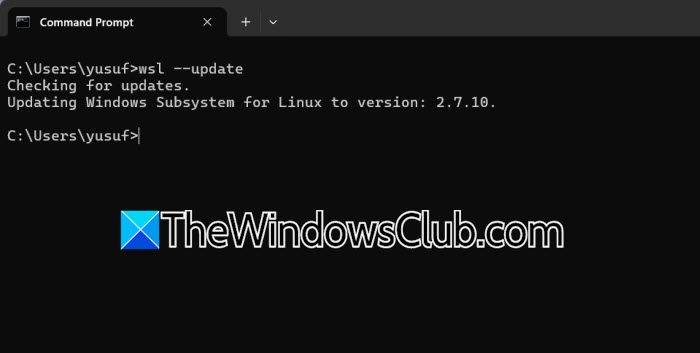
Older WSL releases contain networking bugs that Microsoft has fixed in newer versions. Updating WSL installs the latest networking improvements and fixes for localhost forwarding.
So, in Windows Terminal (admin), update WSL using the command: wsl --update. You will get a UAC prompt; click Yes when it appears.
Now, restart WSL using the command wsl --shutdown.
Launch your Linux distribution again and test the localhost connection.
4] Check Windows Firewall and VPN software
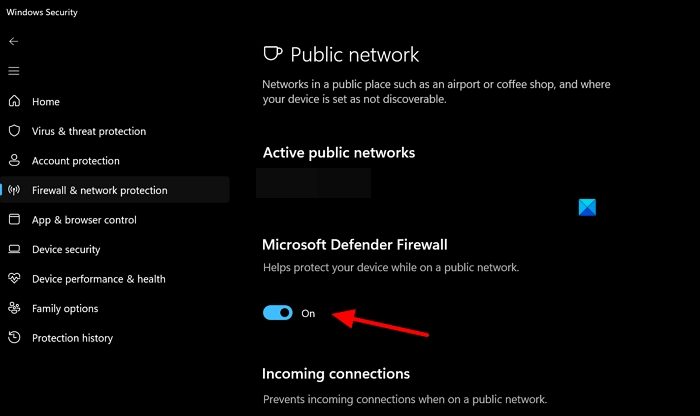
Windows Firewall or third-party VPN applications may block traffic between Windows and WSL. Temporarily disabling them helps determine whether they are preventing localhost communication. You need to follow the steps mentioned below to do the same.
- Disconnect any active VPN connection.
- Temporarily disable third-party antivirus or firewall software.
- If you use Windows Defender Firewall, open Windows Security > Firewall & network protection, and temporarily disable the active firewall profile.
- Test the localhost connection.
If it works, create an exception for your application and re-enable the firewall.
5] Check the WSL networking mode
If WSL is configured to use an unsupported or incorrect networking mode, Windows may not be able to forward localhost traffic properly. Switching back to the default networking mode or enabling mirrored networking can restore communication between Windows and WSL.
Close all WSL instances, open File Explorer, and navigate to C:\Users\<YourUsername>\.
Open the .wslconfig file. If it does not exist, create one. Under the [wsl2] section, verify the networking configuration. For example.
[wsl2]
networkingMode=mirrored
Or remove the networkingMode entry to use the default setting.
Save the file, open Terminal as an admin, and shut down WSL.
Start your WSL distribution again and test the localhost connection.
Hopefully, with these solutions, your issue will be resolved.
Read: How to install or remove WSL from Windows 11
How do I fix Localhost refused to connect?
To fix the localhost refused to connect error, first make sure the application or web server is running and listening on the correct port. Verify that it is bound to the appropriate network interface, such as 0.0.0.0 or 127.0.0.1, depending on your setup. Restart the service, update WSL if you are using it, and temporarily disable firewall or VPN software to rule out network restrictions. If the issue persists, restart WSL or your computer and test the connection again.
Read: Set Linux Distribution version to WSL1 or WSL2 in Windows 11
Does WSL have access to localhost?
Yes, WSL can access localhost, and Windows can usually access services running inside WSL through localhost as well. On modern versions of Windows 11 and WSL, localhost forwarding is enabled by default, allowing seamless communication between Windows and Linux applications. However, this may fail if the application is not listening on the correct interface, WSL networking is misconfigured, or firewall and VPN software block the connection between Windows and the Linux environment.
Also Read: WSL slow download speed; Network slow.
