
Claude AI from Anthropic has been defining how AI advances for real use cases. Claude Code, an AI-coding and programming partner from Anthropic, is a great tool for writing code and fixing bugs. You can integrate the Claude Code into code editors with extensions. All you need to do is prompt it to write or edit the code. You can do a great job at coding if you have Claude Code at your side. However, the limits on Claude are brutal, and it may be impossible to write an entire codebase on the free tier. If you are facing the same issue, we have a solution. In this guide, we show you how to run Cluade Code locally for free.

Can I run a Claude code in Windows?
Yes, you can use Claude Code on Windows with VS Code, JetBrains, or other code editors that support Claude via extensions. You can also use it as a desktop app or on the web. These require an active Claude subscription. You can also run Claude Code for free without any limitations using Ollama and other free LLMs.
Read: Can I run AI locally on my PC or Phone?
How to run Claude Code Locally for free on Windows PC
It requires a lot of computing resources (RAM) to run Claude Code locally. To run it reliably, aim for more computer resources. Install it on a computer with 32GB or more of RAM. Running an AI tool locally is not simple, and it can be a huge burden on the PC if it does not have enough usable RAM. The failure rates will be higher on low-end or normal PCs. To install and run Cluade Code locally for free,
- Install Ollama on your PC
- Download LLMs onto the PC
- Install, configure, and run Claude Code
Let’s get into the details of the process and use Claude Code locally for free.
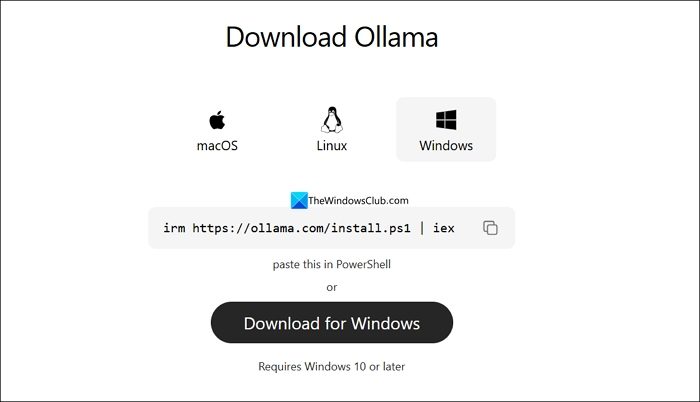
To install and run Claude Code locally, you need to have Ollama on your PC. Ollama is an environment for LLMS that enables you to run LLMs on your PC for free. You can easily install Ollama using PowerShell. Open Windows PowerShell as an administrator on your PC, and enter the following command and press Enter. Remember that you need to have a stable internet connection to download and install it.
irm https://ollama.com/install.ps1 | iex
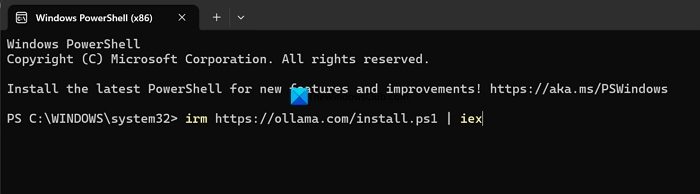
Depending on your internet connection, it takes a few minutes to download and install Ollama on your PC. Alternatively, you can download and install Ollama from its official website.
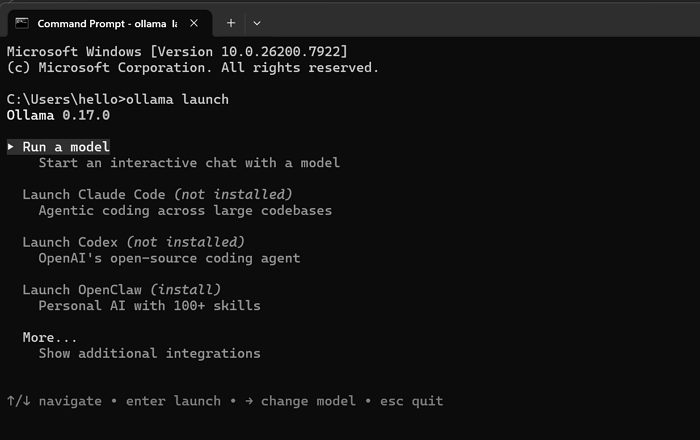
After successfully installing Ollama on your PC, download a model that supports running Claude Code. Open Command Prompt on your PC, type the following command, and press Enter.
ollama launch
It runs Ollama in the background, and you will see options to use Ollama for your AI uses on the Command Prompt. Select Run a model and press Enter.
It will show the models supported on your PC. Select a model that has the best capabilities and is supported on your PC, and press Enter. The supported models on Ollama to run Claude Code are:
- qwen3-coder
- glm-4.7
- gpt-oss:20b
- gpt-oss:120b
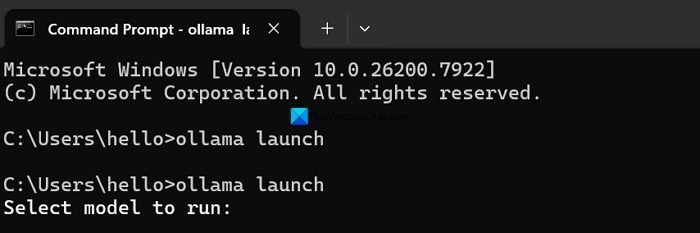
It will download and add the model to Ollama. Now, it is time to install Claude Code on your PC. Open elevated PowerShell and enter the following command.
irm https://claude.ai/install.ps1 | iex
After the successful installation, you need to configure the LLM you have previously installed with the Claude Code. Open Command Prompt and use the following command.
ollama launch claude --config
Then, enter the following variables:
export ANTHROPIC_AUTH_TOKEN=ollama
export ANTHROPIC_API_KEY=""
export ANTHROPIC_BASE_URL=http://localhost:11434
Open Command Prompt, launch Ollama, and select Launch Claude Code.
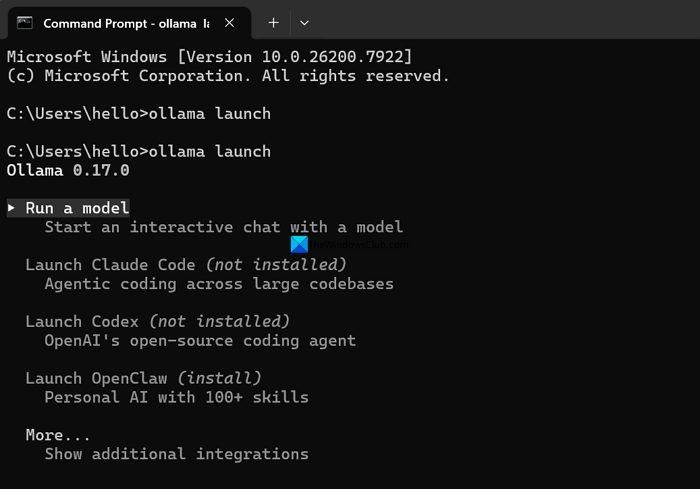
It will let you run Claude Code backed by the model you have previously installed on Ollama. This way, you can never hit usage limits and pay no subscription fees, while getting the best of Claude Code on your local PC resources.
You can also run Claude Code via Ollama using the following command.
claude --model gpt-oss:20b
Replace the model name with the model you have downloaded onto your PC.
Read: How to install Claude AI code in VS Code.
Can I host a Claude code locally?
Yes, you can host Claude Code locally using open-source or free large language models that are available to run on Ollama or other local environments. Once you have configured Claude Code locally, there is no going back, as they do not run out of credits or limit the lines of code you write using Claude Code. The only flipside is that you need to have a PC with high-end configuration and a stable internet connection to run the models easily without affecting the performance or run into errors.
