
If you want to use a Large Language Model (LLM) locally on your system, its hardware should be capable of running the required model. This means your computer should have sufficient RAM, a suitable CPU, and a dedicated GPU with adequate VRAM. When running an AI model locally, several factors affect performance and hardware requirements. So, before downloading and installing an LLM, check whether your system can run it smoothly. This article shows how to check which local LLM can run on your Windows laptop or Desktop PC.
How to check which local LLM can run on your laptop or Desktop PC
The following step-by-step guide will help you know how to check which local LLM can run on your Windows laptop or Desktop PC:
- Knowing your hardware specifications
- Understanding model sizes and key concepts
- Knowing the hardware requirements for different models
- Understanding LM Studio and Ollama compatibility
- Using automated calculators and benchmarking tools
Let’s start.
1] Know your hardware specifications
Running an LLM locally on a Windows computer requires intensive hardware. Therefore, before downloading and installing an AI model locally, you should know your system’s hardware specifications. These include RAM, GPU model, VRAM, and CPU specifications. Your system’s hardware specifications help you determine which LLM your PC can run and what performance you will get.
The following points will help you understand the role of each hardware component in running an LLM:
- The Graphics Processing Unit (GPU) handles mathematical calculations required to run an LLM. A GPU can perform calculations faster than a CPU. That’s why it generates results much faster than a CPU. The more powerful a GPU is, the faster it produces the results.
- Video RAM (VRAM) is dedicated GPU memory used to load a model’s weights. AI model’s weights are the numbers that determine how an artificial neural network transforms your input data into an output. When a model exceeds your VRAM capacity, it starts using your system’s RAM, which causes a massive drop in its speed. Hence, your system’s RAM also plays an important role in running an AI model locally.
- RAM is also an important hardware component. The amount of RAM you need to run an LLM depends on several factors, including the model’s size, quantization, and whether you use CPU or GPU to run your model. Your system should have sufficient free RAM to run Windows processes smoothly.
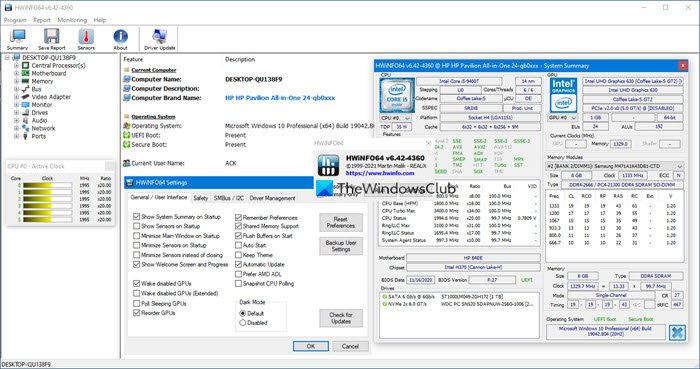
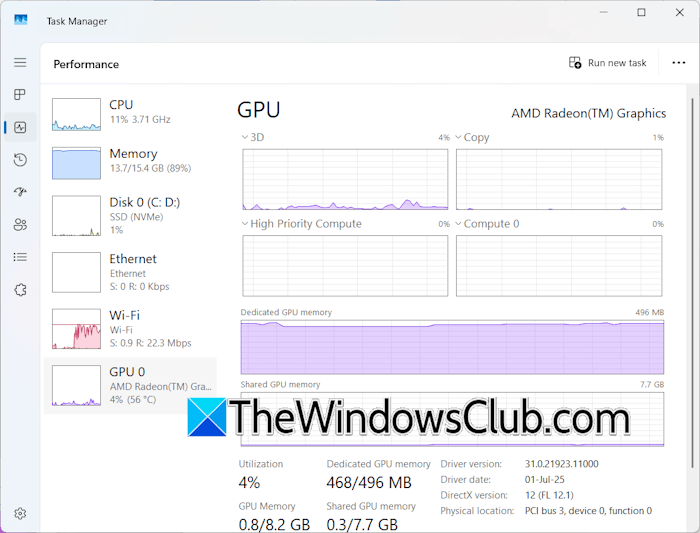
To know your system’s hardware specifications, use the Task Manager. Launch the Task Manager and go to the Performance tab. Click CPU, RAM, GPU, and Disk to view their specifications. Alternatively, you can use a third-party tool, such as HWiNFO.
2] Understanding model sizes and key concepts
After knowing your system’s hardware specs, the next step is to understand model sizes and key concepts. The following three key concepts are related to Large Language Models:
- Quantization: It is the process of compressing an LLM by converting its high-precision weights, such as 32-bit, into low-precision weights, like 8-bit. Quantization makes a Large Language Model work on computer systems with less RAM or VRAM. However, it can reduce the model’s output quality to some extent. Some common quantization formats include FP16 (16-bit floating point), Q8 (8-bit quantization), etc.
- Context length: It is the maximum amount of text that an LLM can read and process at one time. It is also known as short-term memory. Everything inside this window is what your model remembers. This includes your prompt, system instructions, and responses an LLM generates. It is measured in tokens. When its limit is reached, the LLM starts forgetting the starting parts of the conversation. Longer context lengths require more hardware (specifically, more VRAM).
- KV cache: It is the Key-Value Cache that stores previously calculated information, so the LLM does not need to calculate the same information (tokens) for all earlier tokens when it generates a new token. KV cache is stored in VRAM.
These factors decide an LLM’s performance and hardware requirements. Now, let’s understand model sizes. LLM size refers to the number of parameters an LLM can store. This size is typically measured in Billions, e.g., 7B, 14B, etc. LLMs with large parameters require massive disk space. Smaller models are lightweight, with parameters that usually range from 1B to 3B and require less disk space.
3] Knowing the hardware requirements for different models
The next step is to know the hardware requirements for the model you want to deploy locally on your system. You can visit websites like Hugging Face to learn the hardware requirements. LLMs are also available on Ollama, but it shows only the disk space required to install the LLM.
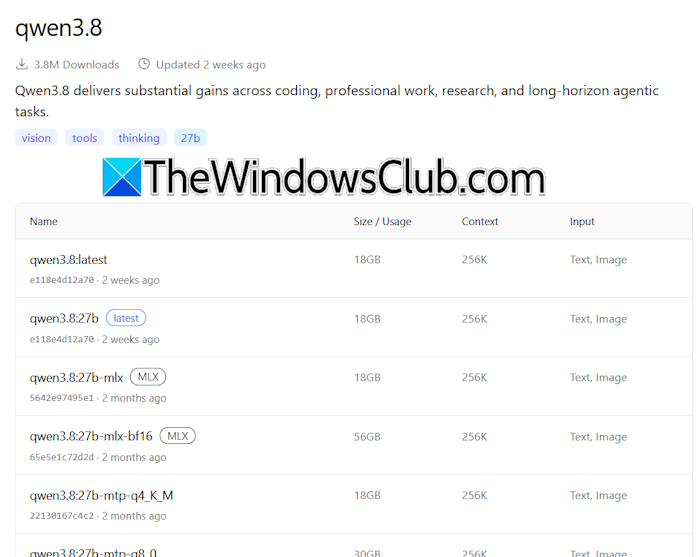
As shown in the image above, Ollama lists only the disk space required to install the Qwen 3.8 model. To learn about other hardware requirements, visit Hugging Face. On the website, search for the model you want to install and select it from the results. You will see the Hardware Compatibility section on the right side. Click Add hardware for estimation. You can use this feature only if you have created an account on Hugging Face. If you don’t have an account, create one.
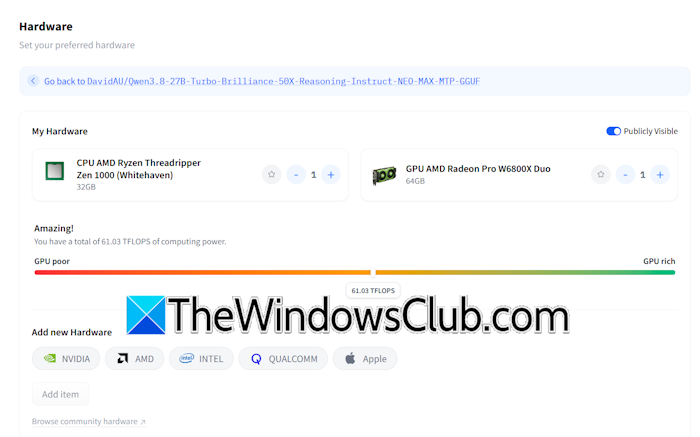
Now, add your hardware: CPU, GPU, RAM, and VRAM. The performance scale will help you know whether your system can run that LLM.
4] Understanding LM Studio and Ollama compatibility
You can deploy LLMs locally on your Windows computer through LM Studio or Ollama through Open WebUI. They allow you to download and install LLMs on your system without relying on a cloud service. These tools also require some hardware resources that you should know before installing them.
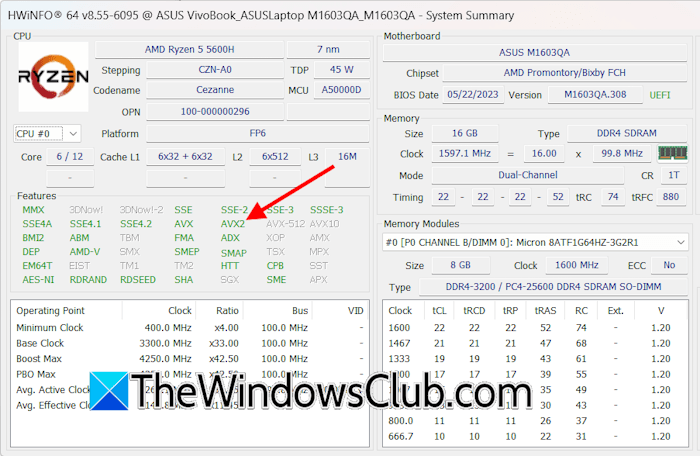
LM Studio is supported on both x64 and ARM (Snapdragon X Elite) based systems. The following are the hardware specifications for LM Studio:
- CPU: AVX2 instruction set support is required (for x64)
- RAM: At least 16GB of RAM is recommended
- GPU: At least 4GB of dedicated VRAM is recommended
To know whether your CPU has AVX2 support, you can use a third-party tool, such as HWiNFO. You can visit the official LM Studio website for more information. To install and run Ollama smoothly, your system must meet the following hardware requirements:
- Windows 10 22H2 or newer, Home or Pro
- NVIDIA 551.61 or newer Drivers if you have an NVIDIA card
- AMD ROCm v7 / HIP7-capable driver stack for ROCm acceleration, or a Vulkan-capable AMD Radeon driver for Vulkan acceleration
For more information, visit the official Ollama website.
5] Using automated calculators and benchmarking tools
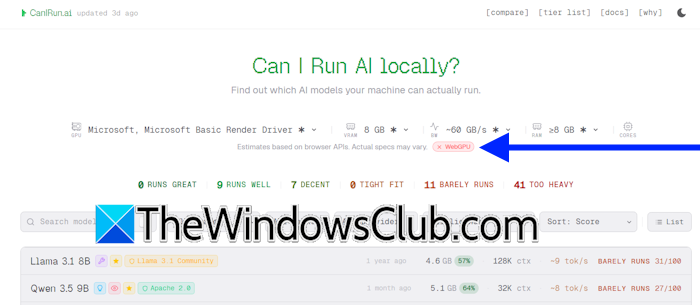
Automated calculators and benchmarking tools can make your work easier because they tell you exactly which LLMs your system can run efficiently. You have to provide your hardware details. Some of these tools can also scan your system and detect the hardware automatically. LLM Configurator is one of the best websites that shows you supported LLMs based on your GPU and VRAM.
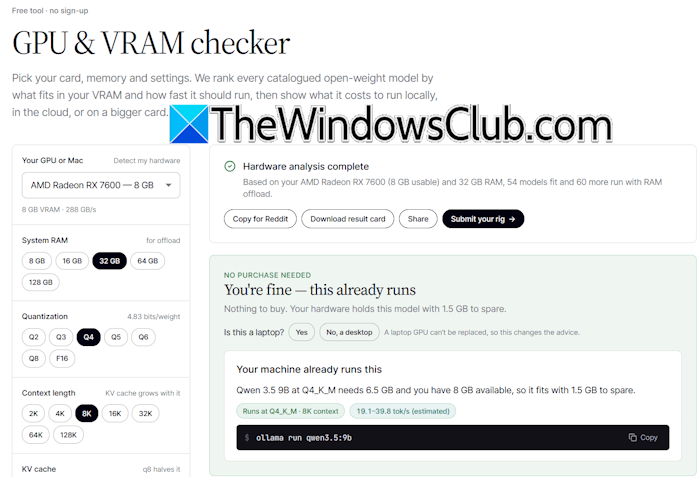
After visiting the website, select Tools > GPU & VRAM Checker. Now, select your system’s GPU with dedicated VRAM in the drop-down. After that, select RAM and other parameters, such as Quantization, Context length, KV cache, and use case. Use cases include chat, reasoning, coding, etc. When you are done, the website will show you the supported AI models that your system can run smoothly.
That’s it.
How much RAM do I need to run a local LLM?
There is no straightforward answer to this question. The amount of RAM you need to run a local LLM depends on different parameters. Lighter AI models can be run smoothly on computer systems with 8 to 16 GB RAM. However, RAM isn’t the only factor that determines which LLMs you can run locally. You must consider other hardware specifications.
Is 64 GB RAM enough for a local LLM?
Yes, 64 GB RAM is sufficient to run a local LLM. However, don’t ignore other hardware specs, including your CPU, GPU, and VRAM. If your system has less VRAM but more RAM, it will create a bottleneck situation, preventing a local LLM from running smoothly.
Read next: How to update Open WebUI without losing data.
