
Open WebUI is a self-hosted graphical interface designed to interact with AI models you deploy locally on your Windows 11 computer. You can install multiple AI models and use them on the Open WebUI interface. This article shows how to install and use Open WebUI on Windows 11, including basic setup, installation, and using different AI models.
How to install and use Open WebUI on Windows 11
To install and use Open WebUI on Windows 11, you should install Ollama. Ollama is required to run Ollama models locally on your system. Alternatively, you can use other AI server APIs. You can download the latest version of Ollama for Windows from the official website, ollama.com. Download Ollama for Windows and run the installer. After installing Ollama, launch it.
We will show you the following two ways to install Open WebUI on Windows 11:
- Installing Open WebUI with Docker
- Installing Open WebUI without Docker
Let’s start.
1] Installing Open WebUI on Windows 11 with Docker
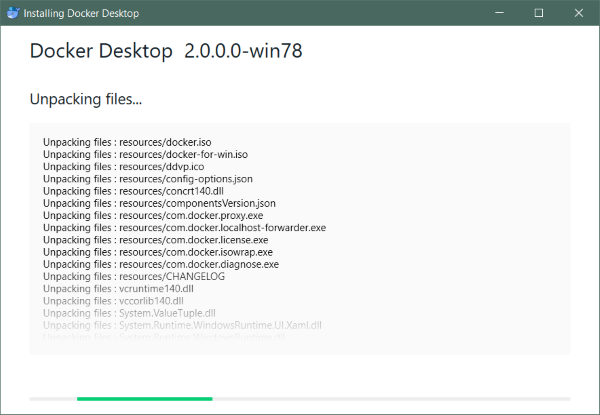
This method requires you to install Docker on Windows 11. Visit the official website of Docker and download its latest version. Run the installer file and follow the on-screen prompts to install Docker. Once you install Docker, launch it and complete the setup by creating a Docker account. For this, you can use your Gmail or GitHub account.
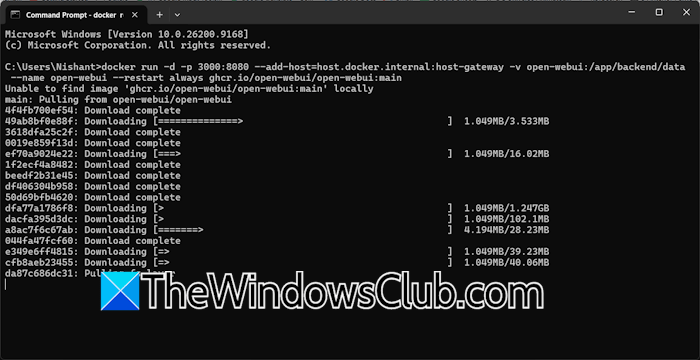
After completing the Docker setup, the next step is to install a container for Open WebUI. Make sure that Docker and Ollama are running on your system. Launch the Command Prompt and execute the following command:
docker run -d -p 3000:8080 --add-host=host.docker.internal:host-gateway -v open-webui:/app/backend/data --name open-webui --restart always ghcr.io/open-webui/open-webui:main
The command will take time to complete. After the command executes successfully, you can access Open WebUI in your web browser.
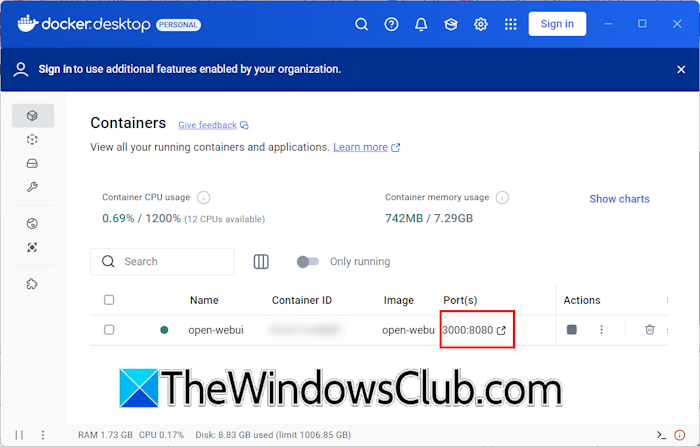
Go back to the Docker window and select the Containers tab from the left. You will see the open-webui container in the list of your Docker containers. Click Port(s). A new tab will open in your default web browser showing you the Open WebUI interface. Create an account on Open WebUI to use it. Your account information is stored locally on your system. After creating an account, use your account credentials to log in to Open WebUI whenever you want to use it.
Installing AI models locally
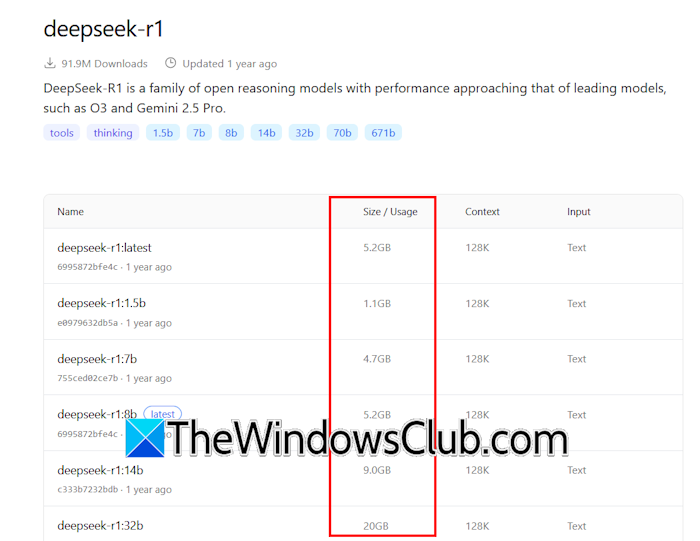
After installing and setting up Docker, Ollama, and Open WebUI, the next step is to install an AI model so you can use it in Open WebUI. For this, visit the official Ollama website and navigate to the Models page. You will see many AI models there. If you want to install a particular AI model in Open WebUI, search for it on Ollama. Every AI model on Ollama is available in multiple parameters. Each parameter requires a specific amount of disk space. Therefore, before installing a specific parameter of an AI model, verify how much space it requires.
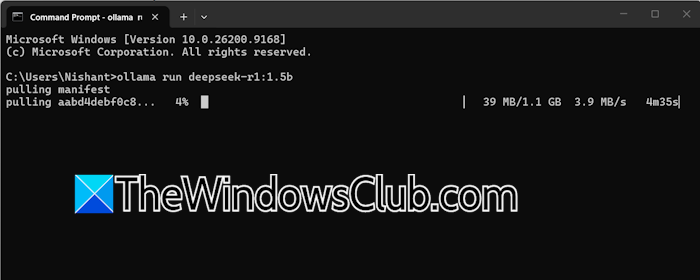
To install an AI model, open Command Prompt and run the following command:
ollama run <AI Model with parameter>
For example, if you want to install the 1.5b parameter of DeepSeek-r1 that requires 1.1 GB of space on your disk, the command will be:
ollama run deepseek-r1:1.5b
After installing an AI model, reload the Open WebUI page in your browser. After that, the installed AI model will be available in Open WebUI.
2] Installing Open WebUI without Docker
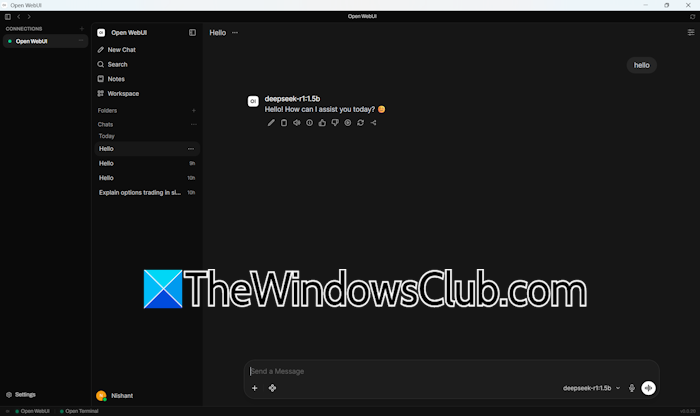
You can install Open WebUI without Docker. However, you still need to install Ollama. Visit the GitHub page and download the executable file of Open WebUI. Run the installer file to install Open WebUI on your system. Open WebUI will automatically download all the required dependencies. Do not interrupt the installation; it will take time. After installing Open WebUI, launch it and complete the setup by creating a local account. Now, you can use Open WebUI. To access AI models in Open WebUI, install them via Ollama. We have already explained it above in this article.
How to use Open WebUI
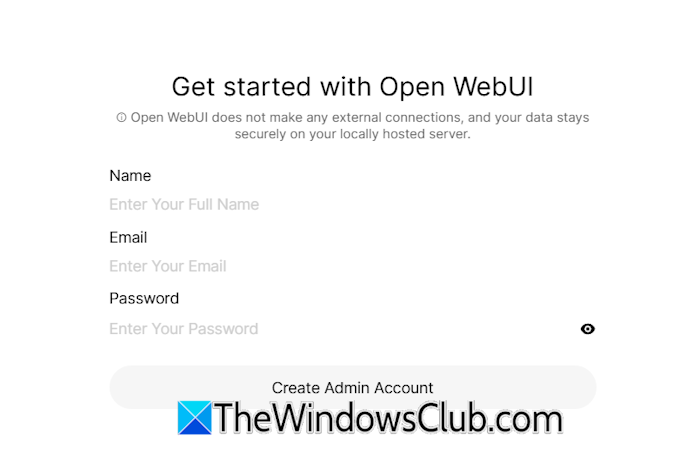
To use Open WebUI, first create a local account. Type your name, email address, and create a password. Use this username and password to log in to Open WebUI.
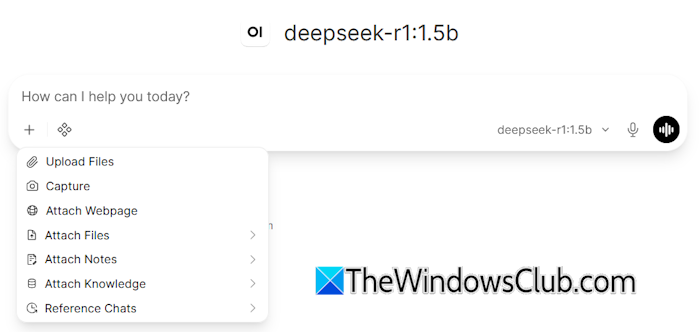
You can select an AI model by clicking on the drop-down in the chat box. All your chat history is accessible from the left pane. If you click on the Plus icon, you will see multiple options, such as uploading files, capturing a screen to ask questions about it, attaching files, and more. Dictate and Voice mode features are available for voice input.
That’s it. I hope this helps.
Read: How to update Open WebUI without losing data
Can you run Open WebUI on Windows?
Yes, you can run Open WebUI on Windows. However, to run an AI model locally in Open WebUI, your system needs supported hardware. Also, check the space required by the AI model you want to install.
Is Open WebUI free to use?
Open WebUI is free and open-source software. You can install it on Windows 11 using Docker, Python, or other supported methods. To use Open WebUI, you need Ollama if you want to run and manage Ollama models locally. Alternatively, you can connect Open WebUI to other local AI servers or cloud-based AI models through supported APIs.
Read next: How to install and use Gemini CLI on Windows.
