
Today, you can run many AI models locally on your Windows computer and smartphone. When an AI model is released, the ways to deploy it locally on a Windows machine are also published on the official websites, such as GitHub, Hugging Face, etc. To deploy an AI model locally on your system, it should fulfil minimum hardware requirements. These hardware requirements vary for different AI models. This article will help you know if you can run AI locally on your PC or phone.
Here we will discuss how to tell whether you can run AI locally on your PC or phone. When deploying an AI model locally, the machine should have the necessary hardware. The minimum hardware requirements are not the same for all AI models. For example, if you want to run Microsoft Fara-7B agentic AI model locally on your PC, it should have a dedicated NVIDIA GPU with sufficient VRAM.
Can I run AI locally on my PC?
The following websites will help you know if you can run AI locally on your PC:
- Can I Run AI
- System Requirements Lab
- AI Base
- AI Hardware Compatibility Checker
1] Can I Run AI
CanIRun.ai is one of the websites that helps you know which AI models can run smoothly on your PC locally. It automatically detects your hardware specifications when you visit the website. The hardware specifications may not always be correct. Therefore, verify all the hardware specifications manually.
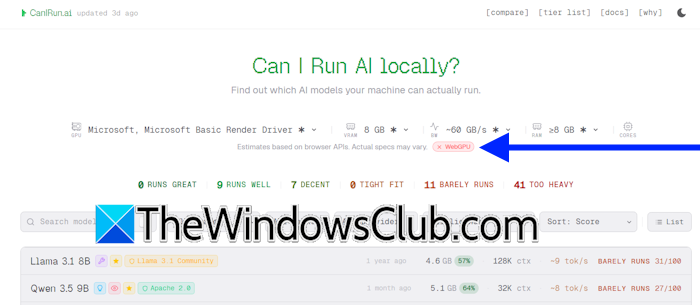
If you see a red cross on WebGPU, it means that the browser is unsupported. Hence, try another browser. The website recommends Google Chrome and Microsoft Edge for the best results. However, it showed me the red cross on Chrome. On Edge and Firefox, it worked perfectly.
After scanning your computer hardware, it shows how many AI models can run smoothly, run well, run barely, how many of them are decent for your system, and how many AI agents are too heavy for your system. You can also apply filters to sort the list. The website displays a list of popular AI models, but it does not include every AI model.
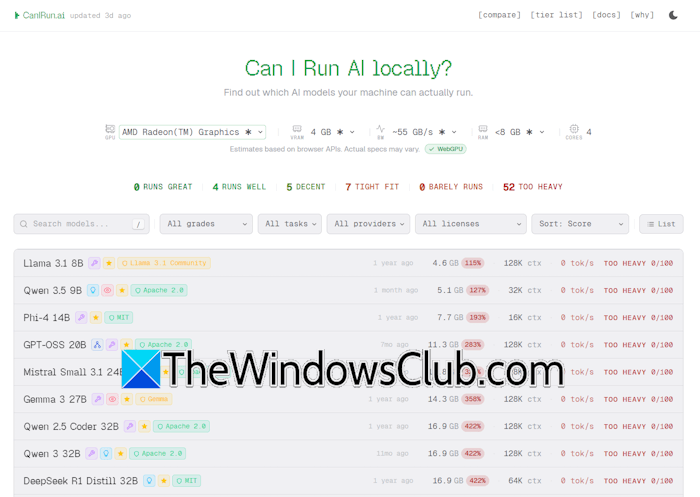
The result is not 100% accurate because it does not detect all the hardware specs correctly. It provides you with an estimate of which AI models you can run on your system. However, verifying the data from the official website is always recommended.
2] System Requirements Lab
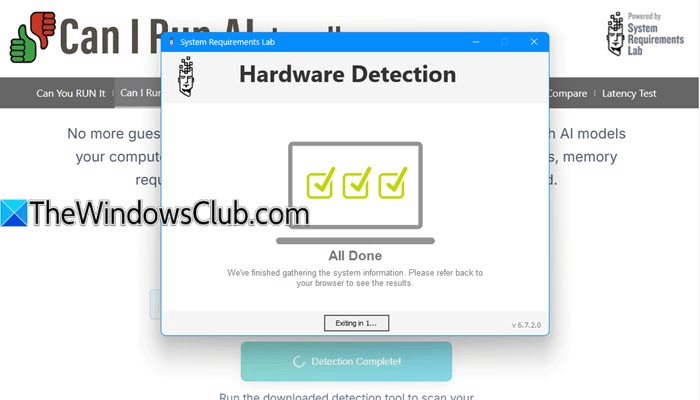
System Requirements Lab is another website that tests your system’s hardware for compatibility with different AI models. Unlike CanIRun AI, it requires a tool to be run on your system for accurate hardware detection. You do not need to install the Hardware Detection Tool on your system. Just run that tool for once, and the website will detect your system’s hardware.
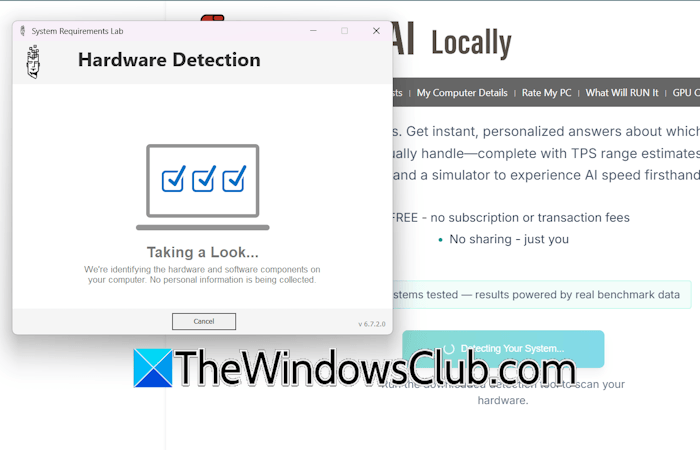
Visit systemrequirementslab.com and click the Detect My System button. As you click the button, the website will ask you to save the Hardware Detection Tool. Save the file and run it. It is a portable executable; hence, it does not require installation. You need to run it for once.
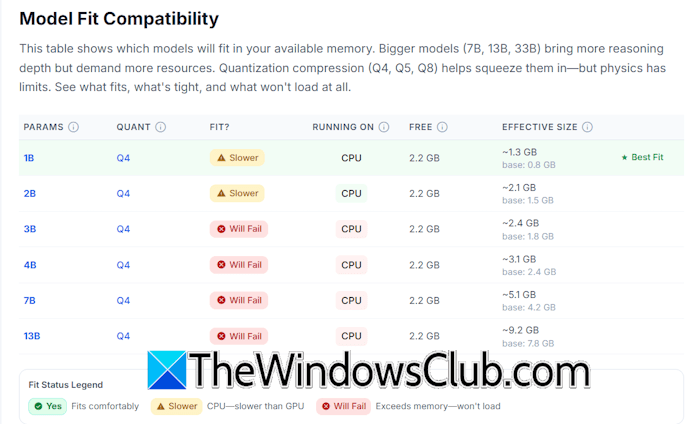
Since it runs a Hardware Detection Tool on your system, its accuracy of hardware detection is higher than the CanIRun AI tool. It displays a Model Fit Compatibility table, which provides detailed compatibility information, showing which model sizes (parameters) and quantization levels your system can successfully run AI models based on the available hardware resources.
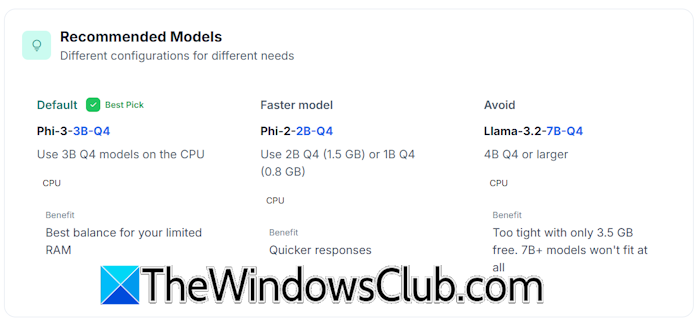
Scroll down, and you will see the AI models that you can run locally on your system under the Recommended Models section.
3] AI Base
AI Base is another website that helps you know which AI models you can run locally on your system. Unlike the two websites discussed above, it does not detect your system’s hardware specifications. Instead, you have to select your hardware configuration manually. This platform provides information about the compatibility of AI models with different operating systems, including Windows, Linux, and macOS.
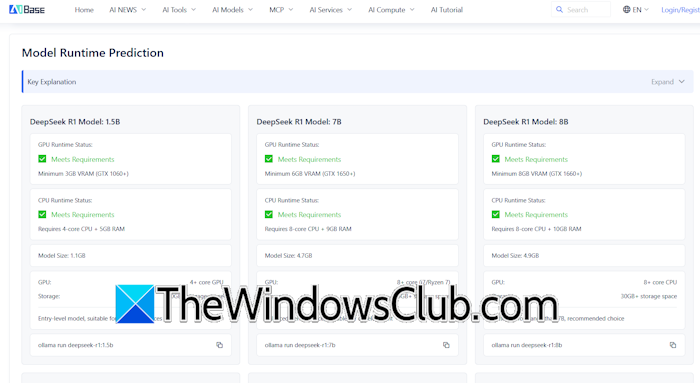
The AI models that can run on your system are listed under the Model Prediction Runtime section.
4] AI Hardware Compatibility Checker
The AI Hardware Compatibility Checker website allows you to check the AI model compatibility by providing VRAM and your system’s RAM data. After providing data, click Check Compatibility, and it will show you all the AI models compatible with your system.
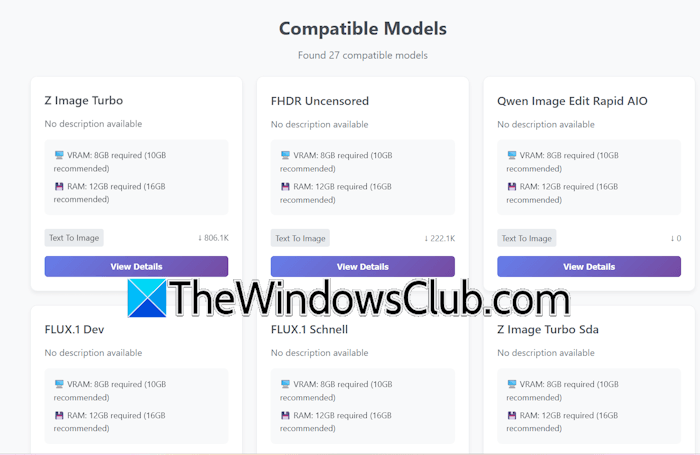
You can also apply filters based on text generation, image generation, object detection, and more.
Can I run AI locally on my Phone?
Running an AI model locally on a smartphone is also possible. To check the hardware compatibility, visit CanIRun.ai. The website will automatically detect your smartphone’s hardware and show you the compatible AI models.
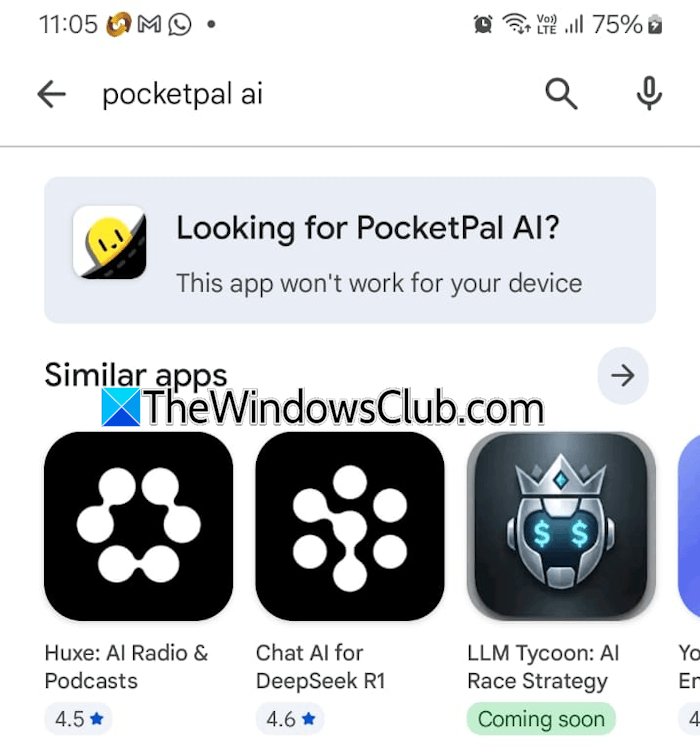
Apart from that, there is another way to check the AI model’s compatibility with your smartphone. Running an AI model on a smartphone requires a third-party app, such as PocketPal AI or Google AI Edge Gallery. You can install that app from the Google Play Store or App Store. If your phone is not capable of running these apps, you will see the following message in the Play Store:
This app won’t work for your device.
That’s it. I hope this helps.
Is it possible to run AI agent locally?
Yes, it is possible to run AI models locally on a PC. Deploying an AI model locally on a PC requires the supported hardware. If you want to deploy AI locally to create images and videos, your system should have a dedicated GPU with sufficient VRAM.
How much RAM is required for AI?
The amount of RAM required to run an AI model locally depends mainly on the AI model size and quantization level. Larger AI models need significantly more memory to load and generate responses efficiently.
Read next: How to use Seedance AI Video Tool for Free.
