
Microsoft launched its first agentic SLM (Small Language Model), Fara-7B. This model is specifically designed for computer use. You can deploy it locally on your system. After that, you can easily use the Fara-7B agentic AI model locally on Windows 11 for Task Automation.

How to use the Fara-7B agentic AI model locally on Windows 11
To use the Fara-7B agentic AI model locally on Windows 11 for task automation, you should have a high-end PC with NVIDIA graphics. There are also some prerequisites that you should complete before installing the Fara-7B agentic AI model locally on your system. To use the Fara-7B agentic AI model locally on Windows 11 for Task Automation, the main task is to deploy it locally. In this article, I will show you how to install the Fara-7B AI model locally on Windows 11.
I will show you the following two ways to install Fara-7B agentic AI model locally on your Windows 11 system:
- Through the Magentic UI
- Through the LMStudio
Before starting, you need to meet the following prerequisites:
- Enable WSL2 (Windows Subsystem for Linux)
- Download and install Docker Desktop
- Download and install Python 3.10
Enable WSL2 (Windows Subsystem for Linux)
First, enable WSL on your Windows computer. The steps to do this are as follows:
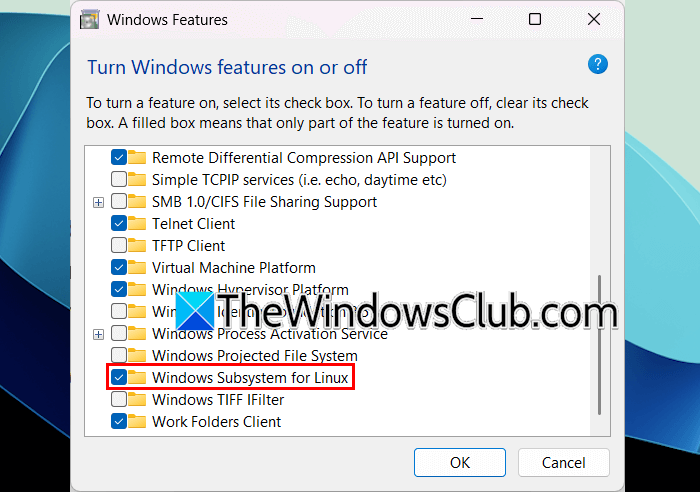
- Open the Control Panel.
- Select Programs > Programs and Features.
- Click Turn Windows features on or off on the left side.
- Scroll down and select the Windows Subsystem for Linux checkbox, and click OK.
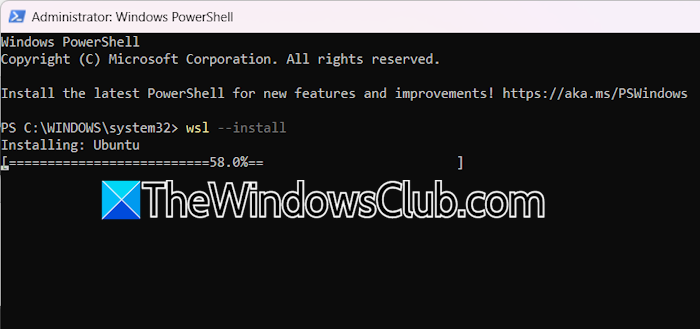
The process will take some time, as Windows 11 will install the required files. After the completion, you need to restart your computer. After restarting your system, install Windows Subsystem for Linux through the Command Prompt. WSL is also available on the Microsoft Store. You can also install it from there.
Read: Can I run AI locally on my PC or Phone?
Download and install Docker Desktop
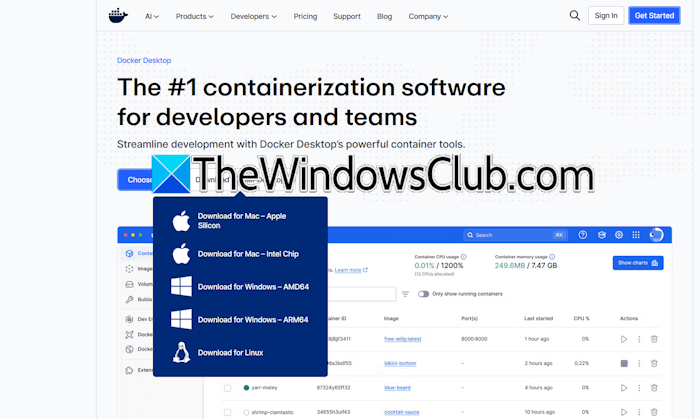
The next step is to download Docker Desktop from the official website and install it. After installing Docker Desktop, launch it and sign up with your email account.
Download and install Python 3.10
The minimum required version of Python for the Microsoft Fara-7B model is Python 3.10. Visit the official website, download, and install it.
1] Install Magentic UI
After completing all the prerequisites mentioned above, the next step is to install Magentic UI. The commands to install Magentic UI work in a Linux environment. That’s why I asked you to install WSL2 (Windows Subsystem for Linux).
To install Magentic UI, Docker Desktop should be running in the background. Launch Docker Desktop and let it run on your system.
Click on Windows Search and type Ubuntu. Click Ubuntu to launch it. The following command is required to install Magentic UI.
python3 -m venv .venv
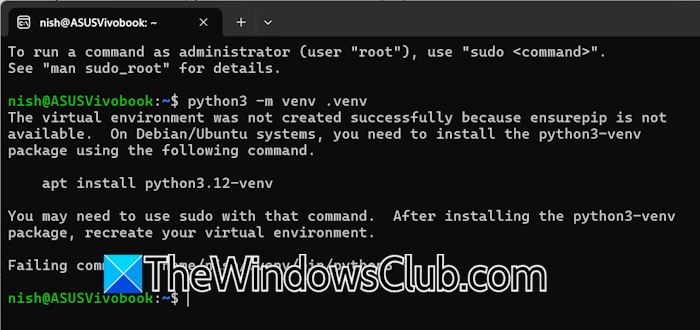
After executing the above command, you may receive the following error:
The virtual environment was not created successfully because ensurepip is not available. On Debian/Ubuntu systems, you need to install the python3-venv package.
To fix this error, run the following command:
apt install python3.12-venv
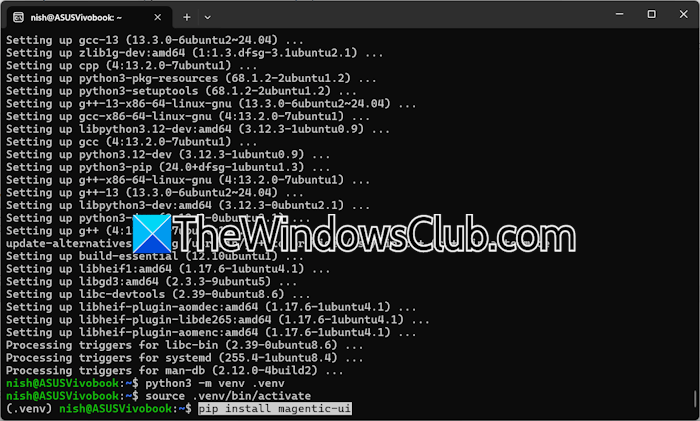
Now, run the following commands and press Enter after typing each command:
python3 -m venv .venv

source .venv/bin/activate

pip install magentic-ui
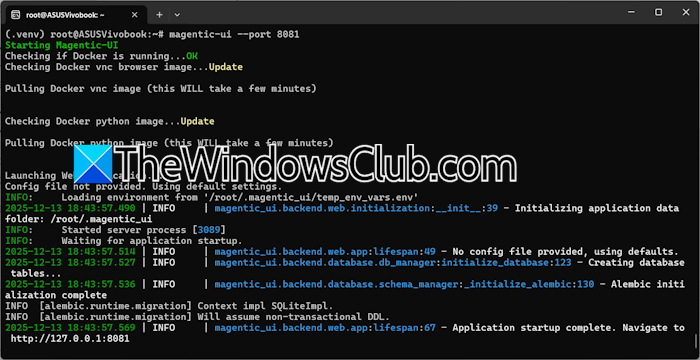
Now, the next step is to run Magentic UI. Copy the following command and paste it into the WSL Ubuntu window. Press Enter after that.
magentic-ui --port 8081
Running this command for the first time will pull two Docker images required for the Magentic-UI agents. If you encounter problems, you can build them directly with the following commands:
cd docker

sh build-all.sh
After the successful execution of the above command, you will see the following message:
Application startup complete. Navigate to <URL>
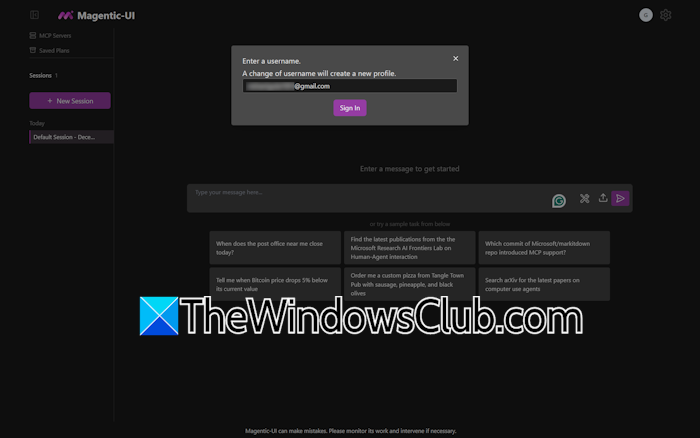
Copy the URL and paste it into a new tab in your web browser. Hit Enter after that. You will see the Magentic UI interface. You will be logged into Magentic UI as a guest user. Click on the profile icon on the top right side and enter your email address there. Click Sign in.
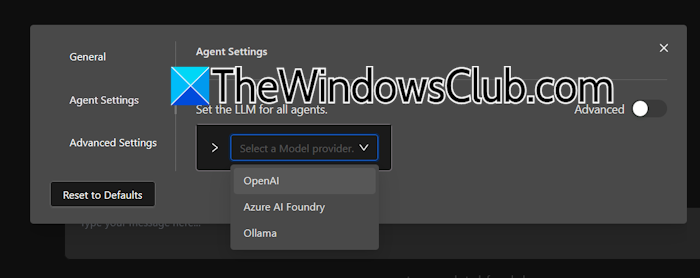
To view the AI models available on Magentic UI, click on the gear-shaped icon on the top right side and select Agent Settings from the left side. Now, click on the drop-down. Microsoft Fara-7B model will also appear here after the successful installation.
Installing Microsoft Fara-7B AI model
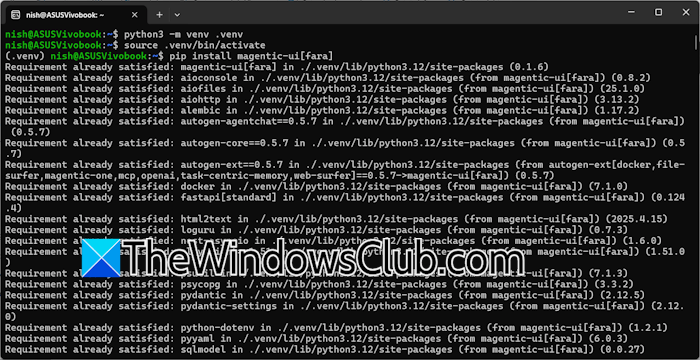
The last step is to install the Microsoft Fara-7B AI model. Before this, you need to install Fara extras. Open a separate window of Ubuntu and execute the following commands one by one, and press Enter after entering each of these commands:
python3 -m venv .venv

source .venv/bin/activate

pip install magentic-ui[fara]
Now, execute the following command:
vllm serve "microsoft/Fara-7B" --port 5000 --dtype auto
After that, create a fara_config.yaml file by running the following command:
model_config_local_surfer: &client_surfer
provider: OpenAIChatCompletionClient
config:
model: "microsoft/Fara-7B"
base_url: http://localhost:5000/v1
api_key: not-needed
model_info:
vision: true
function_calling: true
json_output: false
family: "unknown"
structured_output: false
multiple_system_messages: false

orchestrator_client: *client_surfer
coder_client: *client_surfer
web_surfer_client: *client_surfer
file_surfer_client: *client_surfer
action_guard_client: *client_surfer
model_client: *client_surfer
If you are hosting vLLM on a different port or host, change the base_url accordingly. The last step is to launch Magentic-UI with the Fara agent. Use the following command:
magentic-ui --fara --port 8081 --config fara_config.yaml
Finally, navigate to the URL you visited earlier to access Magentic UI. Or, reload the Magentic UI page opened in your web browser. Now, you can access the Fara-7B AI model in the Magentic UI.
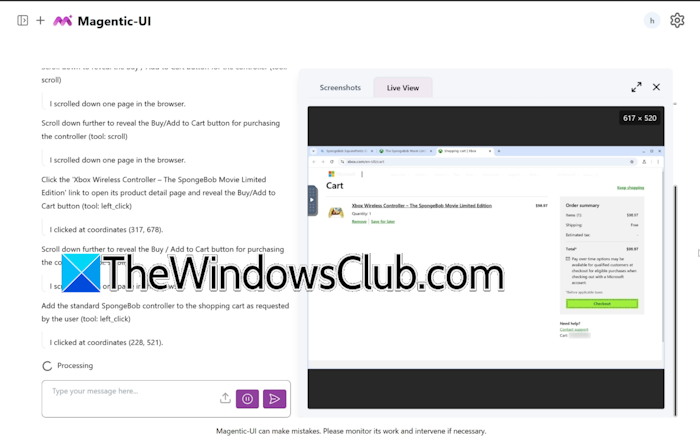
After installing Microsoft Fara-7B model locally on your system, you can run it in Magentic UI. Fara-7B AI can handle a range of tasks, from purchasing a product online to finding relevant information and summarising it. While performing its tasks, the Fara-7B AI model pauses at critical points and waits for user input and approval before proceeding. You can take control anytime you want. Magentic UI cannot see what you do when you take control.
2] Install the Microsoft Fara-7B AI model through LMStudio
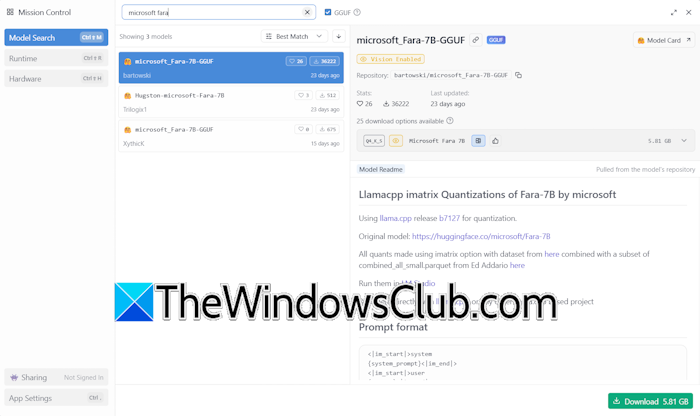
Download LMStudio from the official website. Run the installer file to install LMStudio on your system. Now, launch LMStudio and click on the Search (Discover) icon on the left side. Search for the Microsoft Fara-7B model and install it. After installing, you can use it in LMStudio.
That’s it. I hope this helps.
What is Microsoft Fara?
Microsoft Fara is the first agentic SLM designed specifically for computer use. It is a Computer Use Agent (CUA) that can leverage computer interfaces such as a mouse and keyboard to complete tasks on behalf of users.
Can I use AI to automate tasks?
Yes, you can use AI to automate tasks. AI automation reduces human errors, improves productivity, and saves money and time. However, you should be cautious when automating, as AI automation can pose risks to data privacy and security. Moreover, AI can also make mistakes. Too much use of AI in automating tasks increases dependency on AI and reduces skills and critical thinking.
Read next: How to run DeepSeek locally on Windows.
