
Claude Code and OpenAI Codex can do much more than simply answer coding questions. They can work with files, run commands, change projects, and handle longer development tasks. The problem is that some of these tasks take time, and you may not want to stay seated at your Windows 11 PC while they run. In this post, we will see how to access and use Claude Code and OpenAI Codex remotely in Windows 11.
Both Claude Code and Codex now provide ways to continue working when you are away from your computer. Claude Code has a Remote Control feature that lets you access a local Claude Code session from another device. Codex can work with the Windows desktop through Computer Use, while its mobile integration lets you check and manage supported tasks from your phone.
Use Claude Code remotely on Windows 11
Claude Code is a terminal-based coding agent. Before using Remote Control, install Claude Code, sign in, and run it from the project you want to work on.
1] Install Claude Code on Windows 11
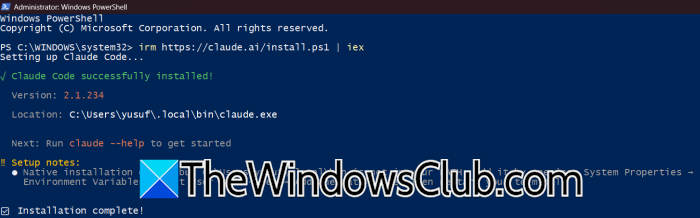
You can install Claude Code directly from PowerShell. Open Windows Terminal or PowerShell and run the following command.
irm https://claude.ai/install.ps1 | iex
You can also install it with the WinGet command: winget install Anthropic.ClaudeCode
After the installation finishes, verify that Claude Code is available by running the following command.
claude --version
If Windows says that claude is not recognized, close PowerShell, reopen it, and run the command again. The native installer may need a new terminal session to recognize the updated PATH.
2] Sign in to Claude Code
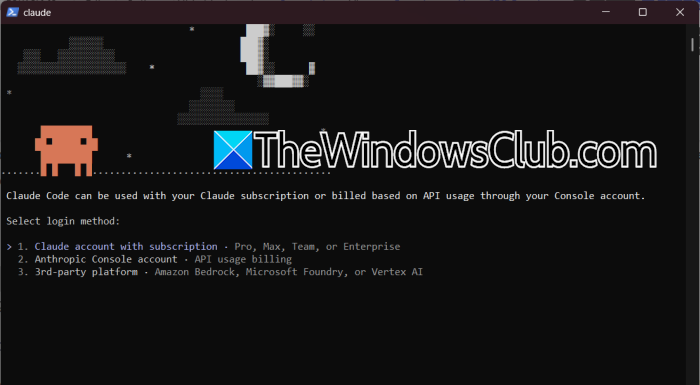
To sign in to Claude Code, run the command: claude. If this is your first time using Claude Code, it will ask you to sign in. You can also enter the following command inside Claude Code /login.
A browser window will open so that you can authenticate your Claude account.
Remote Control currently requires a supported Claude subscription, and the supplied Remote Control guide lists Pro and Max plans as supported. API-key authentication does not work with Remote Control.
3] Open your project in Claude Code
Claude Code works with the project directory from which you launch it. First, open PowerShell or Windows Terminal and navigate to your project folder.
For example: cd C:\Users\YourName\Documents\MyProject
Then run claude.
If Claude Code asks you to trust the workspace, review the project location and accept the workspace trust prompt if you trust the files.
This step is important because Remote Control connects to the local Claude Code session. Your project files, configuration, tools, and other local resources remain available on the Windows PC.
4] Start Claude Code Remote Control
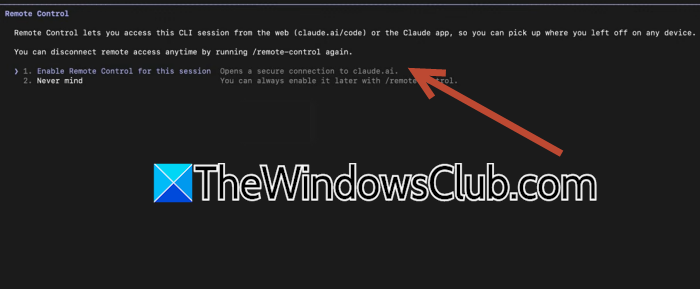
Once Claude Code is running in your project, you can start a remotely accessible session.
Exit the current Claude Code session if necessary, or open another terminal window in the project directory, and run the following command.
claude remote-control
Claude Code will start a new session and display a session URL.
Press the Spacebar to show a QR code for your phone. The terminal will display the connection status while you use the remote session. To connect to Claude Code, you can open the session link in a browser, scan the QR code with the Claude app, or select the session from the list in Claude. If you choose the QR code, scan it with the Claude app on your Android or iPhone to access the session on your phone.
You can send messages from your phone and continue the same conversation running in the Windows terminal. The session remains on the Windows PC; your phone is simply being used to access it remotely.
5] Connect an existing Claude Code session
You do not have to start a new session if Claude Code is already working on something.
Inside the existing Claude Code session, run:
/remote-control
You can also use:
/rc
This makes the current session remotely accessible while keeping its existing conversation history.
This is particularly useful if you have already asked Claude Code to work on a project and then decide to leave your desk.
Enable Remote Control for all Claude Code sessions
If you regularly use Claude Code remotely, you can enable Remote Control automatically.
Inside Claude Code, run:
/config
Then select Enable Remote Control for all sessions.
After this, Remote Control will be enabled automatically for new sessions. You need to keep the Windows PC running
Remote Control does not move the Claude Code session to the cloud. Claude Code continues running on your Windows computer.
Therefore, keep the PC turned on, connected to the Internet, and leave the terminal running. Closing the terminal or stopping the Claude process ends the session.
The Remote Control guide also notes that a network interruption of roughly 10 minutes can cause the session to time out.
Use OpenAI Codex remotely in Windows 11
OpenAI’s Codex app is designed for software development and can work with local folders, repositories, terminals, and developer tools. The current Windows desktop experience is being integrated into the new ChatGPT desktop app, where Codex remains a separate development experience.
1] Install the ChatGPT desktop app
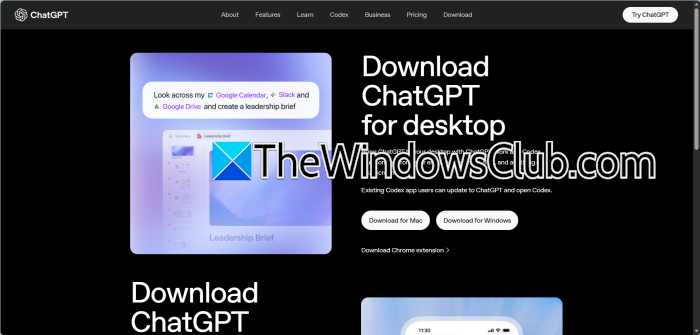
If you are setting up Codex for the first time, install the current ChatGPT desktop app for Windows and sign in with your OpenAI account.
If you already have the older Codex app installed, update it. OpenAI says the Codex app is transitioning to the new ChatGPT desktop app, with Codex available as a separate option inside the application. Existing Codex chats and projects should remain after the update.
After opening the application, select Codex from the menu in the top-left corner.
2] Open a local project in Codex
Codex can work with a local folder or repository on your Windows computer. Open Codex and start a new conversation. When prompted, select the project or local folder you want Codex to work with. Then give it a task, such as inspecting the project, fixing a bug, modifying a file, or running tests. Codex is designed to work with local repositories, terminals, and developer tools, so you can use it as the coding agent on your Windows PC.
3] Enable Computer Use
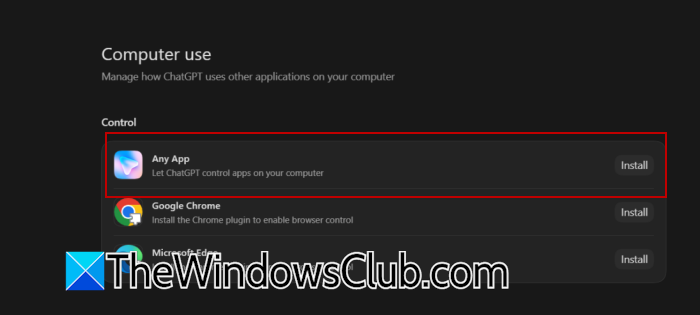
To let Codex interact with applications on the Windows desktop, enable Computer Use in the Codex settings. To do so, open the Codex app and go to Settings. In the Search bar, look for Computer Use. Under Control, click Install next to Any App to let Codex control any application, or install the Chrome/Edge plug-in if you want to use it only in the browser. Once installed, apps you approve will appear under Always-allowed apps
4] Let Codex control Windows applications
After you start a Computer Use task, Codex can take control of the Windows desktop.
It can interact with applications and perform tasks on your behalf. While it works, you will see changes on the screen, and the cursor will move as Codex performs the requested actions.
This is different from asking Codex to edit a source file or run a command in a terminal. With Computer Use, the agent can interact with the graphical applications on your Windows PC.
For example, you could ask Codex to perform a task that requires working with a Windows application rather than only manipulating project files.
Avoid using the mouse or keyboard while Codex controls the computer, as your input can interfere with the task.
Read: How to use turn Text into Code using Codex CLI
5] Use Codex remotely from your phone
In Codex, click the mobile icon at the bottom of the application. You can alternatively open:
Settings > Connections
Make sure you are signed in to your ChatGPT account.
Codex will display a QR code. Open the ChatGPT app on your Android or iPhone and scan the QR code.
After completing the sign-in process, the Windows computer should appear in the list of available devices.
That’s it!
Read: Claude Code vs OpenAI Codex: Which AI Coding Assistant is better
How to run OpenAI Codex in Terminal?
To run OpenAI Codex in Terminal, you need to install Node.js 18 or higher, then run PowerShell and execute npm install -g @openai/codex. To verify if it worked, run codex --version. Use the CD or Change Directory command to move to your project directory, and run codex to launch it. Log into your ChatGPT account, and authenticate using browser sign-in or an API key. Finally, you can start using it.
Also Read: Install OpenAI Codex on Windows with Security Measures.
