
Windows users now have a native OpenAI Codex app. As a result, developers no longer need to try out WSL workarounds or virtual machines to run OpenAI’s powerful agentic coding tool. Also, installing the tool is fairly easy. However, if you are doing it for the first time, you might find it overwhelming. But don’t worry, we have shared all the steps below.

How to Install OpenAI Codex on Windows with Security Measures
Getting started with OpenAI Codex is pretty straightforward, and there are two ways to do so: via Winget or Microsoft Store.
- First, press Windows + X to open the quick menu.
- Select Terminal (Admin).
- Run the following command: winget install Codex -s msstore (Alternatively, you can go to Microsoft Store, search for Codex, and install it from there.)
- Once Codex is installed, launch it via the Start menu, sign in with your ChatGPT account, or enter your OpenAI API key.
What are security measures, and why do they matter?
Codex is an agentic tool, meaning it not only suggests code but also reads your files, edits them, and runs shell commands on its own. Hence, there is a good chance that Codex might ruin things before you even realize it, and setting up some boundaries beforehand is useful. Such as:
Sandbox: By default, Codex should run in default permission mode and not full access. However, if you give it full access, it will remove system boundaries. Meaning, Codex can accidentally modify or delete files outside your project folder. So make sure to keep it sandboxed unless you have a specific reason to disable it.
Approval policy: Before Codex runs any command, it will ask you for your permission. However, you can give it full approval. Meaning, it can run and execute commands, which might not be a good idea.
Project folder isolation: Create a dedicated folder for each project you work on and point Codex to that directory. So Codex will have access only to the files it needs and not to anything else. This limits the AI agent’s scope to only the files and branch you’re actively working on, preventing accidental access to unrelated parts of your system.
IronClaw vs. OpenClaw: Which Is Better for Privacy?
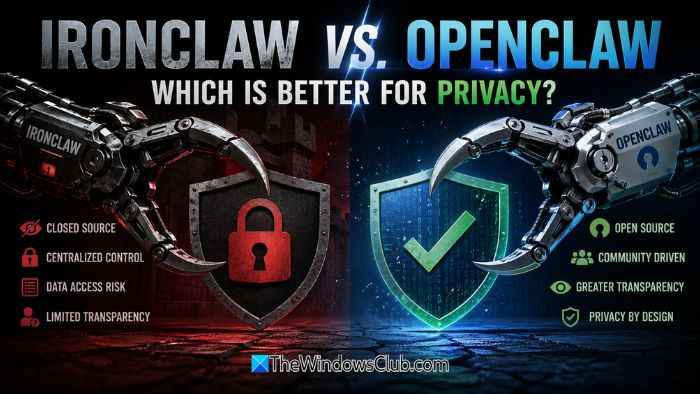
If you want even stronger isolation beyond the official app, you can also try other open-source frameworks such as IronClaw and OpenClaw.
On one hand, IronClaw is a Rust-based tool that runs agents in a lightweight WASM sandbox and stores data in an encrypted PostgreSQL database using AES-256. It stands as an ideal solution for enterprise CRM, outreach, or any scenario demanding extreme privacy and built-in leak detection.
On the other side, there is OpenClaw, which offers a broader, more modular framework. It provides greater flexibility for diverse AI agents but relies on manual configuration, often via Docker or OpenShell. So, it offers you more configurable options.
In our opinion, going with IronClaw would be better for strict data privacy in high-stakes environments. But you can go with OpenClaw if you want architectural freedom and are comfortable adding your own security layers.
So, that’s how to install OpenAI Codex on your Windows computer. Installing it is fairly easy. However, to maintain control, we recommend that you always review approvals before allowing the AI agent to alter files.
