
Finding the right AI coding assistant can change how you work. For Windows developers, the choice often comes down to two big names: Claude Code vs OpenAI Codex. Both promise to help you write code faster, fix bugs, and understand complex projects. But which one actually works best on a Windows machine? This detailed comparison looks at everything from installation to daily use so you can make the right choice.
Claude Code vs. OpenAI Codex
Understanding the purpose of each tool is crucial. Claude Code and OpenAI Codex differ in how they integrate into your Windows workflow. OpenAI Codex is a cloud-first coding assistant that runs on remote servers and is accessible via a Windows app, a command-line tool, or a code editor. It’s flexible and adaptable.
In contrast, Claude Code, developed by Anthropic, runs directly in your terminal and focuses on understanding your entire project. It functions like a senior developer beside you, prioritizing the terminal experience while also being compatible with Windows.
We need to compare Claude Code and OpenAI Codex on certain parameters to know which one is the best for us.
Installation and setup
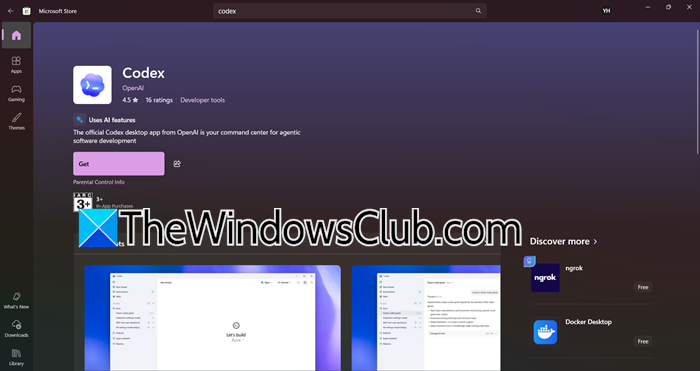
OpenAI made sure Windows users feel at home. You can install Codex in two ways.
- Download it directly from the Microsoft Store.
- Get the installer from the official OpenAI website
The setup wizard guides you through everything. It creates shortcuts, integrates with your system, and asks about your preferences. Within five minutes, you are ready to go. The app updates automatically through the store, so you always have the latest version.
Claude Code has a technical installation process via the Node.js package manager, npm. You can set it up by opening PowerShell or Command Prompt and running a simple install command. Although it works, it feels more like a developer tool than a standard Windows app. Some users encounter minor issues, especially with file paths, because it expects Linux-style directory paths. The community is requesting better Windows support, but manual adjustments may be necessary for now.
Windows Native Features and Integration
Codex is tailored for Windows and has a deep understanding of PowerShell, enabling the creation of complex scripts for system administration and automation. It accurately handles Windows file paths and caters to desktop developers with features for WinUI and Windows Presentation Foundation. You can request a modern app interface, and Codex will know the right controls to use. It also understands the Windows registry and MSBuild configurations. Running from your system tray, Codex can be accessed via keyboard shortcuts, making it feel like a seamless part of your operating system.
Claude Code works on Windows, but mostly through WSL, the Windows Subsystem for Linux. If you do most of your work in a Linux environment inside Windows, this might be fine. You run your terminal inside WSL, and Claude Code works there. For pure Windows development with PowerShell and native Windows tools, Claude Code can feel limited. It understands C and NET code well, but struggles with Windows-specific paths and commands. You might find yourself translating between Windows and Linux concepts.
Code Quality and Problem Solving
Claude Code excels in large, complex projects with a context window of up to 200,000 tokens, allowing it to analyze multiple files simultaneously. When refactoring code, it understands how changes impact the entire system and seeks clarification when needed. This approach prevents wrong assumptions and facilitates learning by explaining its reasoning. For debugging, Claude Code meticulously checks for logical errors and suggests tests and edge cases you might overlook.
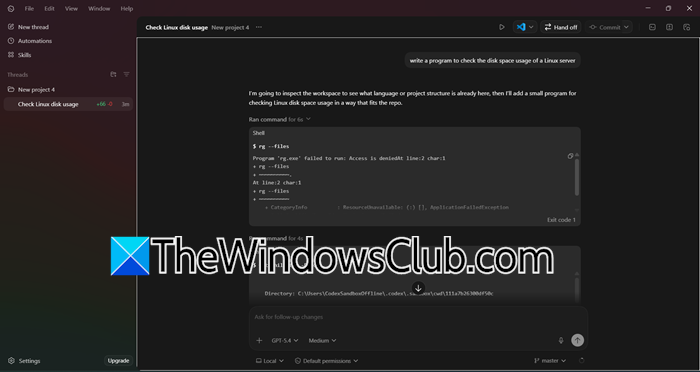
Codex is incredibly fast, generating code in seconds for functions and boilerplate classes. It efficiently handles repetitive tasks like data access layers and API wrappers. Unlike Claude, Codex can spawn multiple agents that work in parallel: one writes code, another runs tests, and a third checks for bugs, speeding up larger tasks. It’s resource-efficient, using less computing power, leading to lower costs and quicker responses. It also asks questions before making changes.
4] User Interface and Daily Experience
Claude lives in your terminal, responding to commands with explanations and code, simulating pair programming. It has a voice feature that allows you to speak commands, making it easier to think through problems. Before making significant changes, Claude creates a plan and seeks your approval, providing a safety net against unwanted modifications.
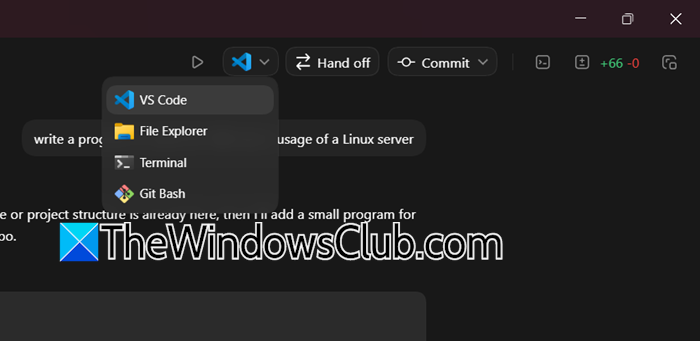
Codex has multiple interfaces, including a Windows app with a chat window for questions and code. It supports command-line and Visual Studio Code plugins. The app keeps conversation history and saves generated code snippets for reuse. Unlike Claude, Codex provides quick, straightforward answers, catering to developers who prefer brevity or more context.
Verdict
Choose Codex for the best Windows experience. Codex installs like any other Windows app, works well with PowerShell, and understands Windows development tools. It is fast, efficient, and supported by a large community. If you create Windows desktop apps or do a lot of PowerShell work, Codex is the best option.
Choose Claude if you mainly work in WSL or Linux on your Windows computer. You manage large, complex codebases where seeing the overall picture matters more than speed alone. You want a thoughtful assistant who explains their reasoning and asks for your confirmation. You care a lot about keeping your code on your machine.
That’s it!
Read: How to run Claude Code Locally for free on PC
Is there any AI better than Claude for coding?
Yes, several AI tools excel beyond Claude in specific areas. Cursor provides superior multi-file editing and a smoother integrated development environment (IDE) experience for daily development, while Comate shines in enterprise settings with its SPEC development model and multi-agent architecture. The best choice ultimately depends on your priorities: whether you value deep reasoning (which is Claude’s strength), interactive editing, or enterprise compliance.
Read: Best AI Code Generator Assistants for VS Code
Which AI is best for coding assistance?
There is no single best AI for everyone. Cursor is great for developers who want easy integration with their coding tools and support for multiple files. Comate works well for enterprise teams that need to comply with regulations and use multiple programming languages. Claude Code is good for solving complex tasks in large codebases. For most professional developers today, Cursor offers the best mix of features and ease of use.
Also Read: Best AI tools for Developers.
