
If Claud AI is failing to send your message, you’re not alone. Several users have reported that their messages aren’t going through when replying in an existing chat, starting a new conversation, or sending a prompt with an attachment via the Claude web app or desktop app.
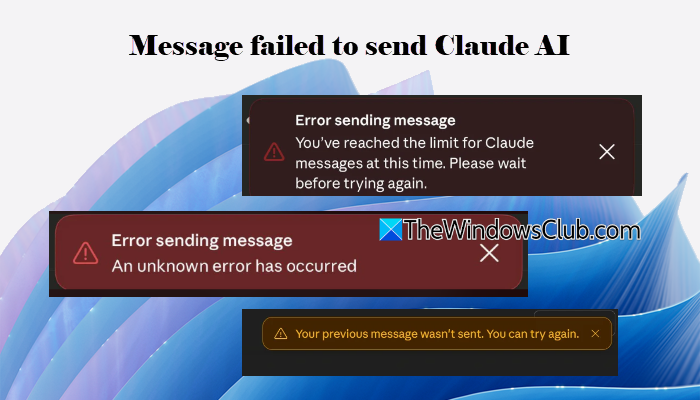
Depending on the cause, Claude may display different error messages, such as:
Error sending message
Message limit reached for current model.
Please try again later or switch models.
Error sending message
You’ve reached the limit for Claude messages at this time. Please wait before trying again.
Your previous message wasn’t sent. You can try again.
Error sending message
An unknown network error has occurred Please try again.
Error sending message
An unknown error has occurred.
This is a fairly common issue and is often temporary. Fortunately, you can fix it using a few simple troubleshooting steps. In this guide, we’ll walk you through the most effective solutions to get Claude AI working normally again.
What causes the Message failed to send issue in Claude AI?
The Message failed to send issue can occur for several reasons. Temporary server issues on Anthropic’s end are among the most common causes, especially during periods of heavy traffic or scheduled maintenance. However, the problem can also arise if your internet connection is unstable, your browser session has expired, or the current chat has become unresponsive. In some cases, sending an unusually long prompt or attaching a large or unsupported file may also prevent Claude from delivering your message successfully.
Claude AI Messages not sending [Fix]
If you encounter the Error sending message issue while using Claud AI on your Windows 11/10 PC, use these solutions:
- Check if Claude AI is down
- Check your internet connection
- Refresh the Claude page
- Check if you’ve reached the Claude usage limit
- Reduce the prompt length or remove the attachment
- Sign out and sign back in
- Clear your browser cache and cookies
Claude error sending message
1] Check if Claude AI is down
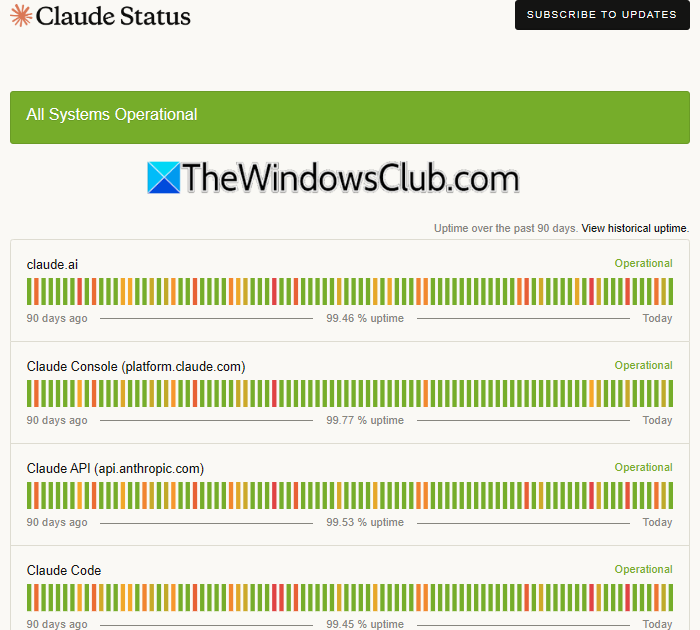
Before trying any advanced troubleshooting, check whether Claude AI is experiencing a service outage. Temporary server issues, scheduled maintenance, or heavy traffic can prevent messages from being sent, even if everything is working correctly on your computer.
Visit the Claud Status page by clicking here and check if there are any ongoing incidents affecting Claude. You can also check recent reports on platforms like Reddit or Downdetector. If the service is down, you’ll have to wait until Anthropic resolves the issue.
2] Check your internet connection
An unstable or interrupted internet connection may prevent Claude from communicating with its servers, resulting in an “Error sending message” notification.
Make sure your internet connection is working properly by opening a few websites or running an online speed test. If you’re connected to Wi-Fi, restart your router and reconnect to the network. Alternatively, switch to a different network, such as a mobile hotspot, to see if that helps. If you’re using a VPN or proxy server, temporarily disable it and try sending the message again.
3] Refresh the Claude page
Sometimes, the Claude web app may stop responding due to a temporary session or synchronization issue. Refreshing the page establishes a new connection with Claude’s servers, often resolving temporary send failures.
Press Ctrl + R or click the Refresh button in your browser to reload the page. If Claude displays a Resend option after reloading, click it to send your previous message again.
4] Check if you’ve reached the Claude usage limit
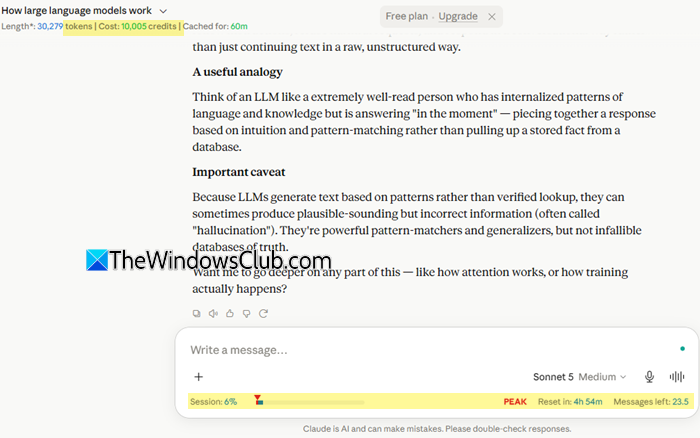
Claude enforces message limits based on your subscription plan and the AI model you’re using. If you have exhausted your available quota, Claude may display messages such as:
- Message limit reached for current model. Please try again later or switch models.
- You’ve reached the limit for Claude messages at this time. Please wait before trying again.
If you see either of these messages, verify whether you’ve actually reached your usage limit.
If you’re a Claude Pro or Max subscriber, open Settings > Usage to review your current session usage, weekly usage, and quota reset time. If the page confirms you’ve reached your limit, wait until your quota resets or switch to another model if your plan allows it.
If you’re using the free plan, Claude doesn’t provide a built-in usage dashboard. In that case, you can install the Claude Usage Tracker browser extension, which estimates your remaining usage based on the prompts you send, chat history, uploaded files, and Claude’s responses. It works with Free, Pro, and Max accounts and displays the estimated usage directly within the Claude interface.
If your usage tracker indicates that you still have quota remaining, the issue is likely caused by a backend synchronization problem. Wait for some time and try again later.
5] Reduce the prompt length or remove the attachment
If the error occurs while sending a lengthy prompt or uploading a file, try removing the attachment or reducing the amount of text and send the message again. A few users have reported that shortening their prompt or removing the attachment resolved the issue.
You can also follow these tips to reduce the chances of encountering the issue in the future:
- Edit your previous prompt instead of sending multiple follow-up messages. Every time you send a new message, Claude has to process the entire conversation again. If you only need to correct or refine your request, edit the original prompt and regenerate the response instead of sending another message.
- Start a new chat when the conversation becomes very long. Long conversations can consume more of Claude’s available context window. As the chat grows, Claude may compress older parts of the conversation, which can sometimes make responses less accurate or cause details from earlier messages to be overlooked.
- Batch related questions into a single prompt. Instead of sending several short follow-up messages, include all related questions in one well-structured prompt. This reduces the amount of context Claude needs to reprocess and may help you make more efficient use of your available usage.
6] Sign out and sign back in
Your Claude session may expire if the web app has been open for an extended period. As a result, Claude may fail to send new messages even though the interface appears to be working normally.
Sign out of your Claude account, close the browser tab, reopen Claude, and sign back in. Once you’ve logged in again, try sending your message to check if the issue has been resolved.
7] Clear your browser cache and cookies

Your browser stores cached files and cookies to help websites load faster and remember your login session. However, if this stored data becomes outdated or corrupted, it can interfere with Claude’s communication with its servers, leading to message delivery issues.
Clearing the cache and cookies removes the old website data and forces your browser to download a fresh copy of the Claude web app.
In Google Chrome:
Press Ctrl + Shift + Delete.
Set Time range to All time.
Select Cookies and other site data and Cached images and files.
Click Delete data.
Restart Chrome and sign back in to Claude.
If you use Microsoft Edge, follow these steps instead.
I hope this helps.
Read: You can install Claude AI code in VS Code now.
Why is Claude not letting me send messages?
Claude may stop sending messages due to a temporary server outage, an unstable internet connection, a usage limit, or a problem with the current conversation. If your prompt exceeds the maximum input length allowed for the conversation, you may also encounter the “Your message will exceed the length limit for this chat” error.
Why is Claude giving me an error message?
Claude may display an error message when it cannot process or send your request successfully. This can happen because of server-side issues, exceeded usage limits, or a prompt or attachment that is too large for Claude to handle.
Read Next: ChatGPT vs Copilot vs Gemini vs Claude.
