
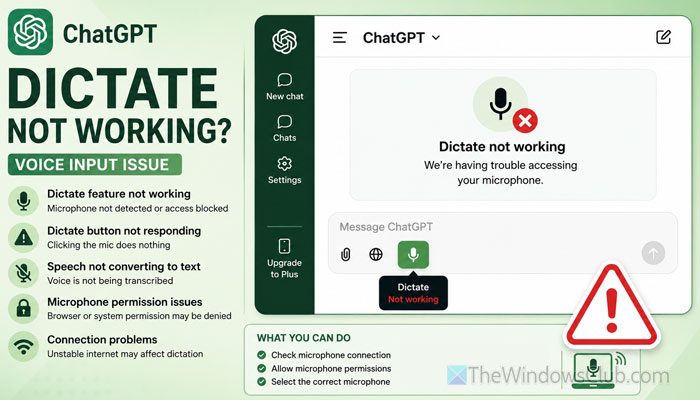
If the Dictate option is not working in ChatGPT, here is what you can do to make it work again. Whether you are using Google Chrome, Microsoft Edge, or another browser, if the ChatGPT voice command is not working on Windows 11, you can try these solutions to troubleshoot the issue.
What is ChatGPT Dictate?
In simple terms, the ChatGPT Dictate option helps you give voice commands to ChatGPT. You can use this feature to execute any command with your voice instead of typing it in the chat box.
Why is ChatGPT Dictation not working?
If ChatGPT Dictation is not working, these could be the reasons:
- You haven’t given the browser microphone access.
- You are using an incorrect microphone.
- The keyboard shortcut is occupied by other programs.
- Your microphone driver may have some issues.
- You have blocked the website from using your microphone.
ChatGPT Dictate not working
If ChatGPT Dictate is not working, follow these solutions:
- Check microphone permission in Windows Settings
- Check microphone permission in browser settings
- Use the correct microphone
- Verify browser keyboard shortcut
- Disable extensions that may block your microphone
- Verify your external microphone and driver
- Other solutions
To know more about these solutions, continue reading.
1] Check microphone permission in Windows Settings
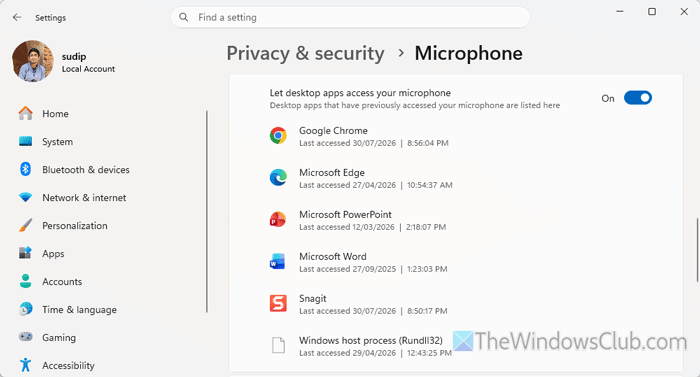
This is the first thing you should check, since if the microphone is not enabled, your voice commands won’t reach your computer.
To check microphone settings and permissions in Windows Settings, press Win+I to open it first. Then, go to Privacy & security > Microphone.
First, toggle the Microphone access button to turn it ON. Next, toggle the Let apps access your microphone button to enable it. Finally, toggle the Let desktop apps access your microphone button to turn it ON.
However, if these three options are already enabled, check if Google Chrome or Microsoft Edge is in the third list. If not, follow the next solution.
Read: Microphone not working on Windows 11
2] Check microphone permission in browser settings
There are mainly two things you must check. First, the general microphone settings, and second, the site-specific microphone settings.
Google Chrome:
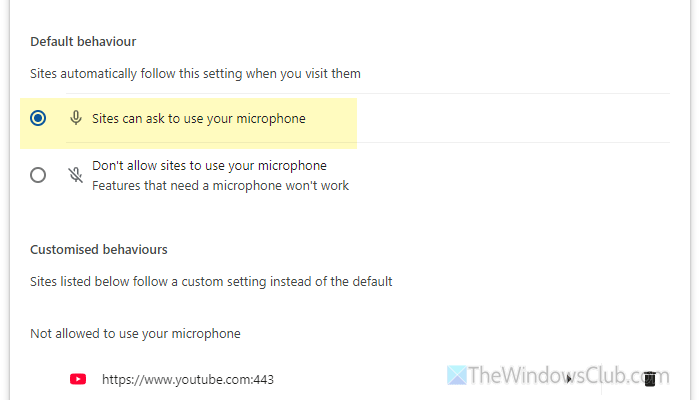
Open the Settings panel and go to the Privacy and security section. Navigate to Site settings > Microphone. If the Don’t allow sites to use your microphone option is selected, choose the Sites can ask to use your microphone option.
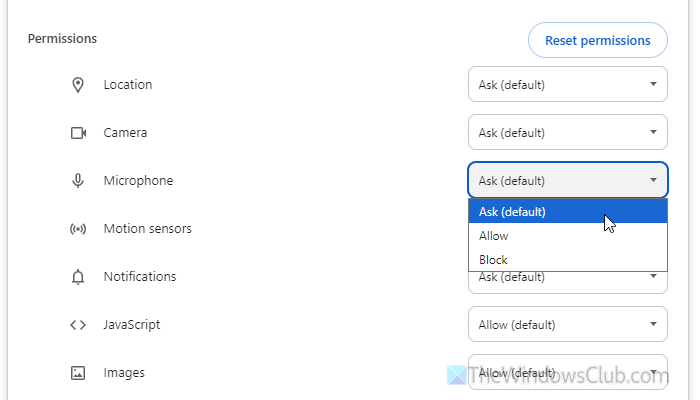
To check the site-specific settings, open the ChatGPT website and click on the Site information button > Site settings. Find the Microphone menu and choose the Ask option.
Microsoft Edge:
Open the Settings panel and go to Privacy, search, and services > Site permissions > All permissions > Microphone.
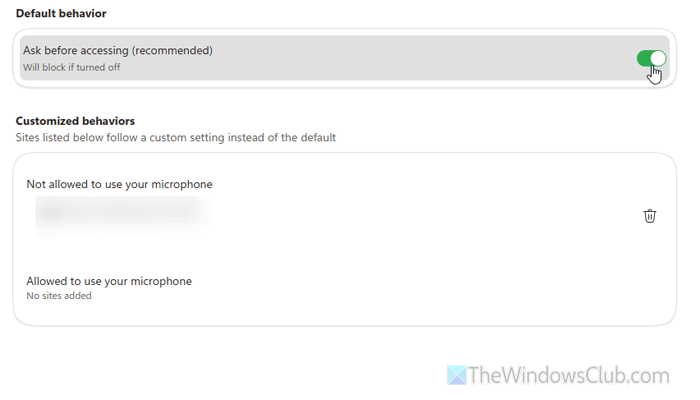
Toggle the Ask before accessing button to turn it ON. However, if the ChatGPT website is listed in the Not allowed to use your microphone list, remove it from there.
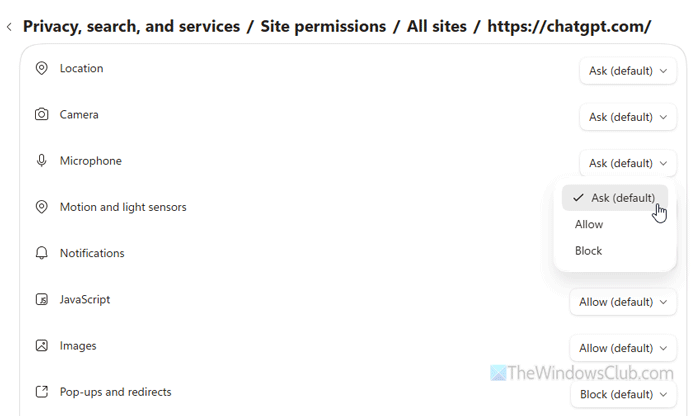
Next, open the ChatGPT website, click on the lock icon, and select Site settings. Then, expand the Microphone drop-down menu, and choose the Ask option.
Read: Microphone not working in Edge browser
3] Use the correct microphone
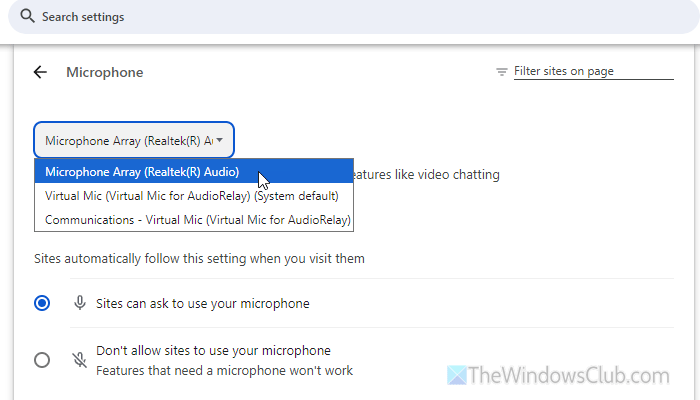
In addition to enabling microphone access for your browser, it is also important to use the correct microphone. If you use multiple microphones with your computer, there is a chance of a conflict.
Google Chrome:
Open the browser and enter this URL in the address bar:
chrome://settings/content/microphone
Then, expand the drop-down menu and select the connected microphone.
Microsoft Edge:
Open the browser and enter this URL in the address bar:
edge://settings/privacy/sitePermissions/allPermissions/microphone
Here you can find a drop-down menu that you need to expand and select the correct microphone you want to use.
Read: Your browser is preventing access to your microphone
4] Verify browser keyboard shortcut
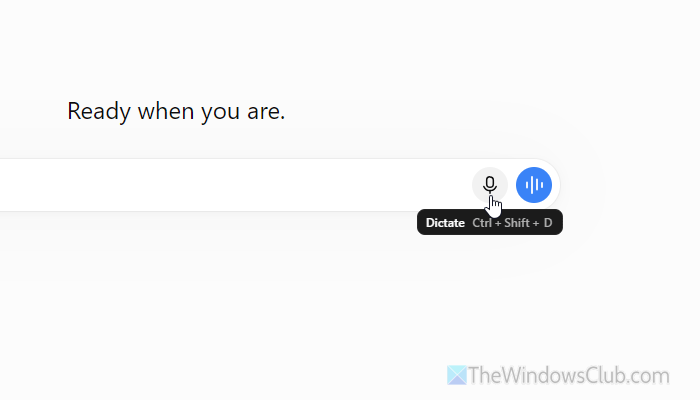
The default shortcut to use the Dictate option is Ctrl+Shift+D. However, if this keyboard shortcut is occupied by another program or you have remapped it to something else, you won’t be able to use it to turn on Dictate mode.
Therefore, if you are using any keyboard remap software, disable it temporarily and check whether the problem remains. For your information, PowerToys is one of the widely used tools to remap keyboard shortcuts in Windows 11. If you are using this tool, check the settings minutely.
Read: Free Keyboard Shortcut software to customize and change keyboard shortcuts
5] Disable extensions that may block your microphone
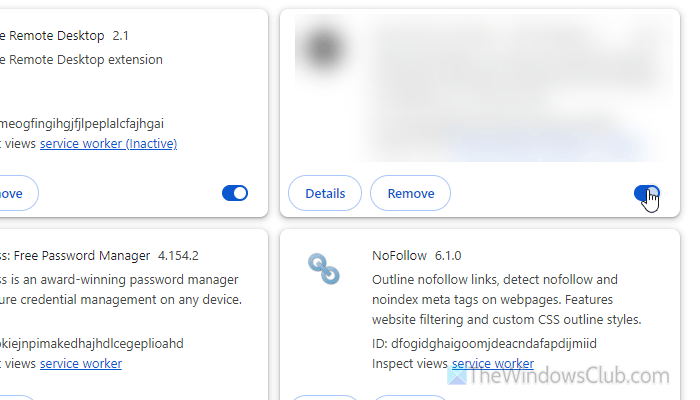
If you use any additional extension to monitor your privacy settings, trackers, etc., it is time to disable it temporarily. At times, such extensions may block you from using your microphone inside your browser. You can open the Extensions wizard and turn them OFF. If this solution works, you may need to uninstall it or set it up to bypass the microphone settings.
6] Verify your external microphone and driver
If you are using an external microphone, it is important to check the connection and the respective driver. Although built-in microphones may not require an additional driver, external ones do. If you haven’t installed any driver, do that immediately.
Also, if you have an Options panel for your microphone, check all the settings to see whether anything is blocking it from being used.
Read: External Microphone being recognized as Headphones in Windows 11
7] Other solutions
- Update your browser.
- Test your microphone with some other apps such as Google Meet and Zoom. You can also use websites to record your voice to confirm there is no physical issue with your microphone.
- Check the Windows Audio service. To do that, open the Services panel first. Then, double-click on the Windows Audio service, click Stop, choose Automatic from the list, and click Start.
Read: How to use Projects in ChatGPT
Why is the ChatGPT microphone not working?
If you haven’t given the ChatGPT website microphone access, it won’t be able to use your built-in or external microphone. Also, you must check for system-wide permission for third-party apps to access the microphone.
Why is my Dictate function not working?
In most cases, you need to check for microphone permission for the system and browser. However, this problem may also arise when your microphone is not working, or when voice commands are being handled by another app.
Read: ChatGPT Tips and Tricks – Beginners Guide.
