
If the microphone is not working in the Edge browser, here is how you can fix the issue in Windows 11/10. Whether you use the built-in or an external microphone, there are several reasons you might encounter this problem on your computer.
Why is microphone not working in Edge browser?
If the microphone is not working in the Edge browser, these could be the reasons:
- Microphone access is disabled for the Edge browser.
- Microphone usage is turned off on your computer.
- An incorrect microphone is set as the default microphone in the Edge browser.
- Incorrect site permission is set in the Edge browser.
- The edge profile is corrupted, which is making a mess.
- Add-ons are blocking Edge from using the microphone.
Microphone not working in Edge browser
If the microphone is not working in the Edge browser, follow these solutions:
- Ensure that Microphone access is enabled
- Allow Edge to use microphone
- Choose the correct microphone
- Check Site permissions settings
- Use Get Help to troubleshoot
- Disable all extensions
- Reset Edge settings to factory defaults
- Delete User Data
- Install audio driver
To know more about these solutions, continue reading.
1] Ensure that Microphone access is enabled
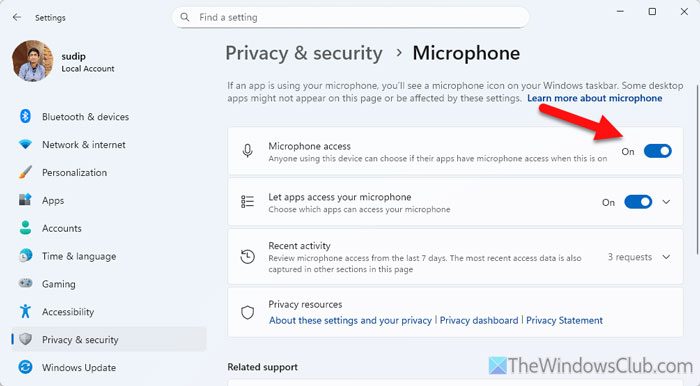
If the microphone access is not enabled, you won’t be able to access this hardware. Whether you use an in-built or external microphone, this option must be enabled in the Windows Settings panel.
To ensure that the microphone access is enabled, follow these steps:
- Press Win+I to open Windows Settings.
- Go to Privacy & security > Microphone.
- Toggle the Microphone access button to turn it ON.
2] Allow Edge to use microphone
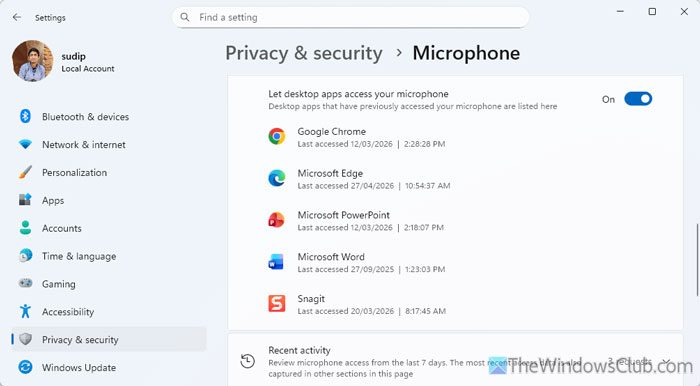
Windows 11 allows you to enable or disable the microphone for specific apps. If this setting is turned OFF, you won’t be able to use the microphone in the Edge browser.
To allow Edge to use the microphone, follow the instructions:
- Open the Windows Settings panel on your computer.
- Navigate to Privacy & security > Microphone.
- Find the Let desktop apps access your microphone option.
- Toggle the corresponding button to turn it ON.
- Make sure that Edge is listed on the list.
Read: How to know which app is using Mic on Windows 11
3] Choose the correct microphone
If you have connected multiple microphones and the correct one isn’t connected, or the selected one isn’t connected, you won’t be able to use the microphone. Because Edge doesn’t automatically select the microphone, you must follow this guide to select the correct one.
To choose the correct microphone in the Edge browser, follow these steps:
- Open the Edge browser on your computer.
- Go to Settings > Privacy, search, and services > Site permissions > All permissions > Microphone.
- Expand the drop-down menu and choose the microphone you want to use.
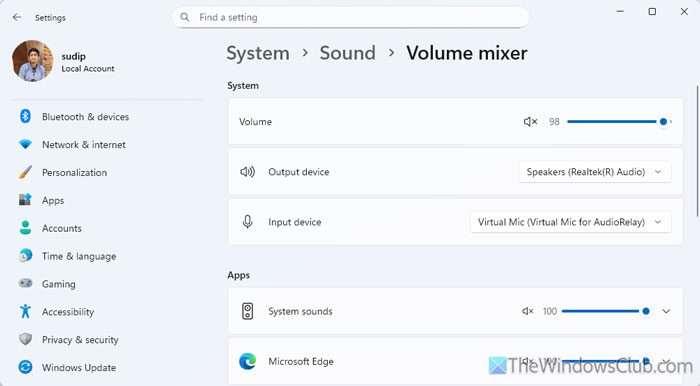
Windows 11 offers a similar option to the user. If this setting is disabled, you will find the same problem as mentioned earlier. Having said that, it is also mandatory to choose the correct microphone for your system.
To change the default microphone in the Windows Settings panel, follow these steps:
- Open the Windows Settings panel on your PC.
- Go to System > Sound > Volume mixer.
- Expand the Input device drop-down menu and choose the correct microphone you want to use.
4] Check Site permissions settings
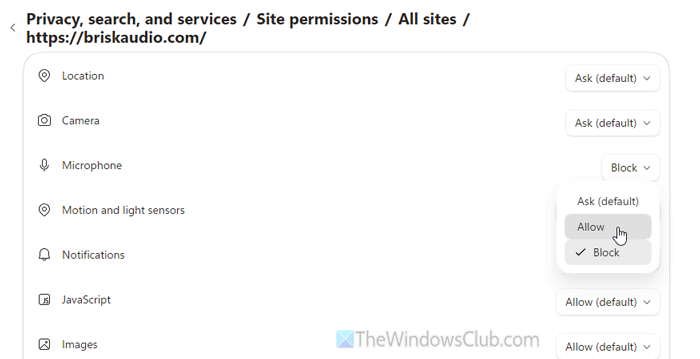
To allow a site to use your microphone in the Edge browser, follow these steps:
- Open the Edge browser on your computer and open Settings.
- Go to Privacy, search, and services > Site permissions > All sites.
- Find the website where you are unable to access your microphone.
- Click on the arrow icon.
- Expand the Microphone drop-down list and choose the Allow option.
Read: How to configure Tracking Prevention & Privacy Settings in Edge
5] Use Get Help to troubleshoot
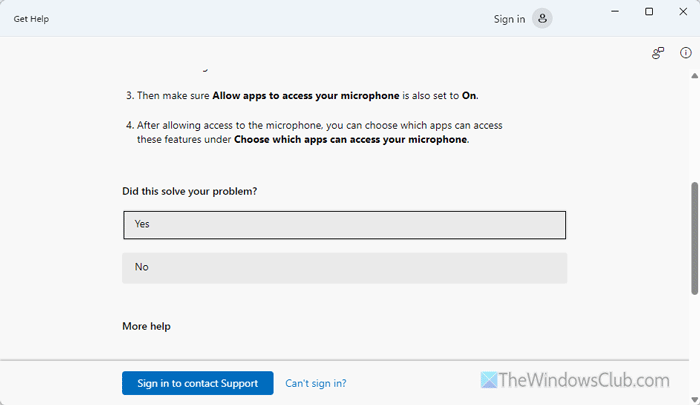
Get Help is the app you can use to troubleshoot common sound, audio, and microphone problems in moments. To use the Get Help app, open it on your computer first.
Search for Troubleshoot microphone and wait for the search result. Follow the screen instructions. If it doesn’t solve the problem, choose the No option and go through the screen instructions to get the job done.
6] Disable all extensions
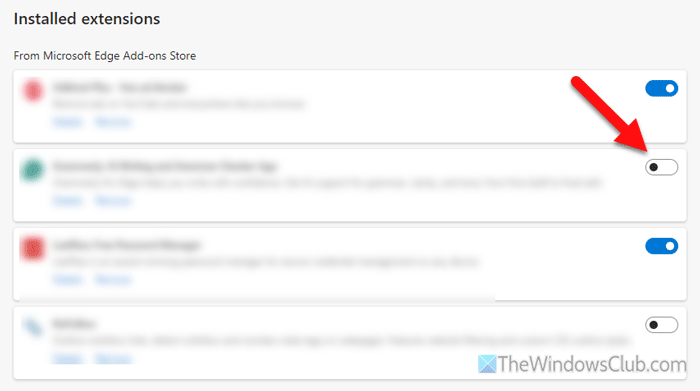
If you have installed various privacy management extensions that help you block the microphone, camera, etc., you may encounter this problem if you do not set them up correctly. That is why it is recommended to disable all installed extensions at once.
To disable all extensions, follow these steps:
- Open Edge and go to Settings.
- Click on the Extensions tab.
- Toggle all the buttons to turn them OFF.
After that, check whether the microphone is working or not. If yes, enable the extension at a time to find the culprit.
7] Reset Edge settings to factory defaults
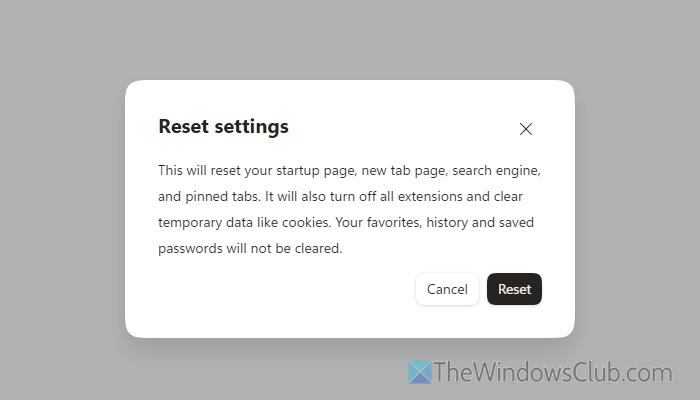
To reset Edge settings to factory defaults, follow these steps:
- Open the Settings wizard of the Edge browser.
- Click on the Reset settings option.
- Select the Restore settings to their default values option.
- Click on the Reset button.
8] Delete User Data
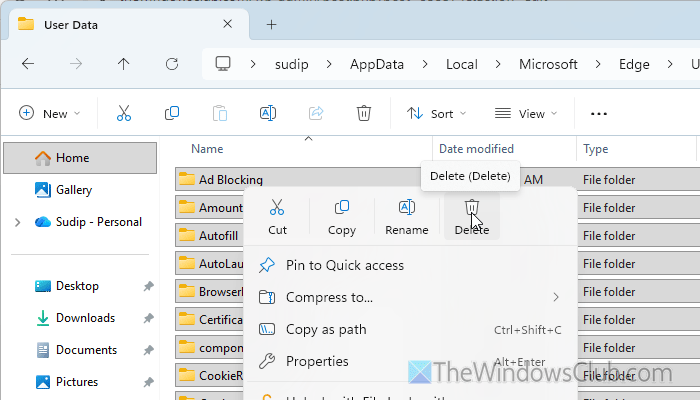
It works as a browser reset function. However, it deletes almost everything, including your user profile.
To delete the User Data of the Edge browser, follow these steps:
- Open the File Explorer on your computer.
- Navigate to this path: C:\Users\username\AppData\Local\Microsoft\Edge\User Data
- Delete all contents of this folder.
- Restart the Edge browser.
Note: Secondly, if you want to directly open the aforementioned folder, open the Run prompt, and enter this path: %localappdata%\Microsoft\Edge
9] Install audio driver
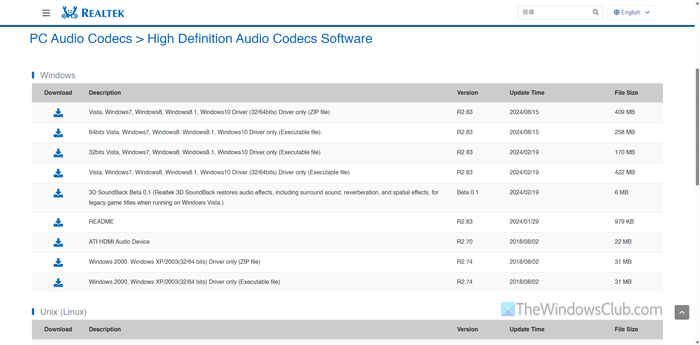
To install the audio driver, download it only from the official website. If you want to install the Realtek HD Audio Manager, head to Realtek.com and download the driver accordingly.
Read: Microphone not working in Microsoft Teams
Why is my microphone not working in Edge?
If microphone access is disabled, Edge won’t be able to access your microphone, so it won’t work. Apart from that, if you have selected the wrong microphone, you will encounter the same problem.
How to enable Mic in Edge browser?
To enable mic/microphone in the Edge browser, open Windows Settings and go to Privacy & security > Microphone. Toggle the Let desktop apps access your microphone button to turn it ON.
Read: Microphone not working on Windows 11.
