
You might see the message Unable to locate the Codex CLI binary when using the Codex desktop app or running it via PowerShell. In this article, we will explain what you can do to resolve this issue.
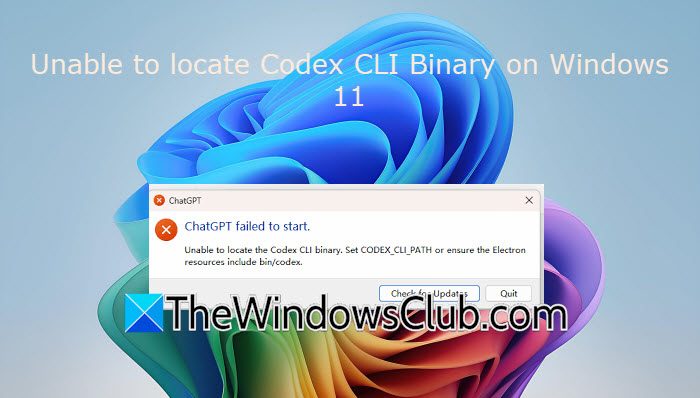
ChatGPT failed to start.
Unable to locate the Codex CLI binary. Set CODEX_CLI_PATH or ensure the Electron resources include bin/codex.
Unable to locate Codex CLI Binary on Windows 11
If you see this error when running the Codex desktop app or via PowerShell, try the following solutions.
- Check whether Windows can actually find Codex
- Check whether the Windows app actually contains codex.exe
- Set Codex_CLI_Path to the native Codex.exe
- Reinstall the Codex CLI with its Windows dependency
- Reinstall Codex on the system drive if it is installed on another drive
- Use the standalone Codex CLI as a fallback
Let’s get started with the troubleshooting guide.
1] Check whether Windows can actually find Codex
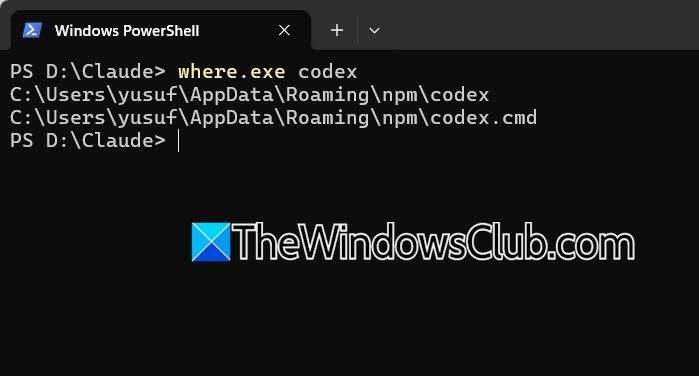
We’ll check whether Windows can see the Codex CLI through the path before moving into more complex troubleshooting. This helps determine whether the problem is a missing installation or just the Codex desktop app failing to locate a working binary.
- Click Win + S, type PowerShell, and open it.
- Run where.exe codex to check whether Codex is in the path. If Codex is installed through npm, Windows will return to the following path:
C:\Users\<username>\AppData\Roaming\npm\codex
C:\Users\<username>\AppData\Roaming\npm\codex.cmd
- Now, run codex –version to confirm the CLI runs and check if you get a version such as codex-cli 0.xxx.x. This means that the standalone CLI is working.
If you get an error instead, see the next solution.
2] Check whether the Windows app actually contains codex.exe
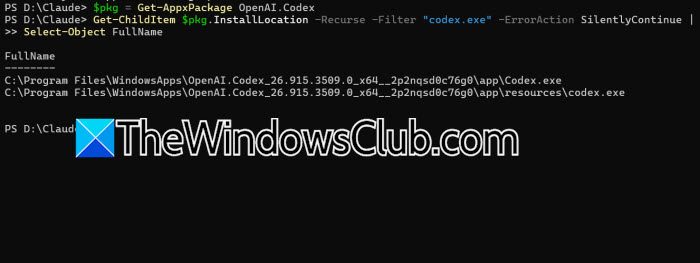
The bundled CLI can be missing or inaccessible inside the WindowsApps package even though the Codex desktop app is installed. In this solution, we are going to determine whether codex.exe exists in the app and whether it can be executed.
- Open PowerShell and run the following to retrieve information about the installed Codex Windows package.
$pkg = Get-AppxPackage OpenAI.Codex
- Now run the following to find the bundled executable:
Get-ChildItem $pkg.InstallLocation -Recurse -Filter "codex.exe" -ErrorAction SilentlyContinue |
Select-Object FullName
- If the file exists, something similar to this will be visible on the screen.
C:\Program Files\WindowsApps\OpenAI.Codex_<version>_x64__...\app\resources\codex.exe
- To check if Windows can execute it, run & “$($pkg.InstallLocation)\app\resources\codex.exe” –version
If it returns a Codex version, the executable can run, but if it returns an access denied or NativeCommandFailed error, see the next solution.
3] Set Codex_CLI_Path to the native Codex.exe
The desktop app might show the error message because it launches a wrapper like codex.cmd instead of the real Windows executable. Another reason is that it can’t find the binary. If that is the case, giving the desktop app an explicit path to the native Windows executable bypasses its faulty internal lookup. So we’ll find codex.exe inside the npm package or the app’s resources and set the CODEX_CLI_PATH environment variable to point directly to that file. Here’s how to do the same.
- To find the npm installation directory, open PowerShell and run:
$npmRoot = npm root -g
$npmRoot
- A similar path should be visible to C:\Users\<username>\AppData\Roaming\npm\node_modules
- Then, search for codex.exe by running.
Get-ChildItem "$npmRoot\@openai\codex" -Recurse -Filter "codex.exe" -ErrorAction SilentlyContinue | Select-Object -ExpandProperty FullName
- If the native Windows package is installed correctly, PowerShell should return to the location of codex.exe, similar to this:
C:\Users\<username>\AppData\Roaming\npm\node_modules\@openai\codex\node_modules\@openai\codex-win32-x64\vendor\x86_64-pc-windows-msvc\bin\codex.exe - Copy the path returned in PowerShell and run the following to save that path in CODEX_CLI_PATH.
[Environment]:: SetEnvironmentVariable(
"CODEX_CLI_PATH",
"C:\path\returned\by\the\previous\command\codex.exe",
"User"
)
Once done, completely close Codex, open Task Manager, find any remaining Codex processes, and select End Task. Then launch Codex and see if the error persists. If it does, proceed to the next solution.
4] Reinstall the Codex CLI with its Windows dependency
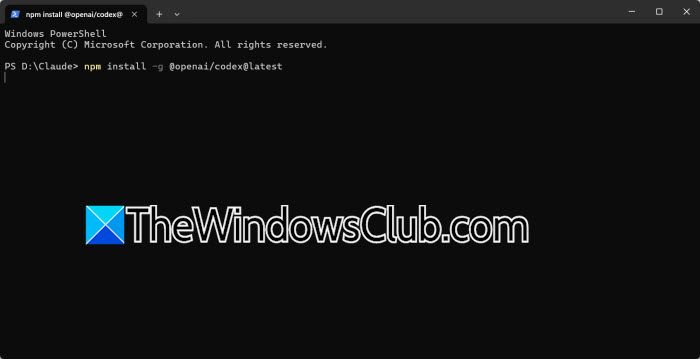
In some cases, PowerShell can’t find the CLI because a Windows native dependency is partially installed or missing. This also happens when a particular Codex release ships without the correct Windows package. Therefore, uninstalling the existing global Codex CLI and reinstalling it forces npm to fetch the full package and ultimately resolves the issue. Follow the steps given below to do the same.
- Open PowerShell, run the following command to remove the existing Codex CLI, and wait for npm to finish:
npm uninstall -g @openai/codex
- Once done, run the following to install the current version:
npm install -g @openai/codex@latest
- Run the following to verify the installation codex –version.
- Alternatively, run where.exe codex
- If PowerShell returns the Codex CLI version, the standalone is installed correctly.
In PowerShell, run Codex to test it. If the CLI starts successfully but the desktop app still shows the binary error, go to Solution 2 and set CODEX_CLI_PATH to the actual codex.exe. After setting the variable, completely close and reopen Codex, and check whether it starts. If the desktop app still shows the same error after completing Solution 2, go to the next solution.
5] Reinstall Codex on the system drive if it is installed on another drive
Binary-resolution failure can occur if Codex is installed on a secondary drive, especially after enabling WSL integration. In such a situation, moving the drive to the system drive can help the situation. Alternatively, reinstalling the app also helps clear the error.
- Click Win + I to open Windows Settings, go to Apps, and click on Installed Apps.
- Search for Codex in the installed app list, and if the Move option is available, move Codex to the system drive.
- If the Move option is not available, uninstall the app, and then restart Windows. Install the current Codex desktop app again and keep the installation on the system drive.
Launch Codex and check whether the error has disappeared. If not, go to the next solution.
6] Use the standalone Codex CLI
If the desktop app continues to fail, users can also bypass it to run Codex directly from PowerShell or Windows Terminal. Windows supports the standalone CLI, so if nothing works, we are going to access the standalone Codex CLI.
- Launch PowerShell and run the following command to install the CLI:
npm install -g @openai/codex@latest
- Alternatively, run OpenAI’s current Windows quickstart PowerShell installation command:
powershell -ExecutionPolicy Bypass -c "irm https://chatgpt.com/codex/install.ps1 | iex"
- Verify the installation and start Codex by running the following commands simultaneously:
codex --version
Codex
Hopefully, the Codex CLI will be accessible without any errors popping up on the screen.
Read: How to Install OpenAI Codex on Windows with Security Measures
Why can’t I find Codex CLI executable?
Users may not be able to find the Codex CLI executable because the Windows desktop app can fail to locate or extract its bundled CLI. In some cases, the problem can be related to WindowsApps packaging, permissions, or the app’s binary path. If you are experiencing something similar, see the article above.
Read: How to use Codex to build a Website
How do I install Codex CLI on Windows?
On Windows, open PowerShell and install Codex CLI using npm with npm install -g @openai/codex@latest. Alternatively, users can use OpenAI’s PowerShell installer. Check out the steps mentioned earlier in the article above to do the same.
Also Read: Codex desktop app not opening, not working or crashing on PC.
