
OpenAI’s Codex has revolutionized the way we think about building websites, transforming complex coding tasks into simple conversations. It allows you, complete beginners and seasoned developers, to turn your web development ideas into a functional reality with unprecedented speed. By simply describing what you want in plain language, Codex handles the intricate work of generating, organizing, and even deploying the necessary code. In this post, we are going to see how to use Codex to build a website.
Use Codex to build a website
Codex is an advanced AI coding agent from OpenAI that works alongside you as a development partner. It understands plain-language instructions and turns them into real website files, setting up the correct project structure without requiring you to write every line of HTML, CSS, or JavaScript. This allows you to focus entirely on describing how you want the site to look and function while Codex handles the technical heavy lifting behind the scenes.
What makes Codex particularly useful for building websites is that it manages the entire project folder, not just small snippets of code. It can install required software packages, run a local preview server, track changes with Git, and even publish the finished site to a live web address. This complete workflow support means a beginner can achieve professional results simply by describing their vision in a conversation.
- Download, install, and set up the Codex app
- Provide a clear project brief and generate an Execution Plan
- Iterative Development and Using Multiple Agents
- Run your website
To use Codex to build a website, you need to follow the steps mentioned below.
1] Download, install, and set up the Codex App
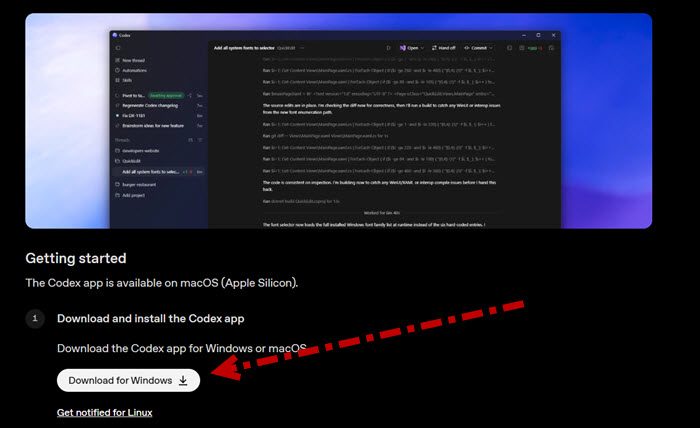
First, we need to get Codex into our system. It is a free application available for download from their official website. You need to follow the steps mentioned below to do the same.
- First, go to developers.openai.com, which is the official OpenAI Codex website.
- Scroll down, and click on Download on Windows (or macOS).
- Run the installer and complete the standard installation process.
- Launch the Codex app and sign in using your existing OpenAI account credentials.
- Inside the Codex app interface, click the Add new project option.
- Navigate to and select the empty folder you just created on your computer.
- To enable version control and safe management of changes, click the Create git repository button located in the bottom right corner of the app interface.
Once you have Codex on your computer, go to the next step.
2] Provide a clear project brief and generate an Execution Plan
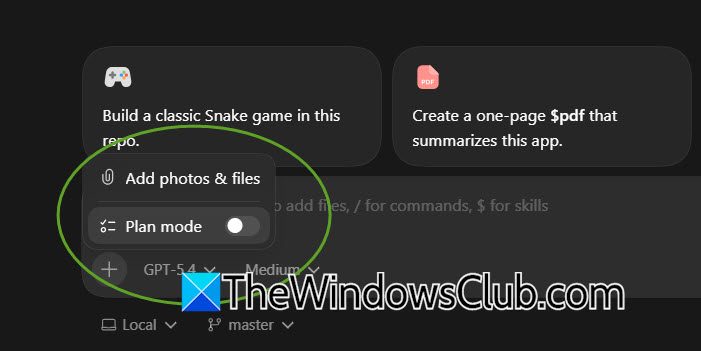
With the workspace ready, you’ll provide Codex with your first prompt, which serves as a project brief. Before sending the prompt, it is best practice to toggle on Plan Mode within the app interface. This instructs Codex to first generate a detailed plan rather than immediately start writing code. To do so, click on the Plus (+) icon in the chatbot and toggle on the Plan Mode.
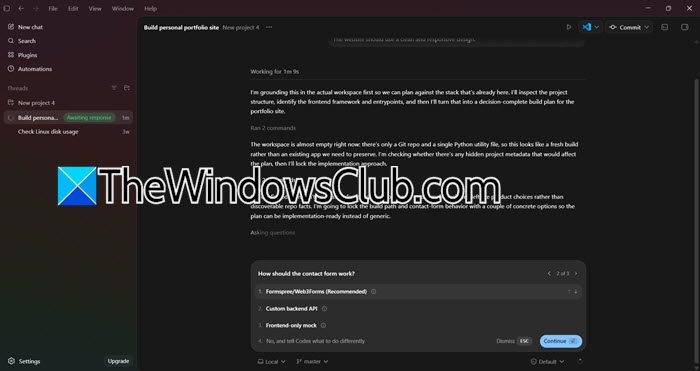
A strong initial prompt should clearly describe the website you want. For example: Create a modern personal portfolio website with a landing page featuring a hero section, an about page, a projects portfolio section, and a contact page with a functional contact form. The website should use a clean and responsive design.
You will be asked questions such as which language to use, which API to apply for, and more. Make sure to answer those questions as per your requirement, as Codex will process this request and produce a structured plan, often in the form of a Product Requirements Document (PRD) or a Markdown file, outlining the website’s architecture, the individual pages and components to be built, and a logical sequence for building them. You can review this plan, make adjustments by chatting with Codex, and then approve it to proceed to the build phase.
3] Iterative Development and Using Multiple Agents
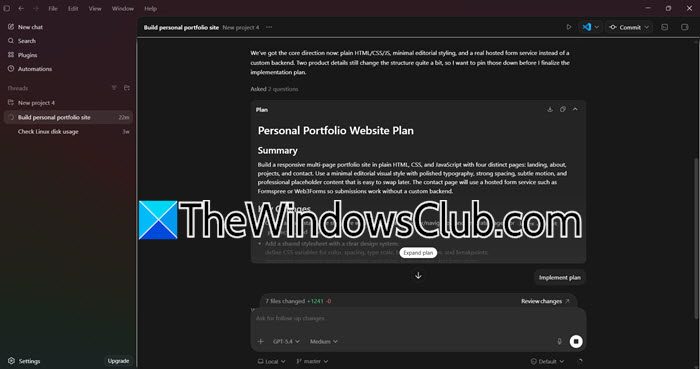
After your plan is approved, you can start building. The Codex app allows you to use multiple agents or threads simultaneously. This is useful for creating websites because you can assign different threads to different pages or parts, like one for the landing page, one for the about page, and one for the contact form.
In each thread, give the agent instructions for its specific section, referring to the overall Product Requirements Document (PRD) if needed. For example, you might tell the agent: Build the landing page as described in the plan using React components. Make sure to include a call-to-action button in the hero section.
As each agent finishes its work, Codex will manage the files and often use Git branches to keep changes separate. Once everything is built, you can have a main foreman agent check the branches and merge them into the main codebase to create a complete product.
4] Run your website
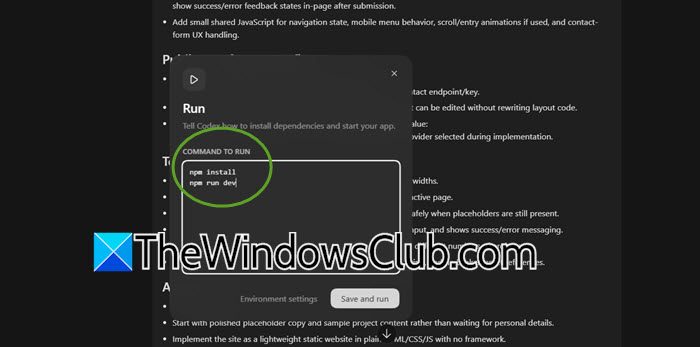
Now that we have built your website, go ahead and play with it. You will see a Play button at the top of your window, and then enter the following commands.
npm install
npm run dev
And then click on Save and run.
A Terminal window will open as it tries to run your website. In case it fails to do so or gives an error, we can stick to prompts. Terminate the Terminal window, then run the following prompt.
Initialize this project with Vite and React, then create the personal portfolio website according to the plan we made earlier. Make sure to create all the necessary files including package.json.
Let it initialize your project, then run it.
Read: How to use turn Text into Code using Codex CLI
Is Codex good for web development?
Yes, Codex is exceptionally good for web development. It excels at generating entire project structures, writing clean HTML, CSS, and JavaScript, and managing frameworks like React or Next.js through simple conversation. Because it can handle everything from initial file creation to final deployment, it dramatically reduces development time and makes it possible to build professional websites even for those with limited coding experience.
Read: Best AI tools for Developers
Can ChatGPT use Codex?
ChatGPT and Codex are separate products from OpenAI, but they are integrated in specific ways. The Codex app itself is a standalone desktop application that requires an OpenAI account. However, if you have a ChatGPT Plus, Pro, or Team subscription, you already have access to Codex capabilities directly within the Codex app using the same login credentials. No separate Codex subscription is needed beyond your existing ChatGPT plan.
Also Read: Claude Code vs OpenAI Codex: Which AI Coding Assistant is better.
