
AI agents can do more than just answer questions. Depending on the tools they have, they can read files, run commands, and interact with applications to get tasks done. However, allowing an AI agent access to a Windows PC raises security concerns. What prevents it from accessing files or resources it doesn’t need? Microsoft Execution Containers (MXC) help control that access. In this post, we will dive into Windows 11 MXC and see how Microsoft Sandboxes the Meta Muse Desktop App.
What is Microsoft Execution Containers (MXC)?
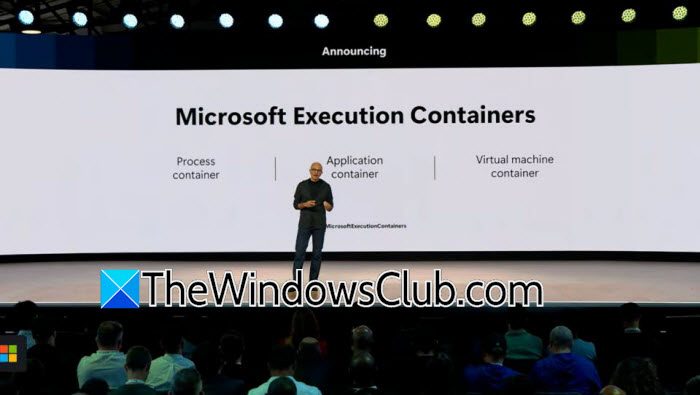
Microsoft Execution Containers, or MXC, is a system that helps developers manage AI agents and other tasks with specific permissions. Instead of letting an agent access everything a user can, developers can decide which resources the agent can use and which actions it cannot take. So, let’s say an AI agent needs to organize files in a folder; it may require permissions to read documents, rename files, and create new folders. However, it does not need access to saved passwords, personal photos, or unrelated work documents. This is where MXC comes into the picture, as it helps set these limits and enforce them while the agent runs. It also lets developers choose the right containment method based on whether the agent needs to run commands, execute code, or interact with a graphical desktop.
How does Microsoft sandbox the Meta Muse desktop app?

A sandbox creates a restricted environment where an application can perform permitted tasks without getting unrestricted access to the rest of the system. MXC uses policies to control which resources an AI agent can access and what it can do with them.
If we create an agent to edit files in a project folder, we can configure its permissions to allow access only to that location, not to any other folder in the directory. Similarly, we can isolate network access; our agent would be able to connect to a designated service, but it would not have unrestricted network access. To enforce these restrictions, we will use a containment system rather than relying on the AI agent to follow instructions. This matters because an agent can use different tools and take several actions while completing a task. Even if the original request is harmless, an unexpected action could still cause problems.
What can MXC restrict in Windows 11?
MXC provides different controls for managing an agent’s access, depending on the selected containment method and its configuration.
- File access: Developers can specify which locations an agent can access and what operations it can perform. For instance, an agent may be allowed to modify files in a project folder without receiving the same access to unrelated directories.
- Network access: Policies can restrict network connections and the destinations a workload can reach. This helps prevent an agent from accessing network resources that are not required for its task.
- Desktop access: Some agents need a graphical interface to complete tasks, while others only need to execute commands. MXC supports different containment options for these requirements, including a separate Windows session for workloads that need a desktop environment.
These restrictions help limit what an agent can do, but they do not guarantee that every action it performs will be correct. The protection also depends on how the developer configures the environment.
What types of containers does MXC support?
MXC allows developers to choose from different containment backends to fit their specific workloads.
- A Process container gives lightweight isolation for tasks like running tools or executing generated code. On Windows, this type uses AppContainer to limit access to system resources.
- A Session container provides a separate Windows account and session for workloads that need a graphical environment. It isolates desktop interaction, clipboard access, user input, and related session resources from the user’s normal session.
- MXC also supports WSL-based containers for Linux workloads. MicroVM support by Microsoft is still experimental, so it may not be available in every deployment.
Choosing the right container is important because each one offers different isolation features. We need to pick a suitable backend and set its permissions based on the task. These are the options documented by MXC, but this does not confirm what Meta Muse uses.
Read:
How do developers test MXC security policies?
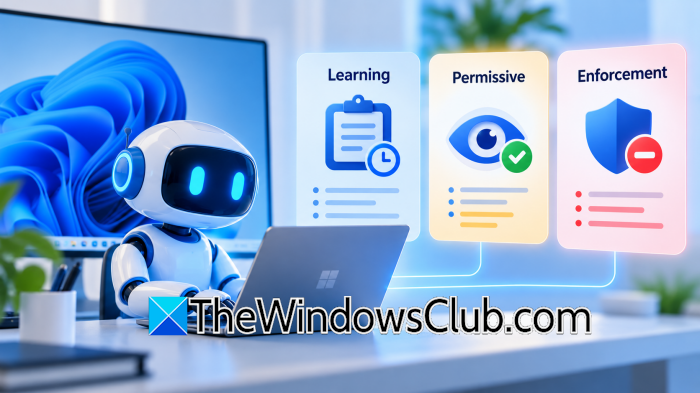
Configuring permissions can be challenging when developers are unsure about what an agent needs to access. If a policy blocks too much, it may stop a task from finishing. On the other hand, allowing too much access weakens the security of sandboxing. MXC offers the following modes to help developers understand what access an agent requires.
- In Learning mode, any access attempts outside the set policy are blocked and logged in a report. Developers can then review this information and adjust permissions as needed.
- Permissive mode records any access attempts that the policy would deny but lets them continue, as long as other restrictions apply. This allows developers to monitor a workload during testing, but it does not enforce the policy.
- Enforcement mode applies the set restrictions and blocks any actions that do not comply with the policy.
Microsoft provides details about these reporting behaviors for Windows process containers, but they may not work the same way across all MXC backends.
Read: Use Copilot Tasks to turn the AI Chatbot into a Personal Assistant
Can you use Muse on desktop?
Meta Muse is coming to Windows 11 as a native desktop app, according to Microsoft. It is planned to integrate with Microsoft Execution Containers (MXC), which helps restrict an AI agent’s access to files, networks, and other system resources. However, Microsoft has described Muse as Coming soon, so it has not confirmed its general availability or exact release date.
