
It’s frustrating when the Codex desktop app crashes, doesn’t work, or freezes when we need to get work done. The issue can occur for different reasons, including app bugs, corrupted data, sign-in problems, or Windows-related conflicts. In this article, we will explore all those possible reasons and find ways to fix it.
Codex Desktop App is an AI-powered coding assistant that helps you write, review, and manage code directly from your computer.
Why does my Codex app keep crashing on PC?
The Codex desktop app might be crashing due to common causes such as SQLite database checksum mismatches from CRLF line-ending drift, corrupted or outdated app-server processes holding file locks on .sqlite-wal files, or corrupted plugin caches that terminate the child process. It can also be due to WSL2 handshake timeouts, missing Visual C++ runtime DLLS, and restrictive UAC permissions or the July 2026 migration into ChatGPT that introduced some instability. However, there’s nothing to worry about. We can bring Codex back to its previous glory with a few tweaks.
Codex desktop app not opening, not working, or crashing on PC
If the Codex desktop app is not opening, working or crashing on PC, execute the solutions mentioned below.
- Check for Codex service outages and update via the Microsoft Store
- Repair or reset the Codex app
- Terminate stale Codex processes and clear the plugin cache
- Fix the migration 1 database checksum error with the Codex Repair Toolkit
- Back up the .codex folder and perform a clean reinstallation
Let’s get started with the troubleshooting guide.
1] Check for Codex service outages and update via the Microsoft Store
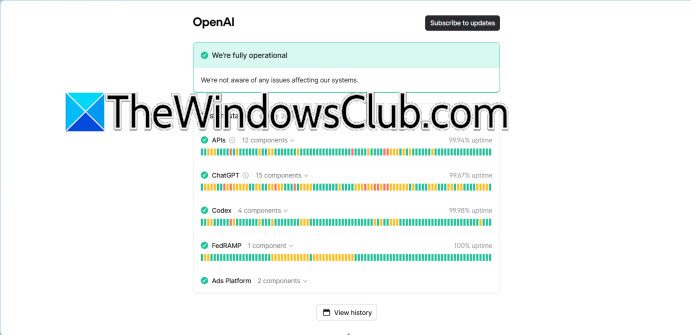
The issue can simply be on OpenAI’s end. An active service outage or degraded performance can cause the desktop app to hang on the loading screen, fail to authenticate, or close abruptly. Moreover, older updates may lack Windows-specific hotfixes included in newer updates. We recommend checking out these two aspects to save time.
- Open the browser, navigate to the official OpenAI Status page (status.openai.com), and look for any active incidents labelled Codex or API. If one exists, wait for the green resolved status before proceeding.
- If everything’s right on OpenAI’s end, launch the Microsoft Store and click on the Library icon.
- Select the Get updates option, and if Codex or the new ChatGPT desktop app appears in the update list, click the Update button.
If it prompts you to migrate from the standalone Codex app to the unified ChatGPT app, follow the migration wizard, then launch Codex from the app’s sidebar menu.
2] Repair or reset the Codex app
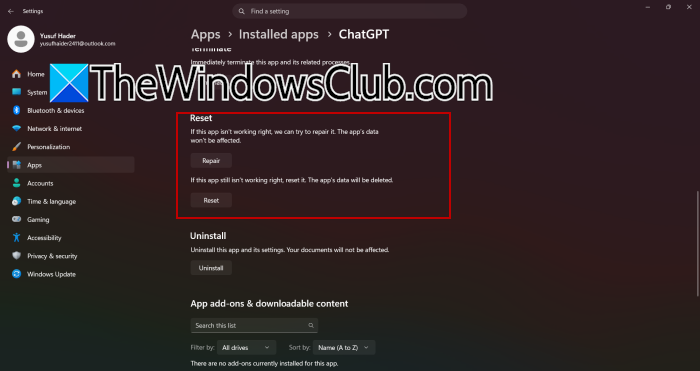
Windows has a dedicated application container for MSIX-packaged apps, which sometimes tends to get corrupted due to interrupted updates, disk errors, or conflicting temporary cache files. This may lead to silent termination errors or failure to initialise the main window. The built-in Repair and Reset option helps restore the app’s registration and core files.
- Click Win + I to open Settings, navigate to Apps, and click on Installed apps.
- Scroll down and locate Codex or ChatGPT, click on the three vertical dots next to the app, and select Advanced options
- Click the Terminate button to forcibly shut down any hidden background processes, and click the Repair button.
- Wait for the process to complete, launch Codex, and if it still crashes, return to the same Advanced options screen.
- Click the Reset button and confirm the action. This will remove local settings, but there will be no harm to the cloud-synced conversations.
Once done, relaunch the app and see if it opens properly. If not, see the next solution.
3] Terminate stale Codex processes and clear the plugin cache
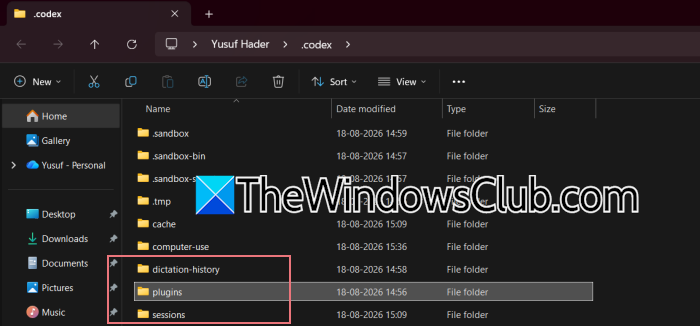
Codex desktop is built as a two-part system. A visible UI shell and a separate child process called app-server that handles the actual AI workload. The app server lingers even after we close the window, holding exclusive locks on SQLite database files. A new launch may fail because it cannot acquire these locks. Additionally, corrupted plugin manifest caches also cause the app server to throw a warning and terminate with code=1. Therefore, it’s necessary to terminate all processes working in the background and delete the plugin cache to force the app to regenerate fresh ones.
- Click Ctrl + Shift + Esc to open Task Manager, and click on the Details tab for a full process list.
- Look for any of the following names: Codex.exe, Codex-app-server.exe, or Codex Helper.exe.
- Right-click each one, select End task, and do it until none remains. Next, open the Run dialog box, type %USERPROFILE%\.codex, and press Enter.
- Locate the plugins folder in the directory and delete its contents, or rename it to plugins_old as a backup.
Launch the Codex app to rebuild the plugin cache automatically. If it results in a launch failure, see the next solution.
4] Fix the migration 1 database checksum error with the Codex Repair Toolkit
If you have recently updated, you may encounter the “migration 1 was previously applied but has been modified” error message when launching the app. The app attempts to run its database migration check on startup, but it crashes immediately due to a checksum mismatch. Here’s how to fix it.
- Open PowerShell or Windows Terminal as Administrator, and run the following command to clone the repair repository:
git clone https://github.com/xdifu/codex-repair.git
- Now, navigate into the cloned folder:
cd codex-repair
- First, run a diagnostic scan to verify the issue by executing the first command, and if the doctor confirms the checksum mismatch, apply the fix:
.\repair.ps1 -Mode doctor
.\repair.ps1 -Mode fix -Apply
- If you are using WSL and targeting the Windows Codex data, specify the full path:
.\repair.ps1 -Mode fix -Apply --codex-home "/mnt/c/Users/<YourWindowsUser>/.codex"
Wait for the script to complete and then launch Codex Desktop. If the toolkit runs successfully but Codex does not open, proceed to the next solution.
Read: How to use turn Text into Code using Codex CLI
5] Back up the .codex folder and perform a clean reinstallation
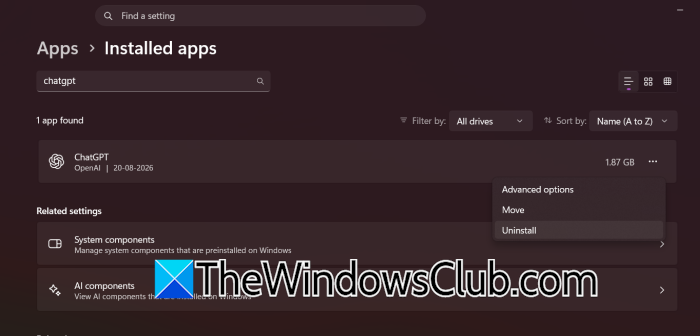
In this solution, we need to perform a clean installation of the Codex app. In case the issue is due to a corrupted component, this is the only solution that will work.
- Launch Settings, click on Apps, and select Installed apps.
- Find Codex (or ChatGPT), click Uninstall, then restart the PC to delete any files the system holds.
- Open the Run dialogue box, type %USERPROFILE%\.codex, and hit Enter to open the hidden local configuration and data directory used by OpenAI’s Codex tool and desktop app.
- Copy the entire .codex folder, paste it to the Desktop as a safety backup, and return to the %USRPROFILE% directory.
- There, right-click the original .codex folder, select Delete, and then visit the official OpenAI website or open the Microsoft Store to download the latest installer for the desktop app.
- Run the installer, complete the fresh installation, and launch Codex.
Hopefully, it will open without errors or crashing.
That’s it!
Read: How to use Codex to build a Website
How to fix an app that keeps crashing on a PC?
If an app keeps crashing on a PC, reboot the device first, then update the app. If the issue continues, check for Windows updates, repair or reset the app through Settings, and reinstall it if necessary. Users can also clear corrupted app data or check for software conflicts that can cause the crash.
Also Read: Install OpenAI Codex on Windows with Security Measures.
