
If flagged emails are not showing in Outlook folders on your Windows 11/10 PC, this post will help you fix the issue.
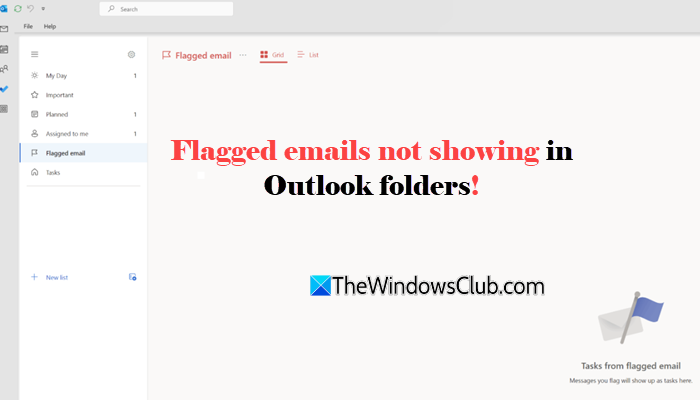
Microsoft Outlook lets you ‘flag emails’ that require your attention. These include messages you need to reply to, tasks you must complete, or requests you need to follow up on later. Flags help you keep track of pending tasks without leaving emails unread or searching for them repeatedly. However, some users have reported that flagged emails disappeared from their Outlook folders. In some cases, the messages are still present in the mailbox but are missing from the expected list. If you’re facing this issue, read on to learn how to troubleshoot it effectively on a Windows 11/10 PC.
Why can’t I see my flagged emails in Outlook?
Flagged emails may not appear in Outlook if they have been marked as completed or if an active filter (or sorting) is hiding them in your current view. They may also not appear due to the ’30-day’ limit in Microsoft To Do, account type restrictions, or sync issues.
Flagged emails not showing in Outlook folders
To fix flagged emails that are not showing in Outlook folders on your Windows 11/10 PC, use these solutions:
- Search for flagged emails using a query
- Check filters, sorting, and view settings
- Create a Search Folder for flagged messages
- Enable Flagged Email in Microsoft To Do
Before you begin troubleshooting, make sure you’re checking the correct email account containing the flagged messages.
Let’s take a look at the above solutions in detail.
1] Search for flagged emails using a query
Start by searching for the flagged emails directly. This helps determine whether Outlook can still find them even though they are missing from the expected folder.
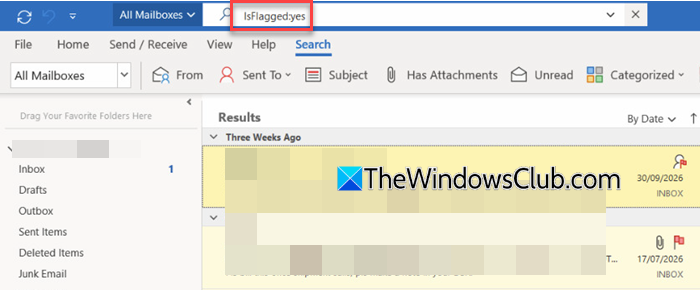
Open Outlook and click the Search box. Enter the following query:
IsFlagged:yes
Press Enter and review the results.
If the missing emails appear in the search results, Outlook is likely filtering or displaying them differently.
2] Check filters, sorting, and view settings
In most cases, flagged emails are still in your account. A filter, sorting order or view setting may be hiding them.
Check these settings before trying other fixes:
In MS Outlook:
Open the folder where you expect to find the flagged messages. Go to the Home tab and select the Filter option. Clear any active filters that may be hiding the emails. Then select Flagged to display flagged emails together.
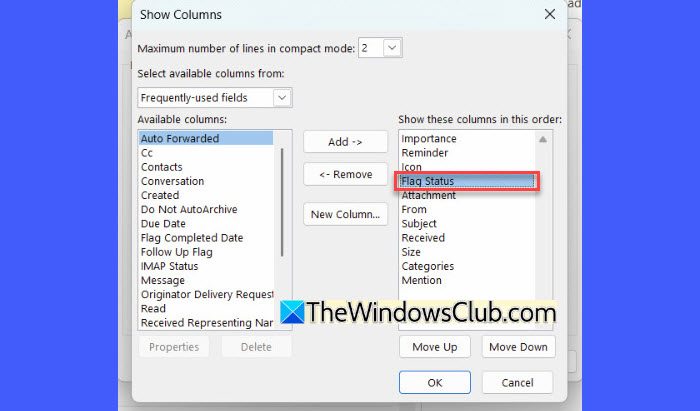
Next, click the Flag Status column heading to sort emails according to whether they are flagged. If the Flag Status column is missing, add it through the view settings.
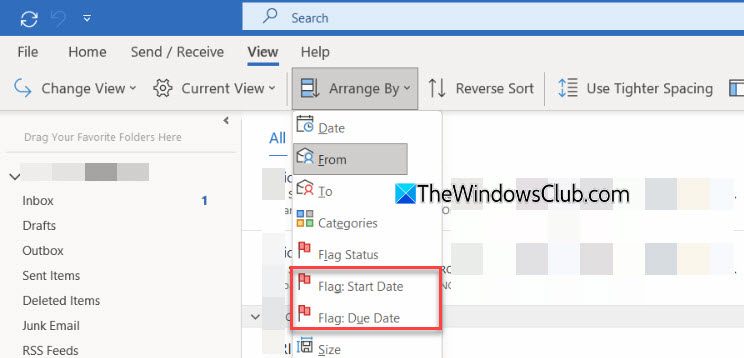
Alternatively, select Arrange by and choose Flag: Start Date or Flag: Due Date.
The issue may also be caused by corrupted or misconfigured view settings. Outlook allows each mail folder to have its own view settings. If the view settings for a particular folder are incorrect, flagged emails may remain in the mailbox but not appear in the expected list.
To fix this, go to the View tab and select Current View > Reset View.
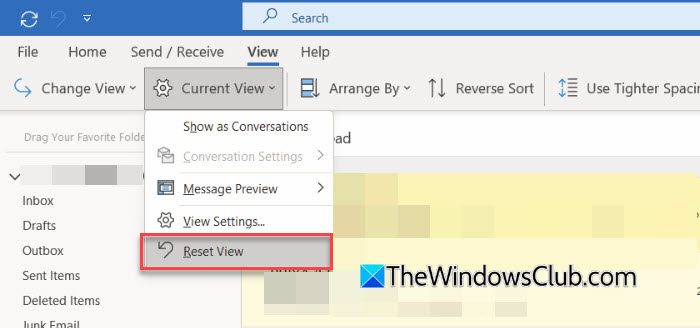
In Outlook app and Outlook.com:
Open the intended mail folder. Select Filter above the message list and check whether a filter is hiding the emails. Clear it or select the appropriate option to display all messages.
Next, open the Sort menu and review the available sorting options. If Flag Status is available, select it to group flagged messages together.
3] Create a Search Folder for flagged messages
A Search Folder in Microsoft Outlook is a virtual folder that displays emails matching specific criteria without moving them from their original locations. You can create a Search Folder for flagged messages to view emails marked for follow-up in one place, even when they are scattered across different mail folders.
In MS Outlook:
Scroll down to the Search Folders option in the left navigation pane. Select New Search Folder.
Under Reading Mail, select Mail flagged for follow up. Click OK.
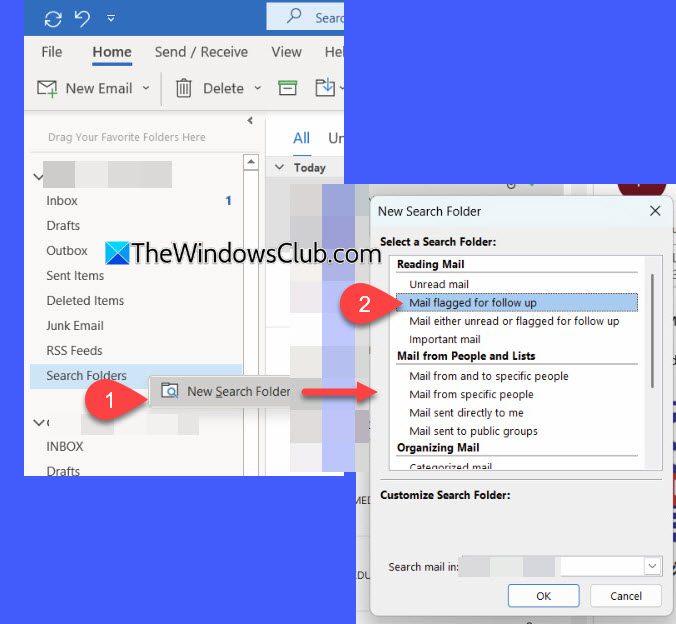
Expand Search Folders in the navigation pane and open For Follow Up. Outlook should display the messages that match the Search Folder criteria.
In Outlook app and Outlook.com:
Open Settings and go to Mail > Search folders. Then select Create new search folder.
From the Type dropdown, select Flagged for follow-up. If you want to restrict the results to certain folders, enable Filter to specific folders and select the folders to include. Otherwise, leave this option disabled.
Select Create and open the new Search Folder. The folder updates automatically as messages meet or stop meeting the search criteria.
4] Enable Flagged Email in Microsoft To Do
If flagged messages appear in Outlook but not in Microsoft To Do or My Tasks, the Flagged Email list may be disabled, your account may not support the integration, or there may be a sync delay for flagged email messages.
In Outlook app and Outlook.com:
Open Microsoft To Do. Go to Settings. Under Connected apps, turn on Flagged Email.
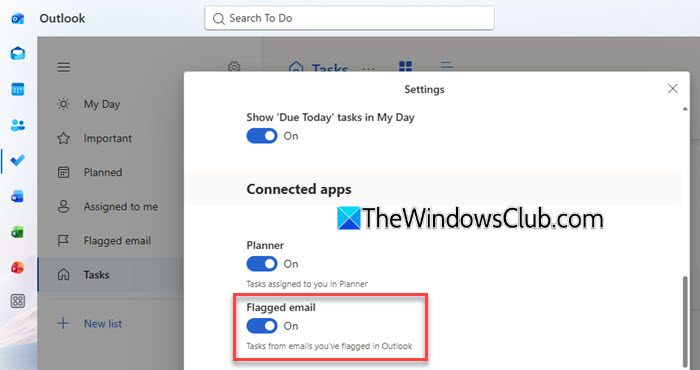
Return to the list and check whether your messages appear. If the list is already enabled but the messages are missing, try using the manual Sync option.
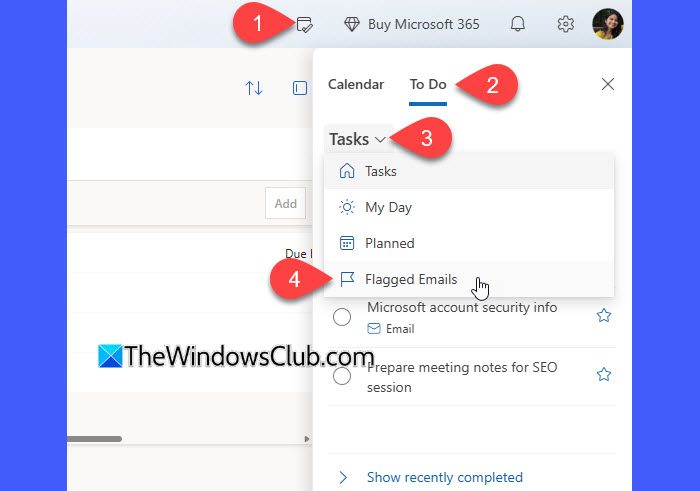
You can also access flagged emails through the My Day pane. Click the My Day icon in the upper-right corner to open its pane. In the My Day pane, switch to the To Do tab. Click the down arrowhead next to Tasks and select Flagged Emails.
Note:
- Microsoft To Do’s Flagged Email integration is available only for supported Microsoft-hosted accounts. It syncs flagged messages from your primary mailbox, not from shared mailboxes or shared folders. Read the official Microsoft document for detailed information.
- The list initially displays up to 100 recently flagged emails from the last 30 days, so older messages may not appear there.
- Flagged emails that have been marked as completed will not appear in To Do at all.
In classic Outlook:
Flagged emails can appear in the Tasks module and the To-Do Bar. To check them:
Open Outlook and switch to the Tasks view to look for flagged messages. If you want to display them alongside your email, select View > To-Do Bar > Tasks. Check whether the flagged messages appear in the task list.
I hope this helps.
How to show flagged emails folder in Outlook?
You can view all flagged emails in one place by creating a Search Folder in Outlook. This folder automatically displays messages marked for follow-up without moving them from their original folders. The steps vary depending on your Outlook version. If your flagged emails are missing from the expected folder, follow the steps given in this guide to troubleshoot the issue.
Read Next: How to highlight Specific Emails in Outlook.
