
In this post, we will show you how to highlight specific emails in the new Outlook app. In Classic Outlook, highlighting emails from a particular sender is quite easy. You use the New Search Folder option to filter emails (for example, all emails from one person or those containing specific words), and Outlook groups them in a single folder so they’re easier to locate.
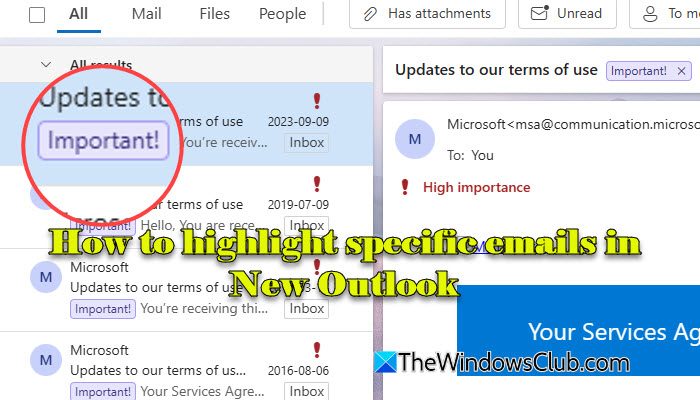
Microsoft’s documentation lists Search Folders as part of the New Outlook for Windows, but the feature is still rolling out. If you’re using a personal Outlook.com account, you might not see the Search Folders node yet. It’s currently more commonly available for work or school accounts with Microsoft 365. The good news is that there are still ways to highlight specific emails in the New Outlook.
How to highlight Specific Emails in new Outlook app
To highlight specific emails in the new Outlook app on a Windows 11/10 PC, you have 4 options (depending on the account type):
- Categories
- Flags
- Rules
- Conditional Formatting
1] Use Categories to highlight emails
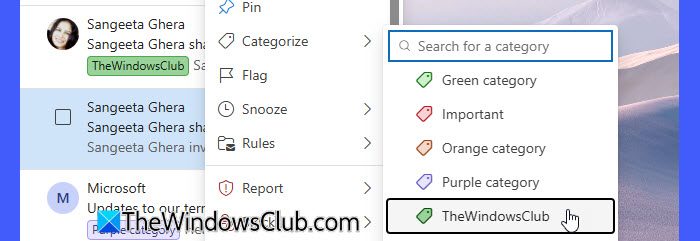
Categories let you assign color‑coded labels to emails. This makes them stand out in your inbox and helps you quickly spot messages from specific people or topics.
- Open New Outlook and go to your Inbox.
- Right‑click the email you want to highlight.
- Select Categorize and choose a color. The chosen color appears next to the email, making it easy to identify.
Tip: You can also rename categories or create new ones with meaningful names using the Manage categories option.
2] Use Flags to highlight emails
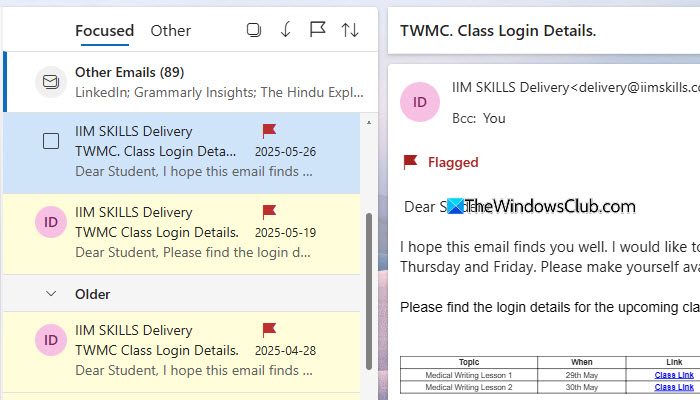
Flags help you mark certain emails for follow‑up or attention. A flagged email shows a red flag icon, making it easy to spot in your inbox.
- Right‑click the email you want to highlight.
- Select Flag. A red flag icon appears next to the email.
Alternatively, hover over the email in the message list and click the Flag icon that appears. You can later filter your inbox to show only flagged items (click the Filter icon above the email list and choose Flagged).
3] Use Rules to highlight emails
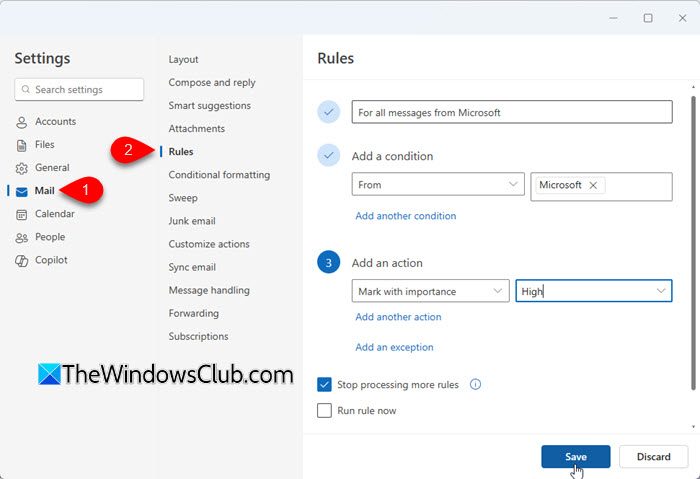
Rules automatically perform actions on incoming emails. For example, you can set a rule to mark emails from a specific sender with a certain importance level or category, and they’ll stand out as soon as they arrive.
- Right‑click an email from the sender you want to highlight.
- Choose Rules > Create rule.
- In the Create a rule window, click More options to open the full Rules settings.
- Under Add an action, select Mark with importance, then choose High, Normal, or Low from the dropdown.
- Click Save to apply the rule.
From now on, all emails from that sender will automatically be marked with the importance level you selected.
Note: If you want to apply this rule to emails that are already in your inbox, select Run rule now. Once you do this, the rule will run immediately. For example, emails marked with High importance will instantly show a red exclamation mark.
4] Use Conditional Formatting to highlight emails
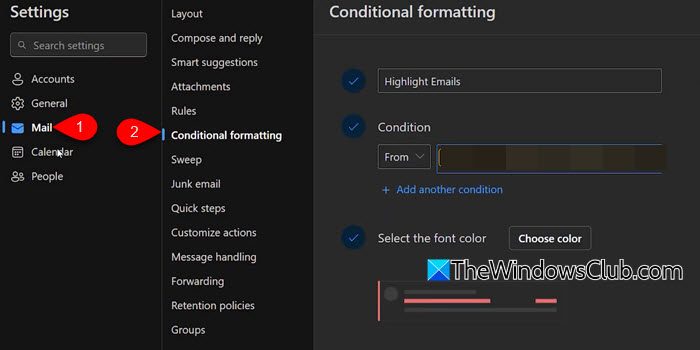
Conditional Formatting changes the appearance of emails based on conditions you set. This makes certain emails visually stand out beyond just a tag or flag.
Note: Conditional Formatting in New Outlook only appears if you’re signed in with a work or school account that’s part of a Microsoft 365 subscription. Personal Outlook.com users won’t have this feature available.
- Click the Settings gear icon in New Outlook.
- Select Mail > Conditional Formatting.
- Click Create a new conditional formatting rule.
- Give the rule a name and set conditions (e.g., from a specific sender or with specific words).
- Click Choose color next to Select the font color. Then select a desired color from the palette that appears.
- Click OK, then Save.
Emails that meet your conditions will now automatically appear in the chosen color.
That’s all! I hope you find this useful.
Read: New Outlook app not working or opening.
How do I highlight important emails in New Outlook?
In New Outlook, you can highlight important emails using features like Flags, Categories, Rules, or Conditional Formatting. For example, you can flag an email to add a red flag icon or create a rule to mark emails from certain senders as high importance. If your account supports it, you can also use Conditional Formatting to change the font color of specific emails.
How to categorize emails in new Outlook?
To categorize emails in New Outlook, right‑click an email and choose Categorize. Pick a color from the list, and a colored label will appear next to that email in your inbox. You can also go to Manage categories to rename existing colors or create new ones that match your needs.
Read Next: How to unsubscribe from Emails in the new Outlook app.
