
Microsoft Outlook users can search their emails for a specific word or phrase by using the Filter Email feature. The Filter Email feature filters email messages to only show certain features such as unread or flagged items in your inbox. You can filter emails in Outlook by Sender, Date, Attachments, Importance, etc. This tutorial will show you how to do it properly.
How to Filter Emails in Outlook
Follow the steps below to filter emails in Outlook:
- Launch Outlook.
- Click the folder you want to filter.
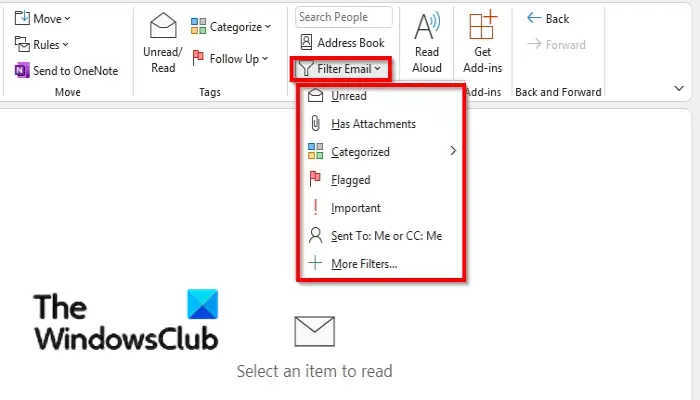
- On the Home tab, in the Find group, click the Filter Emails group.
- Choose a Filter from the menu.
- The folder will be filtered, depending on the filter you have chosen.
Launch Outlook.
Click the folder you want to filter.
On the Home tab, in the Find group, click the Filter Emails group.
In the drop-down filter, you will see a variety of filters.
- Unread: Filter your search results to show mail messages marked as unread.
- Has Attachment: Filter your search results to show mail messages that only have attachments.
- Categorized: Filter your search results to show mail messages in categories.
- Flagged: Filter your search results to show mail items that are flagged
- Importance: Filter your search results to show mail messages that are marked with high importance.
- Sent to Me or CC: Me: Filter your search results to show items where your name appears in the To or CC line of the message.
Choose a Filter from the menu.
If you click More Filters, Outlook will navigate to the Search box, where you search for email messages, above the menu bar. Depending on the email message you are looking for, Outlook will return all the messages with that email address in the folder you have selected.
We hope this tutorial helps you understand how to filter emails in Outlook.
Read: How to stop sending or receiving winmail.dat attachments in Outlook
How do I filter emails with attachments in Outlook?
If users in Outlook want to search for emails with attachments, select the folder in the folder pane. Above the menu bar, you will see a Search box. Place the cursor in the Search Box, type “hasattachment: yes”, and press Enter. This will filter the folder you have selected to show messages with attachments.
Read: The operation failed, An object cannot be found Outlook error
Why would you want to create an email filter?
Users will filter their emails to look for specific items. Filters can help individuals to save time. You can use the built-in features in Outlook to make it easy to search for what you want in your email folders.
