
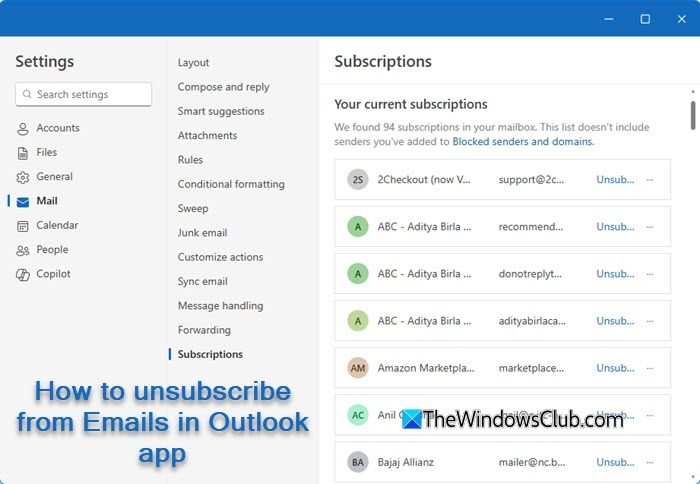
This post will show you how to unsubscribe from Emails in the new Outlook app. If you feel your Outlook inbox is bursting with newsletters, sales alerts, and promotional offers, you’re not alone. Most of us don’t even remember signing up for half the subscriptions that land in our inbox every day. Over time, these emails pile up, not only cluttering our screens but also making it harder to spot the important stuff.
How to unsubscribe from Emails in Outlook app
In the classic Outlook, unsubscribing wasn’t always straightforward. Unless the email included a visible Unsubscribe link, you had to rely on workarounds, such as creating rules or marking it as spam. But with the new Outlook, things have gotten easier. Now you can bulk review and manage all subscriptions at once from the Subscriptions section, eliminating the need to open individual emails.
To unsubscribe from Emails in the new Outlook app on a Windows 11/10 PC, follow these steps:
- Open Outlook.
- Open the Settings window.
- Go to Mail settings.
- Unsubscribe from your current subscriptions.
Let us see this in detail.
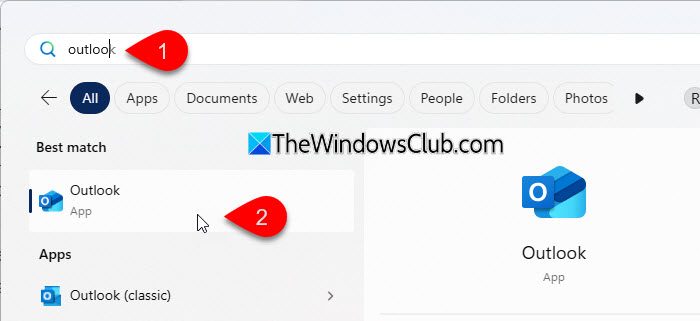
Start by launching the new Outlook on your Windows PC. Click the Start button or tap the Windows key on your keyboard. Then type ‘outlook’. From the search results, select the app labeled “Outlook” or “Outlook (new)”.
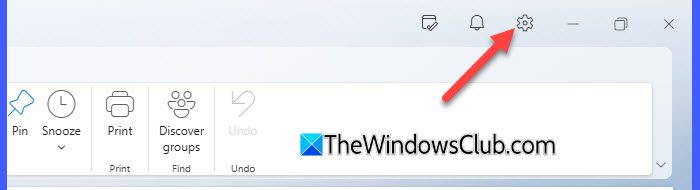
Once Outlook is open, look at the top-right corner of the window. You’ll see a small gear icon. Click on it.
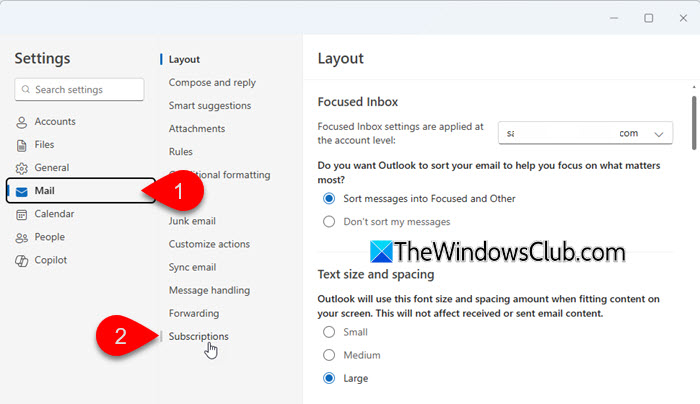
This will open the Outlook Settings window. On the left side, click Mail to expand the mail settings options. Then, click Subscriptions from the list that appears.
At the top of this page, you’ll see a dropdown menu that lets you choose the email account for which you want to manage subscriptions. This is especially useful if you’ve added multiple email accounts (like work and personal) to the Outlook app.
Make sure the correct account is selected before proceeding.

Once selected, Outlook will display a list of email senders that the selected account is currently subscribed to. These are mostly newsletters, promotional mailers, and automated updates that Outlook has identified using email headers like List-Unsubscribe.
(Newsletters and marketing emails may include a hidden line of code called List-Unsubscribe. This allows email apps like Outlook to detect that the email is part of a subscription and offer you an Unsubscribe button automatically. If the sender doesn’t include this code properly, Outlook may not show the button.)
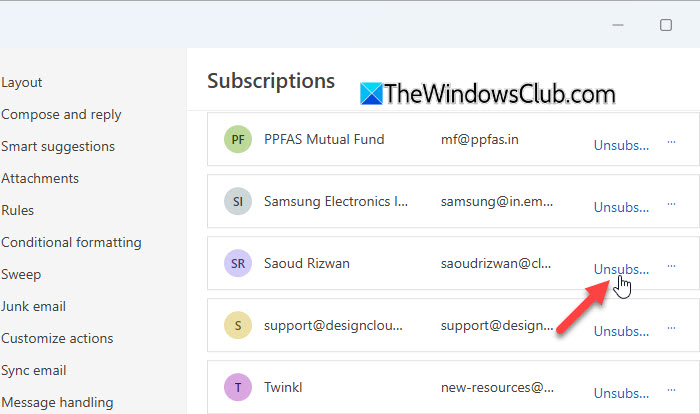
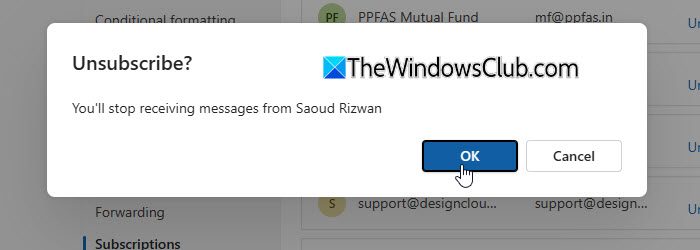
Next to each sender, you’ll see an Unsubscribe button. Click Unsubscribe next to the sender you no longer wish to receive emails from. A confirmation pop-up will appear. Click OK to confirm your action. Outlook will automatically handle the unsubscribe request for you.
Repeat the process for any others you want to remove.
That’s it! I hope you find this useful.
Read: How to unsubscribe from Email in Gmail
How do you cancel an email on Outlook app?
You can use the Undo Send feature in the new Outlook app to cancel an email within a few seconds of hitting the Send button. To enable it, click the Settings icon, select Mail > Compose and reply. Then scroll down to find the Undo send option. Set a delay of up to 10 seconds and click Save.
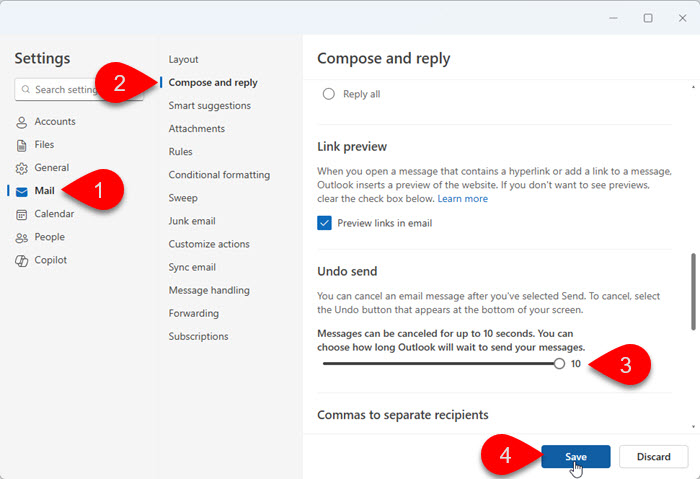
Once enabled, Outlook will show an Undo button at the bottom of the window right after you send an email. Clicking it within the delay window will stop the message from being sent.
Read:
