
In this post, we will show you how to unsubscribe from Email subscriptions in Gmail at once in bulk. We will also see how you can use the free Unroll.me web service to clean your email inbox.
Waking up to dozens of emails is not the best way to start your day. It is a jarring experience that can keep you hooked for hours and spoil your morning plans. Seeing those spam emails and newsletters is definitely not the thing you want to deal with at any time in the day, let alone the first thing in the morning. But they are there, nonetheless. Every day you see them, every day you resolve to get rid of them, but they are just so large in number that many of us have learned to live with them.
Unsubscribe from Email, Junk mail, Spam
Almost every website you visit, whether an online store or a travel portal, asks for your email address. If you purchase a book or a music album, book an airline ticket or a movie ticket, or use any service, they will ask for your email ID. We all know we should avoid sharing our email IDs, but at times, it becomes almost impossible and necessary to provide them.
Now, that isn’t the real problem; the problem is how they use your email IDs. Many, if not all, will add you to their subscriber list, which allows you to receive notifications for their future offers and other updates—or, in other words, spam your email inbox. Things become even more tedious when some email IDs don’t allow you to sign out from their future emails.
Emails are a high priority, perhaps because your entire academic and professional life resides in your inbox. It also acts as proof of identity for your bank accounts, social media profiles, and other email IDs. I contend that your email inbox is of great importance and value, and you shouldn’t have to bother deleting spam or anything you are no longer interested in receiving.
How to unsubscribe from Email in Gmail
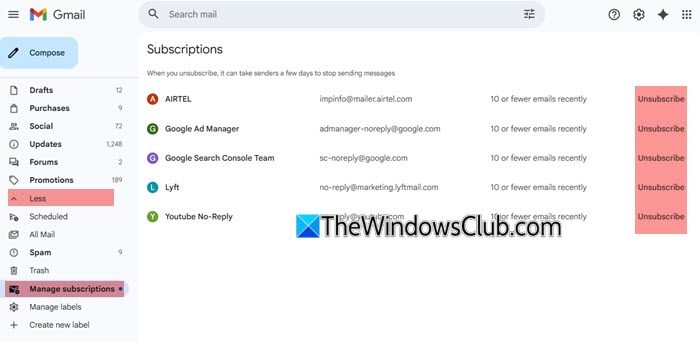
To unsubscribe from Email subscriptions in Gmail, take these steps:
- Open your Gmail.com email account page
- On the left side, click on More to expand the list
- Locate and click on Manage subscriptions
- Now on the right side, you will see the emails you are subscribed to
- Click on Unsubscribe against the email lists you want to unsubscribe from
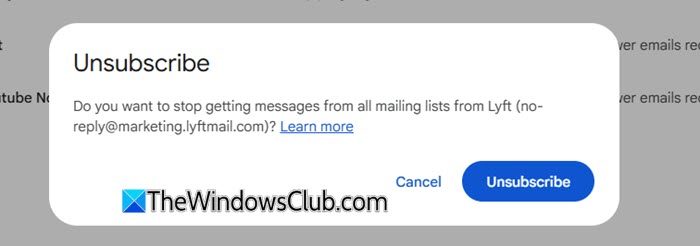
- Confirm your decision in the next window, and you are all set.
Read: How to unsubscribe from Emails in Outlook app
How to unsubscribe all emails in Gmail at once in bulk
You can use web apps like Unroll.Me to manage and unsubscribe from multiple email lists easily. UnrollMe unrolls you from the services you have subscribed to. You can very easily integrate your Gmail, Yahoo ID, and Outlook accounts with the service, and in a matter of seconds, the service will populate a list of all the services you have signed up for.
Once the list has been populated, you can easily unsubscribe from them with a few clicks. Some services don’t offer an unsubscribe option; fortunately, they won’t escape UnrollMe.
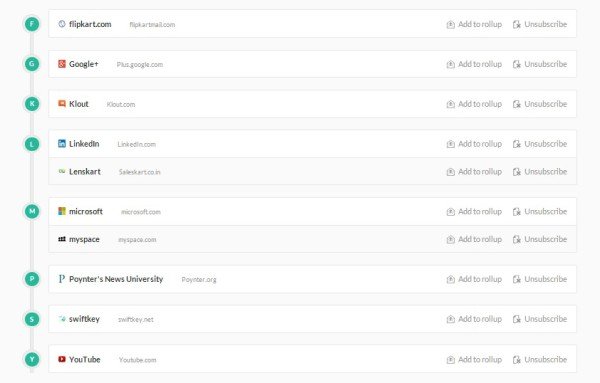
The service has a very nice UI, and the recent update made it compatible with Yahoo service as well. You can use the service from your mobile devices as well.
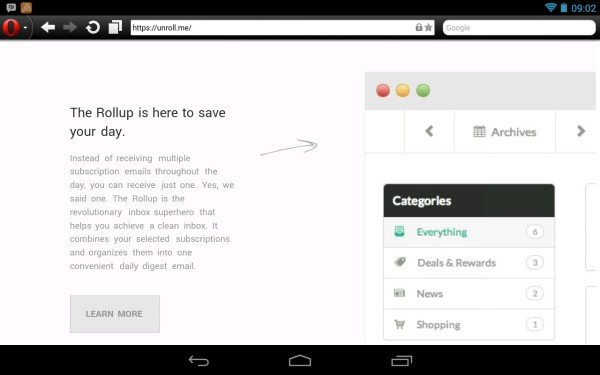
The service is amazing and trustworthy. For the kind of job it does, I don’t see any reason why you shouldn’t use it. It is also noteworthy that it is completely free.
It will take you just a few minutes with Unroll.Me, and the service will make your life easier.
