
If Outlook removes attachments when replying to someone’s email, here is what you can do to troubleshoot this issue on Windows 11/10, you can try some of them on other platforms as well.
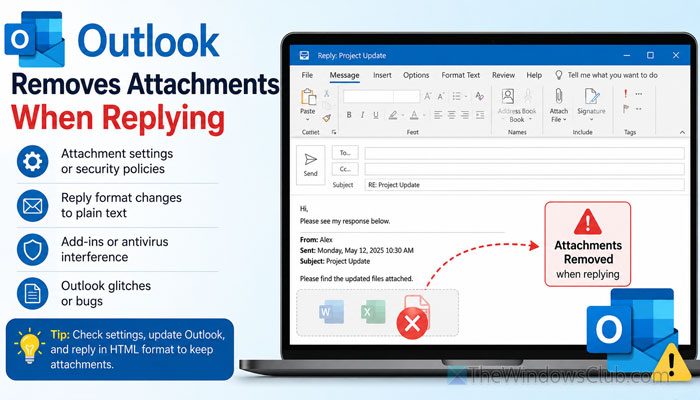
Why does Outlook remove attachments when replying?
If Outlook removes attachments when replying, these could be the reasons:
- You are mixing up the Forward and Reply options. If you want to keep attachments when replying in Outlook, use the first option. Otherwise, the former option will do the job.
- Outlook’s security is pretty strict, as it removes all suspicious files within moments.
- Your email may have an inline attachment.
- There may be some issues with the Outlook profile.
- Your Outlook installation could be corrupt.
Outlook removes attachments when replying
If Outlook removes attachments or attachments disappear in Outlook after replying, follow these solutions to resolve the issue:
- Manually copy-paste the attachment
- Use the Forward option to keep attachment
- Don’t use Show as Conversations
- Re-attach the attachment
- Use a different Outlook profile
- Disable all add-ins
- Repair PST
- Disable antivirus temporarily
Attachments disappear in Outlook after replying
1] Manually copy-paste the attachment
This is the simplest way to send the attachment again to the recipient when replying. When you receive the email with the attachment, download it to your computer. Then, attach it to your email when you are replying.
Although it is a working solution, there is a common drawback. It will be a hectic task if you have multiple attachments and you want to send them multiple times.
2] Use the Forward option to keep attachment
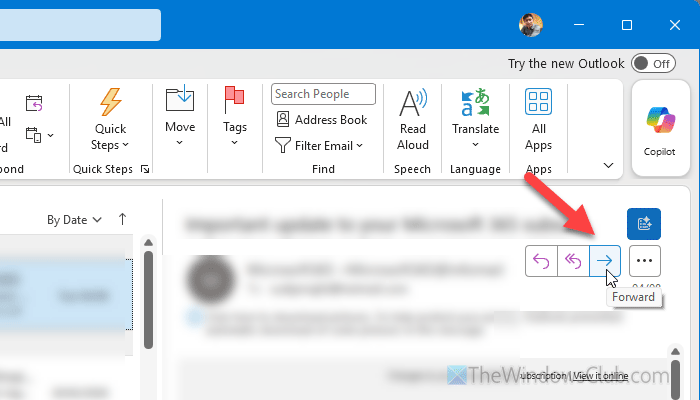
Instead of using the “Reply” option, use the “Forward” option. In general, you might use the Forward option to forward an actual email to someone else other than the sender. However, you can use the same option to send the same email to the same sender. The most important thing is that your email will have the attachment intact.
For that, open the email and click the Forward option. If Outlook asks you whether you want to send the external content, you say Yes.
As you are replying to the conversation, you might want to add a few words. Write down your words in the email body, enter the sender’s email address to whom you want to reply in the To section, and click the Send button.
Read: How to forward Email as an Attachment from Outlook
3] Don’t use Show as Conversations
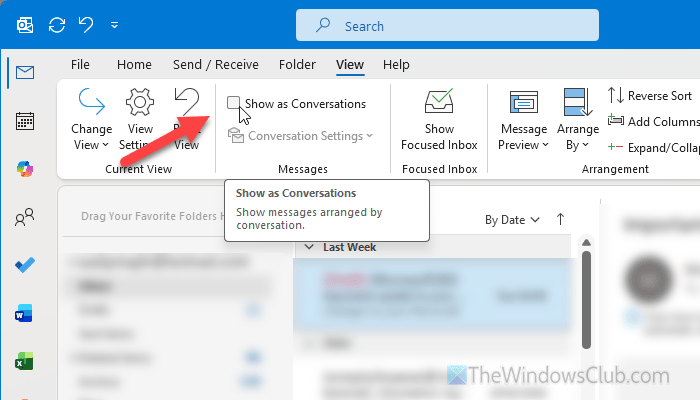
The Show as Conversations option helps you consolidate all related emails at once. It fetches the subject line and groups them so that you can find the same type of email within moments. However, this feature might be the reason for the conflict in this case.
That is why it is suggested to disable this option in Outlook. For that, open the Outlook app and go to the View tab. Find the Show as Conversations checkbox, and uncheck it.
Read: How to Enable, Disable, Use Conversation View in Outlook
4] Re-attach the attachment
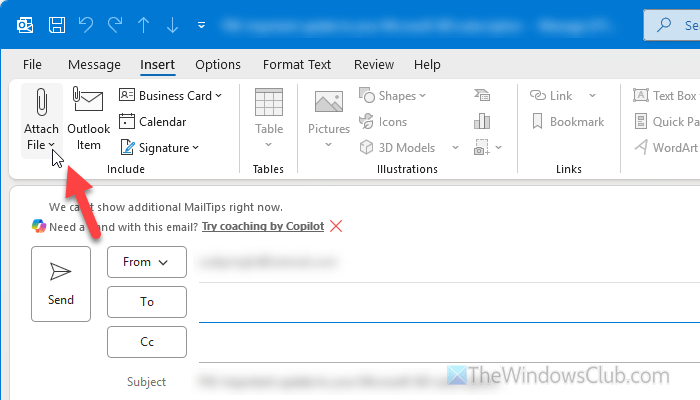
At times, this problem may arise when your file is flagged by Outlook’s internal security. However, if there is a glitch or bug, it may be lifted if you try to re-attach the file. Although it doesn’t happen all the time, it may solve your problem at times.
For that, go to the Insert tab, click on the Attach File option, and select the desired file.
Read: Attachments not showing in Outlook
5] Use a different Outlook profile
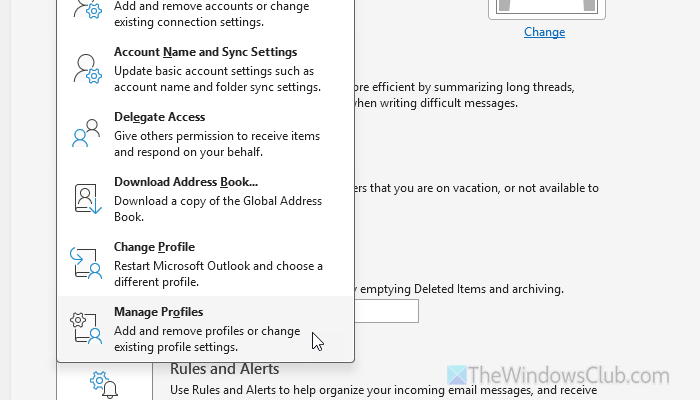
To create a new Outlook profile, go to Info > Account Settings > Manage Profiles.
Click on the Show Profiles button and click the Add button. Next, enter your credentials. Once done, choose the newly created profile, select the Always use this profile option, and click the OK button.
If this solves your issues, it is suggested to remove the old profile. For that, open the same profile management panel, select the old profile, and click the Remove button.
In case you don’t have any idea about Outlook profile creation and want to create or delete an Outlook profile, you can follow this detailed guide.
6] Disable all add-ins
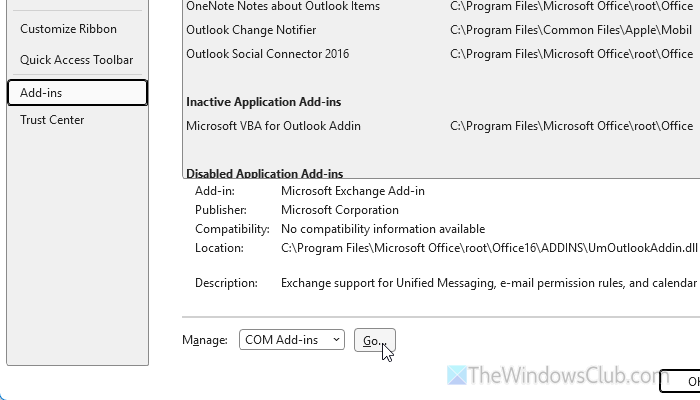
Sometimes, this problem may arise when there are issues with installed third-party add-ins. If you have multiple third-party add-ins, disable them.
To disable Outlook add-ins, go to File > Options > Add-ins. Select COM Add-ins and click the Go button.
Clear the checkboxes and click the OK button.
If it solves the issue, go to the same path and remove those add-ins entirely.
7] Repair PST
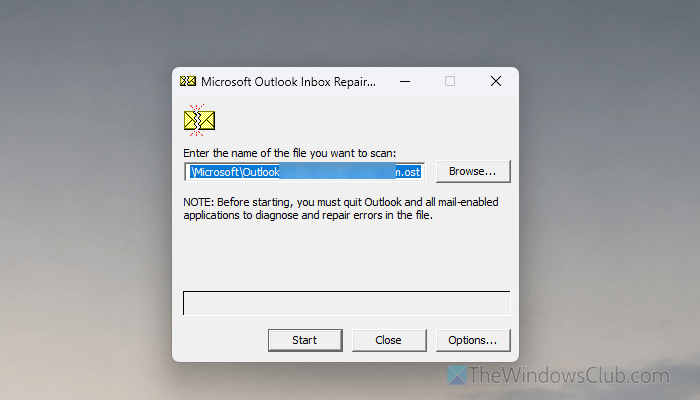
If you want to keep attachments when replying in Outlook, you must ensure that the Outlook data files are intact. If there is suspicious activity, it is suggested to repair them.
You can use SCANPST.EXE, which comes with your Outlook installation, to repair Outlook PST and OST files. You can go to this path to find the executable file:
C:\Program Files\Microsoft Office\root\Office16
8] Disable antivirus temporarily
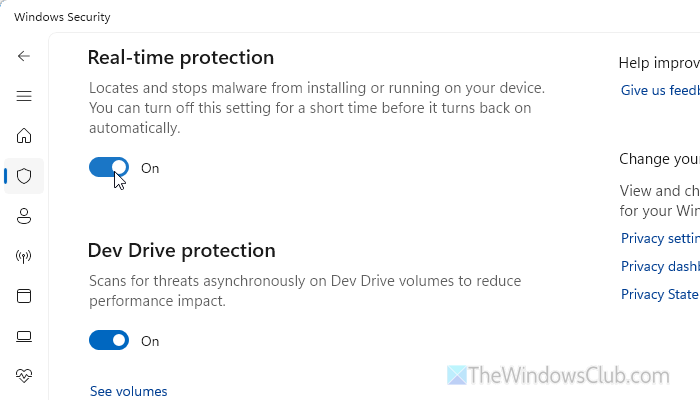
If your file seems malicious to the security software you are using on your PC, it will be removed automatically. Even if it gets bypassed by the Outlook security, your internal Windows Security won’t spare that. As a result, it will be removed from your computer, and you can’t send it as an attachment.
That is why it is suggested to turn off your antivirus and check whether the attachment is flagged or not. For that, open Windows Security and go to Virus & threat protection > Manage settings.
Disable Read-time protection.
Read: How to enable or disable Windows Security in Windows 11
Why do my Outlook attachments disappear in Outlook after replying?
If you are using the Reply option instead of Forward, you cannot send the attachment again to that particular email address. In other words, Outlook doesn’t send the same attachment to the recipient when you use the Reply option. If you want to send the attachment again, use the Forward option.
How do I reply in Outlook without losing attachments?
If you want to reply in Outlook without losing attachments, the simplest way is the Forward option. Instead of using Reply, use Forward. Alternatively, you can copy and paste the attachment manually and send it when replying.
Read: Cannot attach files to email in Outlook.com or Desktop app.
