
If you are unable to create Outlook tasks in OneNote or the Outlook Tasks is grayed out in OneNote, here is what you can do to troubleshoot this issue in Windows 11.
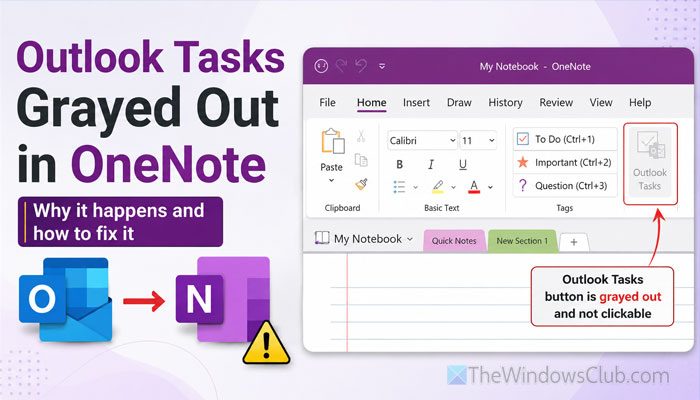
Why is Outlook Tasks grayed out in OneNote?
If Outlook Tasks is grayed out in OneNote, these could be the reasons:
- The new Outlook is the main reason why you are not getting Outlook Tasks in OneNote.
- Both Outlook and OneNote are not updated to the latest version.
- You are using OneNote with administrator privileges.
- There are some issues with the installation of those apps.
- You are using those apps from different installations e.g., Office 2024/2021 and Microsoft 365.
- The OneNote add-in is not installed in Outlook, which helps synchronize data between Outlook and OneNote.
Outlook Tasks grayed out in OneNote
If Outlook Tasks is grayed out in OneNote, follow these solutions:
- Disable the new Outlook
- Enable OneNote add-in in Outlook
- Ensure both apps are from same installation
- Update OneNote and Outlook
- Try a different notebook
- Repair Office installation
- Remove OneNote cache
To learn more about these solutions, continue reading.
1] Disable the new Outlook
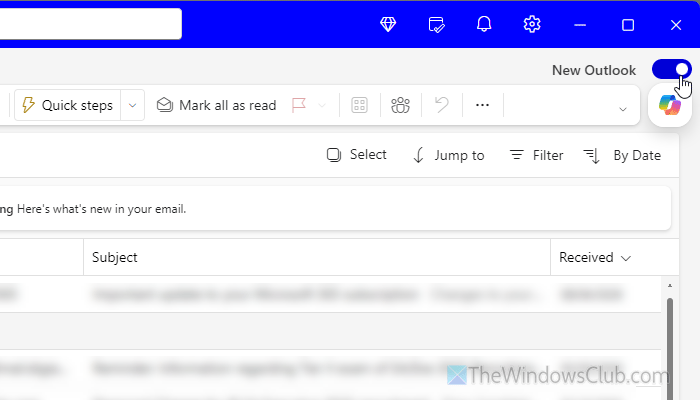
If you are using the new version of Outlook app, or as they say, Outlook (new), there is a high chance of getting this problem. As Microsoft slowly moves toward Microsoft To Do, some people report not getting Outlook Tasks after enabling the new Outlook.
That is why it is suggested to disable the new Outlook app and opt for the classic edition of MS Outlook. You don’t need to do much other than click the toggle button in the top-right corner.
Then, choose the Switch back to classic Outlook option and click the Continue button.
Following that, restart the OneNote app to find the Outlook Tasks.
2] Enable OneNote add-in in Outlook
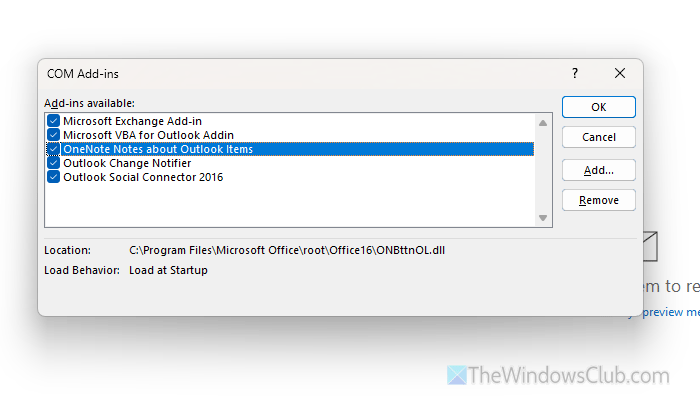
To find OneNote tasks in Outlook, enable the respective add-ins so they can synchronize notes between them.
To verify, open Classic Outlook and go to File > Options > Add-ins. Select COM Add-ins, and click the Go button.
Then, make sure that the OneNote Notes about Outlook items add-in is enabled or not. If not, tick the corresponding checkbox and click OK.
Read: How to enable, disable or remove Outlook add-ins
3] Ensure both apps are from same installation
If you use OneNote from Office 2024/2021/2019 and Outlook from Microsoft 365, or vice versa, you’re likely to run into this problem. In other words, if you have multiple versions of Office on your computer, it is time to remove one of them.
OneNote and Outlook can’t manage your tasks if they are from different builds and editions. As a result, you will get the problem mentioned above.
To uninstall Microsoft Office, you can go to Windows Settings > Apps > Installed apps. Find Microsoft 365 or any other version you want to uninstall, click the three-dot icon, and select Uninstall.
4] Update OneNote and Outlook
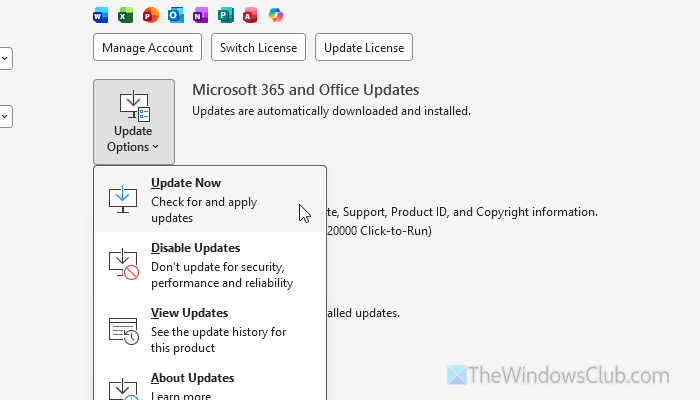
If your apps haven’t been updated in a long time, you may get this error when accessing Outlook Tasks in OneNote. That is why we recommend updating those Office apps on your PC.
To update OneNote and Outlook, go to File > Account > Update Options > Update Now.
Then give it a few minutes to find and install the update.
5] Try a different notebook
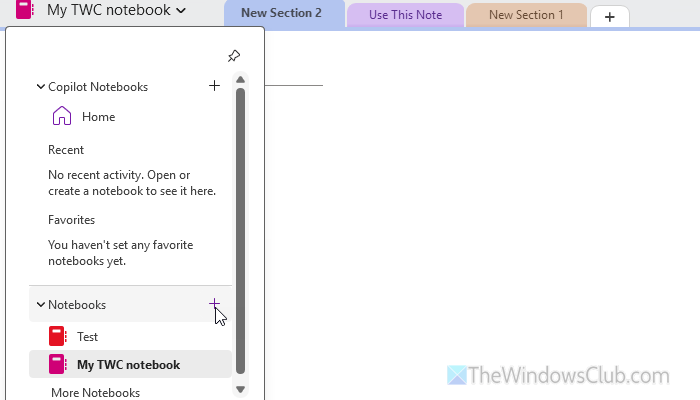
Sometimes, this problem can happen because of an error in the selected OneNote notebook. That is why we suggest using a different notebook.
To create a new notebook, open OneNote and click on the current notebook name visible on the top-left corner.
Click on the plus sign and give it a name. Finally, click the Create Notebook button.
For your information, you can save the notebook in OneDrive or on your local storage. You can choose the location based on your needs.
Read: How to create a new Notebook and add Pages in OneNote
6] Repair Office installation
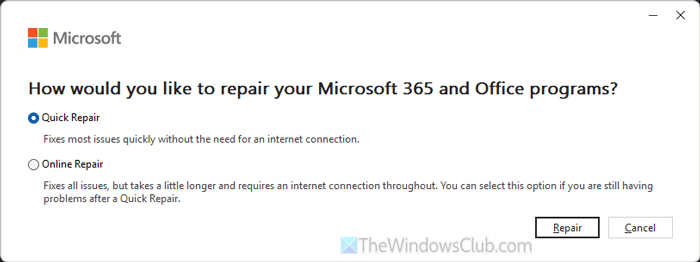
If you encounter issues with the Office installation, you may see the problem mentioned above. So repair the Office installation and see.
For that, press Win+I to open the Windows Settings and go to Apps > Installed apps. Find Microsoft 365/your Office installation, click the three-dot icon, and select Modify.
Choose the Quick Repair option and click the Repair button. Once done, check whether the Outlook Tasks option is working. If not, choose the Online Repair option.
7] Remove OneNote cache
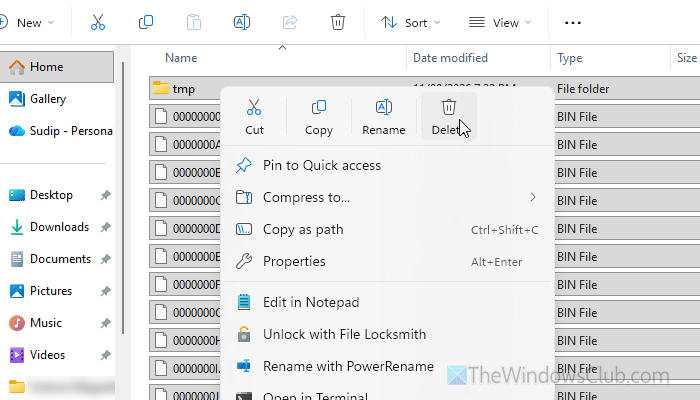
If you updated your subscription or installed a newer edition of Office, Office may still be using the old cache. In that case, you can remove the OneNote cache to fix this problem.
First, close the OneNote app. Then, press Win+R to open the Run prompt, and enter this path:
%localappdata%\Microsoft\OneNote\16.0
Go to the Cache folder. Here, you can find many files with the .bin extension. Remove all content in that folder.
You can also remove the entire Cache folder after navigating to the path mentioned above.
Finally, restart the OneNote app.
Read: How to clear Office Word, Excel, PowerPoint cache
Why is the OneNote open task in Outlook greyed out?
It is very common if you are using the new version of Outlook. Also, if there are issues with the OneNote or Outlook installation, you may see the same problem when trying to create or access tasks in OneNote.
Where did Outlook Tasks go?
Even after ensuring the installation is complete, if you don’t see Outlook Tasks in OneNote, it suggests internet connection issues are causing the problem. OneNote and Outlook need a valid internet connection so that it can synchronize tasks.
