
If you see Error 657rx, Something went wrong when trying to sign in and use Office apps like Teams, Outlook, Word, Excel, etc, then this post will help you resolve the issue. This usually happens when Windows caches old or broken sign-in tokens for a work or school account, blocking Microsoft 365 apps from signing in.
How to fix Microsoft error 657rx
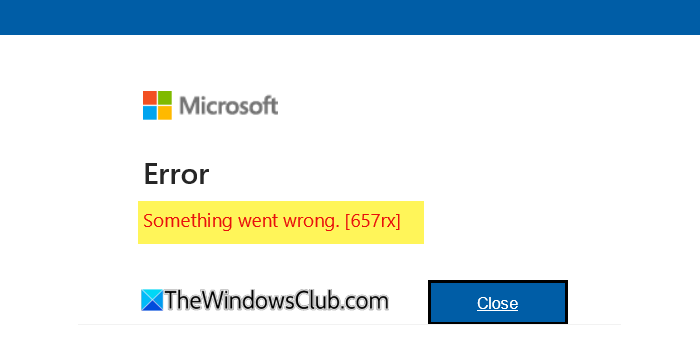
To resolve Error 657rx, Something went wrong when trying to sign in and use Office apps like Teams, Outlook, Word, Excel, etc, follow these suggestions:
1] Reconnect your account after clearing saved credentials
To fix this issue, you must disconnect and reconnect your Work and School account, then clear your saved Microsoft login credentials.
To do this, open Windows Settings > Accounts and select Access work or school. Click on the account causing the issue and select Disconnect.
Having disconnected the account, restart your computer.
Now you need to clear the Cached Credentials and to do this, you must type Credential Manager in Start search and click on the result to open it.
Click on the Windows Credentials section and remove entries related to MicrosoftOffice, ADAL, AzureAD, Office 365.
They will look like MicrosoftOffice16_Data:OATH. Expand each entry and click Remove.
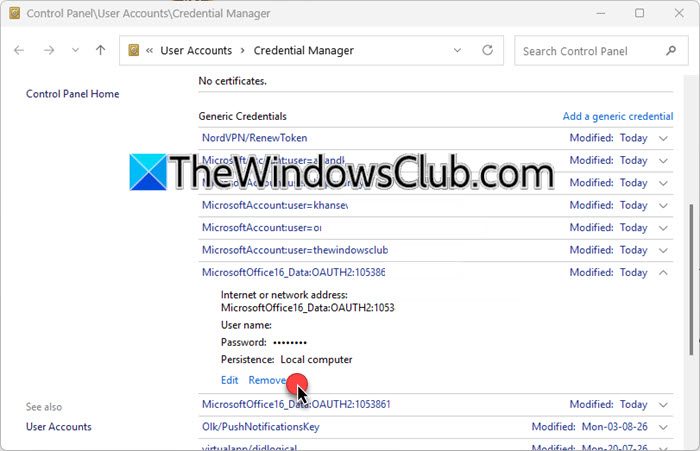
Again restart your computer, open Windows Settings > Accounts > Access work or school and click Connect to reconnect the Microsoft Account.
This should help.
If the above does not help, try the following additional suggestions.
2] Clear related cache via Explorer
Open File Explorer, and navigate to the following locations, one after the other and empty its contents:
%localappdata%\Microsoft\OneAuth
%localappdata%\Microsoft\IdentityCache
%localappdata%\Packages\Microsoft.AAD.BrokerPlugin_cw5n1h2txyewy
Delete all contents inside these folders.
3] Clear Outlook cache
If the error occurs for Outlook, you need to do one more thing.
Open the Run box, type the following and hit Enter:
%localappdata%\Microsoft\Outlook\RoamCache
Press CTRL+A to select all files and then delete all of them. This will clear the Outlook cache.
4] Clear browser cache
You could also clear your browser cache and see if that helps in any way.
These posts will show you how to clear the browser cache in Edge, Chrome, Firefox, or Opera.
5] Use REGEDIT
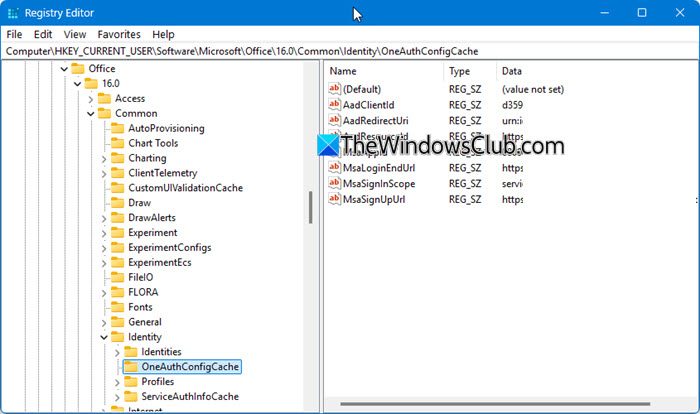
Open the Windows Registry and navigate to:
HKEY_CURRENT_USER\Software\Microsoft\Office
Delete folders linked to your old work account. Specifically, look for subkeys related to your Office version (e.g., 16.0 for Office 2024-16/365).
Inside these folders, check folders like:
- Common
- Identity
- User Settings
If you see entries tied to old accounts or corrupted identities, remove them.
You may also navigate to the following key:
HKEY_CURRENT_USER\Software\Microsoft\Office\16.0\Common\Identity
You can delete any cached tokens or identities that don’t match your current account.
All the best.
Also read: Microsoft Sign in Error 1200, Something went wrong.
