
Some users have reported being unable to preview or download attachments and/or images when using Outlook on the web, the Outlook app, or a Microsoft 365 Outlook work account. When they click the attachment, an error message appears: “Error downloading the file content”. If you also face this problem, the working fixes and workarounds covered in this post will help.
Before you proceed, sign out and sign in to your Outlook account, try a different browser, use Incognito mode, and check your internet connection. If the problem persists, use the solutions covered below.
Why is my Outlook not letting me download files?
You may not be able to preview or download file attachments in Outlook if there’s a poor internet connection, a large file, low disk space, image permissions are blocked in your browser, or there’s a problem with browser cache and cookies. Blocked file types (say EXE, APK, ADE, CAB, COM, CMD, etc.) can also be the reason you can’t download attached files.
Fix Error downloading the file content in Outlook
To solve this Error downloading the file content error in Outlook, you can use these fixes:
- Forward the email with attachments
- Save attachment to OneDrive
- Create an Attachments folder in the Outlook olk folder
- Change the time zone in Outlook settings
- Clear Outlook data and permissions in your browser
- Contact your IT admin
- Switch to MS Outlook or use Outlook on the web
- Repair, reset, or reinstall the Outlook app.
Let’s check these options.
1] Forward the email with attachments
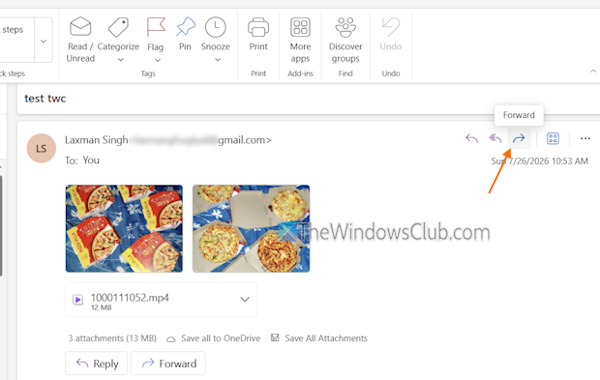
This fix worked for some users. When they forwarded the same email with attachments to themselves, they were able to download all the attachments. So, try this and see if it helps. If you are using a shared mailbox, forward the email with attachments to another mailbox. This should help.
2] Save attachments to OneDrive
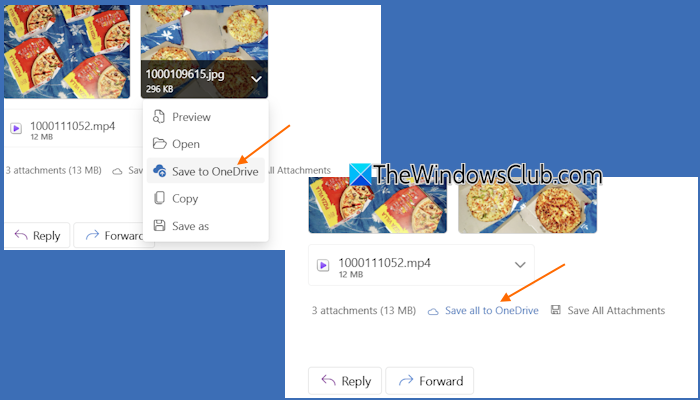
If the error appears when you try to download attachments to your desktop, you can save an individual attachment or all attachments to your OneDrive instead.
Use the More actions (drop-down icon) for an attachment, and click on the Save to OneDrive option. To save all attachments, use the Save all to OneDrive option.
Related: Outlook Web App cannot download attachments
3] Create an Attachments folder in the Outlook olk folder
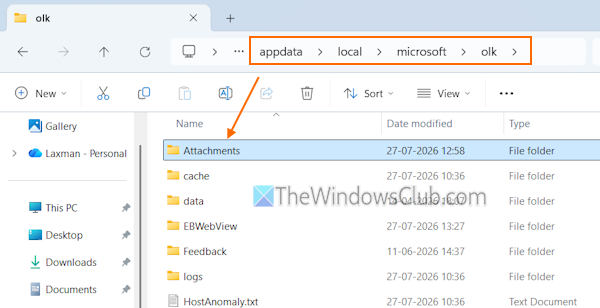
If this error occurs when downloading the email attachments using the Outlook app on your PC, you can create an Attachments folder in the Outlook ‘olk’ folder to resolve it. This folder stores local cache data, temporary files, attachments, etc., for your Outlook profile(s). If there’s no Attachments folder or it is corrupted, you may encounter an issue when downloading email attachments. To fix it, use these steps:
- Press Win+R to open the Run dialog
- Enter this path in the text field:
%userprofile%\appdata\local\microsoft\olk
- Press Enter, and the ‘olk‘ folder will open
- If there’s no Attachments folder, create it. If it’s already there, delete it and create a new one.
Now open the Outlook app, and you should be able to download attachments.
4] Change the time zone in Outlook settings
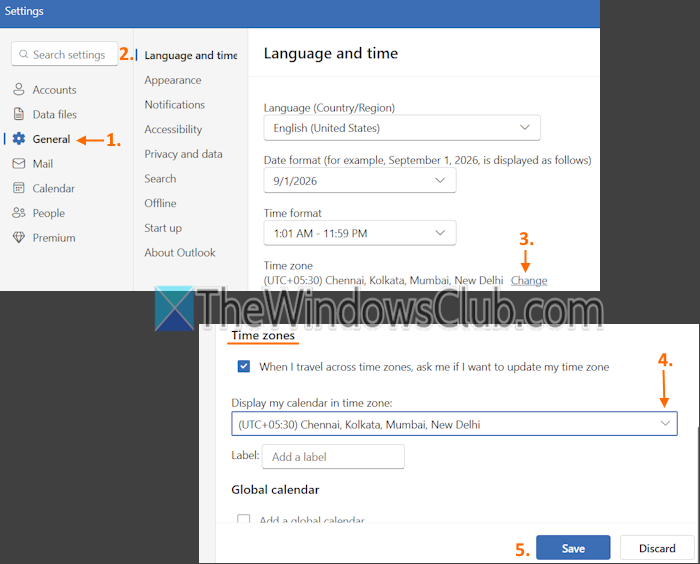
This is one of the best fixes as it helped some users. For one of their shared mailboxes, users were unable to preview, open, or download attachments using Outlook on the web and the Outlook app on desktop. The wrong time zone (Monrovia Reykjavik) set in their Outlook client was causing the issue, and it is fixed by setting the correct time zone. If this is the case, you need to change the time zone in Outlook settings. The steps are the same for both the Outlook app and Outlook on the web:
- Open the Outlook app
- Click on the Settings icon on the top-right side
- Select General from the left sidebar
- In the Language and time section, click on the Change option for the Time zone
- In the Time zones section, use the drop-down menu and select your time zone
- Press the Save button.
You should also change the region if it is incorrect. Restart the Outlook app and your problem will be gone.
Read: Do you want to download external content – Outlook
5] Clear Outlook data and permissions in your browser
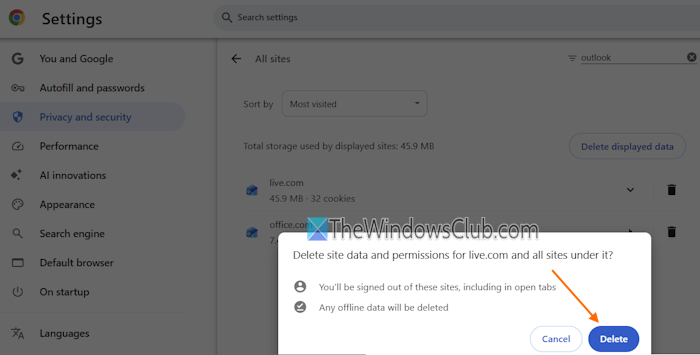
If the problem is browser-specific, say Google Chrome, clear Outlook data and permissions in your browser to solve the problem. Here are the steps:
- Open the Chrome browser
- Press Alt+F and select Settings
- In the Settings tab, select Privacy and security > Third-party cookies
- Click on See all site and data permissions
- Use the search box and type Outlook to filter sites
- Press the Delete icon
- In the confirmation pop-up, click on the Delete button
This will delete all site data (including offline data) and permissions for Outlook (live.com), and you will be signed out from all related sites.
Now open Outlook on the web in your Chrome browser, and you will be able to download the attachments. If this doesn’t work, clear all browsing data in Chrome.
Also read: Attachments not showing in Outlook
6] Contact your IT admin
If you are using a work account, you can contact the IT admin of your organization to check and remove any restrictions or policies applied to your Outlook account because of which you cannot open links and attachments in Outlook. Your IT admin can ask for Help & Support from the Microsoft 365 admin center if the issue is not resolved.
7] Switch to MS Outlook or use Outlook on the web
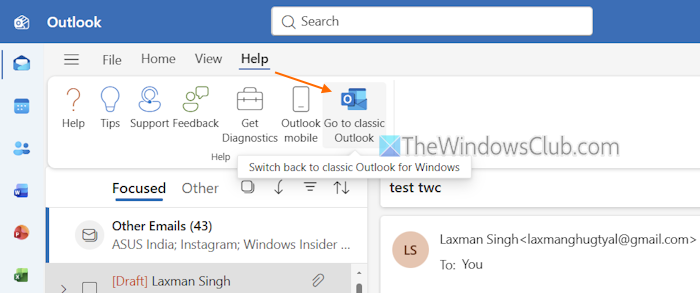
For some users, the problem started only in the Outlook app. If you face the same issue, you can switch to MS Outlook (Classic Outlook) or use Outlook on the web (formerly Outlook Web App). To switch from the Outlook app to MS Outlook, access the Help menu and select Go to classic Outlook.
8] Repair, reset, or reinstall Outlook app
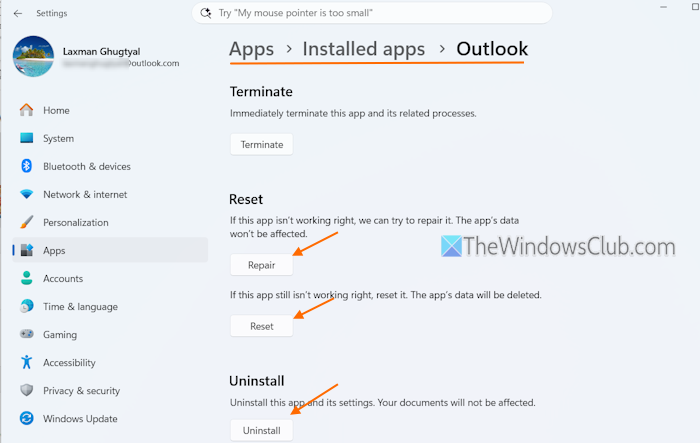
If nothing works, repair, reset, or reinstall the Outlook app on your PC. Open the Settings app > Apps > Installed apps. Click on the More options (…) for Outlook and select Advanced options. Scroll down the page and use the Repair, Reset, and Uninstall buttons one by one.
That’s all.
Now read: New Outlook app not working or opening
How do I fix an Outlook data file error?
To solve the Outlook Data File error, open Outlook in Safe Mode. If you can open your Outlook data files (PST and OST), there’s some problematic extension that you can disable or remove to solve the issue. Additionally, if the problem is with the data file itself, repair your corrupted Outlook file via the Inbox Repair Tool.
Read next: The attempted operation failed Outlook Attachment error.
