
If you’re in a situation where Microsoft Outlook and your Outlook Data Files are not opening, and we’re talking about the .pst and .ost files, then there’s an easy way to get things back to the way they were. Most folks will get an error message telling them they’re unable to open Outlook for whatever reasons.
The file cannot be opened Outlook Data File error message
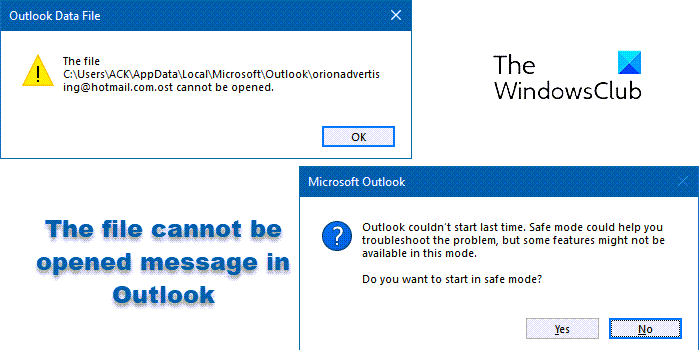
The first thing you want to do in such a case is to restart your computer and try again. Many times this has been known to help. If it does not, then you may want to start Outlook in Safe Mode and see.
Start Outlook in Safe Mode
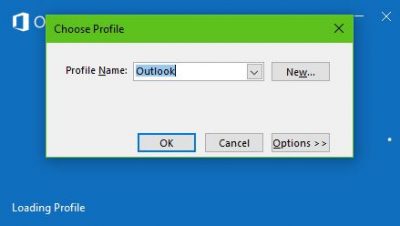
OK, one reason Outlook might fail to launch has a lot to do with the extensions installed. To find out for sure, we’ll need to start the program in Safe Mode, since that disables all extensions.
Starting Outlook in Safe Mode is quite easy. Just click the WinKey+R, type outlook /safe in the dialog box, then hit Enter. Should the software start in Safe Mode, then it has everything to do with the extensions or one of the extensions. You will need to disable the problematic extension.
Repair the Outlook data file
Microsoft has provided the Inbox Repair Tool which lets you recover folders and items from corrupted Personal Folders or .pst files. It can even recover items from an offline folder or .ost files. The OST Integrity Check Tool will help you fix corrupted .ost files.
To repair Outlook Inbox folder in Outlook close the software and cruise to the following location:
C:\Program Files (x86)\Microsoft Office\root\Office16
The next step, then, is to open SCANPST.EXE, then select the Outlook Data File you want to scan.
We should note that a new log file is created with every scan. However, you can open the Options area and disable the automatic creation of a log file. If you want, you have the results attached to an already existing file.
Choose to start the scan. Now, should the scan detect errors, select Repair to begin fixing them?
Related: This data file is associated with a mail account OST file
For those who weren’t aware, the scan creates a backup file while the repair process is running. Should there be a reason to change the default location and name of the backup file, just add a new name in the “Enter name of backup file” box, or browse and choose the name you prefer to use.
After the repair is complete, simply start Outlook with the Outlook Data File that was just repaired.
Outlook Data File couldn’t be opened

Outlook may show the error Outlook Data File couldn’t be opened when its profile or PST/OST file is corrupted. This usually happens due to sudden system shutdowns, oversized data files, or faulty add‑ins. It prevents Outlook from accessing emails, calendars, and contacts, leaving the app stuck at startup. Some of the common fixes include creating a new Outlook profile, repairing the PST/OST file with the Inbox Repair Tool, or disabling add‑ins. If issues persist, reinstalling Outlook or checking Windows updates often resolves the problem.
All the best!
Read: Unable to open, access or start Outlook PST File.
