
If you cannot open hyperlinks or attachments in MS Outlook or the new Outlook app on Windows 11/10, these solutions are for you. As there could be many reasons, we have consolidated some of the most common ones along with solutions to fix them.
You may see error messages like:
- This operation has been canceled due to restrictions
- Your organization’s policies are preventing us from completing this action for you.
This is especially likely if you are using an older version of Outlook. In this case, resetting Internet Options to default can help.
Cannot open Hyperlinks in MS Outlook email
Microsoft tries to open everything in Edge. If you cannot open hyperlinks in Outlook emails, follow these methods to resolve the problem.
- Restore File Association defaults for Outlook and Edge.
- Export and import the Registry key from another computer
- Reset Edge settings
- Repair Office.
Windows honors the default browser association, but if settings are misconfigured or corrupted, it can cause problems.
1] Restore File Association defaults for Outlook and Edge
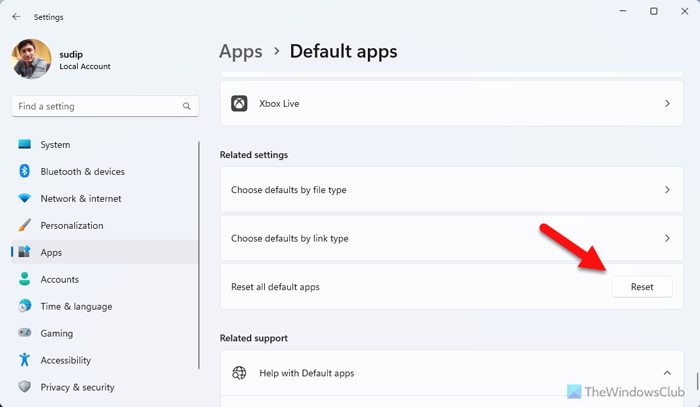
- Close your default browser if it is open.
- Go to Settings > Apps > Default Programs in Windows Settings
- Under Web browser, click on whatever is the default, and then select Microsoft Edge as your default browser
- Switch to Outlook, and click on any link to make sure it opens in Edge. Close Edge browser.
- Open the default browser again, and change the default browser again from the browser option.
Now when you open any link, it will open in the default browser of your choice.
The point of this exercise is to fix something that is broken by changing the settings. Usually, there is a registry entry for it, and when we do all these steps, it will fix the problem with the registry.
2] Export & import the registry key from another computer
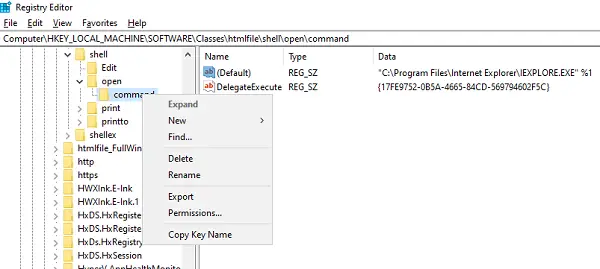
Check on another computer whether the links open in Outlook email on Windows 11/10. If that is the case, we suggest importing specific registry settings from that computer to this one.
On the other computer, open Registry Editor
Navigate to:
Computer\HKEY_LOCAL_MACHINE\SOFTWARE\Classes\htmlfile\shell\open\command
Right-click on Command folder, and select Export.
Save the file with a name you can remember on the computer.
Next copy the Registry file into your computer
Double-click on it, and it will merge the entry into your computer’s Registry.
Alternatively, you can go to the same location on your computer, and check if the value is the same as:
"C:\Program Files\Internet Explorer\IEXPLORE.EXE" %1
Now try to open a link in Outlook and see if you are still not able to open hyperlinks in Outlook mail.
3] Reset Edge settings
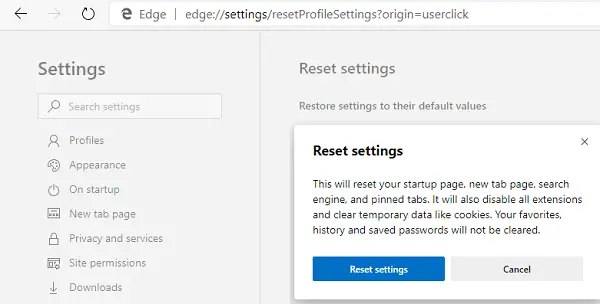
The last option is to reset Edge settings. Windows may be requesting Edge to open a link, if it’s the default browser, but it’s not working.
- Open Edge
- Go to edge://settings/reset
- Click on the Restore settings to their default values
- It will open a pop-up window where you can confirm the action.
When you reset, you will lose startup page, new tab page, search engine, pinned tabs, etc. It will also disable all extensions and clear temporary data like cookies. Your favorites, history, and password will not be cleared.
Similarly, you can reset Chrome and Firefox.
4] Repair Office
You may need to repair Microsoft Outlook or the Office installation.
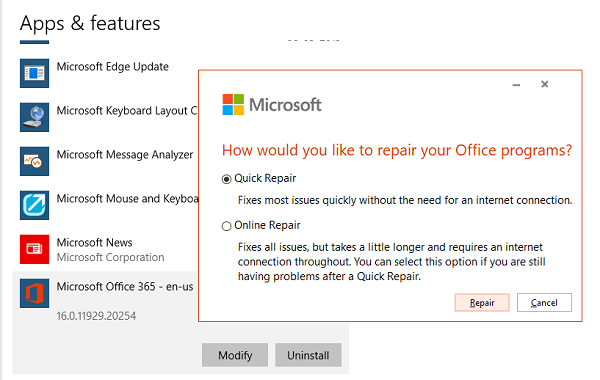
- Right-click the Start button, and select Apps and Features on the pop-up menu
- Select the Microsoft Office product you want to repair, and select Modify.
- It will open the Office Repair options
- Quick Repair: Fixes most issues quickly without the need for an internet connection
- Online Repair: This fixes all issues but takes a little longer and requires an internet connection throughout.
You can try repairing only Outlook. Try opening a link and see if it works as expected.
We hope these tips were easy to follow, and that you were able to open the hyperlinks in Outlook mail on Windows 11/10.
Can’t open Links in the new Outlook app
According to the affected users, when they click on links in the Outlook app, instead of opening it in their default web browser, it displays the “Can’t open” error message. It might be a minor glitch that can be fixed by restarting the device. Restart your Windows device and see if it helps. If not, you can try the solutions provided below.
- Disable your third-party Firewall
- Change your default web browser for HTTP and HTTPS protocols
- Clear Microsoft Store cache
- Reset the Outlook app
Let’s see all these solutions in detail.
1] Disable your third-party Firewall
If you are using a third-party Firewall, it might be preventing Outlook app from opening links in your web browser. You can check this by disabling your third-party Firewall. If this works, you have to whitelist the Outlook app in your third-party Firewall.
Alternatively, you can uninstall your third-party Firewall and use Windows built-in Firewall. If you face the same problem again, you can allow the Outlook app in Windows Firewall.
2] Change your default web browser for HTTP and HTTPS protocols
This trick has solved the problem of many users. Change your default web browser for HTTP and HTTPS protocols and see if it helps. The steps to do this differ for Windows 11 and Windows 10 users.
Windows 11
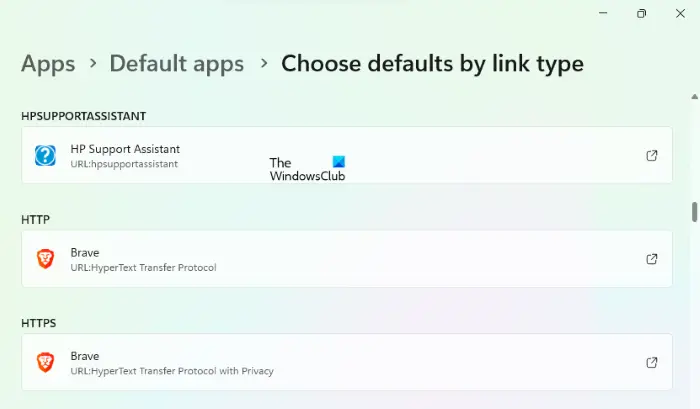
- Open Windows 11 Settings app.
- Go to “Apps > Default apps.”
- Scroll down and click on the Choose defaults by link type tab.
- Now, scroll down the list and click on the HTTP and HTTPS protocols tabs to change your default web browser.
Windows 10
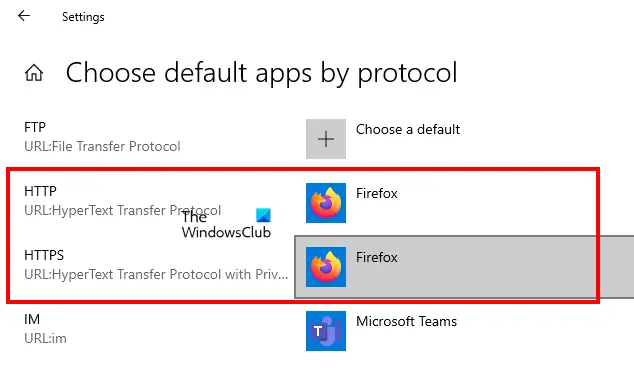
- Open Windows Settings app.
- Go to “Apps > Default apps.”
- Now, click on the Choose default apps by protocol link. You will find this link at the end of the Default apps page.
- Click on the tabs next to HTTP and HTTPS to change your default web browser.
If the above steps do not solve your problem, change your default web browser to Microsoft Edge. This should fix the issue.
3] Clear Microsoft Store cache
If Microsoft Store apps don’t open or crash unexpectedly, clearing the Microsoft Store cache can fix the problem. WSReset.exe is a built-in tool in devices running on Windows operating systems that lets users reset Microsoft Store Apps.
4] Reset the Outlook app
If the above solutions fail to fix your problem, resetting the Outlook app may help. The process to reset the Outlook app is explained below.
- Open Windows Settings.
- Go to Apps > Installed apps
- Click on the three horizontal dots next to the Outlook app and select Advanced options.
- Click Reset.
Can’t open Attachments in the new Outlook app
Above, we have seen some methods to fix the problem in which the Outlook app fails to open links. Now, let’s see what you can do if you can’t open attachments in the Outlook app. We suggest you follow the steps below to resolve the issue.
- Run Windows Store Apps Troubleshooter
- Remove your account and add it again
- Reinstall the FOD package manually
- Reset the Outlook app
- Uninstall and reinstall the Outlook app
Below, we have explained all these methods in detail.
1] Run Windows Store Apps Troubleshooter
Outlook (new) is a Microsoft Store app. Therefore, if you experience any issue with the Outlook app, you can run Windows Store Apps Troubleshooter to fix the problem.
2] Remove your account and add it again
Like the Gmail app and MS Outlook, the Outlook app also lets users add multiple accounts. If you are experiencing a problem with a specific email account in the Outlook app, removing and re-adding it can fix the issue.
3] Reinstall the FOD package manually
FOD or Function-on-Demand is the main component of the Outlook app. When the FOD package is removed from a Windows device, the Outlook app for Windows 11/10 does not work properly or you may experience several issues with the Outlook app. If this is the case with you, reinstalling the FOD package will fix your problem.
To install the FOD package manually, launch the Command Prompt as an administrator. After that, copy the following command, paste it into the Command Prompt Admin window, and press Enter.
dism /online /Add-Capability /CapabilityName:OneCoreUAP.OneSync~~~~0.0.1.0
After the command above executes successfully, you will be prompted to restart your computer. If not, restart your device manually.
After restarting the computer, check if the issue is fixed. If not, remove your email account from the Outlook app and add it again.
4] Reset the Outlook app
If the problem still persists, reset the Outlook app. We have already talked about how to reset the Windows Mail app above in this article.
5] Uninstall and reinstall the Outlook app
You can also try uninstalling and reinstalling the Outlook app. To uninstall the Outlook app, your can use Windows Settings or follow the steps written below.
Click on Windows Search and type PowerShell. Right-click on Windows PowerShell and select Run as administrator. Click Yes in the UAC prompt.
Now, copy the following command, paste it into Windows PowerShell, and hit Enter.
Get-AppxPackage Microsoft.windowscommunicationsapps | Remove-AppxPackage
Let Windows execute the above command successfully. After uninstalling the Outlook app, open Microsoft Store and install the Outlook app from there.
Read: How to change the order of email accounts in Outlook app.
How do I enable links in Microsoft email?
When you click on a link in the Outlook app, it opens it in your default web browser. If it cannot open links in a web browser, check whether you have selected a browser for both HTTP and HTTPS. If not, select a default web browser for the same. Sometimes, the Outlook app fails to open links in the selected default web browser. In that case, try changing your default web browser. If this does not work, select Microsoft Edge as the default browser to open links from the Outlook app. You can also try other fixes, such as disabling your third-party firewall and clearing the Microsoft Store cache.
How do I open attachments in Outlook app?
Opening an attachment is easy in the Outlook app. First, open the email containing the attachment, then double-click the attachment. After that, the Outlook app will open the attachment automatically in your default web browser.
Read: How to securely sign in to Outlook.com
Why can’t I open hyperlinks in Outlook Windows?
If you use a text-based browser as the default browser, you cannot open all hyperlinks. To do that, you need to change the browser settings in Outlook. In that case, open the Outlook Options wizard and go to the Advanced tab. Then, head to the Open hyperlinks from Outlook in section and choose Microsoft Edge.
Read: How to fix error code 0x8019019a in Outlook app
How do I allow hyperlinks in Outlook?
To enable hyperlinks in Outlook, you need to choose a browser to open them. For that, click on File > Options > Advanced. Then, find the Open hyperlinks from Outlook in the drop-down menu and choose the Default browser option. Click the OK button to save the change.
Read: Outlook Cannot send this item error.
