
If the new Outlook app is not working or opening on your Windows 11/10 PC, this post will help you resolve the issue. New Outlook is one of the leading email apps, widely used by individuals and professionals around the world. While it generally works fine, many users have reported startup issues where the app fails to open or respond without any error.
According to users, the app suddenly stopped launching despite functioning well for months. Now, nothing happens when they click the app icon. This is quite frustrating, especially for those who rely on Outlook for daily communication and scheduling.
Why is my Outlook app not working?
A common root cause for the new Outlook app not opening or functioning correctly is Edge WebView2, a component based on the Chromium engine. Modern Microsoft 365 apps, including the new Outlook, are built on web technologies and rely heavily on WebView2 to render content. If WebView2 is missing, outdated, or corrupted, Outlook may fail to launch or silently crash without displaying any error messages.
Apart from this, several other factors may contribute to Outlook startup issues, such as:
- Outdated or incompatible add-ins
- Corrupted app data
- Leftover cache or data files in local Outlook folders, and
- Third-party antivirus software or system processes interfering with the app
New Outlook app not working or opening [Fix]
To fix the New Outlook app if it is not working or opening on your Windows 11/10 PC, use these solutions:
- Reinstall/Repair Edge WebView2
- Repair or Reset New Outlook
- Disable problematic add-ins
- Repair or reinstall Microsoft 365
Let us see this in detail.
Note: Before you begin troubleshooting, ensure your system is running the latest version of Windows 11/10. Updates often include important fixes and components required for the new Outlook app to function properly. Go to Settings > Windows Update. Check if any updates are pending. If so, install them and reboot your PC. If the issue remains, follow the troubleshooting steps listed below.
1] Reinstall/Repair Edge WebView2

Windows 11: Microsoft Edge WebView2 comes preinstalled with Windows 11. It won’t appear listed in the Installed apps section, so the best way to repair it is by re-downloading and running the installer manually from Microsoft’s official site.
Visit Microsoft’s official WebView2 download page by clicking here. Scroll down to the Evergreen Standalone Installer and download the appropriate version. After downloading, right-click the installer and select Run as administrator. Follow the on-screen prompts. If WebView2 is already installed, it will repair it; if missing, it will install a fresh copy.
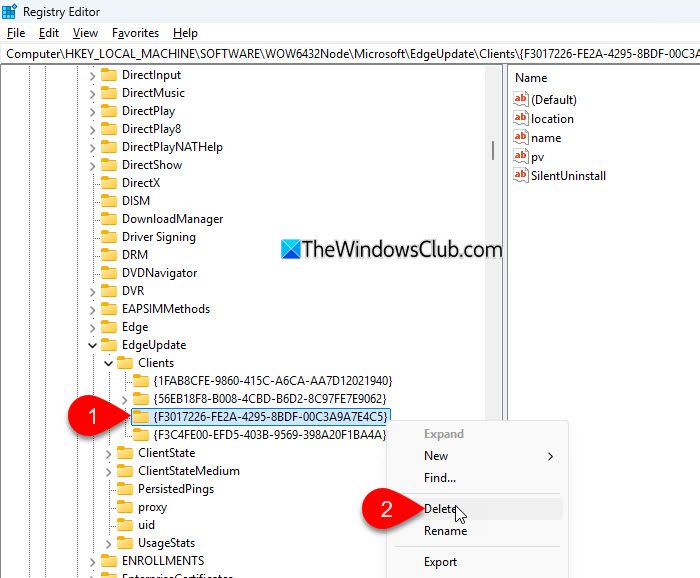
Note: Some advanced users have suggested that removing a specific registry entry helps force a clean reinstall of WebView2. This step is optional and recommended only if you’re comfortable using the Registry Editor (editing the registry incorrectly can cause serious problems with your system. Always back up your registry before making changes).
After downloading the installer, open Registry Editor as an administrator and navigate to the following folder:
HKEY_LOCAL_MACHINE\SOFTWARE\WOW6432Node\Microsoft\EdgeUpdate\Clients
Look for the following key:
{F3017226-FE2A-4295-8BDF-00C3A9A7E4C5}
and delete it. Then, run the WebView2 installer.
Windows 10: On Windows 10, WebView2 is usually installed during the setup of apps that require it. In many cases, it appears under Settings > Apps > Installed apps, and you can directly click Modify > Repair to repair it from there.
After installation or repair is complete, restart your computer and try opening the new Outlook app. In many cases, this resolves the issue immediately.
2] Repair or Reset New Outlook
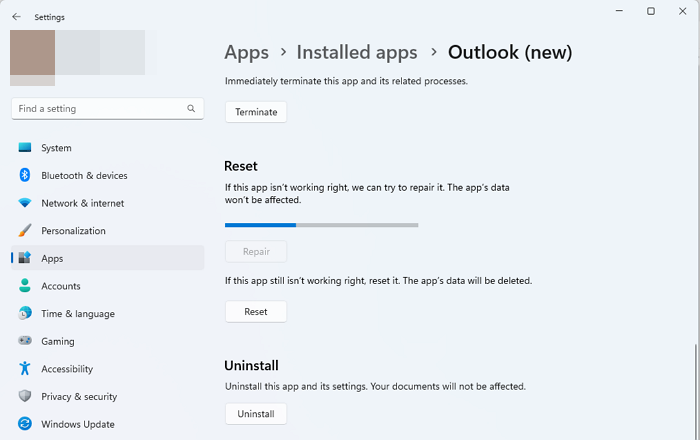
If the issue is caused by corrupted app files or broken installations, repairing or resetting New Outlook helps resolve it.
Press Win + I to open Settings. Go to Apps > Installed apps. Type ‘outlook’ in the search bar on top. Outlook will appear in the search results. Click the three dots next to the app, then select Advanced options.
Scroll down to the Reset section. Click Repair first. This will attempt to fix the app without deleting any data.
If repairing doesn’t fix the issue, click Reset. You’ll see a prompt warning that app data will be deleted. Click Reset again to confirm. Then, restart your PC and try launching the New Outlook app again.
Note: Resetting will remove your configured accounts, app settings, and locally cached data, such as .OST files. However, your emails stored on the server will remain safe. Any manually added .PST files won’t be deleted but may need to be re-added after the reset.
3] Disable problematic add-ins
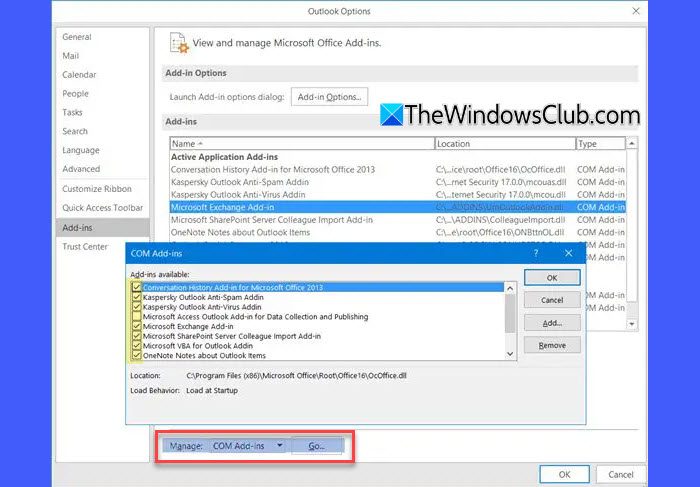
The new Outlook app uses modern web-based add-ins that are different from classic Outlook’s COM add-ins. However, some legacy add-ins can still affect system behavior or cause conflicts behind the scenes. In such cases, if you have access to the classic Outlook, you may try disabling problematic add-ins from there to see if it resolves the issue.
Type ‘outlook’ in the Windows Search bar and select Outlook (classic) from the search results. Go to File > Options > Add-ins. At the bottom of the window, click Go next to Manage: COM Add-ins. Uncheck any third-party or unnecessary add-ins you suspect might be causing the issue. Click OK to apply the changes. Then close classic Outlook and try launching the new Outlook again.
4] Repair or reinstall Microsoft 365
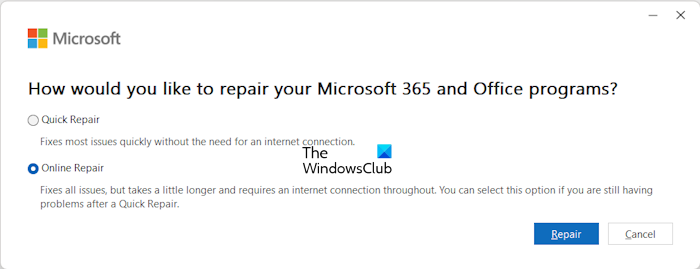
The New Outlook app is part of the Microsoft 365 suite, so if it behaves erratically or fails to launch, repairing or reinstalling Microsoft 365 can help.
Open the Settings app and navigate to Apps > Installed apps. Locate Microsoft 365 in the list (it may also appear as Office). Click the three-dot menu next to it and select Modify. A prompt will appear asking how you want to repair Office. First, choose Quick Repair. If that doesn’t resolve the issue, return to the same menu and select Online Repair. Follow the on-screen instructions to complete the process. Once done, restart your PC and try launching the New Outlook app again.
If repairing doesn’t help, consider using the official Microsoft Support and Recovery Assistant to completely remove and reinstall Office.
I hope this helps.
Read: Outlook is already running error in Windows.
How to clear Outlook app cache?
To clear the cache in the classic Outlook app, press Win + R, type %localappdata%\Microsoft\Outlook, and press Enter. Then open the RoamCache folder and delete all files inside. For the new Outlook, you can use the olk.exe --devtools command to launch the app with Developer Tools enabled, then clear Local Storage and Cookies to reset the cache.
Read Next: New Outlook app says Taking you to sign in [Stuck].
