
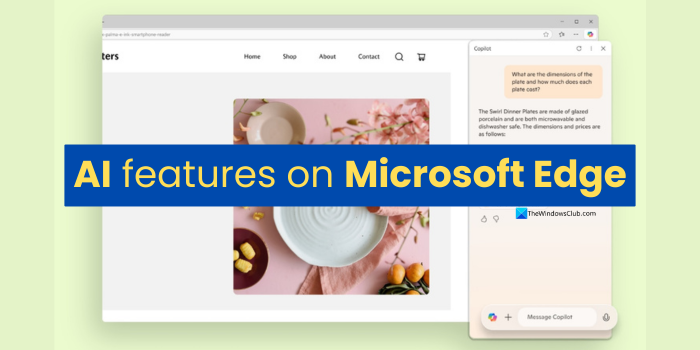
In this guide, we show you how to use AI features in the Edge browser. Before that, ensure you update your Microsoft Edge browser to the latest version to take full advantage of these AI features. Microsoft is one of the first companies to jump onto the AI bandwagon, investing in OpenAI following the launch of ChatGPT. Then, they introduced AI features in their search engine, Bing. Slowly, every app and tool from Microsoft has incorporated AI features, including its browser, Microsoft Edge. Although Microsoft has implemented AI features, they are not as intrusive as those of other browsers.
How to use AI features in Edge browser
The AI features in web browsers, particularly in browsers like Edge, are designed to automate repetitive or monotonous tasks. Follow the complete guide to know how and where to use these AI features.
- Copilot feature on Edge
- AI-powered Scareware blocker
- Tab Management features
- Generate themes for Edge with AI
- AI-powered language features
- Translate Audio.
Let’s delve into the details of each one and utilize them.
1] Copilot feature on Edge
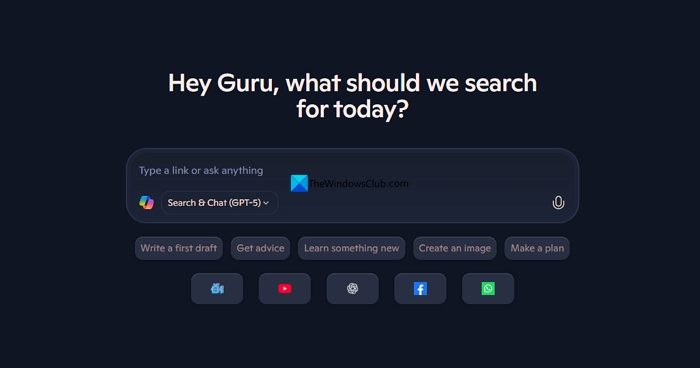
Copilot is the most visible AI feature on Microsoft Edge. Earlier, there used to be only a Copilot button on the sidebar. Now, Edge has implemented Copilot for its homepage. You can use it to create recipes, plan travel, learn something, or even create images with the Copilot homepage.
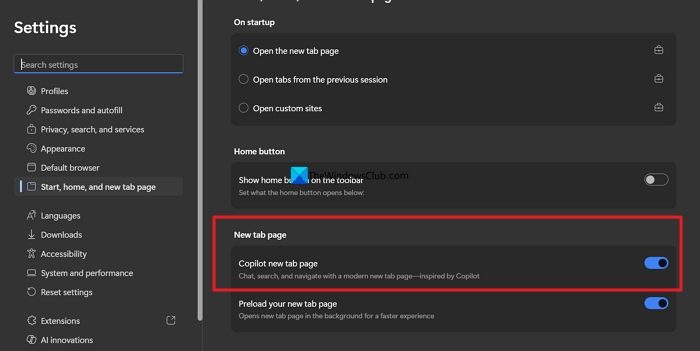
To enable or disable the Copilot homepage on Edge, click the three-dot icon on the toolbar, select Settings, and click Start, home, and new tab page on the side menu. Then, under the New tab page, toggle the button on beside Copilot new tab page to enable it, or off to disable it.
You can also use the Copilot button on the toolbar to summarize a webpage or ask any questions.
Edge has also introduced Copilot Mode, an experimental feature that delivers an entirely new way to browse the web. When you enable it, the entire Edge experience changes. It enables a modern homepage, handles routine tasks such as booking appointments and creating shopping lists, etc. Even when you open tens of tabs, you can use Copilot to find what you are looking for with the Multi-tab context feature.
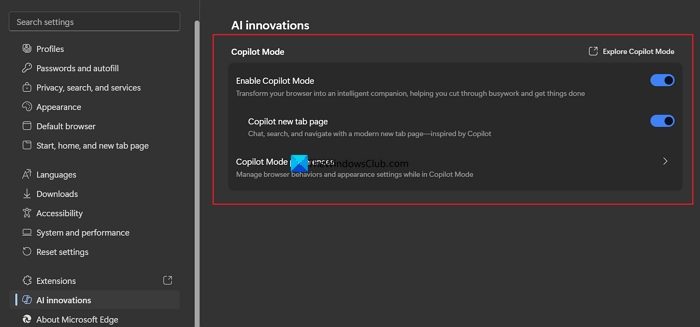
To enable Copilot Mode on the Edge browser, go to the Settings page and click AI innovations on the side menu. Toggle the button beside Enable Copilot Mode to turn it on or off.
2] AI-powered Scareware blocker
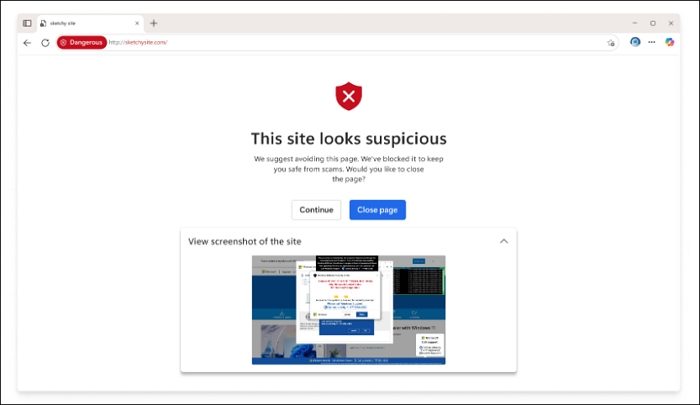
When we browse the web and open a website, we may occasionally encounter malicious sites. If the browser is unable to warn or prevent you from visiting such pages, it poses a threat to our online behaviour. Microsoft Edge warns about such threats, blocks the pages, and shows us a warning through an AI-powered Scareware feature. If you have not adjusted the setting on the Edge browser, it is turned on by default. If you have tweaked the settings and are not seeing these warnings, you can enable them in the following way.
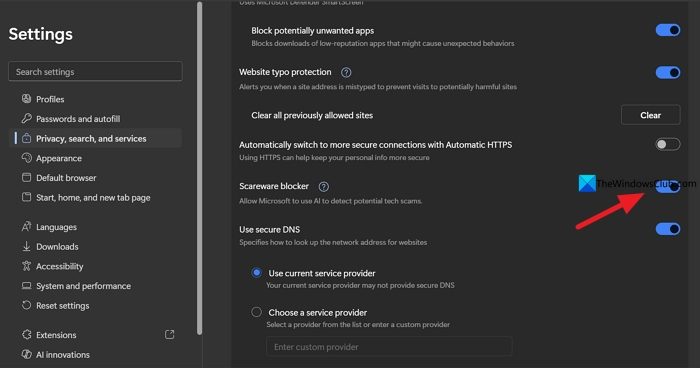
Go to the Settings page on the Edge browser and click Privacy, search, and services on the side menu. Then, toggle the button beside Scareware blocker to enable it.
3] Tab Management features
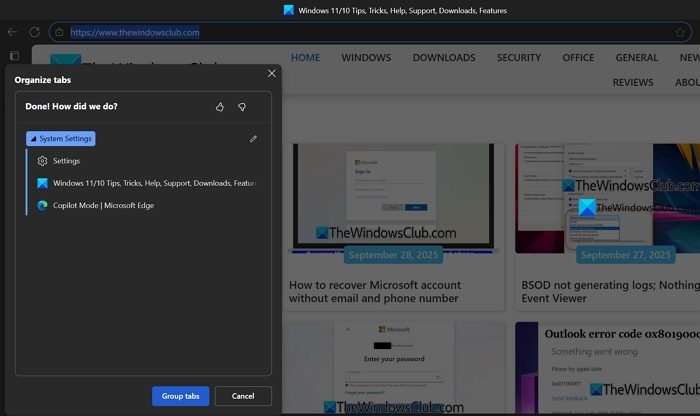
When you have opened tens of webpages on the Edge browser on your PC and are unable to go through them and want to organize them based on what they are about, the AI features on the Edge browser can do them for you. Just click the Tab actions button on the tab bar, and select Organize tabs.

It will automatically organize all the opened tabs and show you to group tabs. You can choose to group them, or make changes to the organized tabs however you want and click Group tabs.
4] Generate themes for Edge with AI
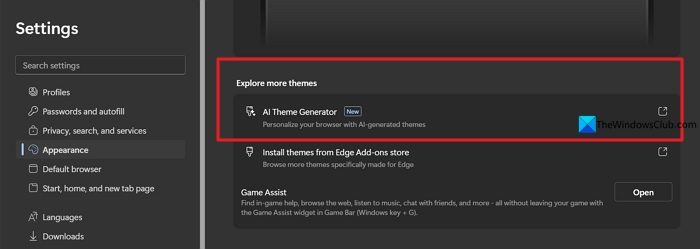
If you do not like the look and appearance of Microsoft Edge and want to change how the browser is looking, you can just generate a custom theme on Edge with AI and apply it to the browser in a few steps. Open the Settings page on Edge, click Appearance on the side menu, and select AI Theme Generator under Explore more themes.
It will open an AI Theme Generator web page. Enter your prompt on how you want your theme to be, and add the necessary details you want. Then, click Create theme. If you’re unsure of how you want your theme, just click Surprise me under the prompt box.
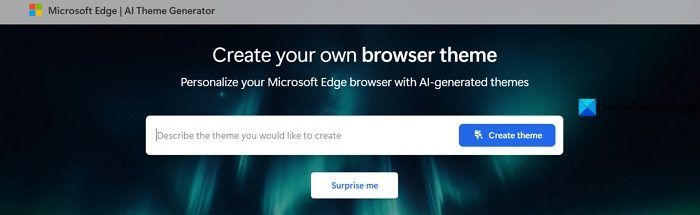
It will generate a theme for you in a few minutes and show you. You can apply it by clicking Apply theme.
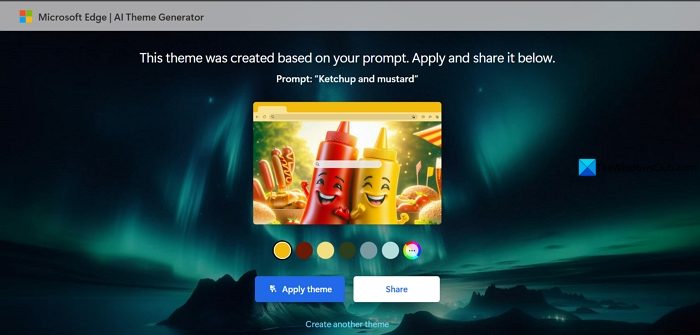
If you do not like it, you can create another theme with the Create another theme button below it.
5] AI-powered language features
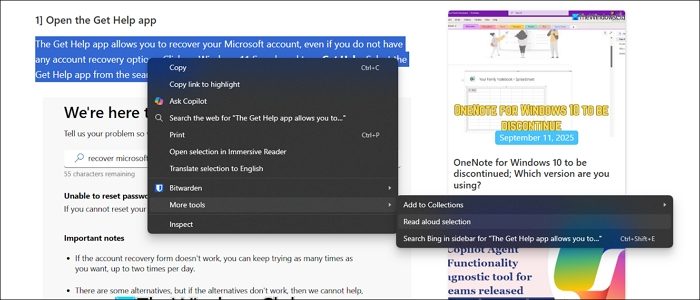
The Edge browser also features some AI-powered language tools to assist users with language. They are Read aloud, Translate, and Editor. Each helps users in their respective tasks. If you are reading a webpage and want to listen to it instead of reading it line by line, you can just use the Read Aloud feature. If you want to listen to the entire webpage, just use the Ctrl+Shift+U button to enable the Read Aloud feature. If you want to listen to a particular paragraph on the webpage, just select the text and right-click. Then, hover over More tools in the context menu and select Read aloud selection.
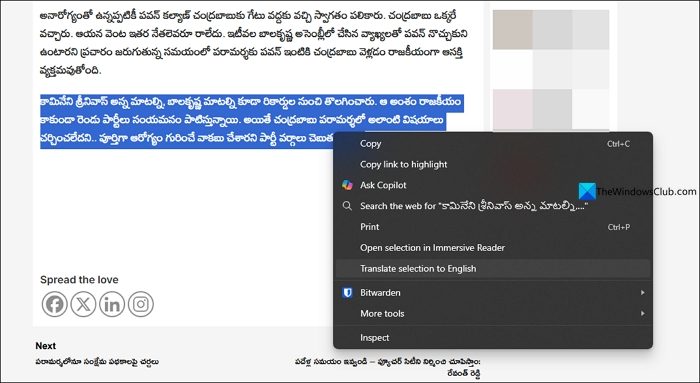
When you open a website of an unknown language or have a paragraph of unknown language in the text, you can translate it easily with AI on the Edge browser. Just select the text, right-click on it, and select Translate selection to English.
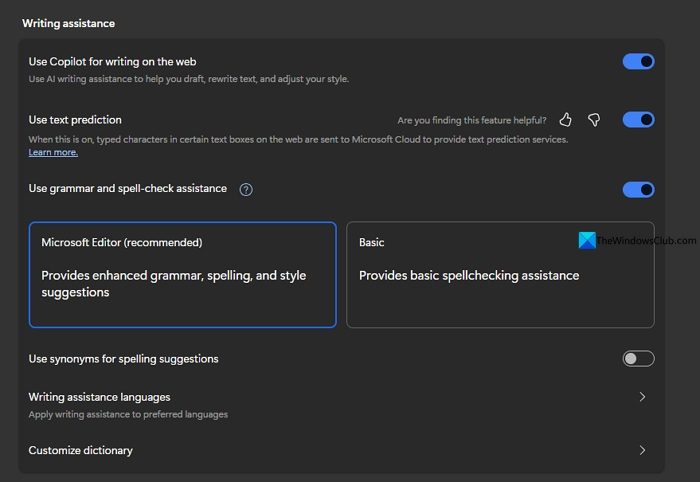
When you are writing something on the Edge browser, you will automatically see the corrections to the writing. It is because of an AI feature called Editor. It is enabled by default on the Edge browser. If not, you can enable it in the following way.
Open the Settings page on Edge and select Languages on the side menu. Then, under Writing assistance, toggle the button beside Use grammar and spell-check assistance to enable it.
6] Translate Audio
Whenever you watch a non-English language video on Edge, on YouTube, or another platform without DRM restrictions, Edge offers to translate the audio into English using its AI translation features.
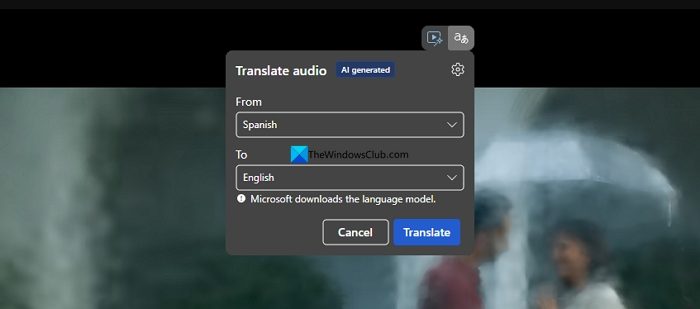
This is a new feature, and the support is currently limited to translating from Spanish or Korean to English. Microsoft will add support for additional languages in the future with new browser updates.
These are the AI features you can use on Microsoft Edge.
Read:
How to enable AI in the Edge browser?
AI or AI features are enabled by default on the Edge browser. All you need to do is use them when needed. The Copilot button is always available on the toolbar, as are other AI features like Read Aloud, Translate, Editor, and Scareware. If you do not want to use AI in Bing, you can easily disable it by using the Microsoft Bing AI Search Choice extension. It is available for Edge as well as Chrome browser.
Does Edge have free AI?
The AI features on the Edge, including Copilot with advanced models, are available for free use. There is a limit that cannot be exceeded by a normal user when generating images. In addition, all AI features are free and can be used at any time.
Related read: How to use Copilot in Windows 11.
