
It is rare nowadays to see any program or app without AI features. Every developer has taken the route of AI features to improve programs by providing automation and capabilities that only AI can deliver. Google, which once seemed lagging behind OpenAI and Microsoft in AI, has now bounced back to the top with AI models capable of tasks ranging from audio and images to video and real-world 3D environments. Google has now introduced AI features in its Chrome browser. In this guide, we show you how to use the new AI features on Chrome.
How to use the new AI features in Chrome browser
With the introduction of new AI features in Google Chrome, it is now a no-brainer to manage and automate repetitive tasks or expand knowledge using these tools. Find out how below.
- Use Gemini on Chrome
- Use AI mode for questions in the address bar
- Fix compromised passwords on Chrome
- Use security features on Chrome powered by AI
- Other uses.
Let’s get into the details of each one and use them on Google Chrome.
1] Use Gemini on Chrome
Until now, we have used Google Gemini by opening its website or the app on our phones. It is now available as a button on the Chrome tab bar. All you need to do is click on the Google Gemini button and start using it.
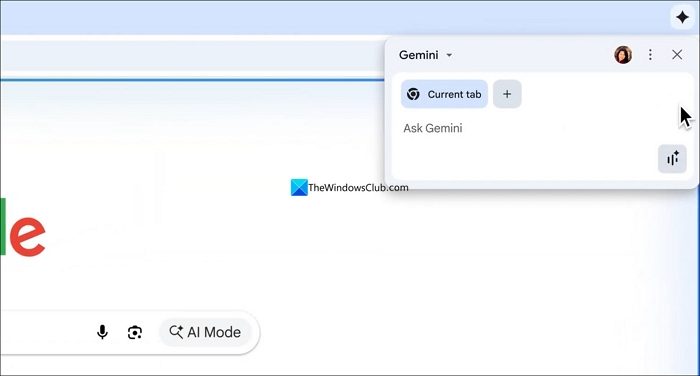
You can enter whatever you need Google Gemini to do and press Enter. Google has shown endless possibilities of using Gemini on Google Chrome. Some of them include summarizing pages, YouTube videos (based on the transcriptions), and even shopping on your behalf. For example, you have a recipe and need some ingredients to shop. You can just ask Gemini in Chrome to shop for the ingredients for a recipe from a specific store you suggest.
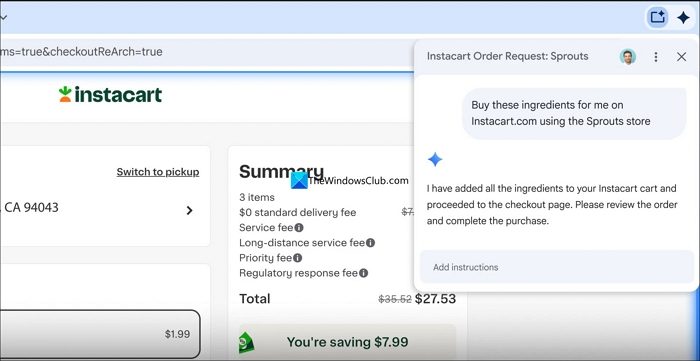
As you requested, Gemini will browse the website, add ingredients to the cart, and notify you. You can then proceed to edit the cart or confirm the order.
Gemini, a Chrome extension, opens endless possibilities, especially when you sign in with your Google account. Experiment freely and use it as needed, automating tasks that Gemini can handle to free up time for more important tasks. Make Gemini your browsing assistant and become more productive.
Read: How to use Gemini for Education from Google for AI in School
2] Use AI mode for questions in the address bar
We used to see options to switch search engines or search directly through our favorite search engines from the address bar, without opening any webpages. Google has gone a step ahead and introduced AI mode in the address bar. When you type a question in the Google Chrome address bar, you will see the AI mode button. After finishing the question, you can just click on the AI mode to use it.
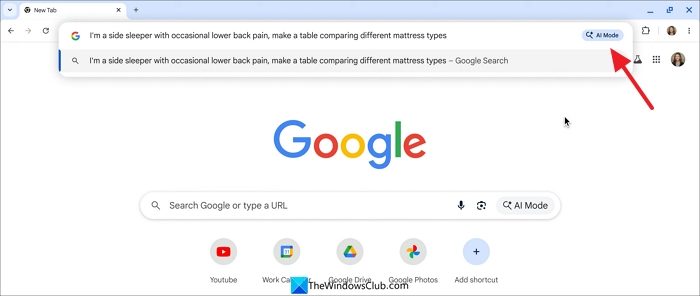
It will answer your questions in the AI mode. You can ask follow-up questions on the same page, such as how you use Google Search’s AI mode.
When you are browsing a website on Google Chrome, and you need some more information on the particular page or item you are looking at, but do not want to leave the page, you can just click on the address bar, type your question, and select Search in side panel.
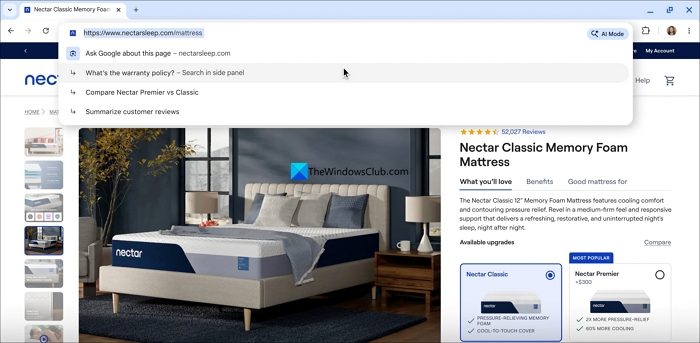
It will answer your questions on the same page in the side panel, and you can follow up with additional questions to learn more.
3] Fix compromised passwords on Chrome
Passwords protect our online presence. Without strong passwords, it would be impossible to secure our data from bad actors. In Google Chrome, with the new AI feature called Enhanced Protection Mode, the browser will now notify you when any of your passwords are detected in breaches. It offers to change the passwords to a strong one on the notification. When you click Change it for me, the AI will change the password for you and save it in the Passwords on your browser.
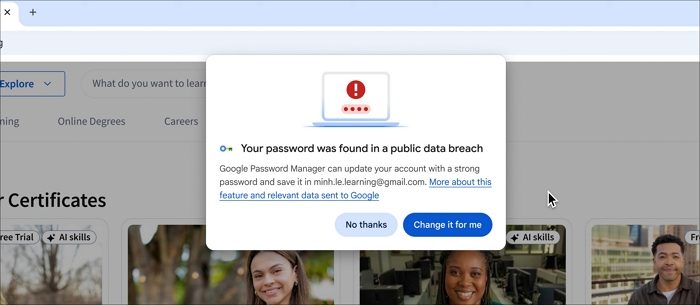
It is an experimental feature and not widely available. Also, Google can change passwords only on supported websites, such as Spotify, Airbnb, Pinterest, and others.
4] Use security features on Chrome powered by AI
Google has introduced additional security features in Enhanced Protection Mode for users. To use them, you don’t need to enable anything. All you have to do is update Google Chrome on your devices to the latest version. When Chrome detects spam, malware, or scams, it notifies you to take action.

You can act on the specific notification based on Chrome’s suggestion. Similarly, when you browse websites, they request notifications, location, and other permissions. Chrome will now automatically handle such notifications based on your web browsing behaviour.
5] Other uses
Google Lens on Google Chrome Desktop
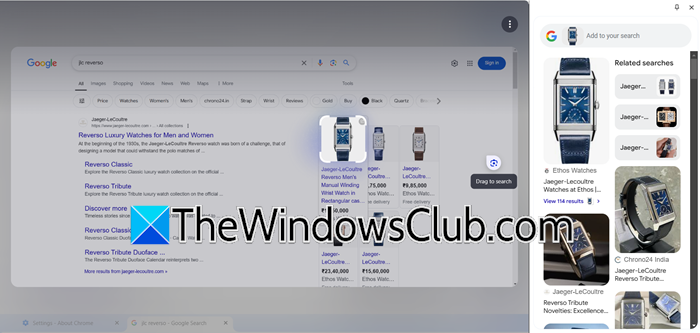
One of the coolest integrations, in my opinion, is that of Google Lens and Chrome Desktop. Now, you can pretty easily search using an image with the help of Google Lens from your Windows or MacOS computers.
To use this feature, select the Google Lens icon in the address bar. Then, click or drag over anything you want to search. You can also access Google Lens by right-clicking or using the three-dot menu. After making your selection, you will see visual matches and results in the side panel. Alternatively, right-click and select “Search with Google Lens”.
You can refine your search using multisearch by specifying details such as color or brand, or you can ask follow-up questions to explore a topic further. Depending on your inquiry, you may receive an AI Overview response that gathers the most relevant information from across the web.
Write using Google generative AI
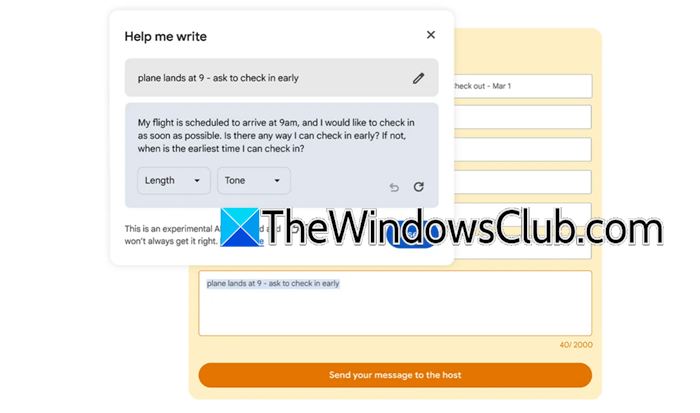
Next, we have a feature that helps you write content. Using Gemini models, this tool assists you in starting a new piece or improving something you’ve already written. You can use it to sell furniture, write a restaurant review, or ask about a hotel reservation. The feature understands the webpage you’re on and suggests relevant content. For example, if I’m a gardener writing a review of garden shears, it will extract key details from the page to make my recommendation more helpful to other gardeners.
Compare products on Chrome
Online shopping often means jumping between multiple tabs to read reviews and compare prices. This can be quite a hassle. To help with this, Chrome will soon launch a new feature called Tab Compare.
With Tab Compare, Chrome uses AI to generate an overview of products across multiple tabs, all in one place. For example, if you’re searching for a watch, the specifications, movement, and reviews might be spread across different websites. Chrome will suggest generating a comparison table right next to your tabs, bringing together important information. This way, you can easily compare everything and make a smart decision without constantly switching tabs.
Create a custom theme for yourself using AI
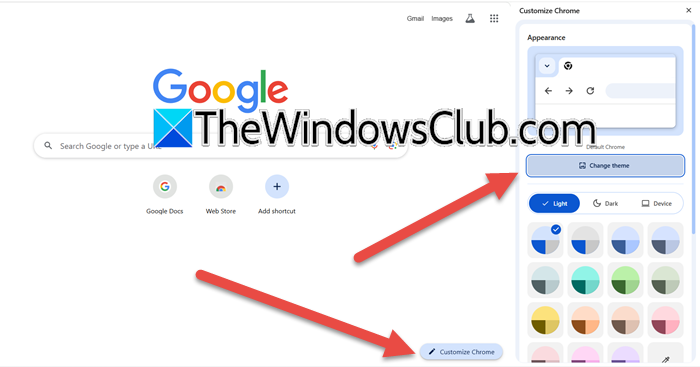
With the help of artificial intelligence, you can create your own theme on your computer. You will be asked to select a subject, style, mood, and color based on your liking and then feed that information to the Create with AI feature under “Customize Chrome”, you will be able to create a custom theme. To do so, we recommend following the steps below.
- Open a new tab in Chrome.
- Now, click on the Customize Chrome bubble from the bottom right section.
- Then, click on Change theme > Create with AI.
- Select Subject and from Add optional details, select Style, Mood, and Color.
- Finally, click on Create.
This will create a custom AI theme that you can apply.
Organize similar tabs
If you, like me, open a lot of tabs when researching something or planning a trip, this feature is very useful. Right-click a tab and select Organize similar tabs. Now, enter a name, and a new group will be created.
These were the notable new features Google introduced to improve the Chrome user experience.
Read: How to Install Gemini AI in Windows 11?
Does Chrome have AI now?
Yes, Google is adamant about making Chrome a browser with loads of AI features and they have introduced a few useful ones recently. One of the best is the integration of Google Lens with Chrome desktop or allowing us to create new themes using AI. To know more, you can check out the aforementioned guide.
Read: Google Chrome no update is available when installing
How do I turn on AI assistance in Chrome?
After updating Google Chrome to the latest version, you will find the Gemini button at the top of the tab bar. You can click it to start AI assistance and complete your tasks using the prompts. You can use it to automate repetitive tasks and set schedules.
Is Google Gemini AI free?
Google Gemini AI is free. But it also has paid options. The free option is sufficient for most of our regular use. The premium versions come with advanced, state-of-the-art AI models and no restrictions on image generation. You can upgrade if you like the experience of using it for your questions.
Related read: Google Chrome opening automatically when PC boots up
