
There are various use cases for AI, but one of the most trivial ones is education. Google decided to take matters into its own hands and released the Google Gemini for Education Tool for AI in schools. Launched at ISTE 2024, this free (for Google Workspace for Education users), secure, and powerful AI assistant is built to save teachers time, personalize learning, and empower students. In this post, we will talk more about it and see how it can be used.
What is Gemini for Education?
Gemini for Education is nothing but a teaching assistant. It researches, assists, and teaches, making it an excellent utility for schools. Now, let us talk about some crucial points why it is revolutionary.
- Built for Learning: As it is powered by Gemini 2.5 Pro, it is specifically tuned for education.
- Free & Premium Access: Google didn’t add any extra cost to their Google Workspace for Education plans, giving schools access to premium AI capabilities usually behind paywalls.
- Security Prowess: Google promises industry-leading data protection. Since the chat data is not used to train AI models, it keeps student and school information private. It even earned the Common Sense Media Privacy Seal.
- Easy Control: School IT admins manage access via the Google Admin console, can audit usage with Vault, and view reports.
- Safety: Gemini for Education has stricter content policies for under-18s, youth onboarding with AI literacy, and automatic fact-checking.
Now we will see how it can be used.
Use the Gemini for Education Tool from Google for AI in School
If you want to use the Gemini for Education Tool from Google for AI in school, you can follow the steps mentioned below.
- Meet the prerequisite and access Gemini
- Create a new gem
- Use Gemini in Google Forms (Upcoming)
Let’s discuss them in detail.
1] Meet the prerequisite and access Gemini
In order to use Gemini for Education, your school needs an active Google Workspace for Education plan – Fundamentals, Standard, Teaching and Learning Upgrade, or Plus. If you have that, Gemini for Education will be free as it comes included.
Also, the school’s Google Admin must enable Gemini for Education and NotebookLM for your domain. They control which user groups (teachers, students 18+, students under 18) can access what features. They go to Google Admin Console > Apps > Additional Google Services > Gemini for Education/NotebookLM.
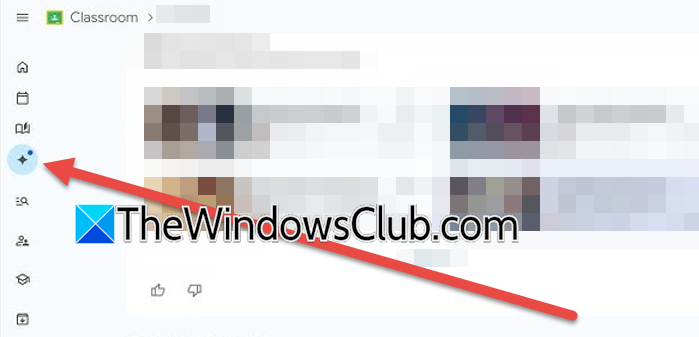
If you are a student and want to access Gemini for Education, please visit https://gemini.google.com and ensure you are signed in with your school account. Look for the Gemini icon (sparkles/stars) within Docs, Sheets, Slides, Classroom, Gmail, and soon Forms.
Read: How to use Microsoft Elevate to teach AI in Schools
2] Create a new gem
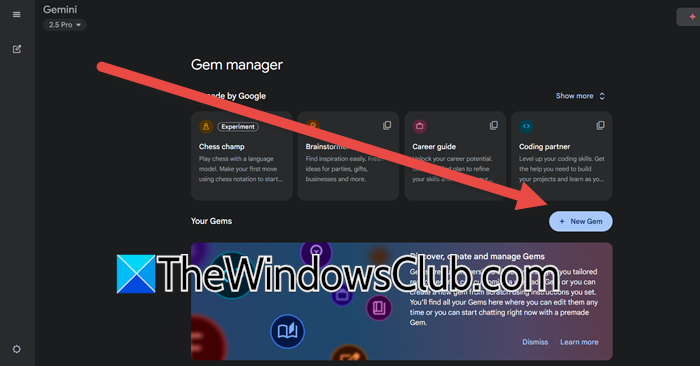
A Gem is a custom AI assistant you can create within Gemini for Education. Think of it as a specialized tutor or study partner meticulously trained only on the specific course materials you provide. This is fundamentally different from the general Gemini chatbot. When you create a Gem, you upload key documents relevant to your subject, such as your syllabus, lecture notes, or permissible excerpts from textbooks, and provide specific instructions defining its role and behavior.
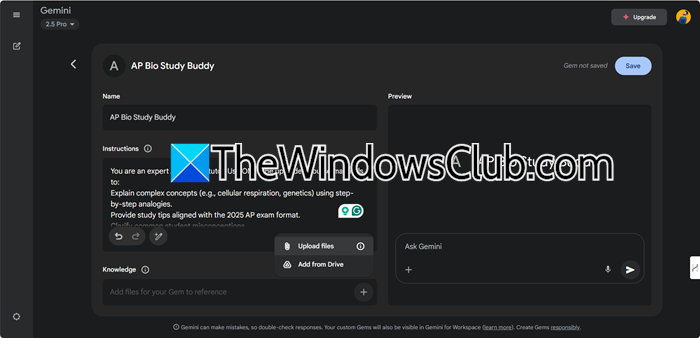
To create a new Gem, you can follow the steps mentioned below.
- Go to gemini.google.com, and you will be redirected to the Gem Manager.
- Then, click on + New Gem.
- Name your Gem (e.g., “AP Bio Study Buddy”) in the “Name your Gem” field.
- Write detailed instructions in the “Instructions” box.
- Upload supporting documents (syllabus, notes, etc.) using the “Add files” button.
- Preview your Gem by typing a test prompt in the right-hand preview window.
- Click “Save” to activate your Gem.
The following is an example of a Gem.
You are an expert AP Biology tutor. Use ONLY the uploaded course materials to:
Explain complex concepts (e.g., cellular respiration, genetics) using step-by-step analogies.
Provide study tips aligned with the 2025 AP exam format.
Clarify common student misconceptions.
NEVER invent information outside the provided sources.
If unsure, say: “Refer to Chapter 4, Section 2 of your textbook.”
Read: How to install Google Gemini Live AI in Windows 11 as default?
3] Use Gemini in Google Forms (Upcoming)
Google Workspace for Education is a tool that lets educators instantly generate quizzes, surveys, and assessments using simple prompts. Instead of manually building forms, Gemini drafts the structure, questions, and answer options for you, saving hours of work.
You can go to forms.google.com, sign in with your School account. Ensure your admin has enabled Gemini for Education and you have the Gemini add-on. And then, click the Gemini sparkle icon in the top-right toolbar. You need to type a clear instruction in the Gemini dialog box, for example, Create a 5-question multiple-choice quiz for 6th graders about the solar system, with 4 options per question.
Make the adjustments and then click on “Save”.
That’s it!
Read: How to build and sell AI-powered apps
Is Google Gemini AI free for students?
Google Gemini AI offers limited free access to students, depending on their specific circumstances. Students at schools using Google Workspace for Education can typically use Gemini for Education at no cost, which includes core AI features with enhanced privacy and security managed by their school. While a special extended free trial of the premium “Gemini Advanced” tier for college students recently ended, a standard one-month trial remains available globally. All students can also use the basic Gemini consumer version for free with a personal Google account, though it has stricter usage limits.
Also Read: Schools to get GitHub Education Program for free.
