
Microsoft Edge just changed the way we use a web browser. Earlier, we would search for a query on our favorite search engine, such as Google or Bing, and it would provide us with answers. However, Microsoft Edge now has a new feature called Copilot Mode. Through this mode, you get a ChatGPT-like search experience on your Edge browser. The AI searches for you and provides a summary.
How to disable or enable Copilot Mode in Edge browser
While Copilot Mode can be useful, many users may prefer to use a web browser as they did in the past. Here’s how you can enable or disable and use Copilot Mode in the Edge browser.
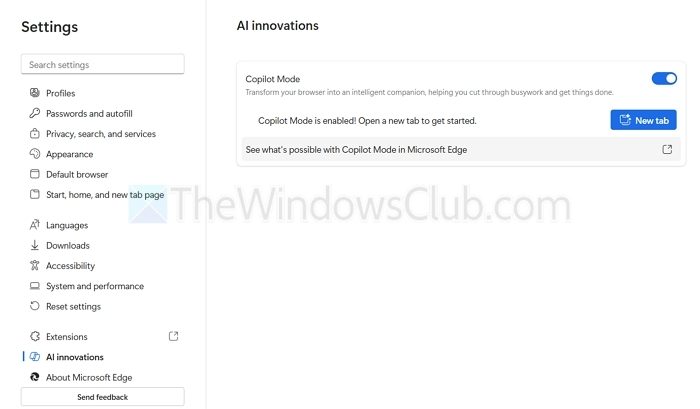
- Open Edge Browser and go to the following URL: edge://settings/help (or you can go to Settings > About Microsoft Edge). This will update your browser to the latest version.
- Next, click on Settings > AI Innovations.

- When you attempt this for the first time, the settings will offer a link that opens a dedicated Copilot page where you can change the toggle.
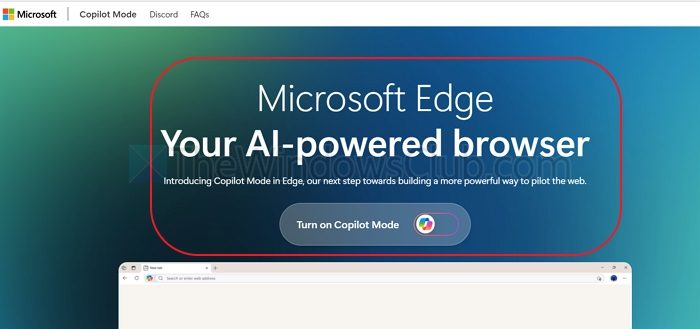
- The next time you visit, you can toggle Copilot mode on or off as per your preference.
How to use Copilot Mode in the Edge browser
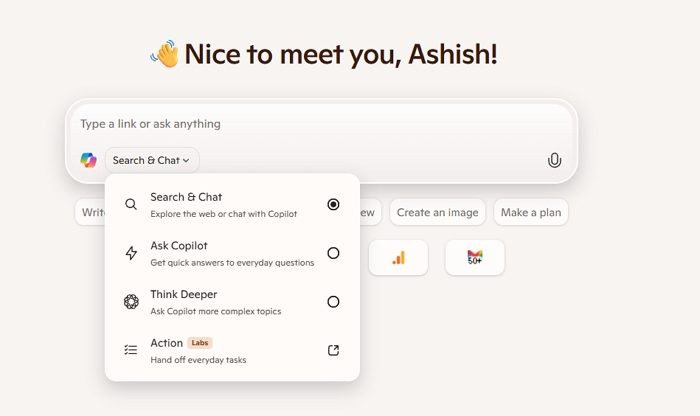
As mentioned, Copilot mode gives you a conversational-like browsing experience. Instead of searching on the web, you need to type your query into Copilot mode, and it will give you a summary of information. You also have options such as Search & Chat, Ask Copilot, Think Deeper, and Action.
- Search & Chat: Lets you explore the web or chat with Copilot to find answers or content.
- Ask Copilot: For quick, everyday questions—ideal for fast, simple responses.
- Think Deeper: Handles more complex or nuanced topics that require thoughtful analysis.
- Action (Labs): Automates routine tasks, allowing you to hand off things like scheduling or summarizing.
The Action (Labs) mode is interesting. If you do the same type of work using the browser, it can automate everyday tasks for you. This could include things like:
- Sending emails or summarizing documents
- Setting reminders or managing to-do lists
- Booking appointments or pulling data from other apps
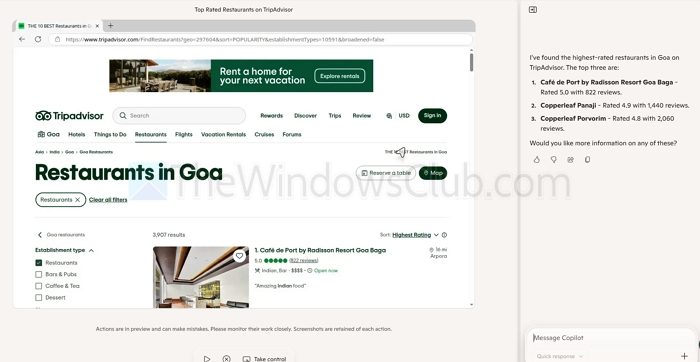
Read: How to use Copilot in Microsoft Edge?
However, when you search for keywords like “YouTube,” Copilot doesn’t provide you with a summary. Instead, you get to browse the web the old way. The same applies if you are searching for news.
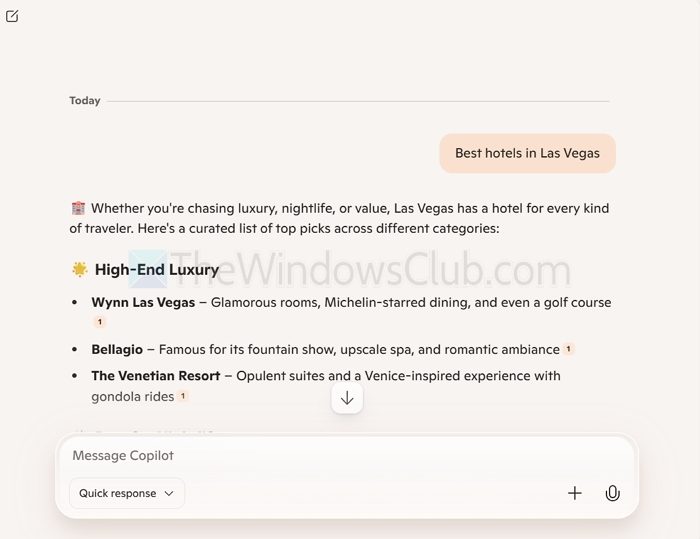
In conclusion, Copilot mode is smart enough to understand your query type, and based on that, it either provides you with summarized information or allows you to browse the web the old way.
Copilot Mide is free for now, but is likely to go the paid way in the future.
Do I need to sign in to use Copilot in Edge?
You don’t always need to sign in, but signing in with a Microsoft account can give you more features. For example, it might help Copilot remember your preferences or work better with other Microsoft tools like Outlook or OneDrive.
Read: Copilot not working in Edge; Attempting to reconnect
What happens if Copilot gives the wrong answer?
Copilot tries to be helpful, but it can sometimes make mistakes. If something doesn’t look right, you can double-check the answer by doing a regular web search or clicking the links it shows. It’s always good to look at more than one source.
