
This tutorial explains how to manage your Copilot Activity History for the Copilot app and Copilot in Microsoft 365 apps. When we interact with Copilot with text or voice prompts using the Copilot desktop app, Copilot Chat, or Copilot in Microsoft 365 apps (Word, PowerPoint, Excel, and OneNote), and Copilot in Windows apps (say Notepad, Paint, and Photos), all the prompts and responses are saved as Copilot activity history. We can export all activity history as a CSV file and also delete it when needed. You can’t recover or restore your data once it has been deleted.
For voice prompts and responses, the output is stored as text in a CSV file. Images are only included in your Copilot in Microsoft 365 apps activity history’s CSV file as a Base64 encoding and not in the exported CSV file of Copilot activity history for Copilot apps. You need to copy and paste the Base64 encoding string into a browser (Edge, Chrome, Safari, Firefox, etc.) to view the image.
Does Microsoft Copilot keep history?
Yes, if you are signed in, Copilot keeps your conversation history. It keeps all the conversations for the last 18 months to help you pick up where you left off and access them later. You can also delete a conversation by clicking on the three dots icon and selecting the Delete option. The option to delete all the activity history is also present. You can access the Privacy dashboard of your Microsoft account to clear all conversations.
How to Manage your Copilot Activity History for Copilot apps
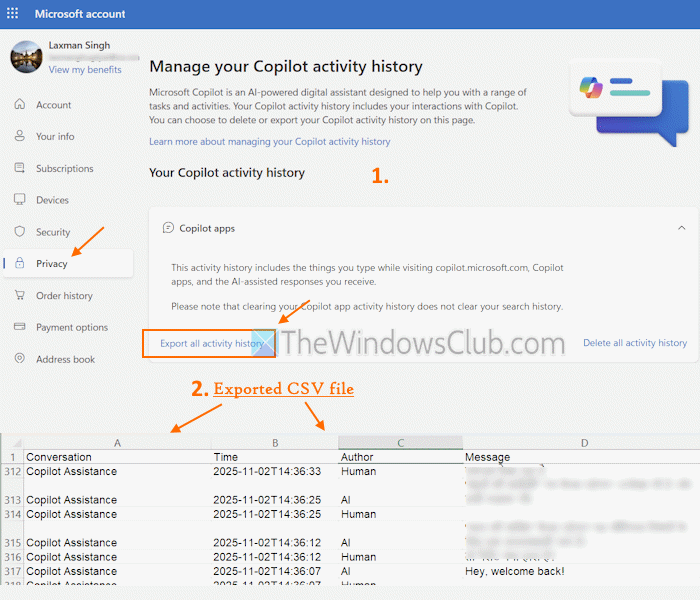
The steps to manage your Copilot Activity History for Copilot apps (which includes Copilot desktop app, copilot.microsoft.com, etc.) are as follows:
- Log in to your Microsoft account (account.microsoft.com)
- Access the Privacy dashboard from the left section
- Select the Copilot option under the Empower your productivity section
- Expand the Copilot apps under the Your Copilot activity history section
- Click on the Export all activity history option to save your Copilot activity history as a CSV file to a desired location or folder on your PC. The output file includes Conversation, Time for each conversation, Author (AI or Human), and Message columns, as visible in the image above
- If you click on the Delete all activity history option, an Are you sure you want to clear your Copilot activity history dialog box will appear
- To confirm and continue, press the Clear button.
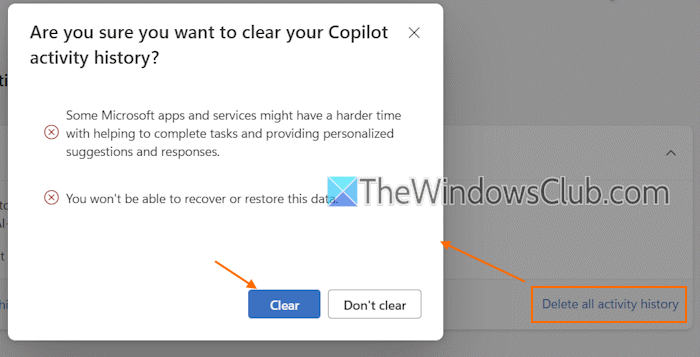
If you change your mind, press the Don’t clear button.
How to open the Copilot Activity History Page?
Click on this link to open the Copilot Activity History Page. Your Copilot activity history includes your interactions with Copilot. You can choose to delete or export your Copilot activity history on this page.
Related: How to clear Copilot AI search history
How to Manage your Microsoft 365 Copilot Activity History
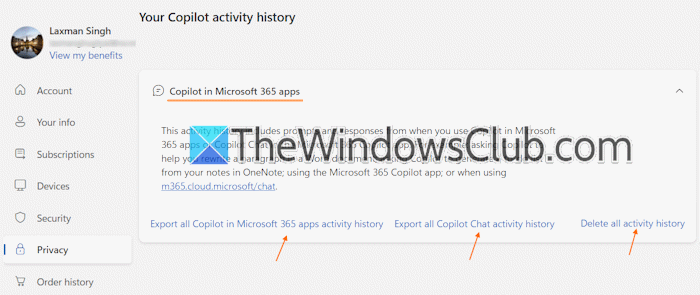
This activity history will include all responses and prompts from Copilot Chat or when you use Microsoft Copilot in Word, Excel, PowerPoint, and OneNote with your personal Microsoft account. The output CSV file will include Author (Human or AI), ChatName, MessageContent, and CreatedAt (date and time) columns. Use the following steps to manage your activity history for Copilot in Microsoft 365 apps:
- Log in to your Microsoft account
- Select the Privacy option
- Under the Empower your productivity section, click on the Copilot option
- Expand the Copilot in Microsoft 365 apps section
- Use the Export all Copilot in Microsoft 365 apps activity history option and Export all Copilot Chat activity history option to get the CSV files, respectively
- To remove your entire activity history for Copilot in Microsoft 365 apps, use the Delete all activity history option.
If you are signed in with a work account or school account, follow these steps to delete your Microsoft 365 Copilot activity history:
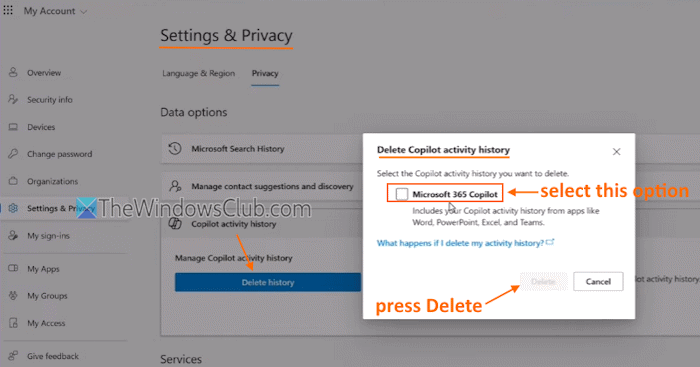
- Open the My Account portal (myaccount.microsoft.com) page
- Sign in with your work or school account
- Click on the Settings & Privacy option on the left side
- Switch to the Privacy section
- Expand the Copilot activity history section in Data options
- Press the Delete history button
- A Delete Copilot activity history box will pop up
- Select the Microsoft 365 Copilot checkbox
- Press the Delete button. It may take some time (seconds to minutes) before your Microsoft 365 Copilot activity history is deleted completely.
Read: Set up Copilot Connectors for OneDrive, Outlook and Google apps
How to Export Copilot in Windows apps Activity History
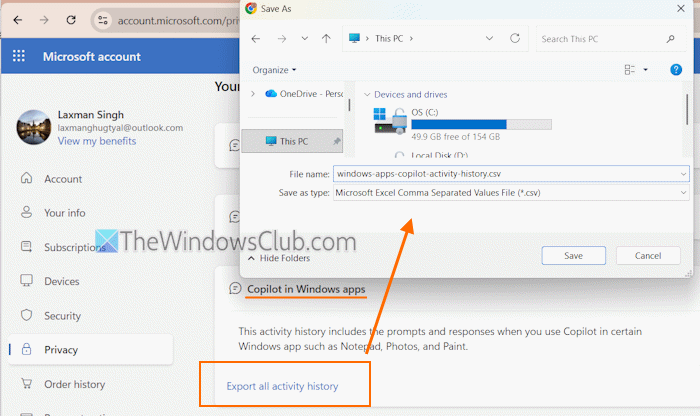
When you use Copilot in Notepad or restyle images in the Paint app using Copilot, create images, generate stickers, etc., your prompts and Copilot responses are stored in activity history. You can also export all that activity history in a CSV file that includes Timestamp, ClientApp (Microsoft Photos, Notepad, etc.), and Prompt columns. Here are the steps to export Copilot in Windows apps activity history:
- Log in to your Microsoft account and access the Privacy dashboard
- Select Copilot (in the Empower your productivity section)
- Expand the Copilot in Windows apps section
- Use the Export all activity history option to grab the CSV file.
That’s all.
Now read: How to turn Microsoft Copilot into your personal tutor?
Does Microsoft Copilot track your activity?
Yes, Microsoft Copilot tracks and retains user activity, including Copilot responses, user prompts, and anything you’ve created or shared with Copilot. Copilot can also remember things about you (ask it “What do you know about me?”). But you can ask it to delete specific items from the memory. Your conversations with Copilot can also be used to train and improve AI. However, you can easily disable Copilot model training. Access the Privacy section in the Copilot settings and turn off Model training on voice and Model training on text settings.
Read next: Unable to Export as PDF from Copilot.
