
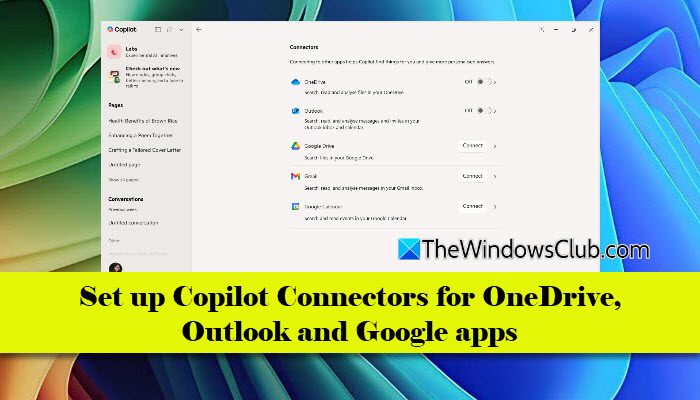
In this post, we will show you how to set up Copilot Connectors for OneDrive, Outlook, and Google apps in Windows 11/10. Until now, Copilot responses were mostly generic and not personalised to your files, emails, or events. But with a recent update, Microsoft is enabling users to bring their personal data into Copilot, making it behave much more like a true personal assistant. This makes Copilot far more useful, especially if your data is spread across Microsoft and Google accounts.
What is a Copilot connector?
Copilot Connectors is a new feature that allows you to securely connect your personal cloud services directly to the Microsoft Copilot app on Windows. Once set up, Copilot can search, summarise, and pull information from your emails, files, and calendars across these services, helping you get more personalised and context-aware responses.
Microsoft began rolling out this feature on October 9, 2025, with Copilot version 1.25095.161.0 and higher for Windows Insiders. The capability later expanded and is now available in stable versions of the Copilot app as well. Currently, Copilot Connectors can link to OneDrive, Outlook.com (mail, calendar, contacts), Google Drive, Gmail, Google Calendar, and Google Contacts.
Set up Copilot Connectors for OneDrive, Outlook, and Google apps
To set up Copilot Connectors on your Windows 11/10 PC, follow these steps:
If Copilot is pinned to your taskbar, simply click the Copilot icon to launch the app. If it is not pinned, press the Windows key, type “Copilot”, and click Open next to the Microsoft Copilot app.
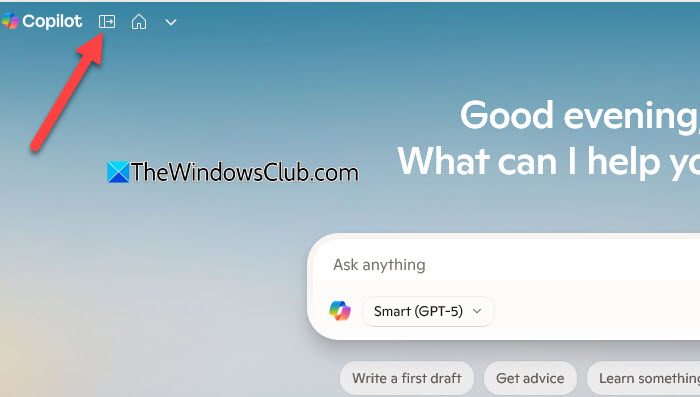
At the top-left corner of the Copilot window, you will see the Copilot logo along with a small Open sidebar icon. Click this icon to reveal the left-hand sidebar.
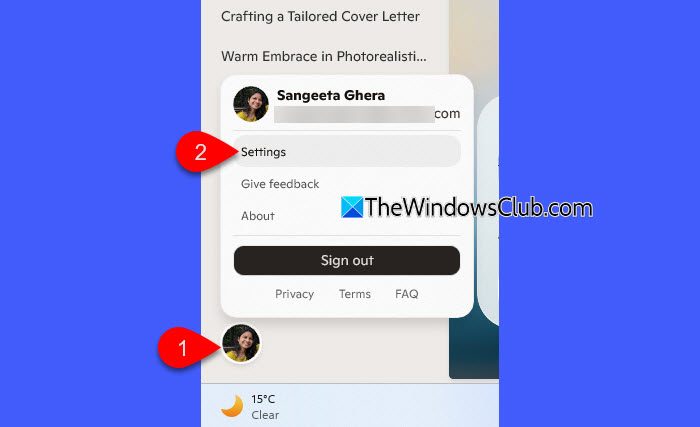
In the sidebar, scroll to the bottom and click your Account icon. Then select Settings from the menu that appears.
On the Settings page, you’ll see a Connectors option. Click it to view all available Copilot Connectors.
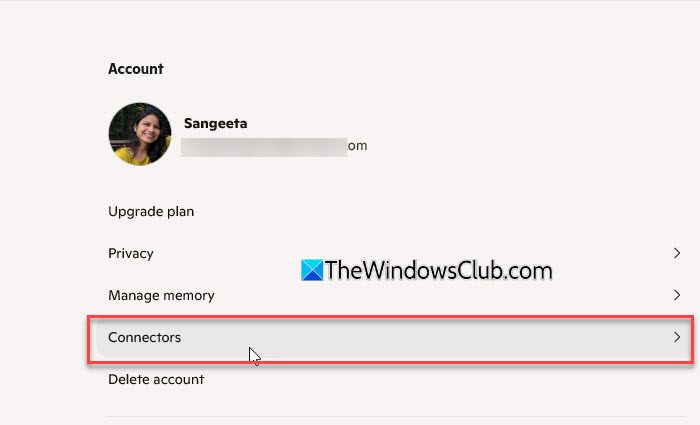
You should now see the following options:
- OneDrive
- Outlook
- Google Drive
- Gmail
- Google Calendar
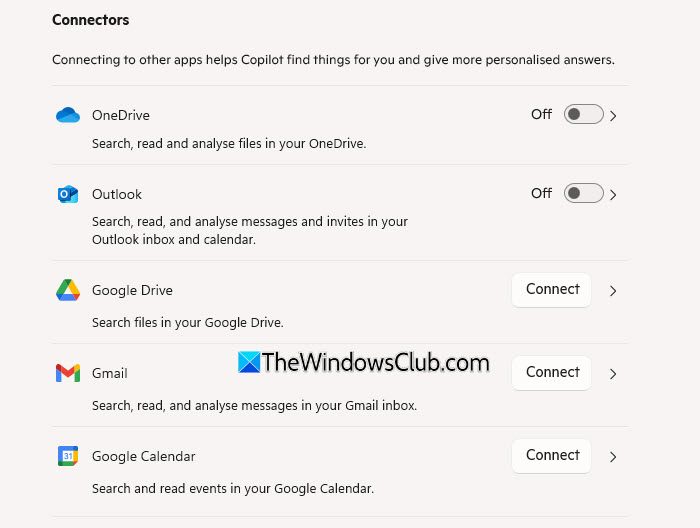
These are the cloud services Copilot can use to pull your data and generate personalised answers. Let’s look at how to connect each of these in detail.
Set up Copilot Connector for OneDrive
The OneDrive connector is the simplest to configure because most users are already signed in to OneDrive on their Windows PCs.
Next to OneDrive, you will see a toggle button. To enable the OneDrive connector, simply turn on the toggle switch.
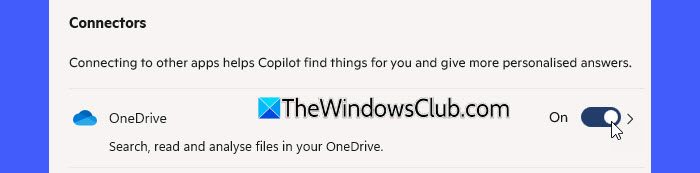
Once you turn on the toggle, Copilot will be able to search, read, and analyze files in your OneDrive to provide personalized responses. Copilot can even search through your OneDrive files when you don’t remember their exact names.
Set up Copilot Connector for Outlook
The Outlook connector works similarly to OneDrive. If you are already signed in to your Microsoft account on Windows, Copilot will automatically detect your Outlook.com mailbox, calendar, and contacts.
Next to Outlook, you will see a toggle switch again. To enable Outlook.com access, turn the toggle on.
Once connected, Copilot can read and summarise your emails, find important or unread messages, and check your upcoming calendar events. It can also draft replies based on your conversations and analyse your inbox to pull out relevant details.
Set up Copilot Connectors for Google apps
Google services (unlike Microsoft services) are not linked to Windows, so Copilot requires explicit permission to connect to them. This is why Google Drive, Gmail, and Google Calendar show a Connect button instead of a toggle.
To connect to any Google service:
Click the Connect button next to the Google service you want to enable (for example, Gmail).
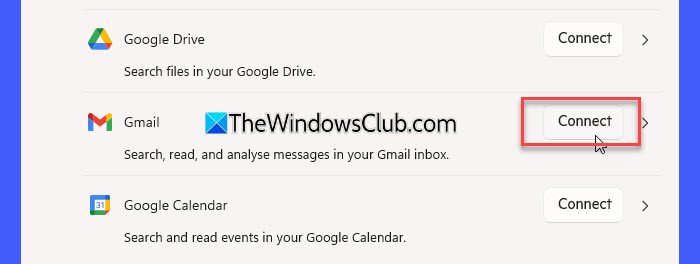
A new window will open with a Continue to Google button. Click it.
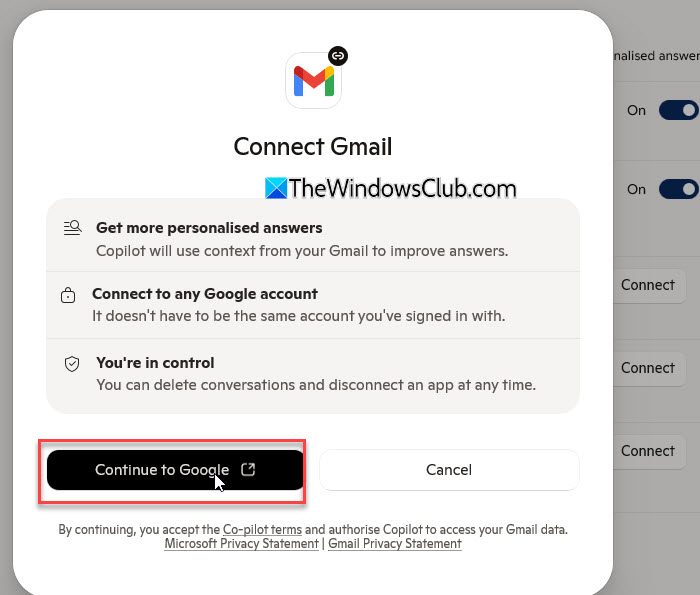
You will be redirected to a Google sign-in page. Enter your Google Account credentials. Google will display a page listing the permissions Copilot is requesting.
Review the permissions and click Allow.
Repeat these steps individually for other Google apps as well if you want Copilot to access all your Google data.
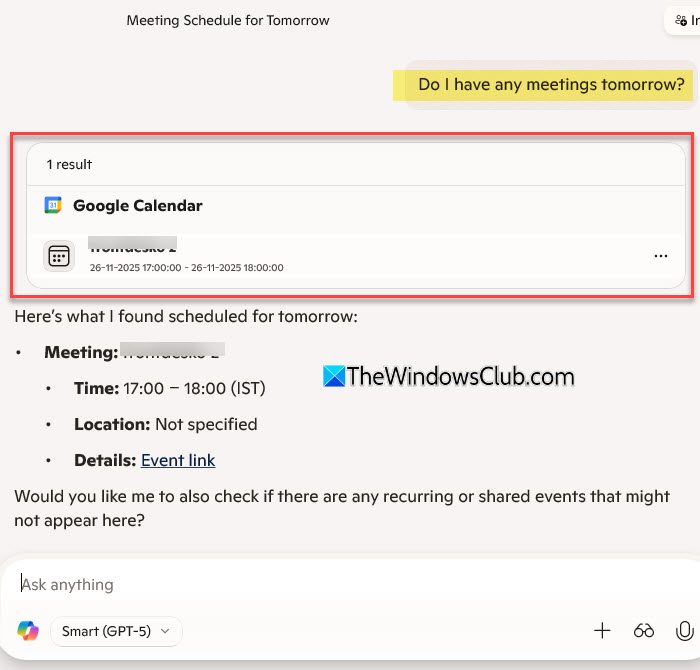
Once your accounts are connected, you can start chatting with Copilot just like you normally do. Simply type your questions or commands in the chat box, and Copilot will now use your linked files, emails, and calendar events to provide more personalised answers.
Note:
- By connecting any of these services, you are granting Copilot permission to access your personal content stored in that account. Microsoft states that this data is used only to generate responses for you and is not used to train AI models.
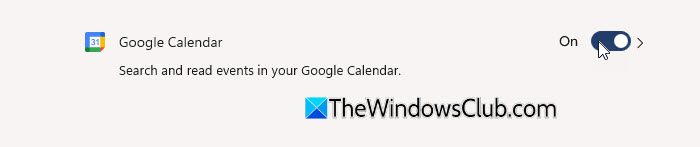
- If you change your mind, you can revoke access at any time by going to Settings > Connectors and turning off the toggle next to the service you no longer want Copilot to use.
- Additionally, in this same update (version 1.25095.161.0 and higher), Microsoft added the ability to export Copilot responses into various file formats, including Word, Excel, PowerPoint, and PDF.
I hope you find this useful.
Read: How to turn Microsoft Copilot into your personal tutor.
How do I enable Copilot connectors?
To enable Copilot Connectors, open the Copilot app and go to Settings > Connectors. Here, you’ll see options for OneDrive, Outlook.com, Google Drive, Gmail, and Google Calendar. Turn on the toggles for Microsoft services or click Connect for Google services and sign in with your account.
Read Next: How to create Copilot agents using Microsoft AI.
