
If you want to turn Microsoft Copilot into your personal tutor, here is what you should do and how you should do it to get the most out of your AI companion. Here, you will learn how to utilize Copilot Vision and Deep Research to gather the most comprehensive information on any topic.
How to turn Microsoft Copilot into your personal tutor
To turn Microsoft Copilot into your personal tutor, follow these steps:
- Install Microsoft Copilot from the Microsoft Store.
- Open the app and sign in to your Microsoft account.
- Click on the glass icon and select the screen you want to share.
- Ask Copilot any question regarding your shared screen.
To learn more about these steps, continue reading.
To get started, you must have the Microsoft Copilot app on your computer. If you don’t have it already, open the Microsoft Store, search for “Copilot,” and install the app accordingly.
Once done, open it and sign in to your Microsoft account so that you can access your conversation history in the future.
Then, open one of your study materials, e.g., a PDF, handwritten notes, a book, or anything else that you want to learn via Microsoft Copilot. Then, click on the glass icon visible in the Copilot prompt and click on the respective Share button.
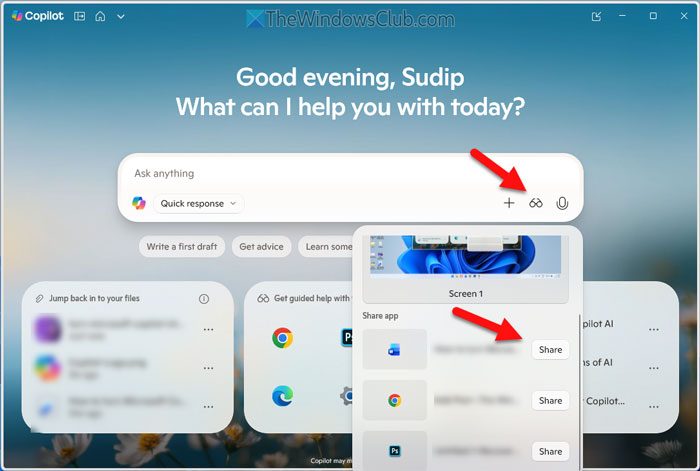
For your information, this is also known as Copilot Vision.
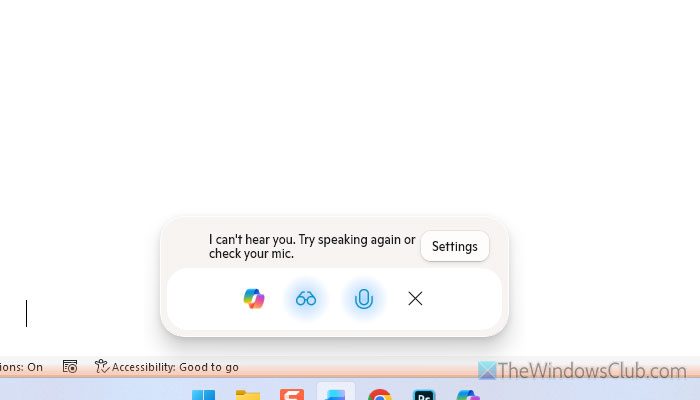
Once your screen is visible to Copilot Vision, you can ask questions to get answers. For example, you can ask a simple question like “Walk me through this paper and give me key insights”.
You can also ask follow-up questions like:
- Explain like I’m 18, how to use this concept daily
- Generate a similar practice problem and solve it with me interactively
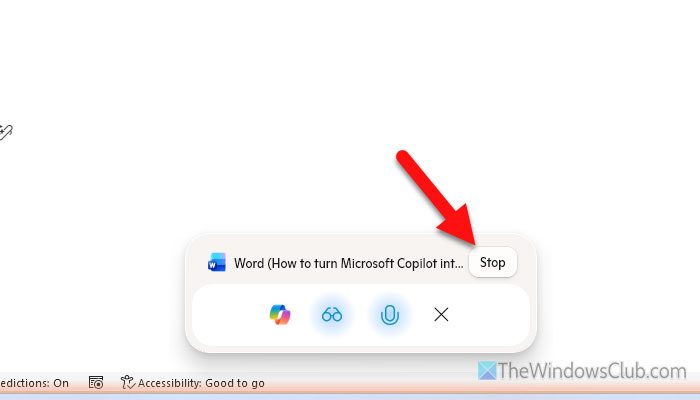
For your information, you will start receiving all the answers or responses in the Copilot prompt. You can access the conversation and ask further questions by voice command or by typing. However, if you want to type your questions instead of giving a voice command, you must stop the screen sharing first.
To do this, click the glass icon again and then click the Stop button.
If you are satisfied with all the responses and you want to take a note or summary, you have two options.
First, you can directly copy all the responses and make a Word document or PDF. For that, click on the arrow icon and select Export as a Word doc/PDF.
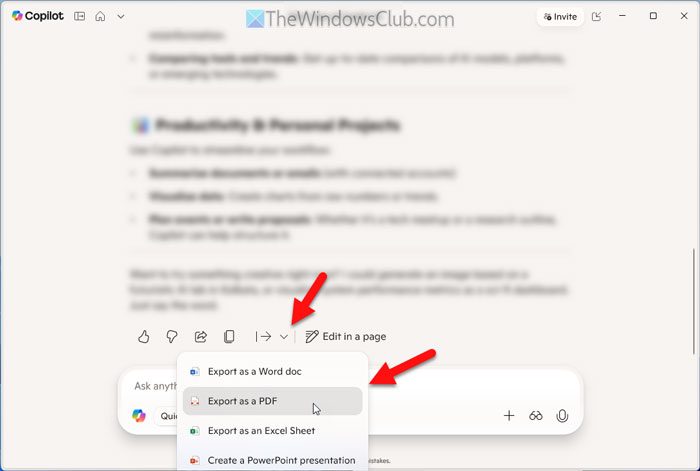
However, at times, you may not have the option above, or Copilot may fail to display the download option. In such situations, you can copy the entire response and paste it into your existing document as well. To do this, click the Copy button, open Word, and then paste.
As mentioned earlier, there is another option called Copilot Deep Research. The main difference between normal Copilot and Copilot’s Deep Research is that the latter gives you more insights into a topic with more opportunities to ask follow-up questions. In contrast, the former one gives you quick and to-the-point answers only. If you want to make Copilot your tutor, it is highly recommended that you give Deep Research a try.
How to use Copilot Deep Research and make Copilot your personal tutor
To use Copilot Deep Research and make Copilot your personal tutor, follow these instructions:
- Open the Copilot app and click on the Quick response button.
- Select Deep Research from the list.
- Click on the glass icon and select a window you want to share via Copilot Vision.
To learn more about these steps, continue reading.
By default, Copilot uses Quick Response functionality, which gives you quick answers. However, you have to opt for Deep Research.
For that, open the Copilot app on your computer, click on the Quick Response button, and choose the Deep Research option.
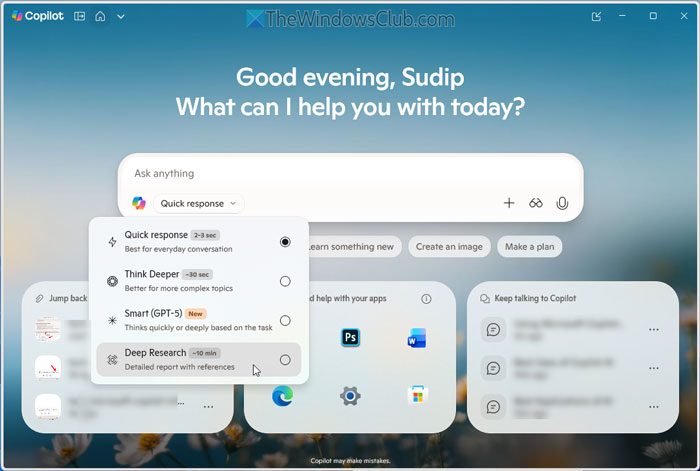
Once done, click on the glass icon, choose your study material’s window, and click the Share button.
You can use the same voice commands as above to obtain more information about your topic.
Read: Use Copilot to get answers from particular websites
Is Microsoft Copilot for personal use?
Yes, you can definitely use Microsoft Copilot for personal benefits. Microsoft Copilot is available with Microsoft 365, and you can also obtain it with the Family plan. It can be integrated with Microsoft Word, Excel, PowerPoint, Outlook, and other applications.
Can you use AI as a tutor?
Yes, you can use AI or Copilot as a personal tutor. You can opt for Copilot Vision and Deep Research to gather more data-driven information, along with the correct resources, for further research. From economics, mathematics, to fine arts, classical music, you can learn anything using AI.
Read: How to use Gemini for Education from Google for AI in School.
