
The revamped Paint app in Windows 11 is supercharged with AI-powered tools to help you create art and edit images. Restyle is a new AI-powered feature in that list that you can use to give your pictures a fresh look with creative styles, such as pop art, impressionism, vintage comic, and more. This post helps to restyle images in the Paint app on a Windows 11 PC using this feature. You can apply a style to your artwork or image within a few seconds, add it to the canvas, copy the image to the clipboard, and save the image to your PC.
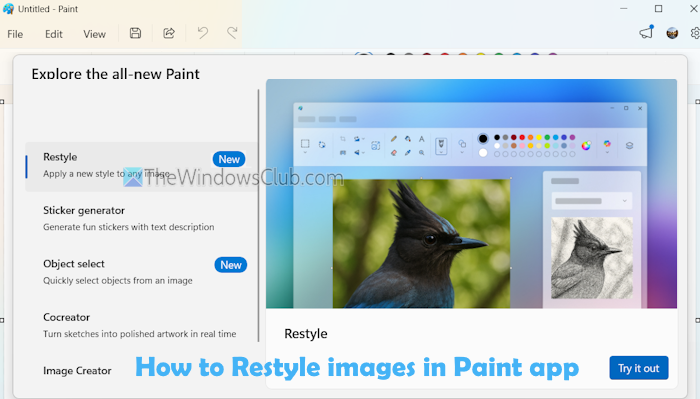
The Restyle feature in the Paint app is exclusive to Snapdragon-powered Copilot+ PCs. Also, you will need to sign in with a Microsoft account in the Paint app to use this feature. Before yoy begin, make sure you have updated the Paint app to its latest version.
How to Restyle images in Paint app on Windows 11
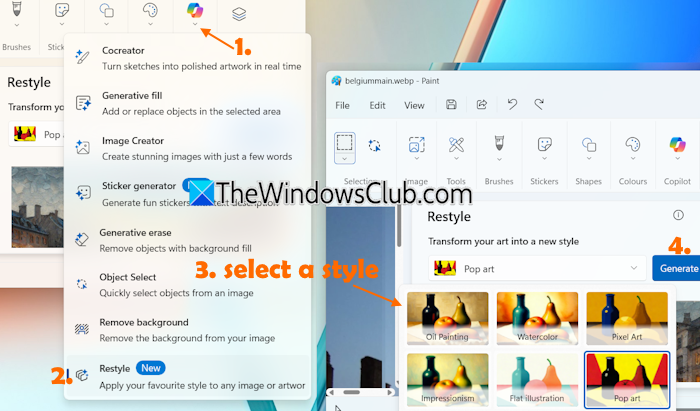
Here are the steps to restyle images in the Paint app on a Windows 11 Snapdragon-powered Copilot+ PC:
- Use the Start menu or Search box to open and use the Paint app on your PC
- Add an image or picture. Though you can apply a style to your doodle or drawing, that won’t make much sense. Therefore, you should add an image
- Click on the Copilot button or icon available in the toolbar
- A drop-down menu will open. You will see all the AI-powered tools, such as Generative fill, Sticker generator, Cocreator, Remove background, and more. Click on the Restyle option in that menu
- A Restyle pane will open on the right section. There, select a style using the drop-down menu. Available styles are- Watercolor, Ink Sketch, Crayon drawing, Pixel Art, Impressionism, Oil Painting, Pop art, Flat illustration, and Vintage comic
- Press the Generate button. Here, the best part is that the art style is not applied to the original image directly. Instead, you first see a preview of the selected style in the Restyle menu
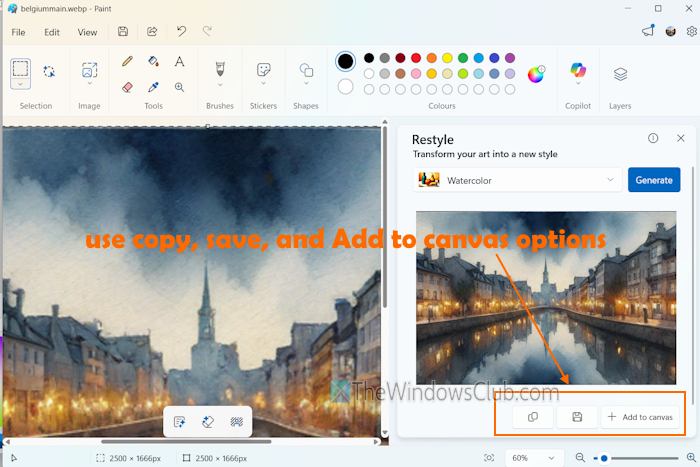
- If you like the style, click the Add to canvas button. This will replace the original image on the canvas with the selected style. Now you can continue the editing. If a style is added by mistake, you can use Ctrl+Z to revert the changes
- Apart from this, you can also use the Copy image button (to copy it to the clipboard), and a Save button to store the output as a Bitmap Image (*.png) to a folder.
The Restyle feature in the Paint app is a nice addition and is similar to the Restyle image AI-powered feature in the Photos app. However, it has limited styles, and you can’t set the restyle level or describe the style that you’d like to apply (which is possible in the Restyle image feature in Photos).
That’s all.
Related: How to create AI Images using the Image Creator in the Paint app
How to reshape an image in Paint?
In the Paint app on Windows 11, add an image, and press the Ctrl+W hotkey. This will open a Resize and Skew box. You can set the Skew angles (horizontal and vertical) and add the Resize values (in Percentage or Pixels) to resize or reshape the input image. Doing so will automatically change the file size and resolution of an image using the Paint app.
How do I reselect an image in Paint?
If you made a selection on an image with Rectangle (Select type) and want to use Free-form selection type instead, click on the drop-down icon in the Select (S) option. Select the Free-form option, and then you can select a part of the image with that Select type. Alternatively, you can click on an area in the image. After that, you can use the Select tool drop-down menu to select Rectangle or Free-form.
Read next: Microsoft Paint Tips and Tricks for Windows users.
