
Microsoft has already added Copilot to Outlook, Excel, PowerPoint, and other services to make users’ lives more productive with the help of Artificial Intelligence. This time, they have added AI to the popular MS Paint. With the help of AI, we can now remove image backgrounds using the Paint app in Windows 11.
Remove Image Background using Paint app in Windows 11
If you want to remove an image background in the Paint app on Windows 11, you must update to the latest version. MS Paint can now detect objects and remove their backgrounds in a single click, avoiding third-party Image Background Removal software or online services.
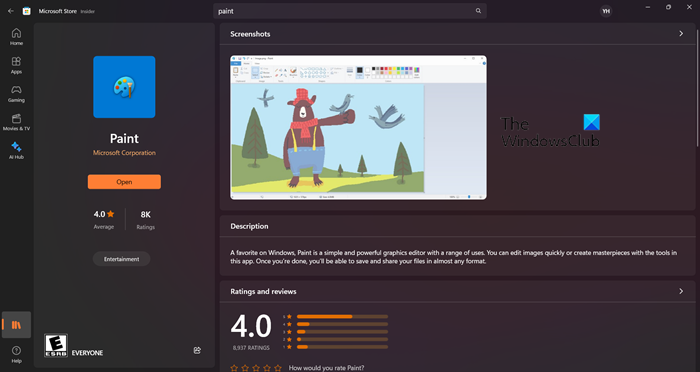
Do keep in mind that just installing Canary or Dev Channel will not do the trick for you. You have to install the latest version of Paint from Microsoft Store. Open the Microsoft Store, search for “Paint” and install its latest version.
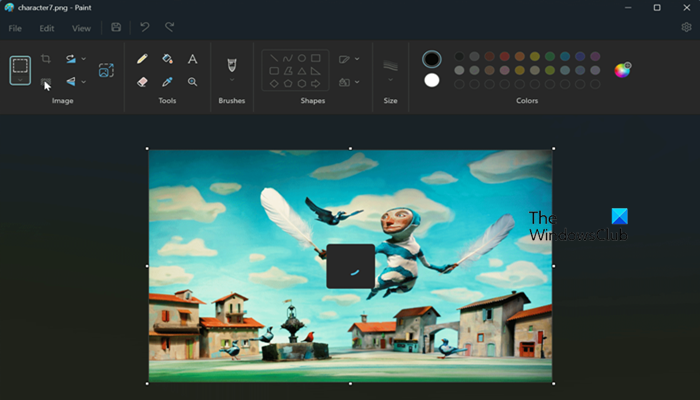
Once you have the latest version of Paint, follow the steps below to remove the background in MS Paint.
- Launch MS Paint.
- Now, go to File and then click on Open.
- You then have to look for the image, select it, and click on Open.
- Then click on Remove background from the Image section.
- Now, click on Eraser to complete the processor.
- Finally, go to File > Save as > select a format, go to the location where you want to save the image, give it a name, and click on Save.
Since AI is used, it can be a little off sometimes. Hence, you might have to undo and redo a few times to get things right.
Hopefully, you can remove background images using MS Paint for free.
Read: How to add text and change color of font in MS Paint in Windows 11/10?
How do you remove the background in Windows 11 Paint?
From Paint v11.2306.30.0 onwards, Windows users can remove background images easily. Once you have updated Windows and the Paint app from the Microsoft Store, open the app, browse and open the image, and then click Remove background > Eraser. This will do the job for you.
Read: How to make Background Transparent in Paint?
How do I use the Paint app in Windows 11?
The Paint app is a built-in utility from Microsoft and is available on Windows 11 as well. If you want to access it, open Search, type “Paint” and then open the app. MS Paint can be your go-to photo editing app. If you want to learn it, check our guide to learn Paint Tips & Tricks.
Read Next: Best free Microsoft Paint alternative software for Windows PC.
