
In this tutorial, we will show you how to make Stickers on Windows 11/10 using the Paint app. We can do this using a new feature called Sticker generator in the Paint app. It is an AI-powered feature exclusive to Copilot+ PCs that uses a Neural Processing Unit (NPU) to create custom stickers with a simple text prompt. You don’t need to worry about templates, design elements, or doing any manual work. Based on your text description, it will generate a set of stickers that you can use on your artwork.

There are no restrictions on generating stickers using the Paint app. You can add any sticker to your canvas with a click, and also copy it to use in other supported applications (like Word) or save it for later. But, to use the Sticker generator feature, you must update the Paint app (11.2504.451.0 or higher) to the latest version, and sign in with a Microsoft account.
Does Windows 11 have a Paint app?
Yes, Windows 11 has a native Paint app (or Microsoft Paint) that comes pre-installed with the OS. Apart from basic options like Brushes, Shapes, and Selection, etc., you can use Microsoft Paint in Windows 11 to remove image background, remove objects with background fill, and make the background transparent. Some AI-powered features, such as Image Creator to generate AI images with a few words, Sticker generator, and Generative fill, are also there, making it a good graphics editing app. If the Paint app is not present, you can install it from the Microsoft Store.
How to make Stickers on Windows 11 using Paint app
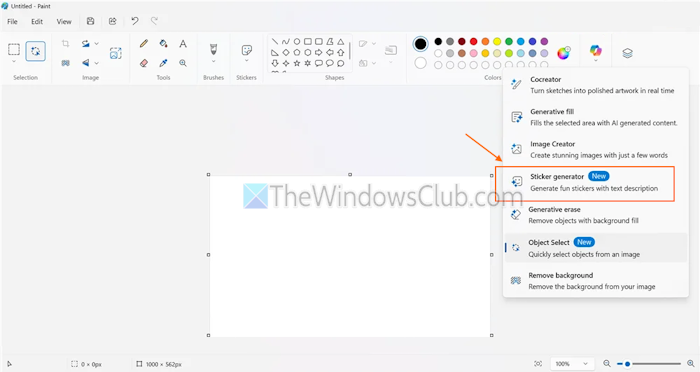
Here are the steps to make stickers on a Windows 11/10 PC using the Paint app:
- Open the Paint app on your PC
- Add an image using the File menu or start with a blank canvas
- Click on the Copilot icon or menu in the Paint toolbar present in the top-right corner
- Select the Sticker generator option, and a prompt box will open in the right section
- Add a short description or text prompt (a cat wearing shoes, a dog wearing glasses, etc.) in the available box
- Press the Generate button, and a set of custom and unique stickers will be generated
- Select a sticker to add it to your canvas. You can also click on the three dots icon (…) on a sticker to copy it or save it
- When the sticker is added, you can move it or resize it as per your needs.
This way, you can generate more stickers and use them.
Additionally, the Paint app also includes a Stickers button, next to the Brushes button, on the toolbar. You can click on that button to open a sticker menu or pop-up, as visible in the image below.
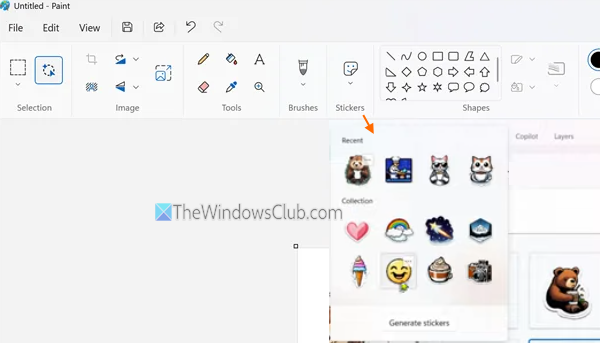
The sticker pop-up includes:
- A Recent section to show the stickers recently used by you
- A Collection section with a collection of pre-added stickers that you can use on your canvas. Selecting a sticker shows a three-dot icon menu to copy the sticker
- A Generate stickers button that opens the Sticker generator menu, where you can make AI stickers with simple text prompts.
That’s all.
Now read: How to use Layers in Paint in Windows PC
Does Microsoft Paint have Generative fill?
Yes, Microsoft Paint does have a Generative fill feature that fills the selected area with AI-generated content. When you select an area, click on the Generative fill option in a small menu that pops up. Describe what you want to add using the text box and use the Create option. Select an object that you like and press the Keep button to apply it.
Read next: MS Paint not working in Windows PC.
