
In this post, we will show you how to disable AI features in the Paint app on a Windows 11 PC. Microsoft has been gradually introducing AI features across Windows 11. Several built-in apps, including Microsoft Paint, now include AI-powered tools that help users perform everyday tasks more easily.
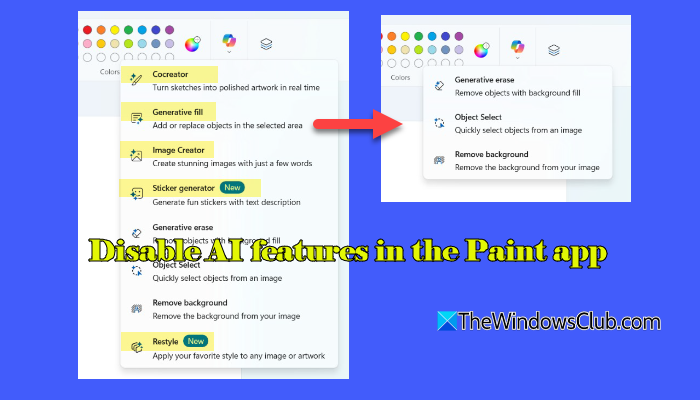
For example, Paint now offers Image Creator, which lets you generate images from text descriptions, Cocreator, which turns rough sketches into polished artwork with the help of AI, and Generative Fill, which allows you to add, replace, or modify parts of an image automatically.
While these AI features may be useful for some users, they are not always desirable. This is especially true in managed or enterprise environments where personal Microsoft account sign-ins are restricted, and such features are not required. In these cases, disabling AI features helps avoid confusion, reduces interface clutter, and keeps the app aligned with organizational policies.
How to disable AI features in the Paint app in Windows 11
At present, Paint does not offer any built-in switches to turn off its AI features. However, you can still disable them using system-level settings. In the sections below, we will show you how to disable AI features in the Microsoft Paint app using the following two methods:
- Using the Registry Editor
- Using the Group Policy Editor
The Registry method works on all editions of Windows 11, while the Group Policy method is available only on Windows 11 Pro, Enterprise, and Education editions.
Let us look at both methods in detail.
1] Disable AI features in Paint using Registry Editor
Note: Editing the registry is an advanced step. We recommend creating a system restore point before proceeding, as incorrect changes can affect system stability.
Disable Image Creator in Paint
Press Win + R, type regedit, and press Enter. Click Yes in the User Account Control prompt. The Registry Editor will appear.
In the Registry Editor window, navigate to the following path:
HKEY_LOCAL_MACHINE\SOFTWARE\Microsoft\Windows\CurrentVersion\Policies\Paint
If you do not see a Paint key, right-click on Policies, select New > Key, and name it Paint.
Now, select the Paint key. In the right pane, right-click and choose New > DWORD (32-bit) Value.
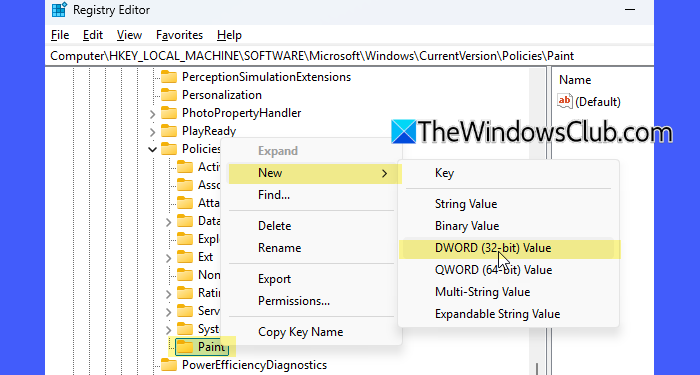
Name this value DisableImageCreator. After creating it, double-click the value and set its Value data to 1, then click OK.
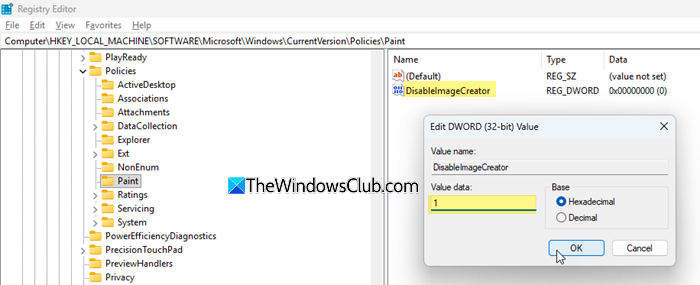
Close Registry Editor and restart the Paint app. The Image Creator option will no longer appear in the app.
Disable Cocreator in Paint
Note: Cocreator is currently available only on Copilot+ PCs with supported NPUs. If you are using a regular Windows 11 PC, this feature will not be present, and the setting below will have no effect.
To turn off Image Creator, stay in the same registry location:
HKEY_LOCAL_MACHINE\SOFTWARE\Microsoft\Windows\CurrentVersion\Policies\Paint
In the right pane, create a new DWORD (32-bit) Value and name it DisableCocreator.
Double-click it, set the Value data to 1, and click OK.
Restart the Paint app to apply the change. The Cocreator option will now be hidden.
Disable Generative Fill in Paint
Note: Generative Fill is also a Copilot+ PC–only feature. On non-Copilot+ systems, this option does not appear in Paint.
To disable Generative Fill, open the same registry path:
HKEY_LOCAL_MACHINE\SOFTWARE\Microsoft\Windows\CurrentVersion\Policies\Paint
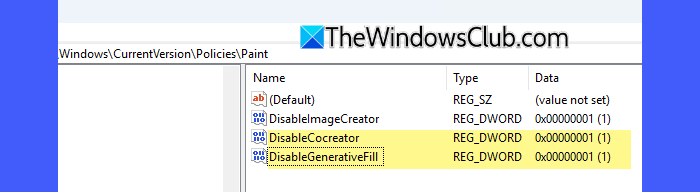
In the right pane, create a new DWORD (32-bit) Value named DisableGenerativeFill.
Double-click DisableGenerativeFill, set the Value data to 1, and click OK.
Now close the Registry Editor and reopen the Paint app. The Generative Fill option will no longer be available.
2] Disable AI features in Paint using Group Policy Editor
Note:
- Cocreator and Generative Fill apply only to Copilot+ PCs. If your device does not support these features, the policies may still appear but will have no effect.
- If you are running Windows 11 Home and do not want to edit the registry manually, you can add the Group Policy Editor to your Windows 11 Home PC using third-party tools. However, this approach is not officially supported by Microsoft and should be used with caution.
Press Win + R, type gpedit.msc, and press Enter. This will open the Local Group Policy Editor.
In the Group Policy Editor window, navigate to the following location:
Computer Configuration > Administrative Templates > Windows Components > Paint
Here, you will find individual policies for controlling AI features used by Paint.
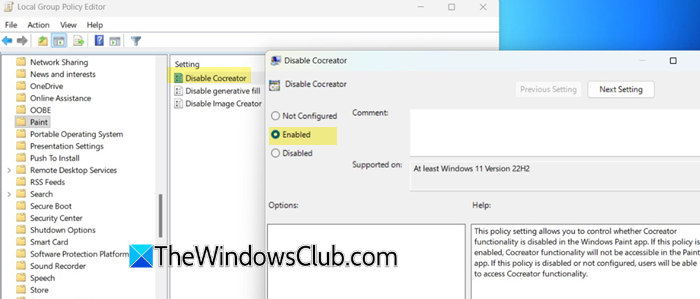
Disable Image Creator in Paint
Locate the policy named Disable Image Creator. Double-click it and select Enabled. Click Apply followed by OK. This disables the Image Creator feature in the Paint app.
Disable Cocreator in Paint
Next, open the policy named Disable Cocreator. Set it to Enabled, apply the change, and close the policy window.
Note: Disabling this policy will also remove related AI tools such as Restyle and Sticker Generator, as they rely on the same underlying Cocreator framework.
Disable Generative Fill in Paint
Similarly, open Disable generative fill, set the policy to Enabled, and save the changes.
After configuring the required policies, either restart your PC or run the following command in an elevated Command Prompt to apply the changes immediately:
gpupdate /force
Once the policies are applied, the corresponding AI features will no longer be available in the Microsoft Paint app.
Note: As of now, Microsoft does not provide a policy or registry option to disable other AI-assisted tools in Paint, such as Generative Erase or background removal. These features remain enabled even after turning off Image Creator, Cocreator, or Generative Fill.
That’s all! I hope you find this useful.
Read: MS Paint not working in Windows 11.
How to enable Co-creator in Paint?
Cocreator is available only on Copilot+ PCs. To enable it, make sure you’re running the latest version of Paint. Open Paint, and if Cocreator is supported on your device, the option will appear automatically in the toolbar. If it doesn’t show up, the feature is either disabled by Group Policy or registry setting or not supported on your hardware.
How do I turn off image creator in Paint?
There is no direct toggle within the Paint app to turn off Image Creator. To disable it, you must use the Group Policy Editor (available on Windows 11 Pro, Enterprise, and Education) or apply the required Registry Editor settings, as explained in this post. After the policy or registry change is applied and the Paint app is restarted, the Image Creator option will no longer appear in the interface.
Read Next: How to Restyle images in Paint app on Windows 11.
