
Running a large language model on your PC is much simpler now than it was a year ago. With Ollama, you don’t have to set up Python, download lots of dependencies, or manually load model weights. After installation, downloading and running Mistral just takes one command. If you want to use AI without relying on cloud services, this guide explains how to run Mistral with Ollama on Windows 11 from start to finish. By the end, you will have Mistral running locally and be ready to interact with it through the Windows Terminal.
How to run Mistral with Ollama on Windows 11
To run Mistral with Ollama on Windows 11, follow the steps mentioned below.
- Check if your PC meets the requirements
- Install Ollama
- Download the Mistral Model
- Start Chatting with Mistral
- Manage Installed Models
Let us talk about them in detail.
1] Check if your PC meets the requirements
Before installing anything, make sure your system can comfortably handle the model. The following are the requirements your system must meet.
- Windows 11 (64-bit)
- At least 8 GB of RAM (16 GB is recommended)
- Around 5 GB of free storage for the Mistral model
- A stable internet connection for the initial download
A dedicated NVIDIA or AMD GPU isn’t required. Ollama can run Mistral on the CPU, although responses will be slower than on a machine with GPU acceleration.
2] Install Ollama
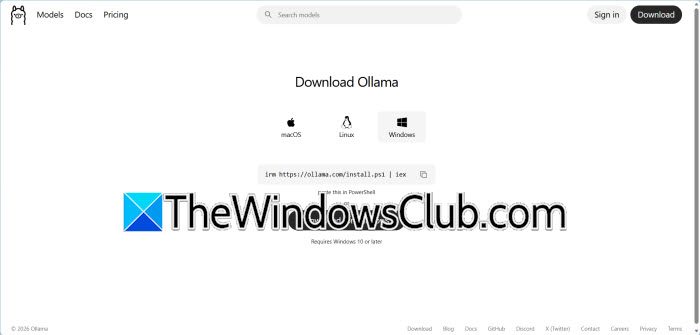
First, visit the official Ollama website (ollama.com) and download the Windows installer.
Run the installer like any other Windows application. The installation usually finishes in less than a minute, and Ollama automatically adds itself to your system PATH, allowing you to use it directly from Command Prompt or Windows Terminal.
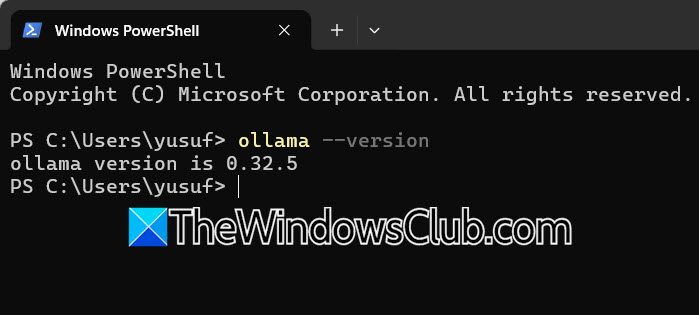
After installation, open Windows Terminal or Command Prompt and verify everything is working using the following command.
ollama --version
If the version number appears, Ollama has been installed correctly.
If Windows reports that the command isn’t recognized, restart the terminal. In some cases, signing out and back into Windows also refreshes the system PATH.
3] Download the Mistral Model
Ollama hosts models in an online library. The first time you run a model, it automatically downloads the required files.
Execute: ollama run mistral
You’ll see a progress indicator while the model downloads. Since the Mistral model is several gigabytes in size, the download time depends on your internet connection.
Once the download completes, Ollama automatically loads the model.
Your terminal should eventually display a prompt similar to:
>>
That prompt means Mistral is ready to accept questions.
4] Start Chatting with Mistral
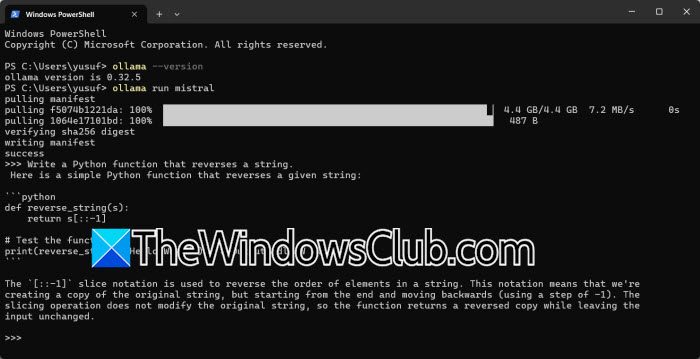
Now you can interact with the model directly.
For example:
>> Explain recursion in simple terms.
Or:
>> Write a Python function that reverses a string.
Responses are generated locally on your PC rather than on a remote server. That means you can continue using Mistral even if your internet connection drops after the model has been downloaded.
To exit the session, type:
/bye
or press Ctrl + D.
5] Manage Installed Models
After experimenting with different models, it’s useful to know what’s installed.
To list downloaded models:
ollama list
Typical output looks similar to:
NAME SIZE
mistral 4.1 GB
If you decide you no longer need the model, remove it with:
ollama rm mistral
This deletes the local copy and frees disk space.
One advantage of running Mistral locally is that you aren’t limited to a web interface. You can tailor how the model behaves by supplying prompts or creating your own model configurations.
For quick testing, simply give Mistral more context in your prompt.
Instead of asking: Explain Docker.
Try: Explain Docker to someone familiar with virtual machines.
Providing context generally produces more focused and relevant answers.
If you regularly use the model for coding, writing, or summarization, Ollama also supports custom model files that let you define system prompts and other settings for repeated use.
Whenever you want to use Mistral again, simply run ollama run mistral
Since the model is already stored locally, it launches much faster than the first time.
That’s it!
Read: How to install Gemma 3 LLM on Windows 11 PC?
Can Ollama run on Windows 11?
Yes, Ollama runs natively on Windows 11 and supports both CPU and GPU execution, making it easy to run large language models such as Mistral locally. Installation is straightforward, and once installed, you can launch models from Command Prompt, PowerShell, or Windows Terminal. Ollama runs as a background service and exposes a local API, allowing developers to integrate AI into their own applications while keeping data on the local machine.
Read: How to run Qwen AI locally on Windows 11
What hardware is needed to run Mistral 7B?
Mistral 7B can run on most modern Windows PCs with at least 8 GB of RAM, though 16 GB is recommended for smoother performance. You’ll also need around 5 GB of free storage for the model files. A dedicated NVIDIA or AMD GPU isn’t mandatory, but it can significantly improve response speed. If your system lacks a compatible GPU, Ollama will automatically run Mistral on the CPU, though generation will be slower.
Also Read: Ollama Crashes on Windows when using an NVIDIA GPU.
