
ChatGPT’s Memory feature enables it to remember your saved preferences and other information across conversations, so you get more personalized responses in future conversations. However, some users have reported that ChatGPT is not remembering previously saved information, failing to save new memories, or forgetting everything unexpectedly. If ChatGPT Memory is not working on your Windows 11/10 PC, the solutions in this guide will help you identify the cause and fix the problem.
Why won’t ChatGPT save memories?
ChatGPT generally saves long-term preferences and other information that may be useful in future conversations, especially when you explicitly ask it to remember something. It does not automatically save every detail you share during a chat. If ChatGPT is not saving memories, the Memory feature may be turned off, you’re using a Temporary Chat, or your saved memory storage is full. In some cases, the feature may be unavailable for your account or temporarily affected by a service issue.
ChatGPT memory not working on PC
If ChatGPT Memory is not working on your Windows 11/10 PC, use these fixes:
- Check whether Memory is available for your account
- Make sure ChatGPT Memory is enabled
- Check whether you are using a Temporary Chat
- Verify whether ChatGPT actually saved the memory
- Remove old memories if the storage is full
- Check the OpenAI Server Status
- Sign out of ChatGPT and sign back in
- Clear browser cache and cookies
Let us see these solutions in detail.
1] Check whether Memory is available for your account
The Memory feature is not available to every ChatGPT user. Its availability depends on your account type, region, and the version of ChatGPT you are using. If the feature hasn’t been rolled out to your account, you won’t see the Memory settings, and ChatGPT won’t be able to save or recall memories.
To check whether Memory is available:
- Open ChatGPT and click your profile picture at the bottom-left corner.
- Select Personalization from the menu.
- Scroll down the Personalization settings and look for the Memory section. If the option is missing, it may not have been rolled out to your account or may not be supported in your region yet.
2] Make sure ChatGPT Memory is enabled
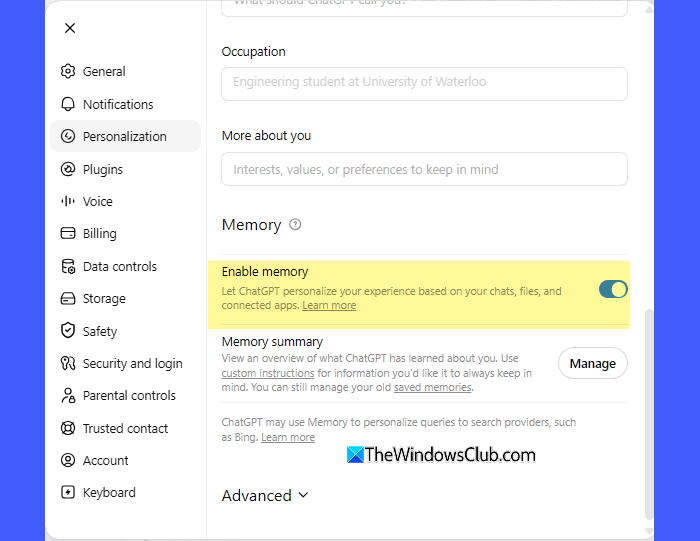
If Memory is disabled, ChatGPT cannot save new memories or use previously saved information to personalize its responses. Turning it on allows ChatGPT to remember useful details across conversations.
To enable ChatGPT Memory:
- Open ChatGPT and click your profile picture.
- Go to Personalization.
- Scroll down to the Memory section.
- Turn on the Enable memory toggle.
3] Check whether you are using a Temporary Chat
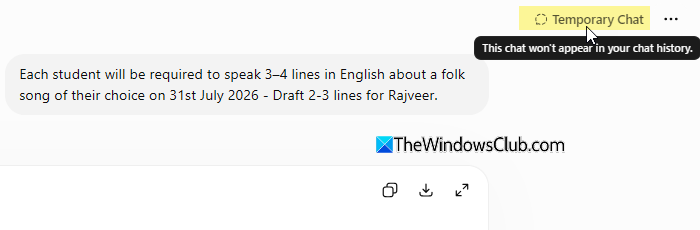
Temporary Chat is a private conversation mode in ChatGPT. Chats started in this mode are not saved to your chat history, and ChatGPT does not create or update saved memories from them, even if the Enable memory option is turned on. If you’re trying to save a memory, make sure you’re using a regular chat.
- Open the current ChatGPT conversation.
- Check whether the Temporary Chat option is enabled at the top-right corner.
- If it is, return to the chat sidebar and click New Chat.
- Start a new regular chat.
4] Verify whether ChatGPT actually saved the memory
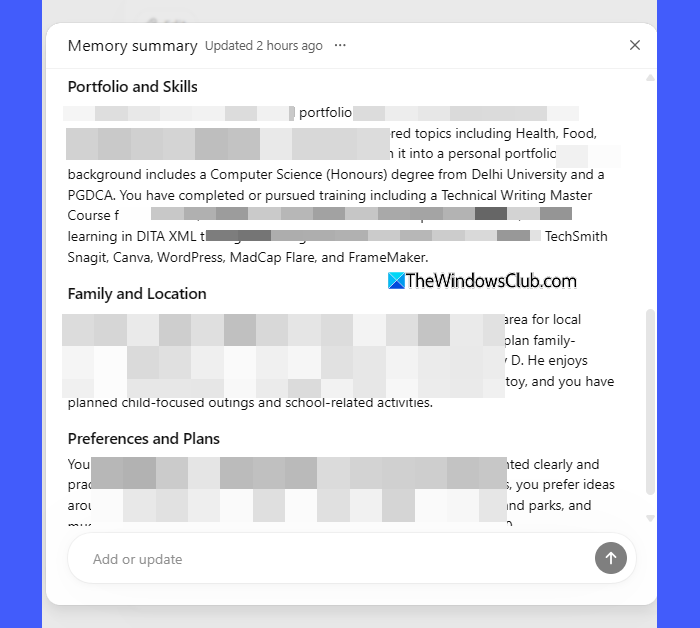
ChatGPT may sometimes say it has remembered something, but the memory may not actually be saved due to a temporary glitch or full memory storage. Checking your Memory summary helps you verify whether the information was actually stored.
- Open ChatGPT and click your profile picture.
- Go to Personalization.
- Under Memory, click Manage next to Memory summary.
- Review the Memory summary to see if the information you asked ChatGPT to remember is listed. If the memory is missing, ask ChatGPT to save it again.
Note: The Memory summary is only a high-level overview of what ChatGPT remembers. It may not display every detail ChatGPT has learned from your conversations. If your account is new, you recently enabled Memory, or you don’t have enough chat history yet, the summary may also appear empty. As you continue using ChatGPT, it should populate automatically over time. If needed, you can refresh it by going to Personalization > Memory > Manage, clicking the three-dot menu (⋮), and selecting Refresh summary.
5] Remove old memories if the storage is full
If ChatGPT has reached the storage limit for saved memories, it may stop saving new information until you remove some existing memories. Depending on the Memory experience available on your account, you can manage your saved memories in one of two ways.
Open Settings > Personalization. Do one of the following:
Click the old saved memories link under Memory summary to open the legacy Saved memories page, then delete individual memories you no longer need.
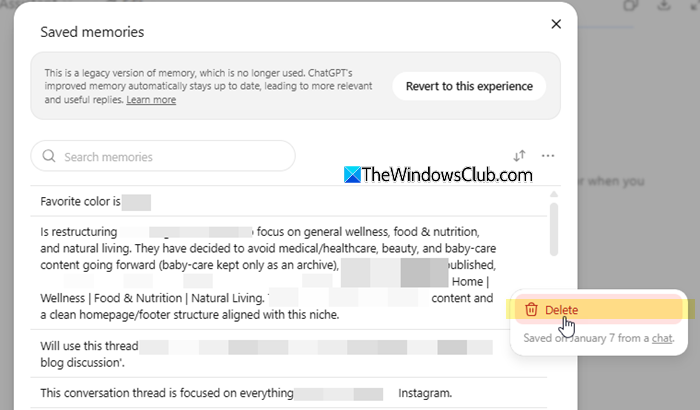
If you’re using the new Memory summary experience, open the three-dot menu (⋮) and select Delete and turn off memory to clear your existing memories.
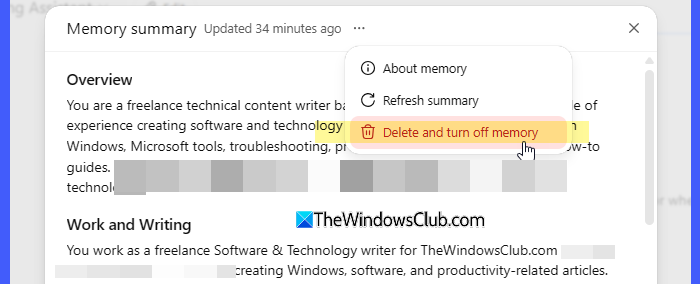
Turn Enable memory back on if you disabled it. Try saving the information again.
6] Check the OpenAI Server Status
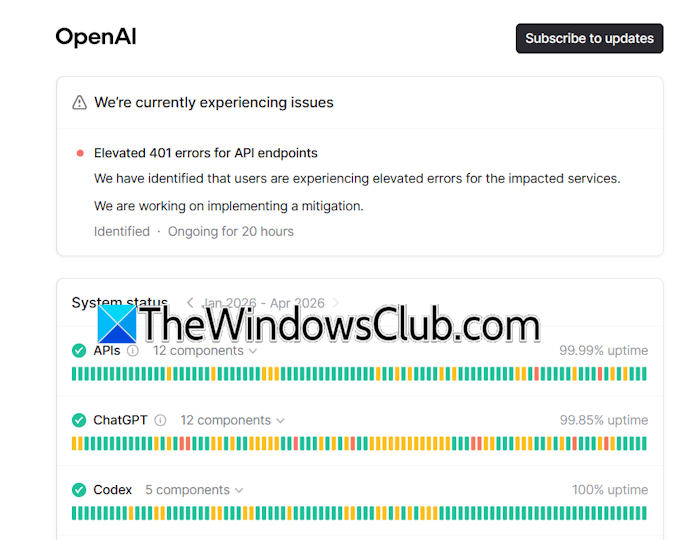
Sometimes the problem isn’t on your device. Temporary service issues or outages can prevent ChatGPT from saving or syncing memories.
- Visit the OpenAI Status page by clicking here.
- Look for any ongoing incidents related to ChatGPT.
- If an outage is reported, wait until OpenAI resolves the issue before trying again.
7] Sign out of ChatGPT and sign back in
If ChatGPT isn’t saving or displaying memories correctly, try signing out and signing back in. Several users have reported that this simple step restored Memory functionality.
- Click your profile picture.
- Select Log out.
- Close the browser.
- Open ChatGPT again and sign back in.
- Check whether Memory is working.
8] Clear browser cache and cookies
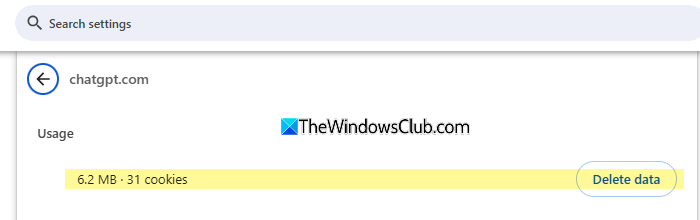
Corrupted or outdated browser data can sometimes interfere with how ChatGPT syncs or displays your saved memories. Clearing the cache and cookies forces the browser to establish a fresh connection with OpenAI’s servers, which may resolve temporary synchronization or loading issues.
Instead of clearing your entire browser cache, clear the cookies and cache only for the ChatGPT website, then restart your browser. You can refer to our detailed guide on how to clear cookies and cache for a specific website in Chrome, Edge, and Firefox.
If you’re using the ChatGPT desktop app, update it to the latest version. Sign back in and test the Memory feature again.
I hope this helps.
Read: ChatGPT Memory Full; What to do?
Does ChatGPT delete chats after 30 days?
ChatGPT does not automatically delete regular chats. They remain in your chat history until you delete them. Once you delete a chat, it is removed from your account and is scheduled for permanent deletion from OpenAI’s systems within 30 days, unless OpenAI needs to retain it for legal or security reasons.
Note: Deleting a chat does not remove any memories ChatGPT has saved from it. To delete saved memories, go to Settings > Personalization > Manage Memory and remove them manually. OpenAI may retain a log of deleted saved memories for up to 30 days for safety and debugging purposes.
Read Next: How to clear, delete, increase, disable ChatGPT Memory.
