
If you are unable to export a conversation as PDF from Copilot, here is how you can fix the problem. These solutions are mainly for Microsoft 365 Copilot, as other Copilot versions don’t let you download the conversation as a PDF.
There could be times when you might want to export your conversation or the result of your query as a PDF from Copilot. You can ask Copilot whether it can do the job or not. Even though the Web version of the desktop version gives you a positive result, it does not let you download it as a PDF. On the other hand, if you have Microsoft 365 Copilot, which comes with a Microsoft 365 subscription, you can easily download the search query as a PDF.
Why are you unable to export as PDF from Copilot?
If you are unable to export as PDF from Copilot, the causes could be one of these:
- You are using the Web version or the regular Desktop version of Copilot.
- Your search query includes some codes that could not be exported as a PDF.
- Copilot thinks that exporting the conversation as a PDF may break the content’s hierarchy.
- Images won’t be clickable, and that is why Copilot prevents you from exporting a PDF.
Unable to Export as PDF from Copilot
If you are unable to export as PDF from Copilot, follow these instructions:
- Switch to Microsoft 365 Copilot
- Remove codes from your search result
- Remove images and clickable links
- Update Microsoft 365 Copilot
To learn more about these solutions, continue reading.
1] Switch to Microsoft 365 Copilot
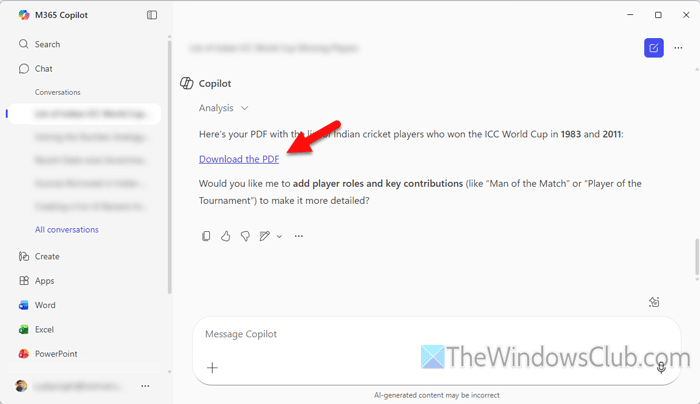
It is probably the most effective solution you can opt for. If you do not have a Copilot Pro or a Microsoft 365 subscription, there is no way you can get over it.
However, if you have Microsoft 365, search for Microsoft 365 Copilot and open the respective application. Following that, search for your answers. When you are done, enter a command like this: Export this result to PDF
It will show you a link like Download the PDF. Click on this link to download your PDF.
Read: How to convert PDF to Excel free using Copilot AI?
2] Remove codes from your search result
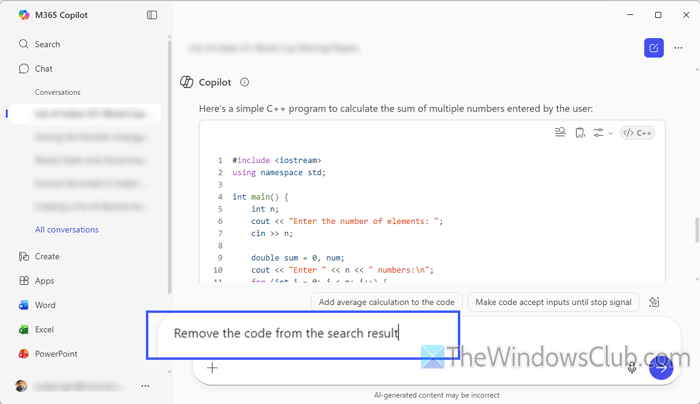
If you have asked for something and Copilot has given you some lines of code in any programming language, it is suggested that you remove them first. You can ask Copilot to show you the result without code.
3] Remove images and clickable links
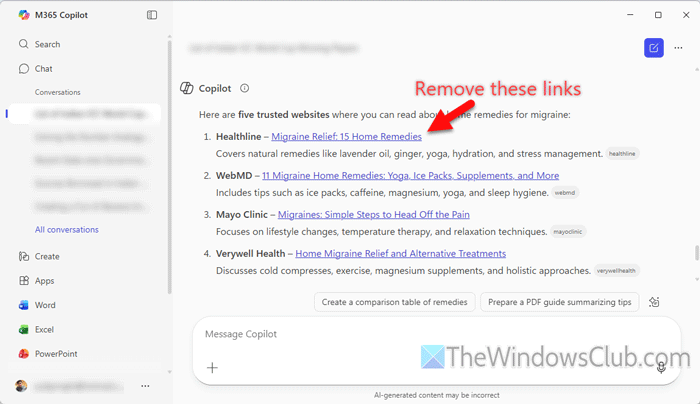
Like codes, it is suggested to remove images and clickable links also. For that, just ask Copilot to get your job done.
4] Update Microsoft 365 Copilot
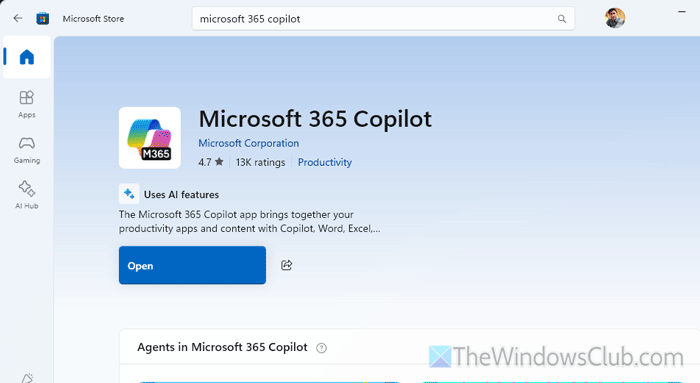
To update the Microsoft 365 Copilot app, follow these steps:
- Open the Microsoft Store on your computer.
- Search for Microsoft 365 Copilot.
- Click on the respective search result.
- Click the Update button.
However, if an update is not available, there is nothing to do.
Read: How to update Microsoft Store Apps manually
How to export to PDF from Copilot?
If you want to export to PDF from Copilot, follow these methods:
- Using Microsoft Word
- Print browser tab
- Capture screenshot and convert to PDF
To learn more about these methods, continue reading.
1] Using Microsoft Word
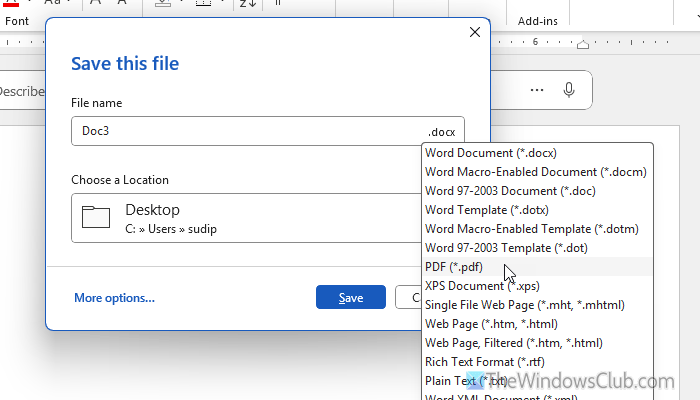
To use this method, you must have Microsoft Word on your computer. Even if you do not have it, you can use Word Online or Google Docs as well.
First, copy the entire conversation or any specific search result from Copilot and paste it into Microsoft Word. Then, press Ctrl+S.
Once the Save dialog appears, click on the file format and choose PDF from the list.
Finally, save the file. On the other hand, if you have Word Online, go to File > Export > Download as PDF.
Then, click the Download button.
Read: How to edit PDF files in Word
2] Print browser tab
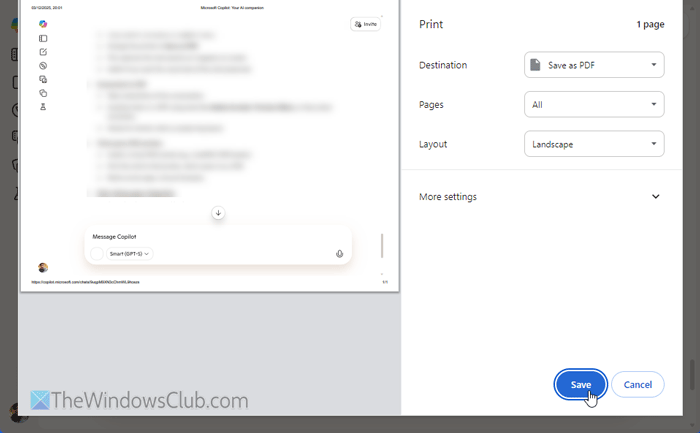
First, allow Copilot to show the entire result. Then, press Ctrl+P to print the current visible area. Then, you can choose the layout, paper size, margin, scale, etc. Once done, click the Save button.
Read: How to print from the Microsoft Edge browser
3] Capture screenshot and convert to PDF
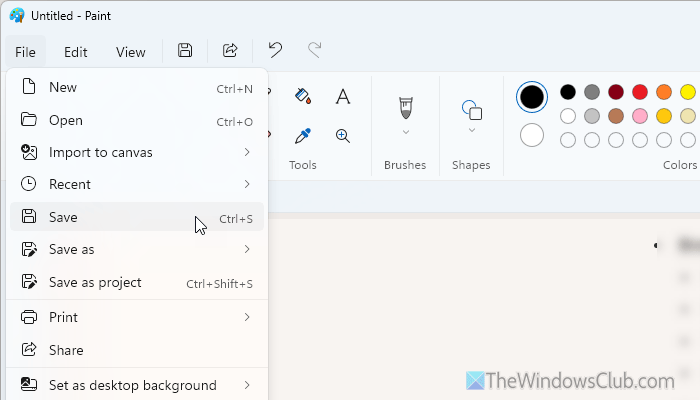
To get started, capture your screen using the Print Screen button, then save it in any image editor. For your information, you can use Paint as well.
Finally, open an image to PDF converter. You can use JPG to PDF or Image to PDF Online, or any other online tool to convert them into PDF.
Read: How to merge multiple Images to a PDF on Windows PC
Why is Copilot not letting me save as a PDF?
If you use the Copilot Web version, you can’t save your search results as a PDF. If you use the regular Copilot app, the same thing applies. You can download the search result as a PDF only if you use Microsoft 365 Copilot.
Read: Sorry, we ran into a problem loading this app Copilot error
