
While opening Copilot in Windows 11, if you encounter an error message saying Sorry, we ran into a problem loading this app, here is how you can troubleshoot the issue on a Windows 11 PC. Even with a valid subscription, you may encounter this error when opening the app. That is why we have consolidated common reasons and solutions to address this problem.
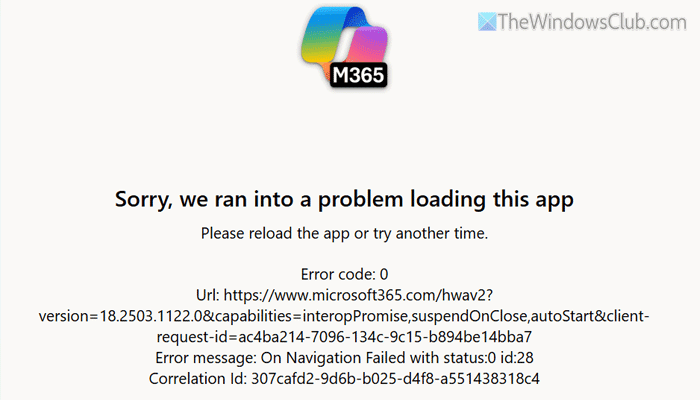
Sorry, we ran into a problem loading this app
Please reload the app or try another time.
Error code: 0
Error message: On Navigation Failed with start:0 id:28
Primary reasons why Copilot is showing Sorry, we ran into a problem loading this app:
- Your internet connection is not working properly.
- There are some issues with your Microsoft account.
- You may have changed the Microsoft account password or enabled two-factor authentication.
- Your VPN or proxy server is down.
- The Copilot app has a glitch or corruption.
Sorry, we ran into a problem loading this app Copilot error
To fix the Sorry, we ran into a problem loading this app error in Copilot, follow these steps:
- Check your internet connection
- Repair and reset Copilot app
- Log out of Microsoft account and re-log in
- Disable VPN and Proxy temporarily
- Clear Edge browser cache
- Update Copilot app
To learn more about these solutions, continue reading.
1] Check your internet connection
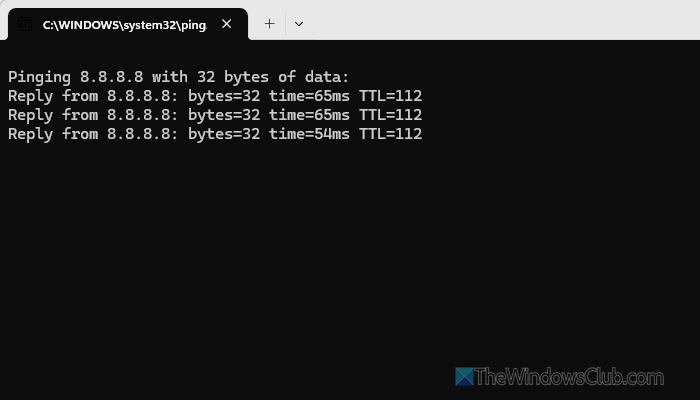
Copilot needs a valid internet connection to fetch your account details and display results when you search. Therefore, follow these instructions to check your internet connection first:
- Press Win+R to open the Run prompt.
- Type ping 8.8.8.8 -t and click the OK button.
If it shows results, your internet connection is working fine. Otherwise, you can change your internet source.
Read: Ethernet keeps disconnecting in Windows 11
2] Repair and reset Copilot app

To repair and reset the Copilot app, follow these steps:
- Press Win+I to open Windows Settings.
- Go to Apps > Installed apps.
- Click the three-dotted icon of Copilot and select b.
- Click the Terminate button to close the app.
- Click the Repair button to start repairing.
- Click the Reset button to reset the app.
Read: Windows 11 Settings: How to open and use them to tweak your PC
3] Log out of Microsoft account and re-log in
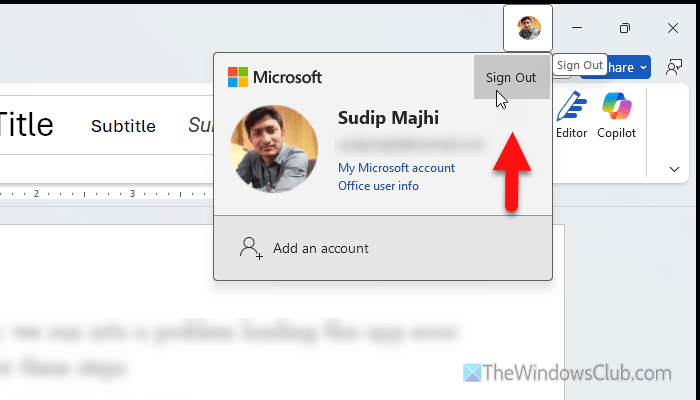
At times, this problem may arise when your Microsoft account has some issues. Since you cannot log out of Copilot, you need to use another Microsoft 365 app (if you have one) to get the job done. For that, open Word or Excel, click on your profile picture visible on the top-right corner, and select the Sign Out option.
Then, you need to log in to your account again. Once done, check whether Copilot is working.
Read: Microsoft Account protection: Login and security tips
4] Disable VPN and Proxy temporarily
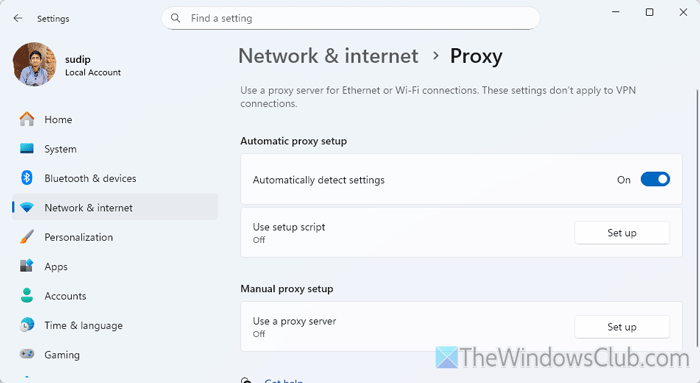
There may be times when your VPN or proxy server creates a conflict. In such situations, temporarily disable VPN and check if that resolves the issue. On the other hand, if you use a proxy, disable it. For that, do the following:
- Press Win+I to open Windows Settings.
- Go to Network & internet > Proxy.
- Toggle the Automatically detect settings button to turn it ON.
If it resolves the issue, you need to switch your proxy.
Read: Disable Proxy or Prevent changing Proxy settings in Windows 11
5] Clear Edge browser cache
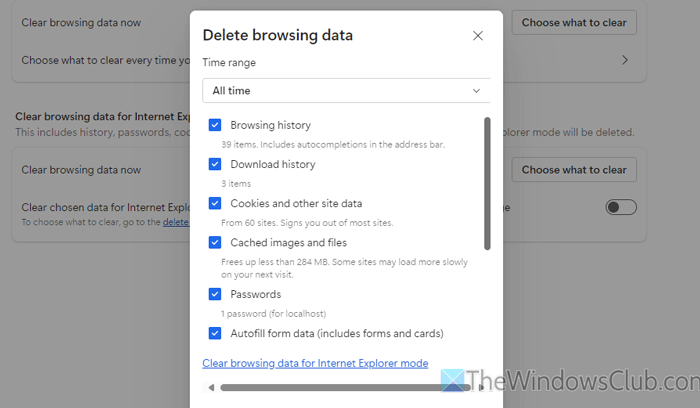
Copilot uses the Edge browser for account login and data visibility. If the Edge browser has some issues, you will find the same in the Copilot app. That is why it is suggested to clear the Edge browser cache.
To clear Edge cache, follow these steps:
- Open the Edge browser and open Settings.
- Make sure that you are in the Privacy, search, and services section.
- Click on the Clear browsing data button.
- Choose All time from the Time range menu and tick all the checkboxes.
- Click the Clear now button.
Read: How to clear Cache and Cookies on Microsoft Edge
6] Update Copilot app
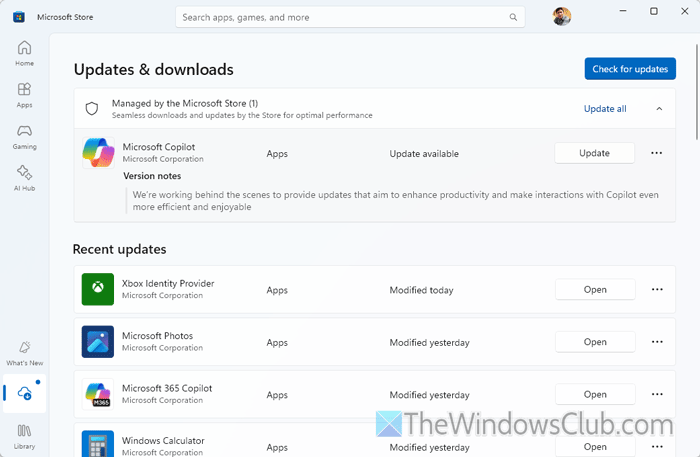
To update the Copilot app, open the Microsoft Store and go to the Downloads section. If an update is available for Copilot, click the Update button.
Read: Copilot not working in Windows 11
How to fix Copilot not loading?
If Copilot is not loading in Windows 11, follow these instructions:
- Check your internet connection first, since Copilot uses the internet to gather and show data or search results.
- Terminate the app in Windows Settings, then restart it.
- Use Windows Settings to repair Copilot. Go to Apps > Installed apps > click on the three-dotted icon of Microsoft 365 Copilot and select Advanced options. Then, click on the Repair button.
- Ensure that you haven’t changed your password recently. In that case, sign out of your account in any Microsoft 365 app, then sign back in.
- Use the Get Help app to troubleshoot. Open the Get Help app, search for Copilot troubleshooter, and choose the Copilot on Windows option. Then, go through the screen instructions.
How to fix Copilot error?
These are some basic solutions to fix almost any Copilot error:
- Run the ping test tool to check if you have an uninterrupted internet connection.
- Repair the Copilot app using Windows Settings.
- Reset the Copilot app.
- Log out of your Microsoft account and re-log into it.
- Update the Copilot app.
- Uninstall and reinstall it.
