
In this post, we will show you how to disable AI in Windows 11. With each update, Microsoft has been introducing AI-powered features into several built-in apps across Windows 11. While these features are designed to improve productivity and convenience, not everyone wants AI deeply integrated into their PC. Some users prefer a simpler, more traditional Windows experience, while others may have privacy or performance concerns.
The good news is that Windows 11 does let you turn off or limit many of these AI features. You can do this using regular Settings, Group Policy, or a few Registry tweaks. In this guide, we’ll walk you through all the AI features currently available in Windows 11 and explain how to disable them wherever possible.
How to disable AI in Windows 11
To disable AI in Windows 11, you can turn off the following features:
- Windows Copilot
- Image Creator, Cocreator, and Generative Fill in Microsoft Paint
- Auto Image Categorization in the Photos app
- AI Write and Rewrite in Notepad
- AI Actions menu in File Explorer
- Copilot and AI features in Microsoft Edge
- Copilot Discover in the Widgets board
- Recall Snapshots
- Click To Do
- Copilot in Microsoft 365 apps
- AI in Google Search
Let us see this detail.
Note: In the sections below, Registry-based methods apply to all Windows 11 editions, while Group Policy methods are available only on Windows 11 Pro, Enterprise, and Education editions.
1] Disable Windows Copilot
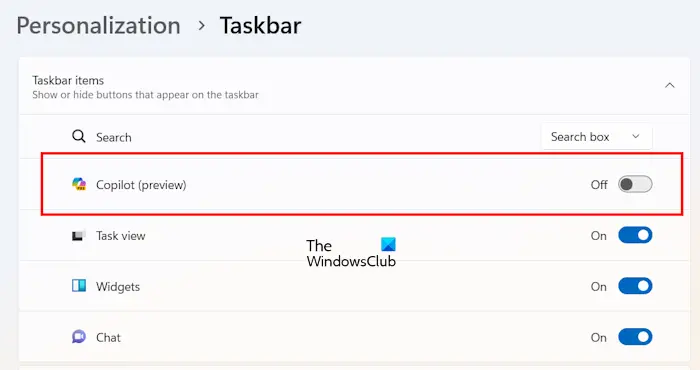
Windows Copilot is the main AI feature in Windows 11. If you don’t want AI to be part of your everyday Windows experience, disabling Windows Copilot is the first and most important step.
Open Settings (Win + I). Go to Personalization > Taskbar. Turn Copilot off.
This removes the Copilot button from the taskbar and prevents it from launching.
If you want a more permanent solution, you can disable Windows Copilot using a Registry tweak. You can also disable Windows Copilot using the Group Policy Editor to enforce the change at the system level.
2] Disable Image Creator, Cocreator, and Generative Fill in Microsoft Paint
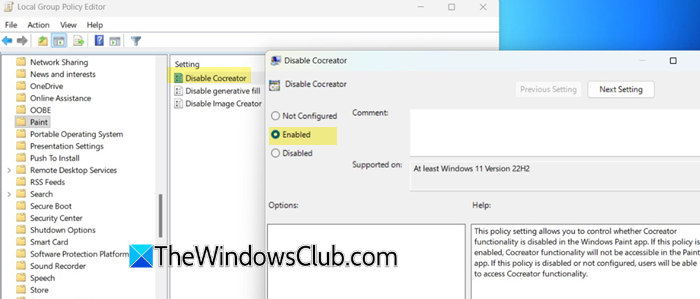
AI features in Microsoft Paint primarily include Image Creator, Cocreator, and Generative Fill. Together, these AI features help users quickly create and edit images in Paint without needing advanced design skills.
While there’s no direct switch to disable these features, you may still disable them by modifying the Windows Registry if you wish to. In managed or enterprise environments, these features can also be disabled using Group Policies.
3] Disable Auto Image Categorization in the Photos app
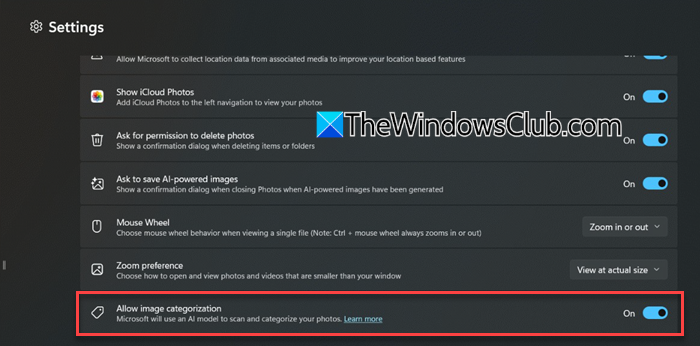
The Photos app in Windows 11 now includes auto-categorization, which automatically detects and organizes your photo collection into meaningful groups such as screenshots, receipts, identity documents, and notes using on-device AI on Copilot+ PCs.
If you prefer manual control over your photos, you may turn this off.
Open the Photos app on your PC. Click the Settings (gear) icon at the top. Turn off the toggle next to the Allow image categorization option.
4] Disable AI Write and Rewrite in Notepad
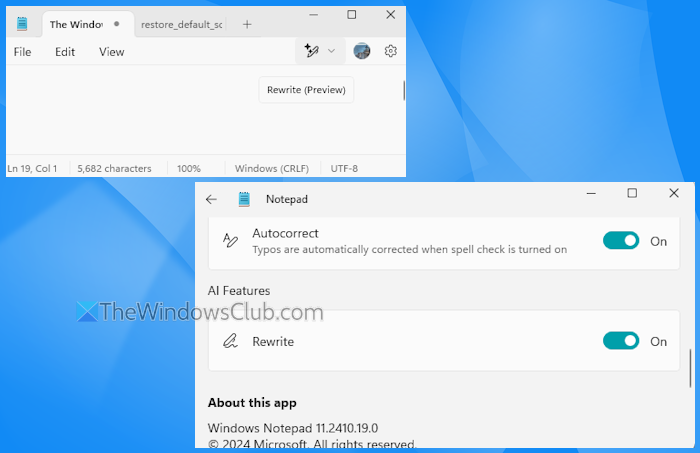
Notepad in Windows 11 now includes Write, Rewrite, and Summarize— three AI-powered features that help you generate, rephrase, or summarize text using Copilot (GPT). If you do not want to see these features, you can disable them in Notepad.
Open Notepad. Click the Settings (gear) icon in the top-right corner. Scroll down to the AI Features section. Turn off the toggle next to the Copilot option.
Restart Notepad to apply the changes.
5] Disable AI Actions menu in File Explorer
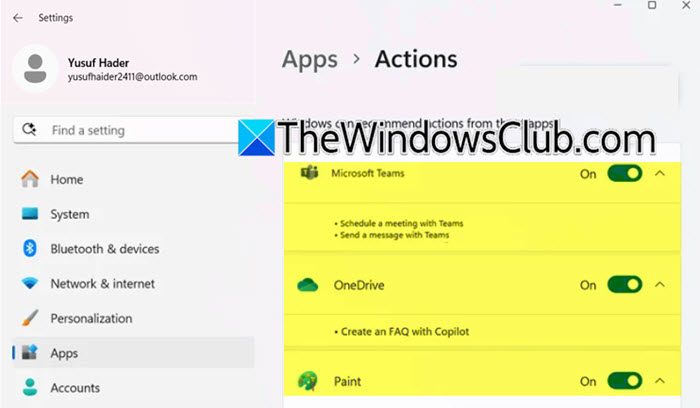
In recent Windows 11 builds, File Explorer features an AI Actions menu that offers quick, AI-powered shortcuts like visual search, background removal, and other file-specific actions. If you prefer a simpler context menu without AI options, you can disable these actions.
Open Settings. Go to Apps > Actions. Turn off the toggle next to an app to remove it from the AI Actions menu. Turn off all toggles to remove all AI Actions.
For a more permanent, system-wide block, you may use this Registry tweak to disable the AI Actions menu in File Explorer.
6] Disable Copilot and AI features in Microsoft Edge
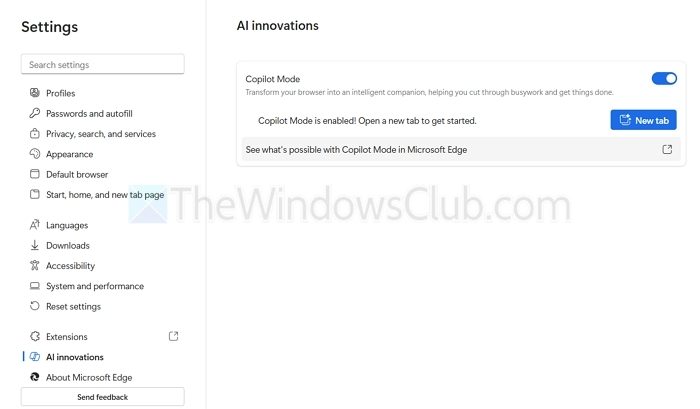
Microsoft Edge includes built-in AI features such as Copilot, Read Aloud, and AI writing assistance. If you don’t want AI built into your browser, you can disable Copilot directly from Edge settings.
Open Microsoft Edge, go to Settings > AI innovations, and turn off Copilot Mode.
To disable Read Aloud in Edge, you can use a Registry tweak. Press Win + R, type regedit, and press Enter. In the Registry Editor, navigate to:
HKEY_CURRENT_USER\Software\Policies\Microsoft
Create a new key named Edge, and then create a DWORD (32-bit) value called ReadAloudEnabled. Set its value to 0 and restart Microsoft Edge.
If you use Google Chrome as your default browser, you can disable AI Mode in Chrome’s Address bar and search box.
7] Disable Copilot Discover in the Widgets board
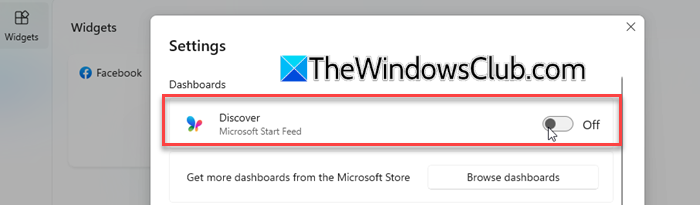
In recent Windows 11 builds, the Widgets board includes Copilot Discover, which uses AI to surface, summarize, and recommend content. If you don’t want AI-generated or AI-curated content appearing in Widgets, you can disable Copilot Discover.
Open the Widgets board (Win + W), go to Settings, and turn off Copilot Discover. Reopen Widgets to apply the change.
8] Disable Recall Snapshots
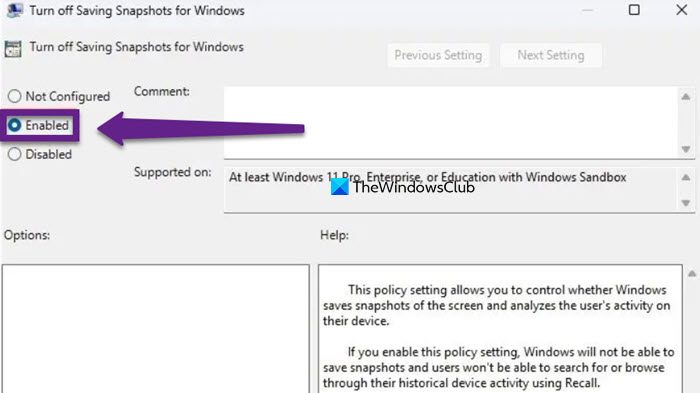
Recall uses AI to capture snapshots of your on-screen activity and lets you search past actions, documents, and apps using natural language. It is a Copilot+ PC-exclusive feature. On supported devices, Recall can be turned off from system settings.
Open Settings, go to Privacy & security, and select Recall & snapshots. Use the Save snapshots toggle to turn Recall off.
If you’re an admin, you can also disable Recall using Registry Editor or Group Policy Editor for a system-wide change.
If you want to completely remove Recall from your device, you can uninstall it using Windows Features, Command Prompt, or Windows Terminal.
9] Disable Click To Do
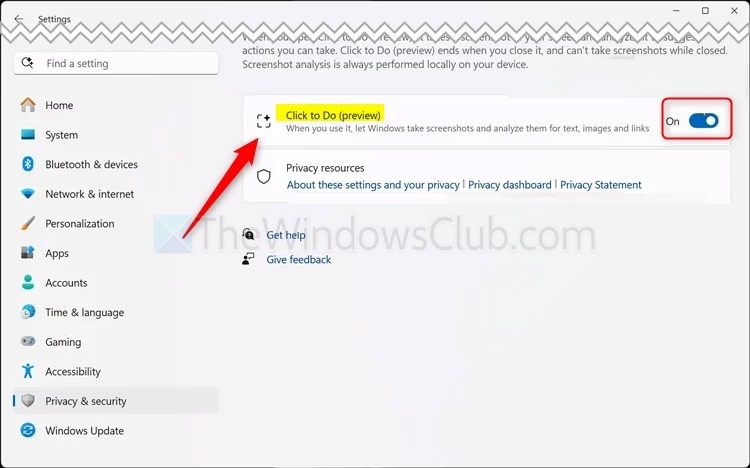
Click To Do is a Copilot-powered feature in Windows 11 that adds AI-based actions when you select text or content on the screen. It offers quick options such as summarizing text, rewriting content, or performing related actions using AI.
To disable Click To Do, go to Settings > Privacy & security > Click To Do, and turn the toggle off.
10] Disable Copilot in Microsoft 365 apps
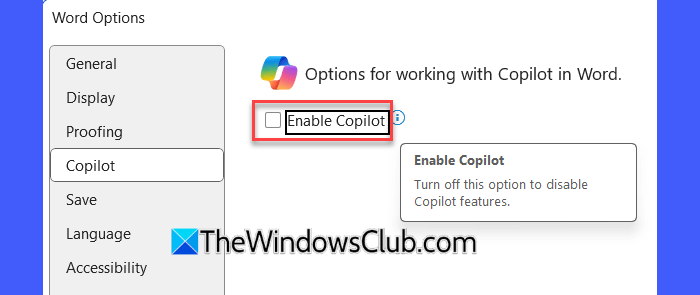
Microsoft 365 apps such as Excel, PowerPoint, and Word now include Copilot integration. With a standard Microsoft 365 subscription, you receive a limited number of AI credits each month to use Copilot features. If you prefer to work without AI assistance and want to avoid Copilot prompts while creating or editing documents, you can turn it off directly from the app’s settings.
Open an Office app like Word, go to File > Options, select Copilot from the left pane, and uncheck Enable Copilot. Save your changes and restart the app. Copilot will no longer appear unless you enable it again.
11] Disable AI in Google Search
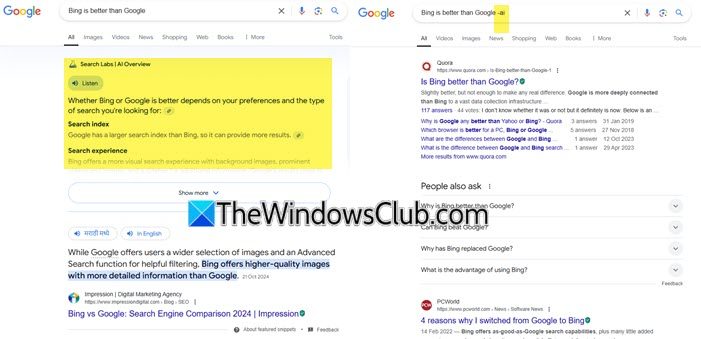
Google Search now shows AI-generated summaries and answers (often labeled as AI Overview) at the top of search results. To see the search results without an AI Overview, add -ai to your query at the end. For example, instead of searching for How to fix PC Lag, search for How to fix PC Lag -ai.
You can also use a browser extention to disable AI in your Google Search.
Remove all Windows AI features using a third-party script
If you want an automated way to remove most AI features in Windows 11 instead of toggling each one manually, there is an open-source PowerShell script called RemoveWindowsAI available on GitHub.
The script aims to disable or remove AI components such as Copilot, Recall, AI features in Paint and Notepad, AI Actions, and more by applying registry changes, removing AppX packages, and blocking reinstallation via Windows Update. It also offers backup and revert options. However, since it makes deep system-level changes, we recommend using this script with caution and creating a full system backup before running it.
That’s all! I hope you find this useful.
Read: Disable Copilot Model Training for your Microsoft Account in Windows 11.
Does Windows 11 have AI built in?
Yes, Windows 11 includes built-in AI features such as Copilot, AI-assisted tools in apps like Paint, Photos, and Notepad, and smart features in Microsoft Edge and File Explorer. These are designed to help with productivity, creativity, and accessibility. However, not all AI features are enabled by default, and their availability may vary by device and Windows version.
Read: How to disable Telemetry in Windows 11
How do I turn off AI on my PC?
You can turn off most AI features in Windows 11 by disabling Windows Copilot, turning off AI options inside built-in apps like Paint, Photos, Notepad, and Edge, and adjusting privacy and personalization settings. For more permanent control, advanced users can also use Registry Editor or Group Policy Editor to disable AI features system-wide.
Read Next: How to manage Copilot Activity History.
