
In this post, we will show you how to enable the Copilot Discover experience for the Widgets Board in Windows 11. Microsoft is gradually rolling out a new AI-powered layout for the Widgets Board. Known as Copilot Discover, the layout is designed to offer a more organized and personalized Widgets experience to its users.
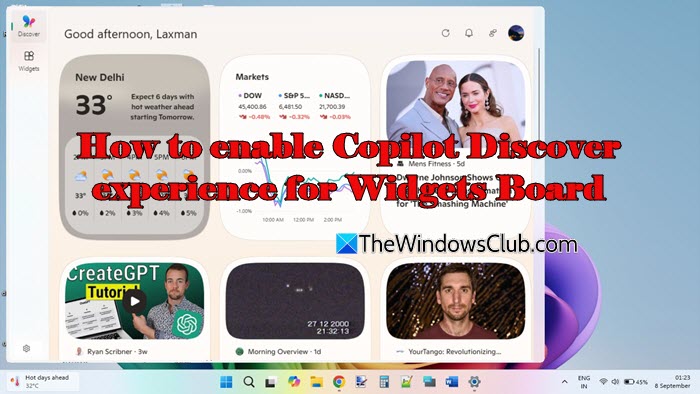
Unlike the old MSN feed, Copilot Discover doesn’t just display generic stories but analyzes Microsoft account preferences, widget usage, and interaction history to curate stories and topics that are more relevant to the user.
How to enable Copilot Discover experience for Widgets Board in Windows 11
To enable the Copilot Discover experience for the Widgets Board on a Windows 11 PC, you need to follow these steps:
- Open the Widgets Board.
- Go to Feed settings.
- Toggle Copilot Discover.
- Confirm and refresh.
Let us see this in detail.
On your Windows 11 PC, click the Widgets icon on the taskbar (a weather or news icon by default). Alternatively, press Win + W on your keyboard to launch the Widgets Board.
Click the Discover option in the left pane. Then click the Personalize settings (account) option in the top right corner.
In the Personalize window, look for the option labeled Copilot Discover. Toggle the switch on. Close the settings panel and reopen the Widgets Board to apply changes.
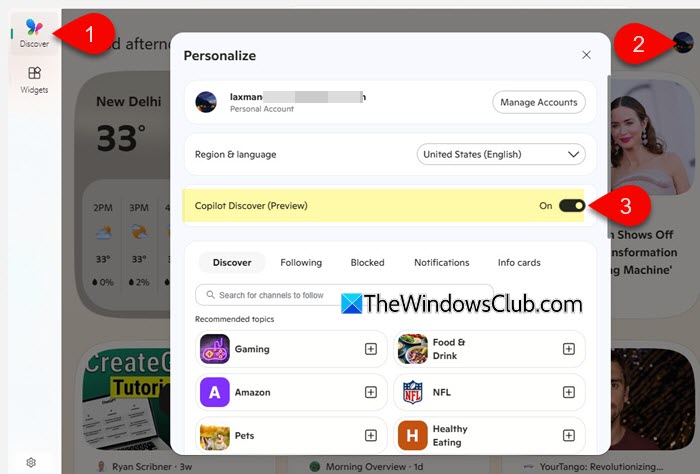
Note: Since Microsoft is rolling out this feature gradually, Copilot Discover may not be available to all users right away. If you don’t see it yet, check later as the rollout expands to more devices in the coming months.
How Widgets Board looks with Copilot Discover
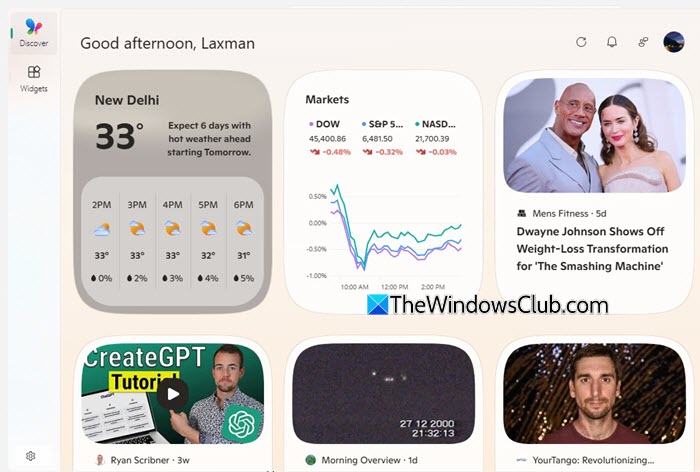
Once you enable Copilot Discover, you’ll notice the following changes in the Widgets Board:
- AI-powered feed: The old MSN feed gets replaced with stories curated by AI, based on your likes, Copilot usage, and interaction history.
- Cleaner, modern look: Stories appear in large tiles with bold text for better readability, offering a well-rounded view of topics from trusted MSN premium publishers. The overall feed feels less noisy and cluttered.
- Faster performance: Smoother scrolling and animations make the Widgets Board feel more responsive.
- New widget organization: Widgets are now moved to a dedicated tab accessible from the top left, with only the weather widget fixed on the main feed.
- Interactive story controls: You may hover over a story to upvote/downvote, bookmark it for later, or follow/block specific media outlets.
- Video previews: Stories with videos may autoplay when you hover over them.
- Customizable notifications: A new Notifications button at the top highlights breaking news, weather, and stock updates, with the ability to choose what alerts you want.
- Updated layout: The Widgets Board now opens as a tall, narrow slide-out from the left side of the screen, which cannot be maximized to full-screen.
- In-panel reading (in testing): Microsoft is experimenting with letting users read stories directly inside the Widgets Board without opening a browser.
Disable Copilot Discover experience for Widgets Board
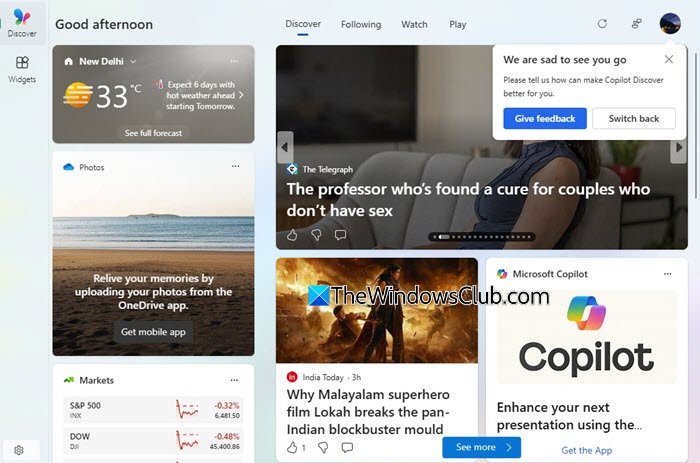
To disable the Copilot Discover experience in Windows 11, open the Widgets Board and click your profile icon in the top-right corner. Then toggle off the Copilot Discover option in the window that appears.
Alternatively, click the settings (gear) icon at the bottom-left corner to restore the classic MSN feed.
I hope you find this useful.
Read: How to use Copilot Pages in Windows 11?
How do I enable Copilot on Windows 11?
Copilot is turned on by default in Windows 11. If it is not working for you, just activate it via the Taskbar settings. If the Copilot button is greyed out, a system administrator, Group Policy, or Registry setting may have disabled it. To fix this, you need to reconfigure the relevant setting in the Registry Editor or Group Policy Editor.
How do I enable widgets in Windows 11?
To enable Widgets, right-click the taskbar and select Taskbar settings. Under Taskbar items, turn on the toggle for Widgets. Once enabled, you can open the Widgets Board by clicking the Widgets icon on the taskbar or pressing Win + W. You can also personalize your feed and add/remove widgets from within the board.
Read Next: Best Free Windows 11 Widgets and Gadgets.
