
In this post, we’ll show you how to use Copilot Pages in Windows 11. Copilot Pages is an AI-powered collaborative canvas that lets you turn Copilot chats into editable documents. It works seamlessly alongside Copilot’s conversational features, enabling you to generate, organize, and refine content in real time.

Earlier, Copilot Pages was exclusive to Microsoft 365 business and enterprise users. However, Microsoft has now started rolling it out for free to Windows 11 users with a regular Microsoft account. This means even Home users can now access the same smart, document-style workspace previously reserved for organizations. Here’s how to get started with Copilot Pages in Windows 11.
How to use Copilot Pages in Windows 11?
Copilot Pages can be used in both the Copilot desktop app for Windows and the Copilot web app. The experience is consistent across both, with a few interface differences. To use Copilot Pages on a Windows 11 PC, you may begin by chatting with Copilot, then turn its response into an editable Page.
Open the Copilot app from the Start menu or taskbar, or go to copilot.microsoft.com. Sign in with your Microsoft account.
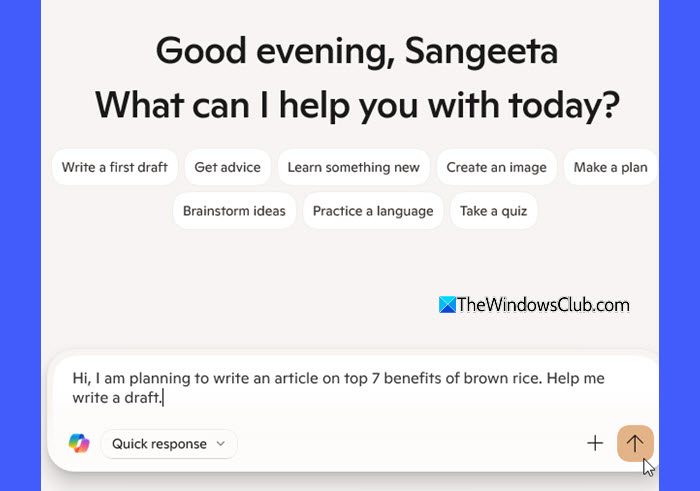
Enter a prompt in the Copilot chat box. For example:
“I am planning to write an article on top 7 benefits of brown rice. Help me write a draft.”
Click Send and wait for Copilot to generate a response.
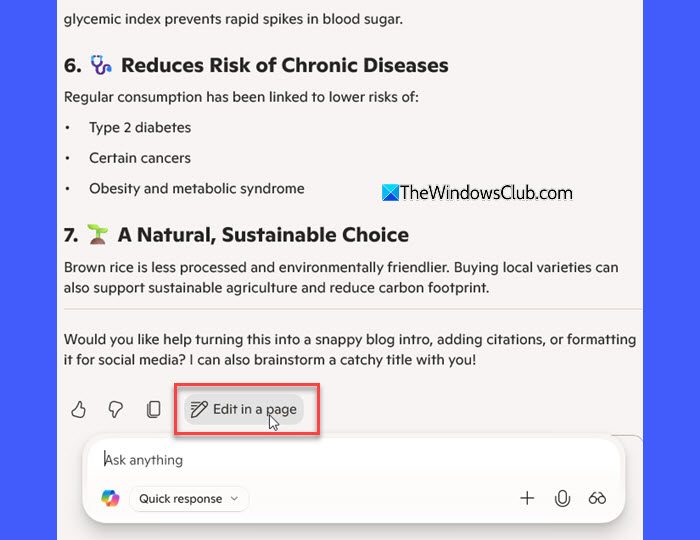
Depending on your prompt, Copilot will generate a draft or an outline. To continue working on the response, click the Edit in a page option.
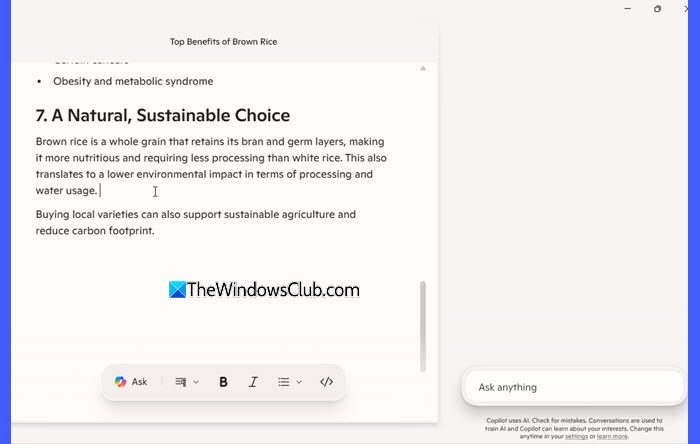
A new Copilot Page will open alongside the chat. On this page, you can:
- Write or edit content yourself: Copilot Pages supports rich text editing and formatting, so you can format text, add bullet points, and freely write or revise content, just like a standard text editor.
- Collaborate with Copilot to refine your content: Highlight specific parts or refer to sections of the content and ask Copilot to simplify, rewrite, expand, fix grammar, or change the tone of your content.
Create a new Copilot Page
Creating a new page in Copilot allows you to start fresh for tasks such as planning projects, taking notes, or brainstorming ideas.
To create a new page, click the down arrow icon on top of the left sidebar. From the menu, select New page (or Create new page).

A new, blank page will appear in the editor, ready for you to start typing.
Rename a Page
You can rename a page by clicking on its default title at the top and entering a new name. Also, Pages are saved automatically, so you can leave a page anytime and return later to continue working on it.

Find your Pages
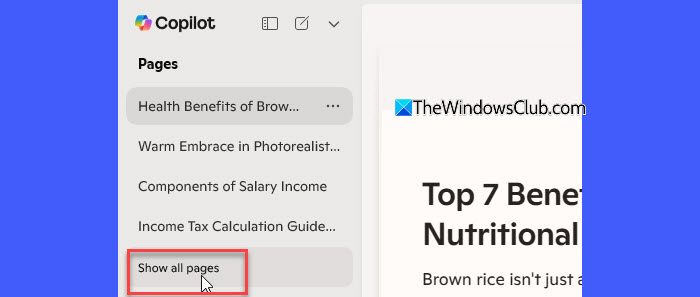
To find and open your Pages in Copilot, open the conversation history panel on the left side of Copilot. Look under Pages to view your most recently created Pages.
If you don’t see the Page you’re looking for, click Show all pages to display your full list. Click the Page name you want to open.
Edit a Page
Once you’ve created (or opened) a Page, you can begin editing its content right away. Pages support rich formatting, including:
- Bold, italics, and underline
- Bulleted and numbered lists
- Multiple heading levels
- Tables
- Links
- Code snippets (with syntax highlighting for JavaScript, Python, HTML/CSS, Markdown, and many other languages)
To format your text in the Copilot web app, simply highlight any portion and use the formatting toolbar that appears.

In the desktop app for Windows, the formatting toolbar doesn’t appear when you highlight text. Instead, it stays fixed at the bottom of the page, and you can use it from there to apply formatting or ask Copilot for help.
Use Copilot While Editing
Apart from manual formatting, you can also use Copilot to enhance or rewrite your content.
When you open or create a Page, the Copilot conversation sidebar appears automatically on the right. You can use it to request rewrites, summaries, or suggestions.
In the web app, you can highlight text and click the Ask button that appears above the selection. This button then turns into a text box, where you can type a follow-up prompt.
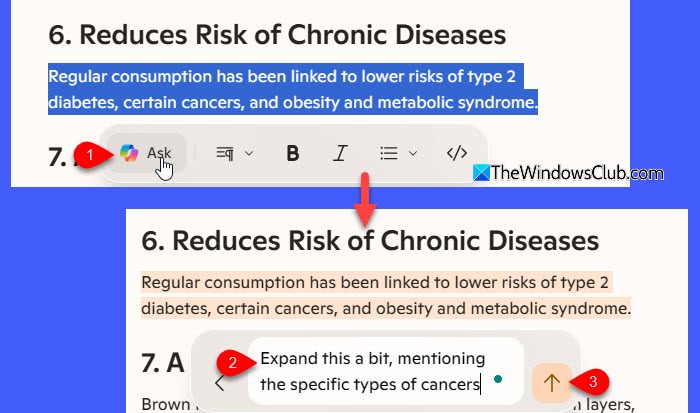
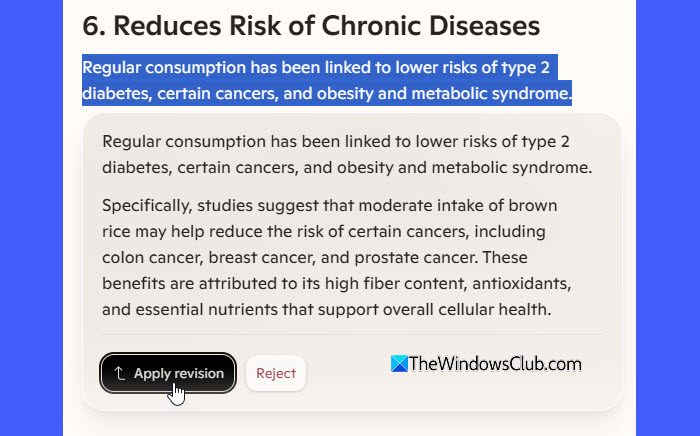
Copilot analyzes your input and provides suggestions. When suggestions appear, choose Apply revision to accept or Reject to discard them.
In the Windows desktop app, the Ask button stays fixed at the bottom of the page and does not respond to highlighted text. Clicking it simply redirects your cursor to the Copilot chat panel on the right, where you must manually describe what you want Copilot to do.
Delete a Page
You can easily delete a page in both the web app and the desktop app, though the method varies slightly.
In the web app, open the page title and click the trash can icon at the top-right corner of the page. Confirm deletion when prompted.
In the Copilot desktop app, hover over the Page you want to delete in the left panel. Click the three dots (⋯) that appear next to the Page name. Then, select Delete page from the menu.
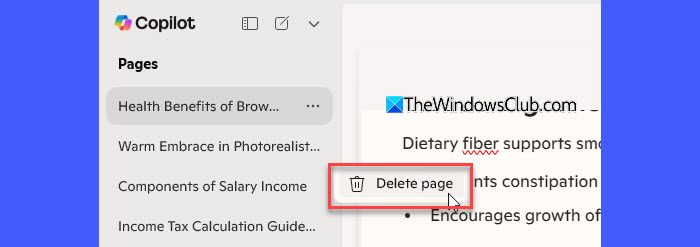
Deleted Pages are permanently removed, so make sure you no longer need the content before deleting it from Copilot.
Share a Page
In the web app, click the Share icon at the top-right corner of the page. This opens a panel where you can generate a view-only link. Click Copy Link to copy it to your clipboard. You can then press Ctrl+V to paste the link in a chat, document, or email for sharing.
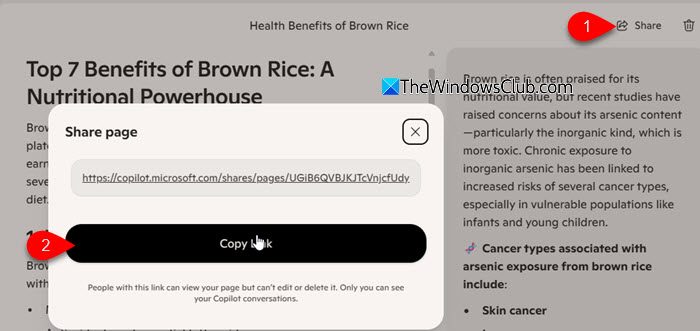
Note: The Share feature is currently only available in the web version of Copilot. It is not yet supported in the desktop app.
That’s it! I hope you find this useful.
Read: How to create video with Copilot AI.
How do you use Copilot in Windows 11?
Using Copilot in Windows 11 is simple. Launch the Copilot desktop app and start a conversation with the AI using natural language. You can ask questions, generate summaries, or create content. You can also use the Pages feature to draft and organize your content with Copilot’s assistance.
How to enable Copilot pages?
Copilot Pages is already being rolled out for free by Microsoft, so there’s no setup required for most users. You simply need to check how you can access it. It’s available either through the Copilot web app (at copilot.microsoft.com) or via the Copilot desktop app on Windows 11. Just open a new or existing Page to start working on it.
Read Next: Best Copilot Tips and Tricks you should know.
