
Microsoft is deeply integrating AI into Windows 11, most visibly by adding AI-powered actions to the File Explorer’s right-click menu. These new options, designed to summarize or edit files with a click, promise a smarter workflow but can also feel intrusive. Whether you’re concerned about privacy, prefer a clean interface, or don’t use the features, you have the power to control them. In this guide, learn how to enable or disable AI Actions in the Explorer Context Menu in Windows 11.
Enable or Disable AI Actions in Explorer Context Menu in Windows 11
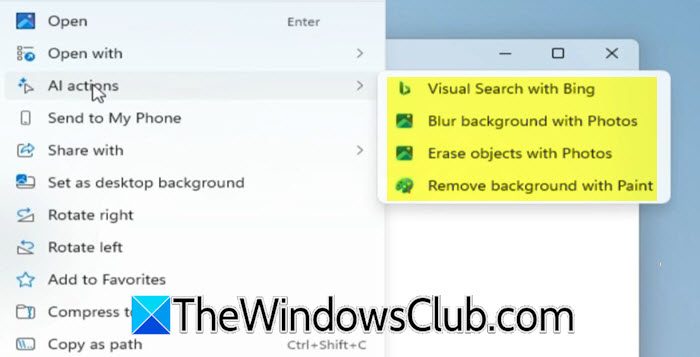
The AI Actions feature in File Explorer integrates cloud-based artificial intelligence directly into Windows 11’s right-click menu. It offers context-sensitive options, such as Edit with AI for images and Summarize for text documents (only for Microsoft 365 Copilot subscribers), based on the selected file. This allows you to perform complex tasks without opening dedicated applications, creating a more seamless, intelligent workflow right from your desktop. In the AI Actions feature, you get the following options.
- Visual Search with Bing
- Blur background with Photos
- Erase objects with Photos
- Remove background with Paint
Currently, the AI Actions feature only provides options to enhance image files. The AI Actions menu appears only when the user right-clicks on .JPG, .JPEG, and .PNG files.
Enable or Disable AI Actions in Explorer Context Menu in Windows 11
The AI Actions feature is included in the Windows 11 25H2 feature update. To access this feature, you need to install or upgrade to the latest version of Windows 11, specifically the 25H2 or later Update, on your computer system.
After installing the new Windows 11 version on your device, you will have access to the AI Actions feature in File Explorer.
If you have installed or upgraded to the latest version of Windows 11 on your device and do not like the new AI Actions feature, you can remove it from the context menu.
Follow these steps to disable or remove all unwanted AI Actions options from the File Explorer context menu.
- Hit Win + I to open Settings on your computer.
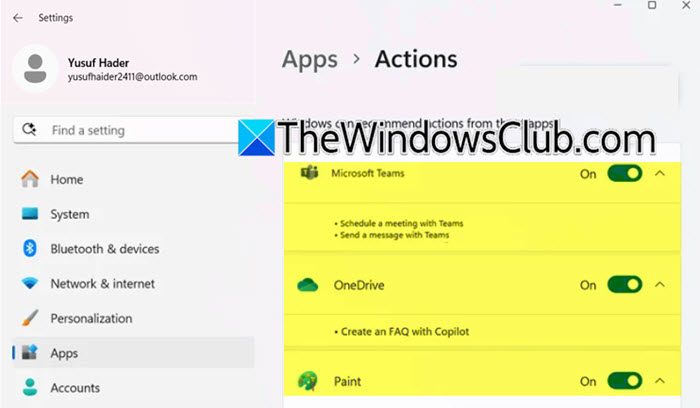
- Now, you need to navigate to the Apps section, then click on Actions.
- Go ahead and disable unwanted apps presented to you.
- On that page, you will see the following options.
- Describe image (System)
- Paint
- Photos
To remove an app from the AI Actions menu, turn the toggle button next to it to Off. If you want to remove all AI Actions options, set all the toggle buttons to Off.
Disable AI Actions via Registry
If you want to deploy the changes for a wide range of users, you can try making the changes using the Registry Editor. First of all, create a backup of the Registry, as that can be restored if anything goes haywire.
To disable AI Actions, hit Win + R, type regedit, and hit Enter to open the Registry Editor. Then, navigate to the following location.
HKEY_LOCAL_MACHINE\SOFTWARE\Policies\Microsoft\Windows
Right-click on the Windows key, select New > Key, and name it Explorer. Then, right-click on the new Explorer key, select New > DWORD (32-bit) Value, and name it HideAIActionsMenu. Click Ok, close the Registry Editor, and restart your computer for the change to take effect.
When making this change, it’s important to know how Windows handles policy keys. The HideAIActionsMenu DWORD is a switch: setting it to 1 hides the AI Actions menu completely. Setting it to 0 will restore the menu. Since this setting is under Policies, it affects all user accounts on the computer. If you’re an administrator, you can easily share this change across multiple devices. You can export the updated registry key as a .reg file and import it on other systems, or use enterprise tools like Intune or Configuration Manager to apply it.
To re-enable it, either set the value of HideAIActionsMenu to 0 or delete the HideAIActionsMenu value and the Explorer key you created.
Read: Best Free File Manager software for Windows 11
Can you turn off AI features in Windows 11?
Yes, you can turn off most AI features in Windows 11. This includes disabling the prominent Copilot assistant from the taskbar and removing the new AI-powered actions from the File Explorer right-click menu. You can achieve this through the Settings app, by using the Group Policy Editor for Pro users, or by modifying the Windows Registry for direct control. While this allows you to create a more traditional desktop experience, it means forfeiting access to the integrated AI features Microsoft is promoting.
How to disable Share with Copilot Vision for apps opened in Taskbar on Windows 11?
Open the Copilot app, sign in and click the Account button on the sidebar, and then click open Settings. Now, under Copilot Vision settings, enable or disable Start Vision from app in taskbar for what you want. Restart Copilot.
Read: How to create your Windows 11 AI PC?
What is the AI in File Explorer?
The AI in File Explorer is a set of cloud-based tools integrated directly into the right-click context menu. It analyzes the file you select and offers smart, context-aware actions, such as Edit with AI for images or Summarize for text documents. This lets you do complex tasks with a single click, without opening a separate app.
Also Read: Use Copilot Vision on Windows 11.
