
Generally, a computer file can have multiple associated programs. A file type can be associated with default programs as well as different associated programs. Among the many associated programs, we may need to choose one to view the file contents. This is possible with the help of Microsoft’s Windows context menu option – “Open with“.
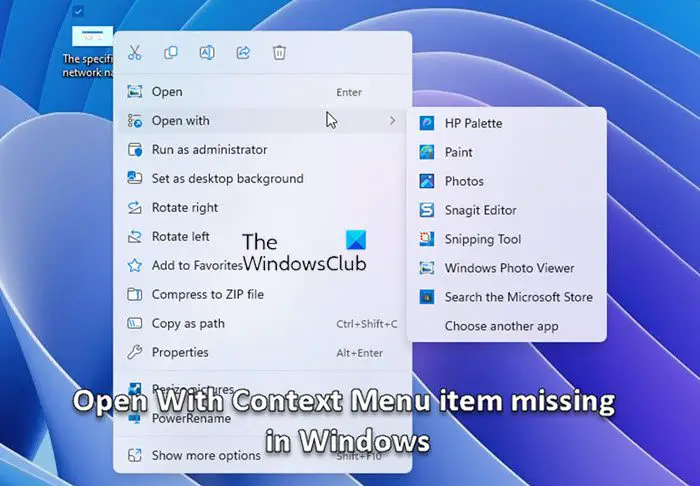
The “Open with” item allows Windows users to choose the program they want to open a particular file with. If the ‘Open with’ context menu item is missing from the File context menu, this post shows how to restore it to the right-click menu in Windows 11/10.
All of us predominantly use “Open with” feature to open a file associated with multiple programs. Generally, we right-click the file and click on “Open with” option in the file context menu. When all is said and done, we choose the suitable program to view the file contents. The file can be any type of video, music, pictures or anything else.
Open with option missing in Context Menu of Windows 11
However, some Windows users have found the “Open with” option missing from the file context menu when they right-click a file. This uncanny problem of the “Open with” menu missing on the computer can occur due to the corrupt Registry. In a sense, the problem may occur if the key associated with “Open with” is corrupted from the ContextMenuHandlers key in the Registry, eventually disabling the “Open with” option on a system. However, if the “Open with” option is greyed out from the file context menu, you may want to create a new user account profile as the issue may mostly occur if the user profile is corrupted.
In order to resolve the issue, you may want to tweak some Registry key value. In this article, we guide you on how to restore the “Open With” option back to the file context menu in Windows 11/10.
Change the Registry values for the ContextMenuHandler
Note that before making any changes to the values in the registry, you need to back up the Windows Registry. Additionally, make sure you have the required administrative privileges to modify the registry key values.
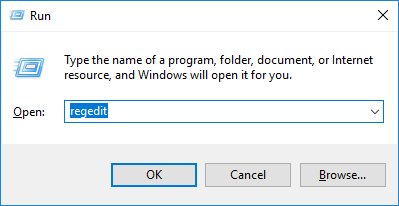
Open the Run by pressing Windows key + R. Type the name regedit and click on Ok.
In the Registry Editor window, navigate to the following key path
HKEY_CLASSES_ROOT\*\shellex\ContextMenuHandlers
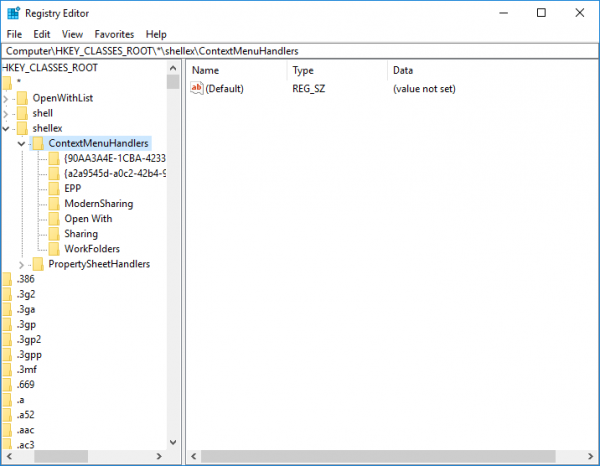
Double-click on ContextMenuHandlers and expand it.
Search for and locate a key named Open With. If the key name is not found you need to create one.
To create a new key, right-click on ContextMenuHandlers and click on New from the drop-down menu. Then click on Key.
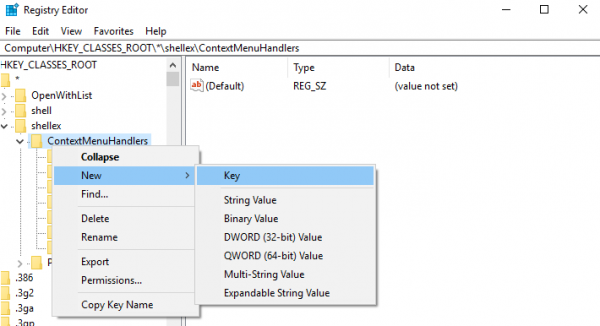
Give the name of the key as Open with.
If the “Open with” key is present in the left pane, you will see the Default value in the right pane.
Once the Open with Key is created or found, click the key, then double-click the Default string value.
Set the value data to:
{09799AFB-AD67-11d1-ABCD-00C04FC30936}
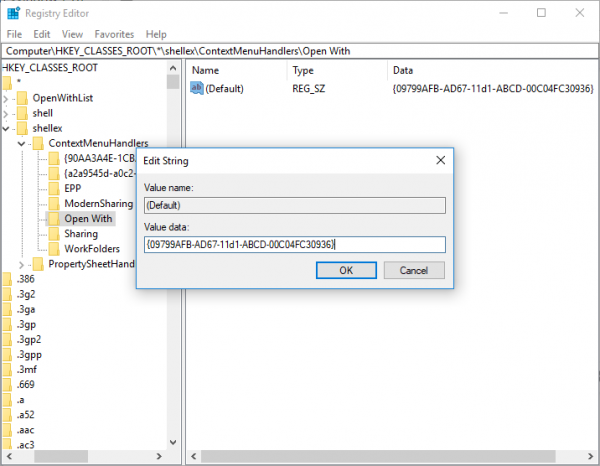
Click on OK to apply the changes and close the Registry Editor.
Now check if the problem has been solved or not.
Read next: Add or remove Open With on Context Menu for BAT or URL files.
